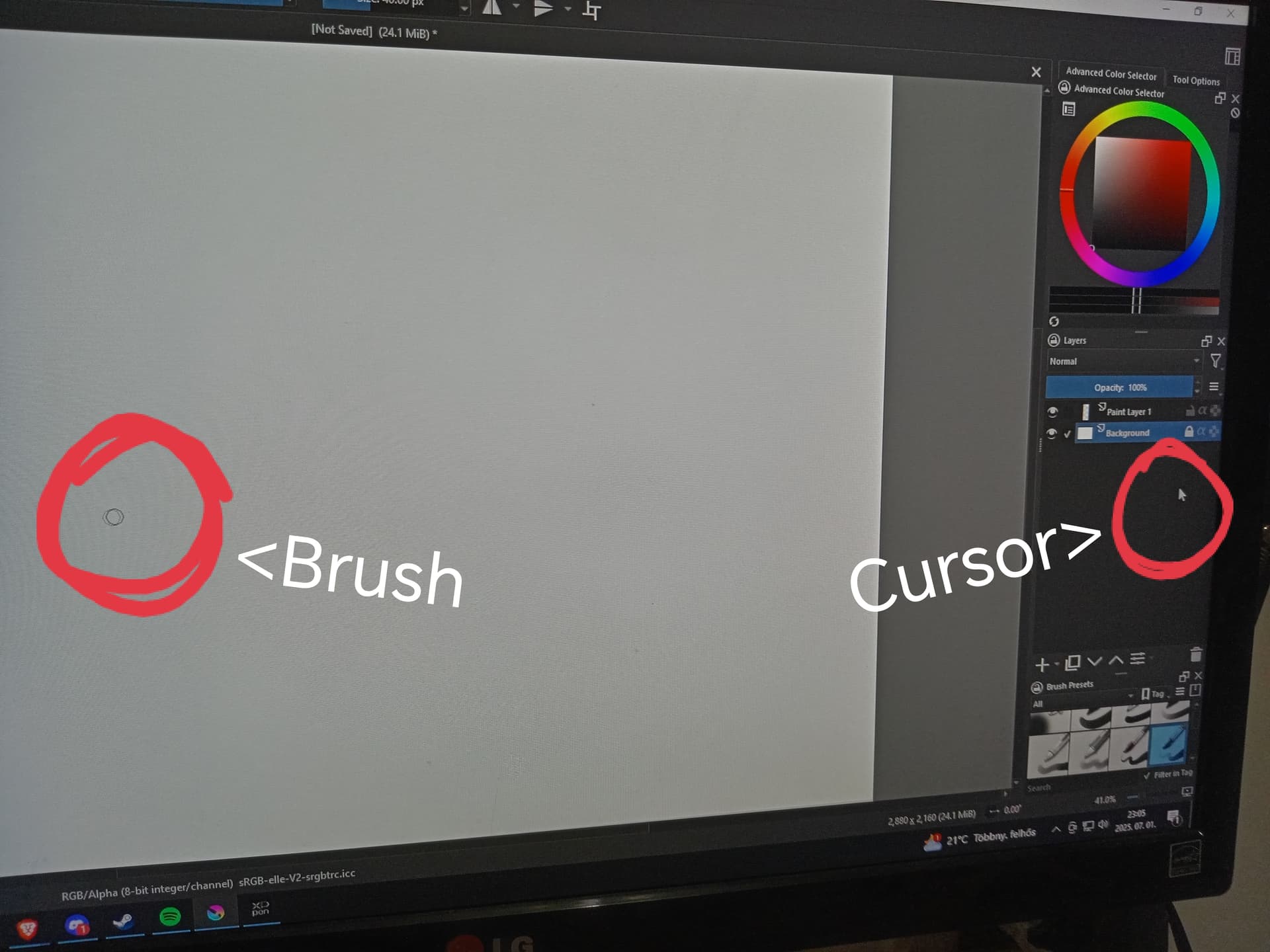
My Krita won’t let me draw on the canvas, even if I minimize the tab. YET if I pull my cursor in and don’t make sudden moves, or don’t take my pen off the tablet, it works.
I am currently working on my partner’s PC, which is Windows and yes, I have the latest version of Krita. The PC has 16GB RAM, 3.70GHz processor.
I also use a Drawing tablet: XP-PEN Star G640 (I tested it, Krita recognizes it.)
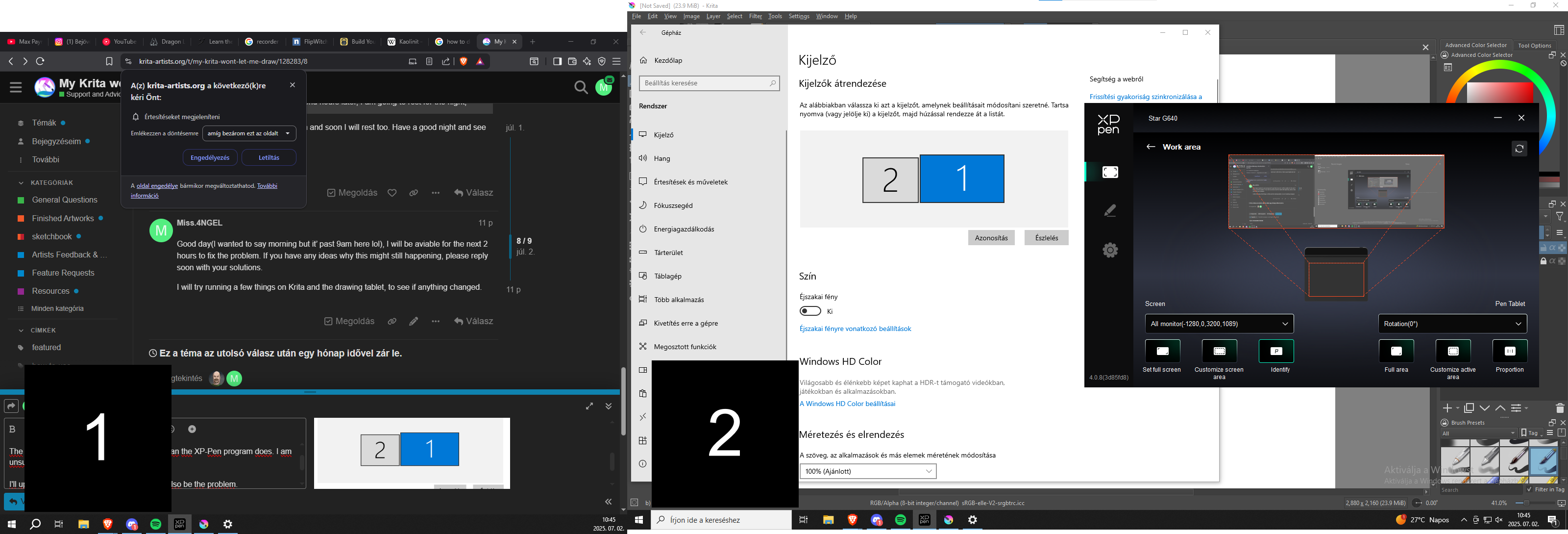
The PC has two monitors (working on the one identified as 1st).
Try the keyboard shortcut CTRL + SHIFT + A to see if you may have an active but not noticed selection.
Also, check the Layers Docker and see if the layer you want to paint on has a closed padlock symbol.
If these tips did not help, then please post a screenshot from your full Krita window, including anything belonging to that window.
Ah, that photo is worth gold, now we seem to be on the right path!
Okay, then you probably have installed the driver “XPPenWin_4.0.8.250305” from 21st March 2025.
Did you additionally install the firmware update “Star G640 firmware(20200601)” XP-PEN offers on the same page (at least on their US homepage)? If not, please do not immediately install it and let us try something. If really needed, it can be installed later.
Can I assume that you have set up your working area on the monitor you use for painting with Krita? Correct?
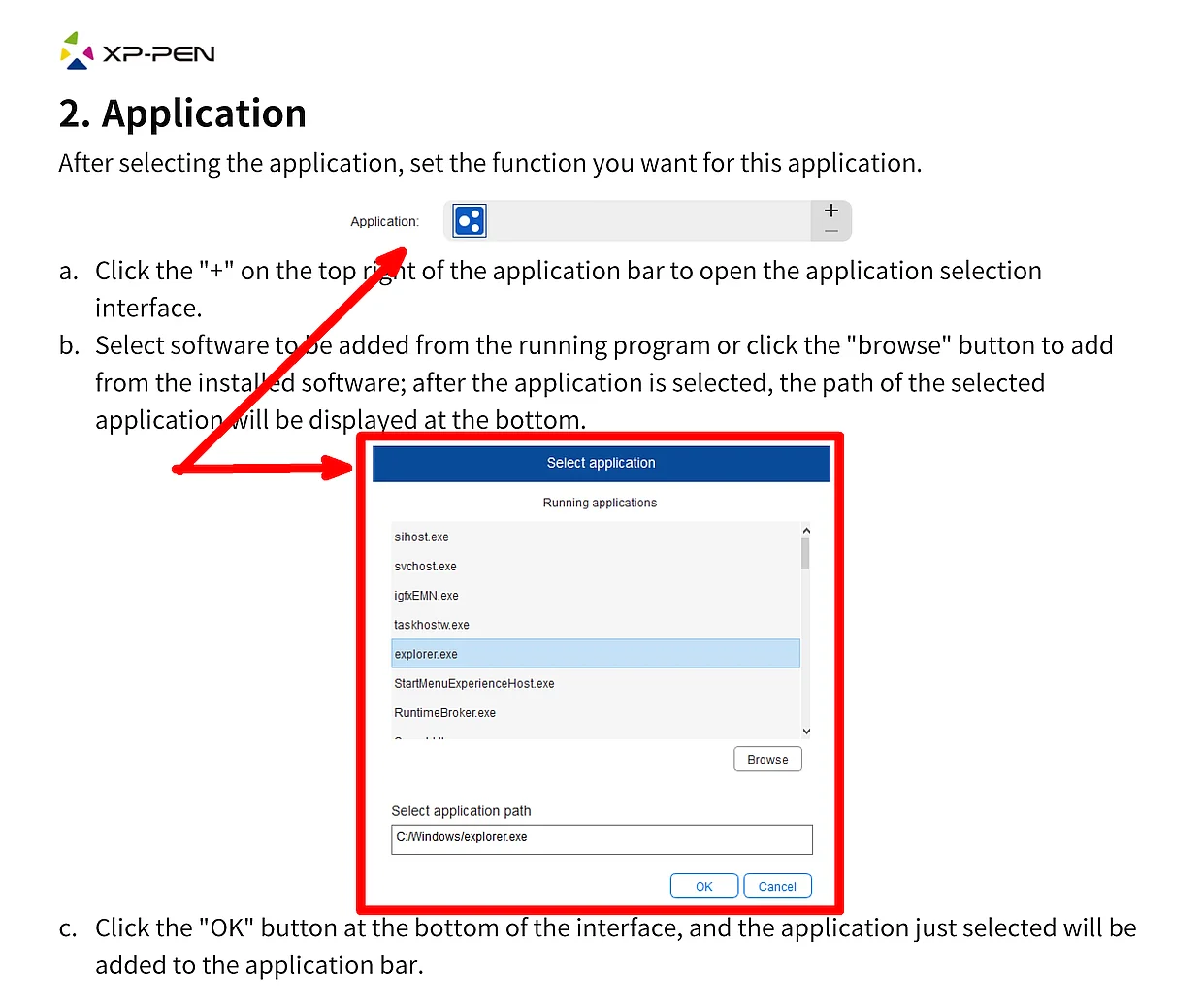
Next, to set up your driver correctly, you have to start Krita, then in your driver is an option to select “Applications” from a drop-down menu, please open that drop-down menu and select Krita from the list of programs shown.
Unfortunately, the manual is very sparse, and the images don’t show much of the driver’s user interface, only “excerpts from the driver interface,” so I can’t tell you where to look for a setting called “Enable Windows Ink” or something similar. Please look for this setting in your driver and disable it. This setting is usually found in the stylus settings; it is also mentioned in the manual under stylus settings, but it is not shown.
After disabling it, you have to open Krita’s menu Settings → Configure Krita → Tablet Settings and there set the dot in front of WinTab, then confirm that setting with the OK-Button in the lower right corner of that dialog and restart Krita.
Theoretically, you should now find your cursor at the nib of your stylus.
Thank you for the information, yet only one part of the issue was resolved.
It does follow the cursor, but unfortunately when I lifted my pen from the tablet, the brush froze in place, not following the cursor any longer, unless I went to the edge of the window with the cursor, then back into it. Not changing windows or anything, just slightly going outside of it.
I want to appologize if I might respond hours later, I am going to rest for the night, coming back to try any suggestion you might have about fixing the problem.
Good day(I wanted to say morning but it’ past 9am here lol), I will be aviable for the next 2 hours to fix the problem. If you have any ideas why this might still happening, please reply soon with your solutions.
I will try running a few things on Krita and the drawing tablet, to see if anything changed.
That MS Paint works will be because it runs best with Windows Ink setting set, which will be pre-selected, but Krita runs best using WinTab.
Have you got a manual with your tablet that corresponds with the view of your driver’s look and feel, and if so, can you upload it to a cloud space of yours and publish the link to your manual here? The thing is, that the most recent manual, from Jan 05, 2021 PM 16:17, XP-PEN offers here Star G640|Drivers Download | XPPen is now 4 years old, and the UI in your screenshot looks completely overhauled in between. This could help me, helping you better.
And I have to admit, I’m currently out of ideas because the manual I got is not helpful (and this is probably only because XP-PEN saved a few bucks on creating this incomplete manual), what’s not your fault, but in situations like yours, it is an obstacle.
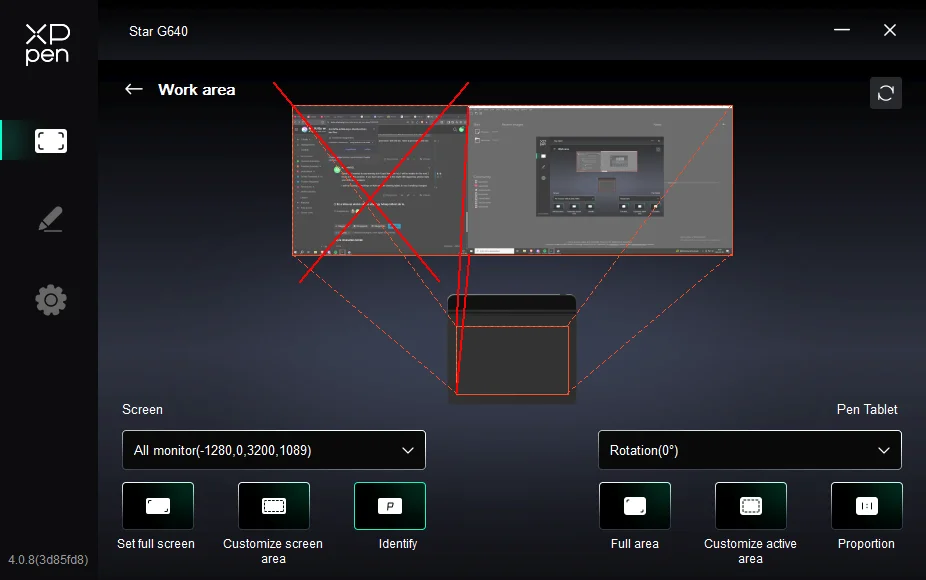
One thing I would not do, is to set up the working area the way you did. This way, you lose (waste) a lot of drawing space on your tablet, and lose precision too. But that has not to do with your issue.
That it works in paint does not necessarily mean it’s an issue with Krita. One thing that strikes me is that your tablet is mapped to both screens combined except just the one Krita is on, this is not good.
I put the tablet into the topic title, hopefully that attracts someone with the same or at least who uses the same brand. Unfortunately I’m a Wacom guy so I’m probably of little help.
Have you checked if krita’s tablet tester recognizes it correctly at least?
That is the driver, or does it install the manual along with the driver? The thing is, I can not install your driver only to get an embedded manual from it.
 Hello
Hello