Type of device* : Pen display
Brand and version of the device: Wacom 1 pen display / Asus Vivobook laptop
System** : Windows 11 version 22H2
* graphics tablet/display tablet/2-in-1 laptop/Android tablet
** Windows/Linux/Mac/Android, + version (you’ll find it in Help -> Show system information for bug reports)
Description of the issue (you can include screenshots): I calibrated my pen on the Wacom settings app a few times, restarted my laptop, switched a pen nib and my pen still isn’t properly calibrated on the canvas itself in Krita, despite it working just fine on any other app or site.
The cursor is about 5 cm higher on the screen from where I’m actually hovering the
pen.
Please open your driver (I think it is Wacom Control Center), and if you have not done it so far, create an own profile for Krita. The next thing, search for the setting “Windows Ink”, usually this is a checkbox, and disable it if it is enabled.
Confirm these settings in the way your driver requires it and try again if it now works with Krita.
If it was already checked, then please open Krita’s Tablet Settings and set the radio-button for ‘‘WinTab’’, confirm this setting with the OK-Button and restart Krita. Try again if it now works with Krita.
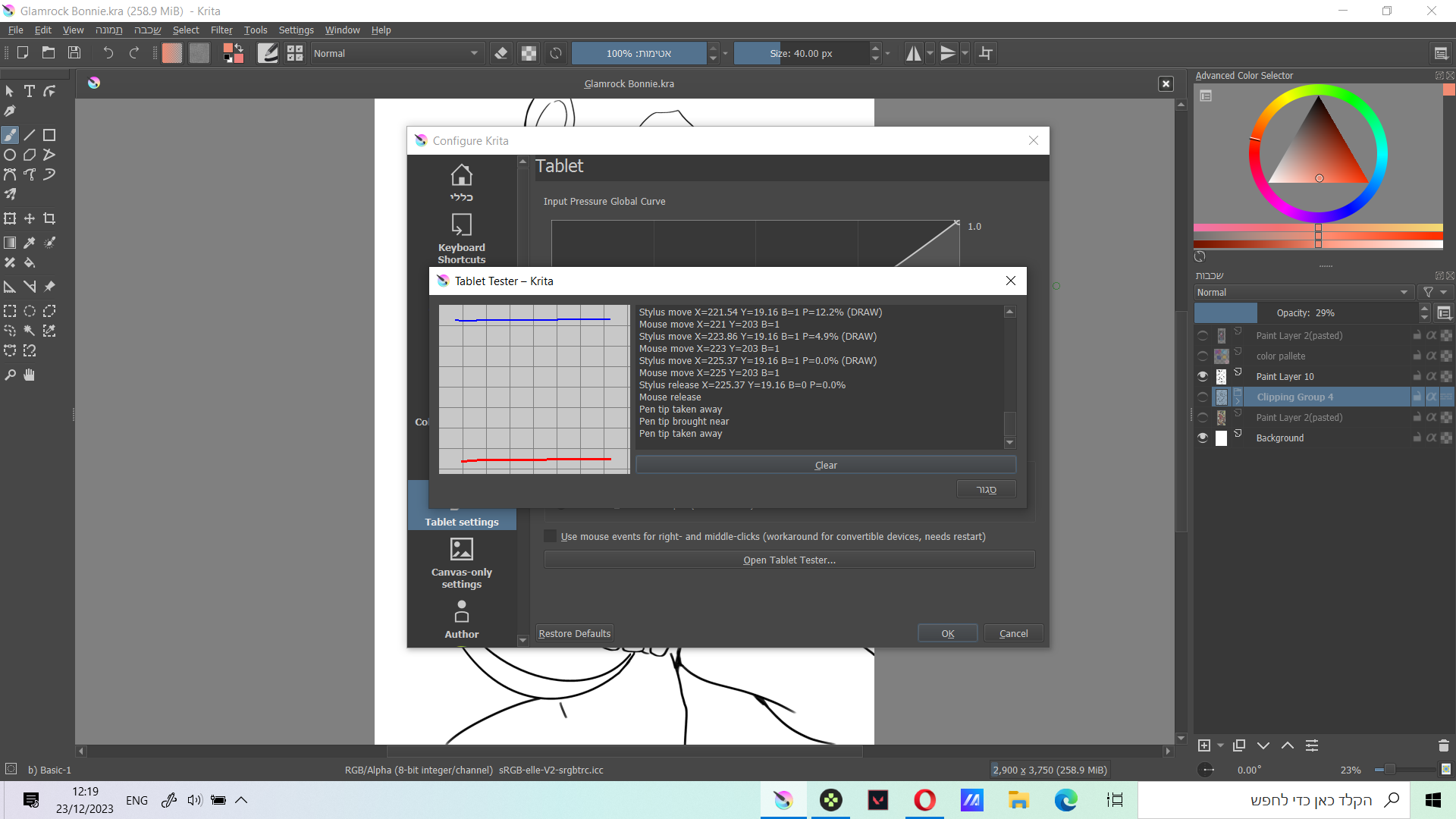
The mixed stylus and mouse signals from the tablet (via the driver and OS) are not uncommon on Windows systems but they are usually the same coordinates.
The stylus signal position is vertically higher (lower y value) than the mouse signal.
It sounds like the tablet is putting out a mouse signal corresponding to the tablet calibrated position of the stylus but is also putting out a stylus signal higher than this and krita is acting, on the canvas, in accordance with the stylus signal.
While you’re in the tablet driver/setting utility, check that it is set to Pen Mode, not Mouse Mode as well as the advice by @Michelist above.
Is the offset you notice a constant offset or does it vary as you move up and down the tablet?
It’s likely that your laptop screen is a different size/aspect ratio to the Wacom tablet so if the previous suggestions don’t work then try swapping the displays using the Primary/Secondary screen settings at the Windows OS level.
 Hello
Hello 