Need help installing and using templates

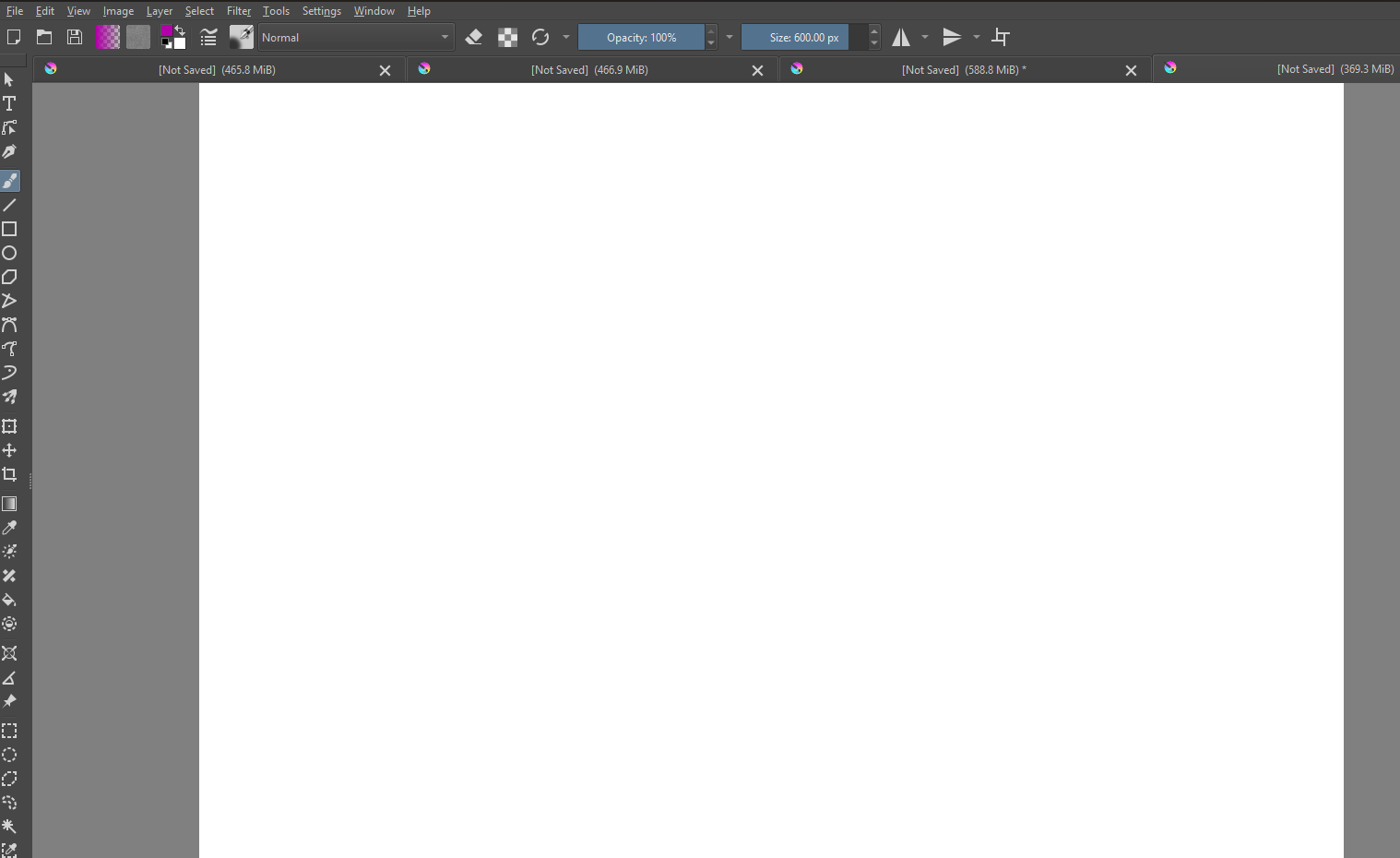
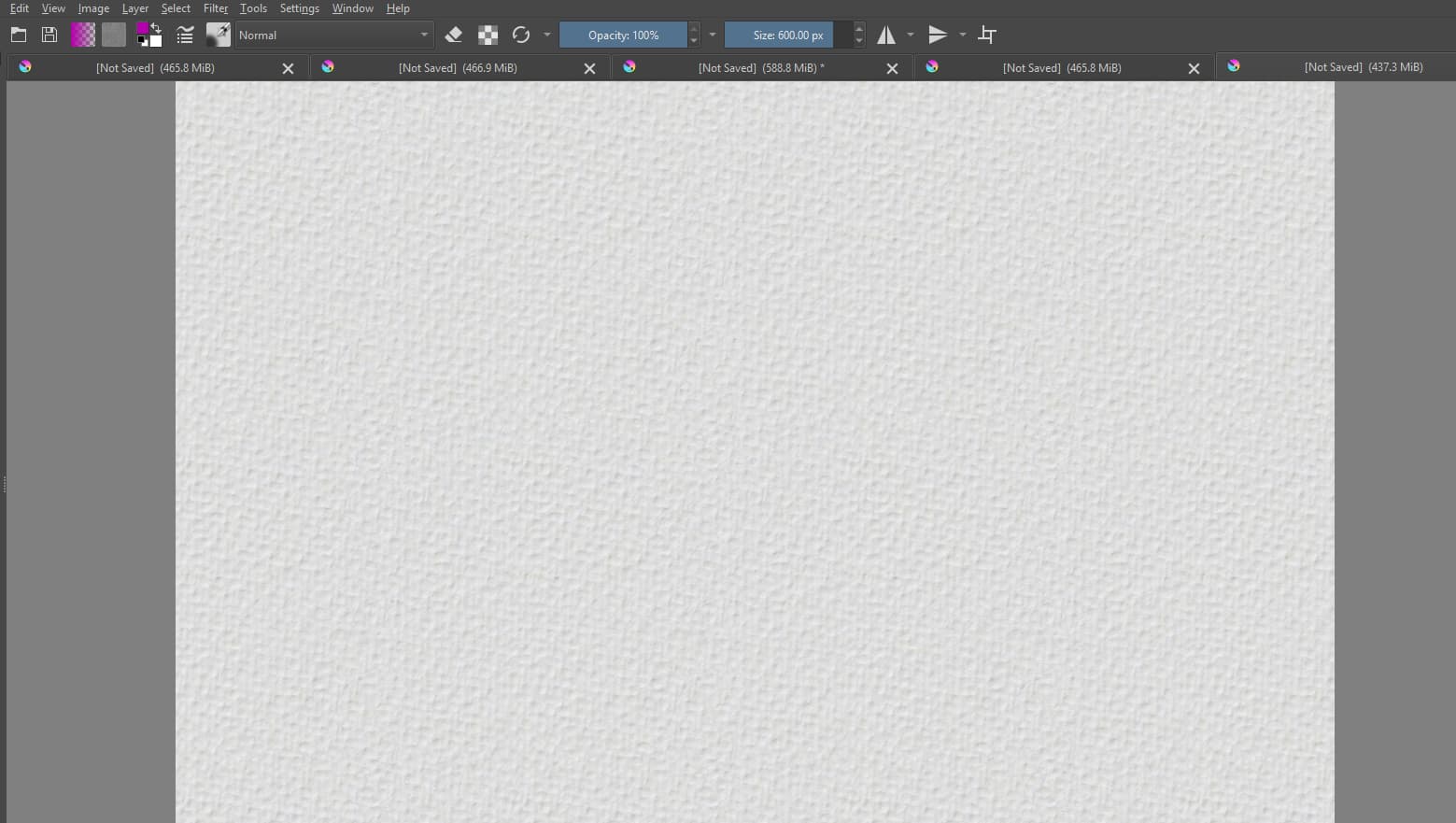
Couple of weeks ago, I searched around for paper textures and spent many hours trying to make them seamless but unsuccessful. Yesterday I was so happy to see Ramon’s 12 paper templates and spent a few hours downloading and installing but many templates did not display properly. I’m in tears… I downloaded the files to my PC and laptop (Window Operating System), I tried on both but the problem is the same. Only 4 paper templates displayed properly, the rest displayed blank white page:

  • Displayed properly:
    Paper 02 Sketch Basic
    Paper 05 Bumpy Micronoise
    Paper 06 Miicronoise
    Paper 12 Regular

  • Displayed blank white page:
    Paper 01 Pastel
    Paper 03 Drawing
    Paper 04 Drawing softly
    Paper 07 Wally
    Paper 08 Cold Press 1
    Paper 09 Cold Press 2
    Paper 10 Rough
    Paper 11 Variant from edge

My operating system: Windows 11 Pro


Paper Template: Cold Press (Blank page)

Paper Template: Regular

Please help me…

Could it be that your image is simply gigantic? Because some textures are so fine grained that they may appear as white when the image is huge and the zoom is far out. Unfortunately I can’t tell because your screenshot’s are missing half the interface. Additionally when your monitor is too bad to show subtle value and hue changes, this also will affect how the texture looks, and the whole image too.

Imagine taking a piece of paper and looking at it from 5 meters away, you won’t be able to see the texture anymore unless it’s a very rough paper. You face the digital equivalent of this. One way to solve this is to change the texture scaling another is to use a smaller canvas.

Also you write templates but do you mean patterns/textures? Because templates are pre-made Krita project files and that doesn’t sound like what you want.

:slight_smile: Hello @mrsleitan, and welcome to the forum!

Did you download and install the bundle¹ that is in the folder the YouTube link sent you?

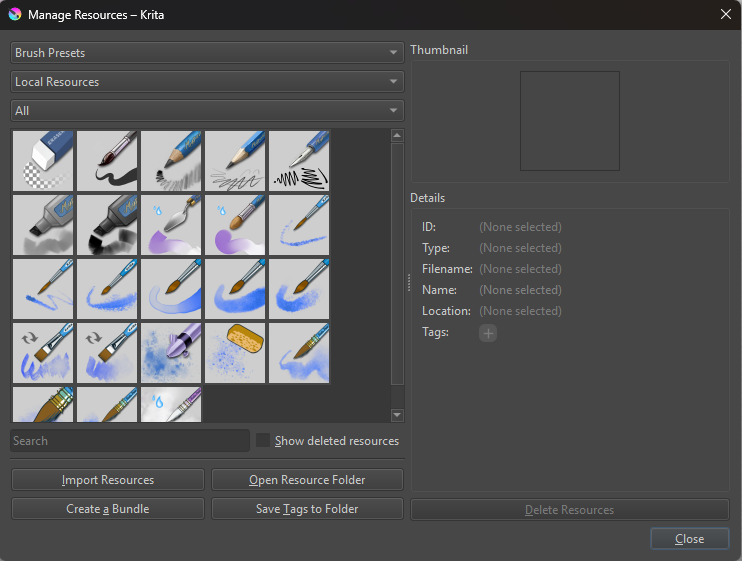
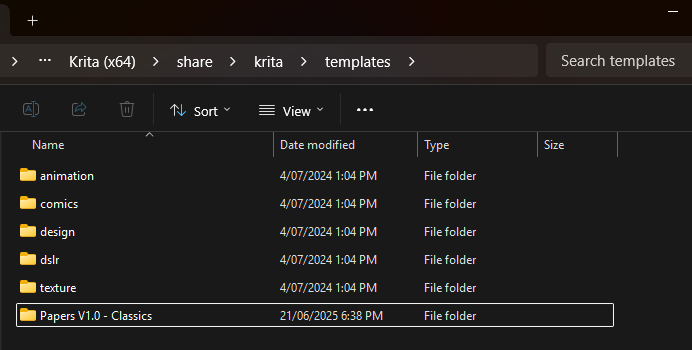
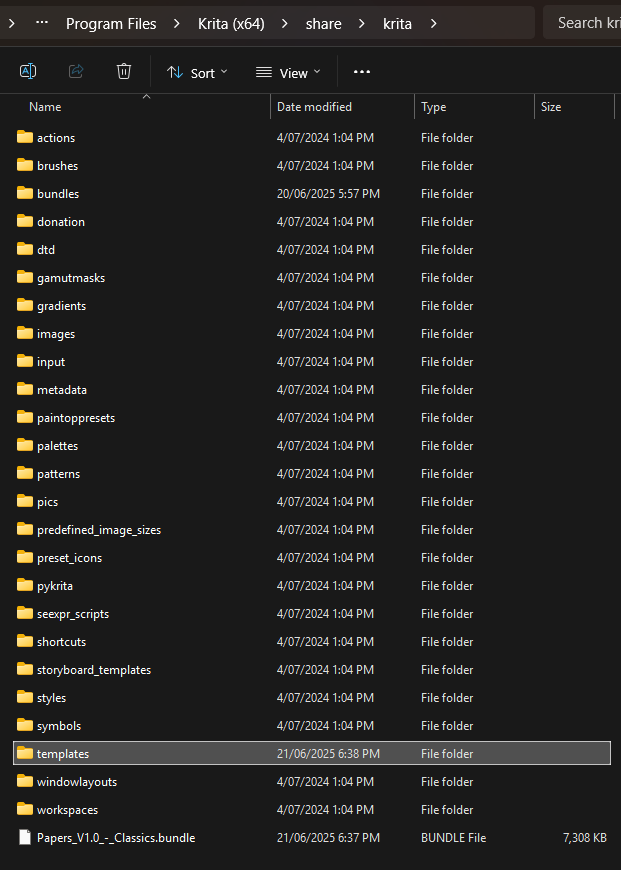
After installing the bundle, you simply had to do the following in Krita → open the menu ‘‘Settings’’ >> ‘‘Manage Resources…’’ in the opening dialog click on ‘‘Open Resource Folder’’, that will open a file manager dialog which will open in Krita’s resource folder (and if you dislike that way, alternatively this folder is also found when you enter %APPDATA%\krita\ in the Explorer address bar and hit enter), in the resource folder you simply had to copy the folder, you just unzipped and put falsely in Krita’s installation directory before, into the folder templates, which is meant to be a failsafe fallback to restore deleted resources.


If you had followed my little tutorial² on installing this, :wink: you won’t have this issue, but okay, I wrote it of course after @RamonM published his video.


But why on earth are you messing around in c:\Program Files\Krita x64)\share\krita\templates\? There is a very good reason that you should work only as a standard user under Windows (and every other OS), and that standard users are disallowed to enter any folder under c:\Program Files\ is for the same reason, they don’t have to be there and usually can only make things badder than they are.

Michelist

¹ A bundle is installed in Krita via the menu ‘‘Settings’’ >> ‘‘Manage Resource Libraries…’’ and in the opening dialog you have to click the button + Import in the next dialog browse to the downloaded bundle, select it and confirm the selection. Now Krita imports that bundle, and you can use its content, so the brushes in case of this bundle.
In case this BUNDLE comes in an archive-file, like ZIP or RAR for instance, then you have to unpack the archive to get the BUNDLE-File it contains, then you can proceed as described above.


² (this is an excerpt from another posting) By the way, if you are interested in more templates, @RamonM just published a pack of twelve new canvas templates named “Papers V1.0 - Classics to get via Krita’s YouTube-Channel where he presents them in a new video. There you have to enlarge the video description with a click on more and follow the link below “DOWNLOAD: TEMPLATES :”, then you need to download at least the bundle and the ZIP-File.
To install the Papers V1.0 - Classics, you need to install the bundle → then unzip the archive → in Krita do SettingsManage Resources... there click on Open Resource Folder → in the now opening dialog (a file manager window) copy or move the whole unzipped folder Papers V1.0 - Classics into the folder templates → restart Krita and find the templates in the new Group called Papers V1.0 - Classics. Happy painting!

It can’t be better explained. Thanks mates!
I have tested very well and i give the right path in the video. No idea why use another one.

Thank you Michelist! You are fantastic! Your suggestion solved my problem, now all the paper templates displayed properly. I am so happy!

In the Youtube video, Ramon instructed to open the Resource Folder, I manually searched for the Resource Folder and could not find it, so I did a Search and found similar folder structure in the pathway: Program Files > Krita (x64) > Share > Krita. I copied and pasted the files here thinking it’s the Resource Folder, but templates did not display properly.

Now follow your instructions to Open Krita > Settings > Manage Resources > Open Resource Folder > copy and paste the files here… problem solved! All templates displayed beautifully :slight_smile: Thank you very much!

One more question:

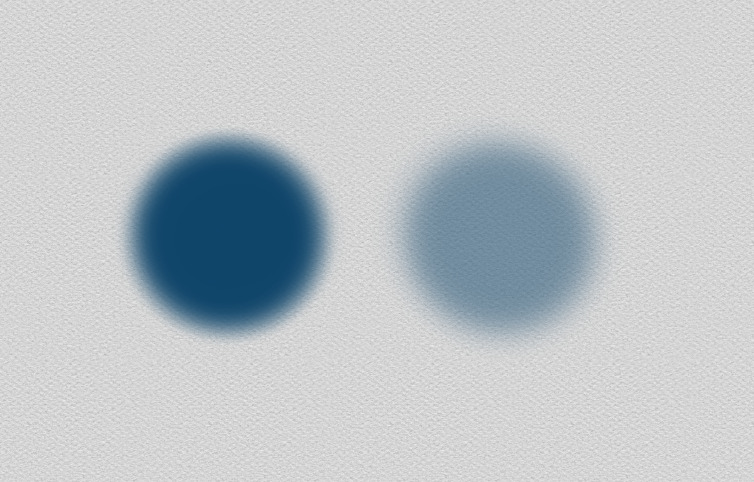
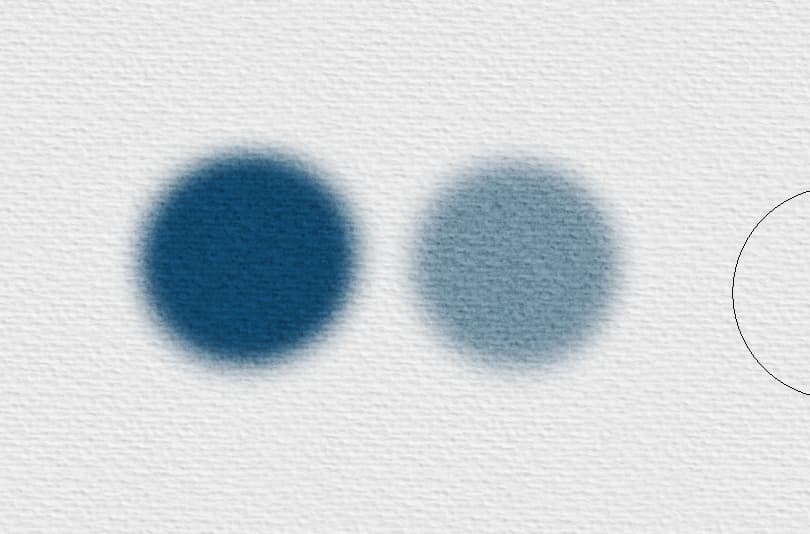
With the first 6 paper templates, where I paint I don’t see paper texture. I have to adjust the opacity of my brush in order to see the paper texture.

Whereas with the 6 watercolour paper templates, I do not need to adjust the opacity of my brush, I can always see the paper grains.

Is this normal? Is this what the templates suppose to do?

Last question:
How do I convert these 12 beautiful paper templates into Patterns? So I can simply insert layer > fill pattern > overlay? I much prefer this method :slight_smile:

Thank you very much!

If there is something in Krita you can not find, you should simply hit your keyboard … :hammer: ahh, sorry :backhand_index_pointing_right: … and try to point at the button F1, funnily this is the button that per an ancient agreement is defined to give users in need of it the one thing they need: HELP, and so every software that follows good coding practices opens up its Help-Function for you when you press that key.
So, when you press F1 in Krita, it will open your browser and shows its manual, and a search for “Resource Folder” would bring up some hits, where I would have chosen:


It seems you use an airbrush¹, and if that is the case, an airbrush will do in Krita what it will do with real paper, it fills up the paper’s pores so quickly that you won’t see its pores anymore very soon.

And since @RamonM tries to create media that not only resemble reality but also behave as realistically as possible, his papers usually behave like real paper and his brushes like real brushes. At least those that he has modeled on reality; he also has “digital” media in his repertoire.

Better try it with pencils, these are a traditional medium that is used for sketching, I would recommend trying those Krita ships with or go for @RamonM’s bundle Sketch V2. (SK2) Pleasure to draw. Including colored pencils and blenders, which is at least one of the best sets of pencils you can get, and I’m very sure you will get a result that corresponds with what you may remember from sketching with pencil and paper back in the days.

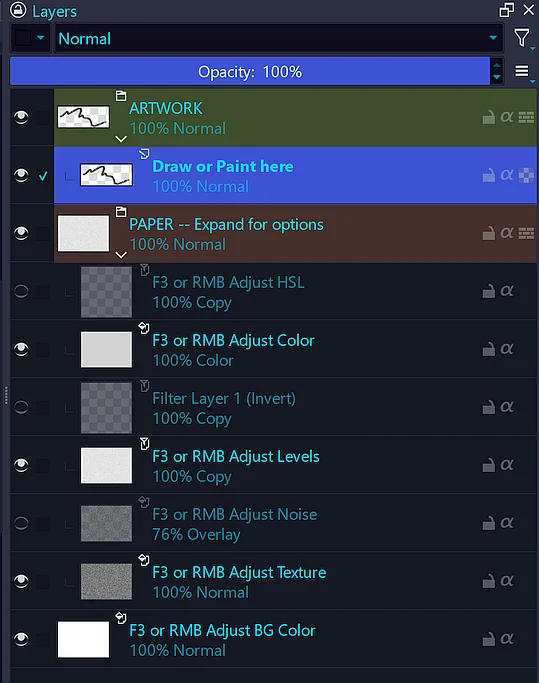
Furthermore, you can adjust, but only to a certain extent, how intense these papers show their texture:

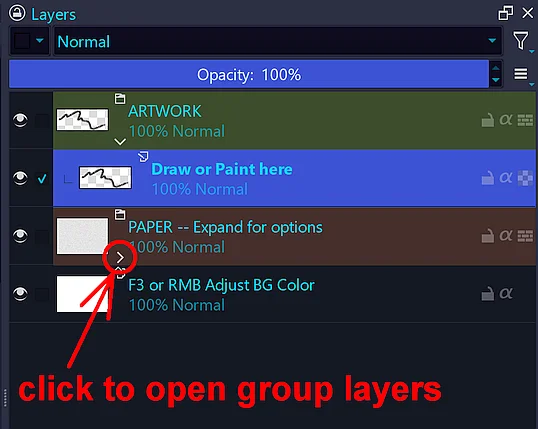
to open a group, click on this sideward pointing arrow symbol:

Here are the options revealed, if you want to play with them. It may be a good idea to load the template and directly save it under a different name BEFORE you manipulate the settings, to not ruin the original:

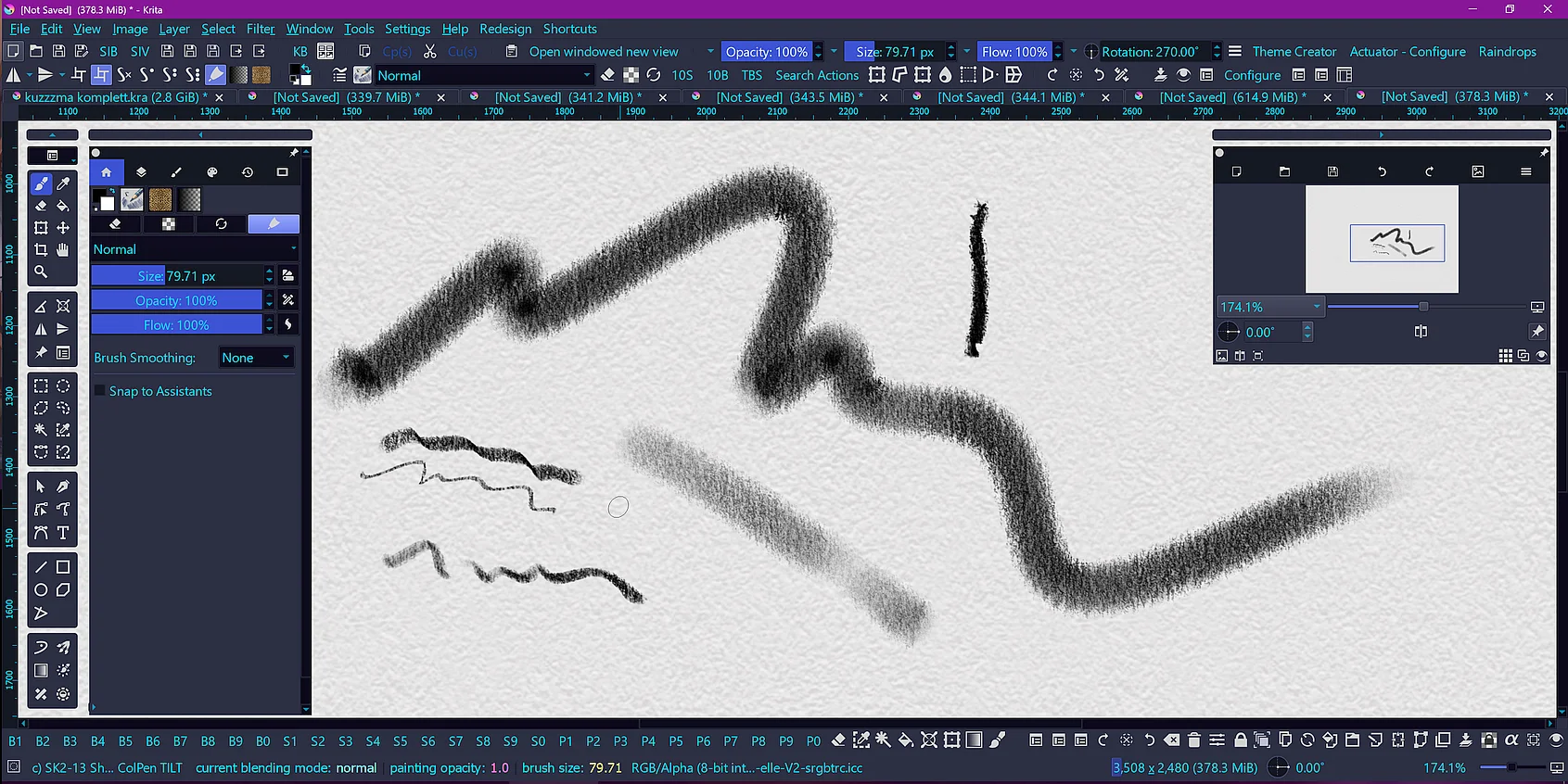
And how a few different of the SK2 pencils look, please take into account how much the canvas is magnified:


You can use the original patterns from the bundle you had to install at first. So, you will find them already in Krita when you open your patterns docker and search for. But that is in their “raw” state, without the settings @RamonM applied:

Paper 01 Pastel HoneyComb 1024px
Paper 02 Sketch Basic 1024px
Paper 03 Drawing 1024px
Paper 04 Drawing Softly 1024px
Paper 05 Bumpy Micronoise 1024px
Paper 07 Wally 1024px
Paper 08 Cold Press 01 1024px
Paper 09 Cold Press 02 1024px
Paper 10 Rough 1024px
Paper 11 WaterC Variant from Edge
Paper 13 WaterC MachineLines
Paper 14 Grain Watercolor for template
Paper 15 WaterC Pesi Grain EQ

If you want them in the state you can now look at on your canvas, you could simply save them as patterns, but if the outcome is what you want I can not promise. And for using them as patterns, you should crop them to a smaller size, the issue herein will be to get them seamless, this can be a tedious work if you are not used to do this, or are trying to find out how to achieve that.

Michelist

¹ I’m also not sure if you are using a pressure sensitive stylus or a pressureless device like a mouse for painting, because your example pictures look very similar, just like blueprints.
Thank you so much Michelist for your detailed reply :slight_smile:
(I have a very basic Wacom tablet which I purchased back in uni. I did the dots with my mouse.)

Hi,Path above is exactly explained in the video quoted in the decription as a Card.

Let me explain some things to clarify why I do the templates as they are:

  • We have more control if we want to modify the paper
  • you can use that texture already in another document with a fill layer
  • Overlay can´t be used because you are in a higher range than 50% of lightness, so is going to alter the colors.
  • Also you can use the same pattern for paper and Brush (with a little fine tuning if you want) and that way mimics the paper interaction.
  • You can use this as it is in overlay mode because the patterns are blanced to not alter the content too much
  • Dry media doesn´t go inside the paper so the pigment is located above. So no WaterC especial FX here.

I hope this helps. Enjoy

@mrsleitan: Sorry for the late reply, but I had to put this answer on hold due to more pressing matters.

Thank you, you’re welcome!


And now, there are two things left, I want to ask you for, because it seems, that you, as a new user, haven’t internalized our forum rules so far:

  1. In the future, would you please post additional questions that do not belong to the topic of a thread in a new thread? This is a measure that helps to avoid clutter in a thread, and especially in longer discussions where no solution has yet been found so far, it helps to avoid confusion, as it is then difficult to tell which topic the respective answer belonged to.
    Also, this is what you are required to do, if you had followed our forum rules. I did not intervene here because your additional questions were relatively close to your original question, and because you marked the original question as solved, meaning that it had been concluded.

  2. Would you be so kind to mark this topic as solved? The button to do so is found below the postings in this topic. →

  • It is meant as a guide for users who have a similar issue, as a sign here could be help for them.
  • In addition, it shows other helpers that a solution has been found for the issue and that they no longer need to check whether help is still needed, allowing them to focus their attention on other tasks and help others.

Thank you very much.

Michelist

Ok done. I marked this topic as solved. Thank you all very much!