Hi so, before I get into anything, I use windows 11, use a wacom one, the version of krita I use is 5.2.3, I have already tried downsizing and already have the FFmpeg in the correct spot.(from what I can assume anyway) My singular issue is I’ve already tried looking at some of the forms on here and the one step i’m struggling with is renderer profile and how im apparently supposed to change it. However the instructions I’ve seen around here are very vague and confusing :(. All i am asking for is a clear specific step by step guide on how i can fix my issue with the speedpaint feature, the UI is confusing and I don’t know what im doing half the time when trying to fix the issue.
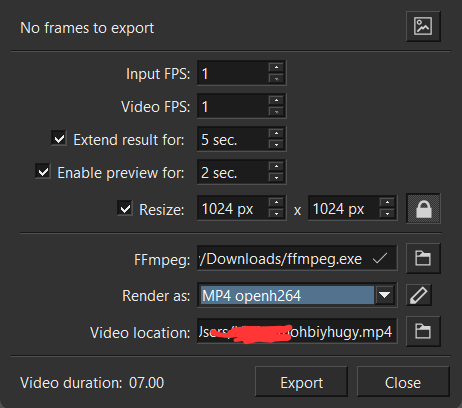

You should use the built-in FFmpeg which is in Krita’s system files (in the Bin folder).
See if that helps.
 Hello @spacer_s_ship, and welcome back to the forum!
This is the path to the inbuilt FFmpeg in Krita:
c:\Program Files\Krita (x64)\bin\ffmpeg.exe
Okay, it’s possible and can sometimes even be necessary, but usually you don’t set or change the predefined profile settings and stick with the default settings because you really need to know what you’re setting there, and if you don’t, you’ll mess everything up. But to know which switches to set, you have to study the FFmpeg documentation thoroughly, and that’s a very big chunk to chew on.
So it may be that you have to reset Krita to get the standard FFmpeg settings back, but because I don’t do timelapses I can not tell you the exact settings to chose, but most are fine with the settings Krita ships with.
Michelist
I tried that and it still isn’t working, it keeps giving me the “no such file or directory” message.
Can you doublecheck the name and location of the folder that contains the frames that FFmpeg will use to create the MP4? Make sure the location is correct.
(By the way, I’m changing the title from speedpaint to timelapse.)
It would be useful to set your Recording folder to be a folder on your Desktop.
Similarly, make the Exported timelapse video location be on your Desktop.
If you’re using One Drive, disable it completely.
Disable the Resize option to simplify matters.
The ffmpeg location you show is a bit unusual and suggests that you’ve taken ffmpeg.exe out of its original containing folder.
The associated ‘companion’ .exe files may be important.
It would be better to use the krita built-in ffmpeg as shown by @Michelist above.
Can you post a screenshot of the “no such file or directory” message?
Your first picture says at the top ‘no frames to export’ which means Krita can’t find any image files in the folder you have selected.
1 Like
Re. The observation by @Ralek: The Export Timelapse operation reads from a folder that is chosen based on the .kra image file that is currently open and selected in krita.
So did you have that .kra file open and had you created a timelapse record of painting in that .kra file when it was opened?
This topic was automatically closed 30 days after the last reply. New replies are no longer allowed.