Type of device* : Pen display
Brand and version of the device: Huion kamvas 22 plus
System** : Windows 11
* graphics tablet/display tablet/2-in-1 laptop/Android tablet
** Windows/Linux/Mac/Android, + version (you’ll find it in Help -> Show system information for bug reports)
Description of the issue (you can include screenshots):
I know this isn’t really Krita related, but what other forum knows lots of things about drawing tablets?
I have my laptop connected to my kamvas 22, duplicating the screen. (using it as a second, separate screen caused all sorts of issues). But every time I start my laptop, I need to calibrate the display. It only takes a few seconds, but it’s annoying. Is there a way around it?
Calibrate = open the huion app, go to working area - calibrate monitor and then poke those 9 dots so it knows where my pen is. Otherwise the cursor stays an inch or so at the side from my pen.
Also, is there a way to make my computer stop asking if the huion app is allowed to make changes on the computer, when I start it? I have it on auto start, and I have to allow it to run every time.
For your first question, I’m not sure to have an answer.
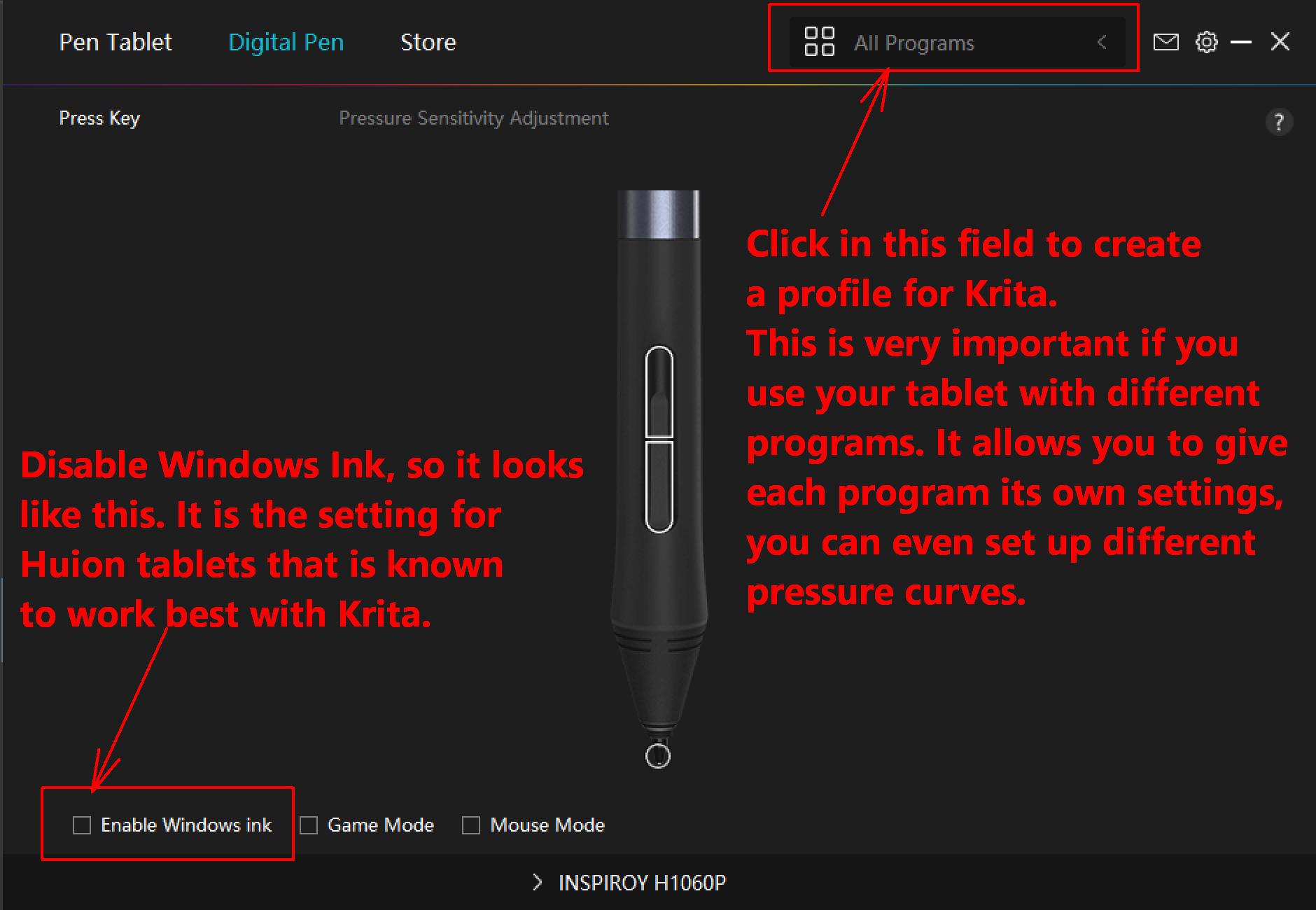
Have you created a profile for Krita in the driver application of your tablet? If not, do this first.
Then set up your driver for Krita, which usually means to map the Working Area to the whole display (the usually used option, I would use this) or only to the app to use, so here Krita. Then disable the use of Windows Ink on the Digital Pen tab of the Huion driver.
Where to set up a profile for Krita (and any app you use with your tablet) and where to disable Windows Ink is shown in this screenshot:
Then you need to enable the use of WinTab in Krita via ‘‘Settings’’ >> ‘‘Configure Krita’’ >> ‘‘Tablet Settings’’ and set the radio-button in front of WinTab, then confirm that setting with the OK-Button in the lower right corner of that dialog and restart Krita.
But if that helps to make your driver remembering its settings, I can’t tell for sure. It may be a good idea to go to the Huion website and to download the most recent driver you’ll find for your tablet and update to that version, since driver updates often fix known issues, maybe yours belong to these.
And for your second question, regarding the UAC-Prompt, there are solutions, but these will break a big security-hole in your system, and therefore I’m not spreading these ways to unsecure your system!
The problem herein is, as always such hints will be used, or at least it will be tried to use them, by users who do not really know what they do, and have no idea what for consequences their actions may have.
And I don’t like to be the one who is then blamed for their stupidity. If you really want to open the door for those who want to inspect your computer without you knowing, search for “deactivating UAC for a certain program/app while booting your PC”, or similar search terms.
But you should be really computer-savvy to apply the hints you’ll find. And you should know how to secure your PC afterward drilling huge holes with administrator privileges in its security system. I would not do it to avoid these two clicks while booting your PC, it is better to get accustomed to them.
Thank you, helpful as always
I’m not quite sure what the custom profile for Krita is supposed to help me with? The pen calibration goes for the whole screen, not just Krita.
I don’t have any issues with the display in Krita, once I’ve recalibrated it in start up. I do’t use any other programs so…
It’s just that the computer/display forgets the calibratin whenever the computer has been in stand-by and the screen shut down.
Good choice, I’m not willing to put my computer at higher risks than necessary. Maybe if I only used it to draw with and never did anything else like social media or banking stuff, but I actually use it. So no safety holes for me.
If Krita is the only program you use with your tablet, you don’t necessarily need a profile.
I might have misunderstood you now that I read that the PC display “forgets” these settings after sleep, I interpreted it that the driver is forgetting the calibration.
That makes me even more perplexed than before. Actually, I always think of very limited system resources when it comes to this kind of thing.
I also don’t like sleep mode at all, as it massively impairs the service life of SSDs, as does Suspend to RAM, as huge amounts of data are written to the SSDs, although today’s PCs boot up so quickly that I don’t use these gimmicks because of the SSDs.
Oh, does it? I have the habit of just closing the lid on my laptop always so I don’t need to find all my tabs and stuff all the time… my last pc was 7 yeas old and I just changed it because… honestly no reason. It works great, I let my brother borrow it.
I only shut it off now and then to insall updates and stuff.
I guess I’ll have to live with recalibrating it. Weird though, because the kamvas 13 didn’t have that issue and it’s the same driver…
You can try asking the Huion support. But that is a grab bag (lucky bag), because you need the luck to get assigned to a knowledgeable helpdesk employer with them. They have those who only try to let you run in circles until you give up or the helpdesk employer understands your problem and hands your case over to a real technician, and they have highly competent helpdesk employers who can help you immediately or immediately recognize that they have to hand your case directly to a technician since your issue is above their capabilities.
Wow, if the SSD has not quit service through this in seven years, it seems to be a good model with a high TBW-Rate (TBW= terabytes written), which is a measure to determine a guaranteed lifespan, or you were just lucky.