There’s no “curve” anymore also no i’ve made no changes to canvas input settings at all
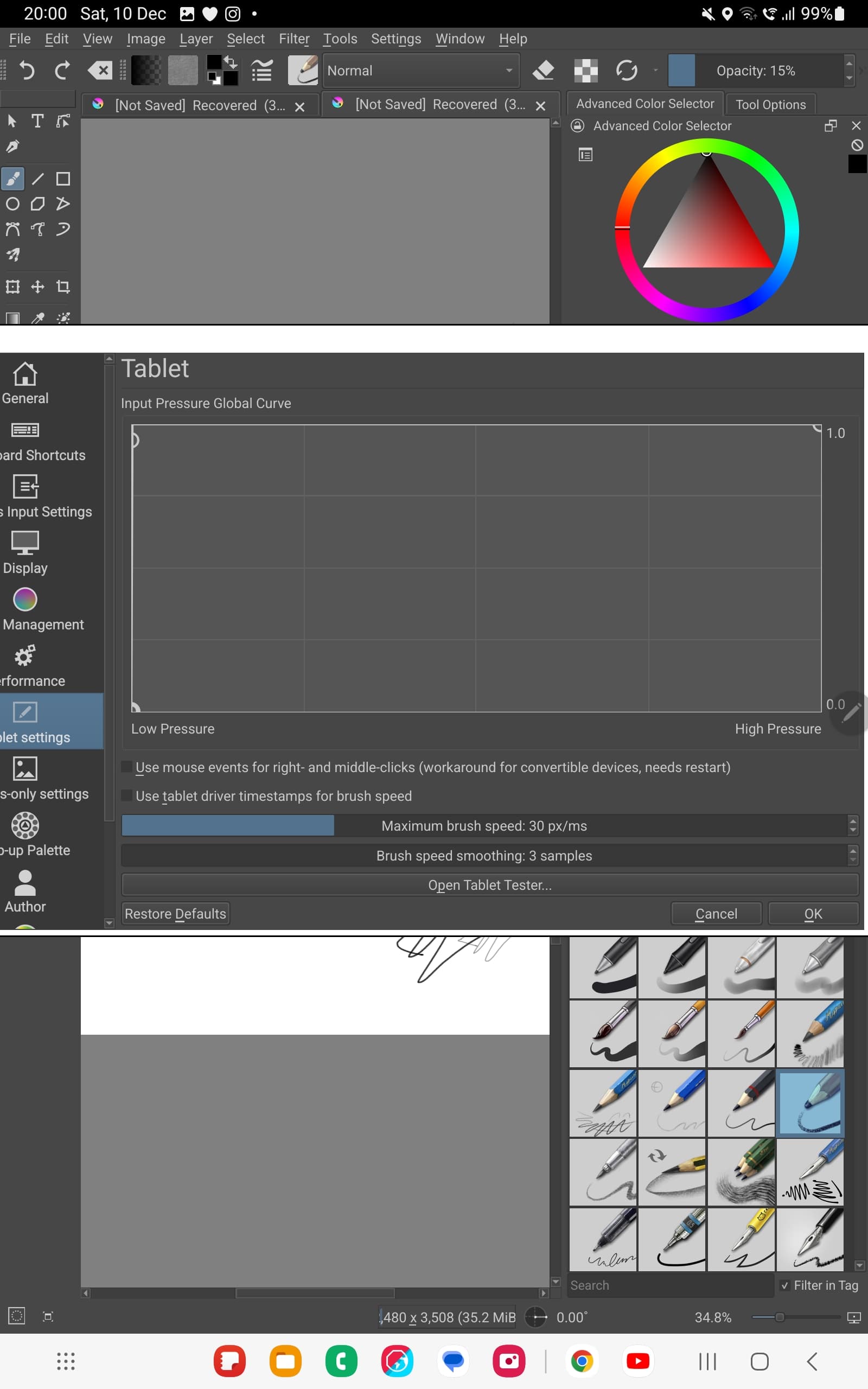
What you’ve done is make the pressure signal (going to the brush presets) be always at the maximum level.
That was not what @Lesqwe56 suggested or showed you.
So, you need to move that upper left control point to the right about 28% of the way across to get a sutable ‘compensation’ curve.
Did you look for that because you’re using a connected drawing tablet called ‘Tablet Pro’?
So does Ibis paint brushes work well with pressure? I mean, not only it can paint, but the brush size or opacity also work along with the pen pressure.
Does your every stroke consistent and response to pressure in Ibis paint?
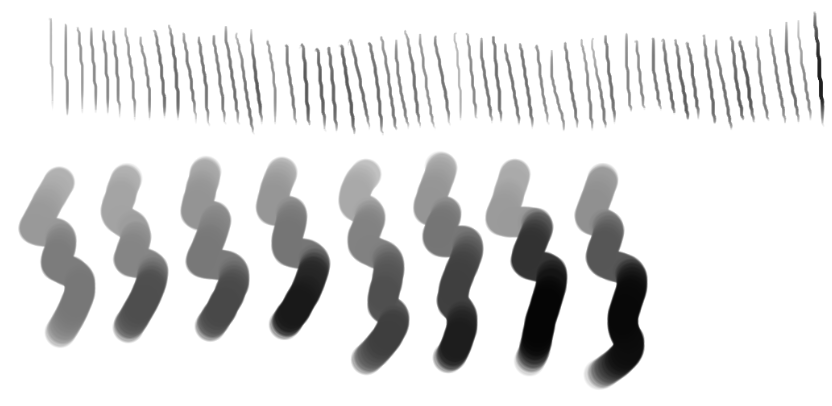
Ask this just want to make sure it is turely not hardware issue like this: https://www.youtube.com/watch?v=go6fS-xtIxs
One person in the comments found that their problem was from the magnets in their case.
2 Likes
From what I’ve seen its the same which is confusing because when i first installed krita everything was working fine
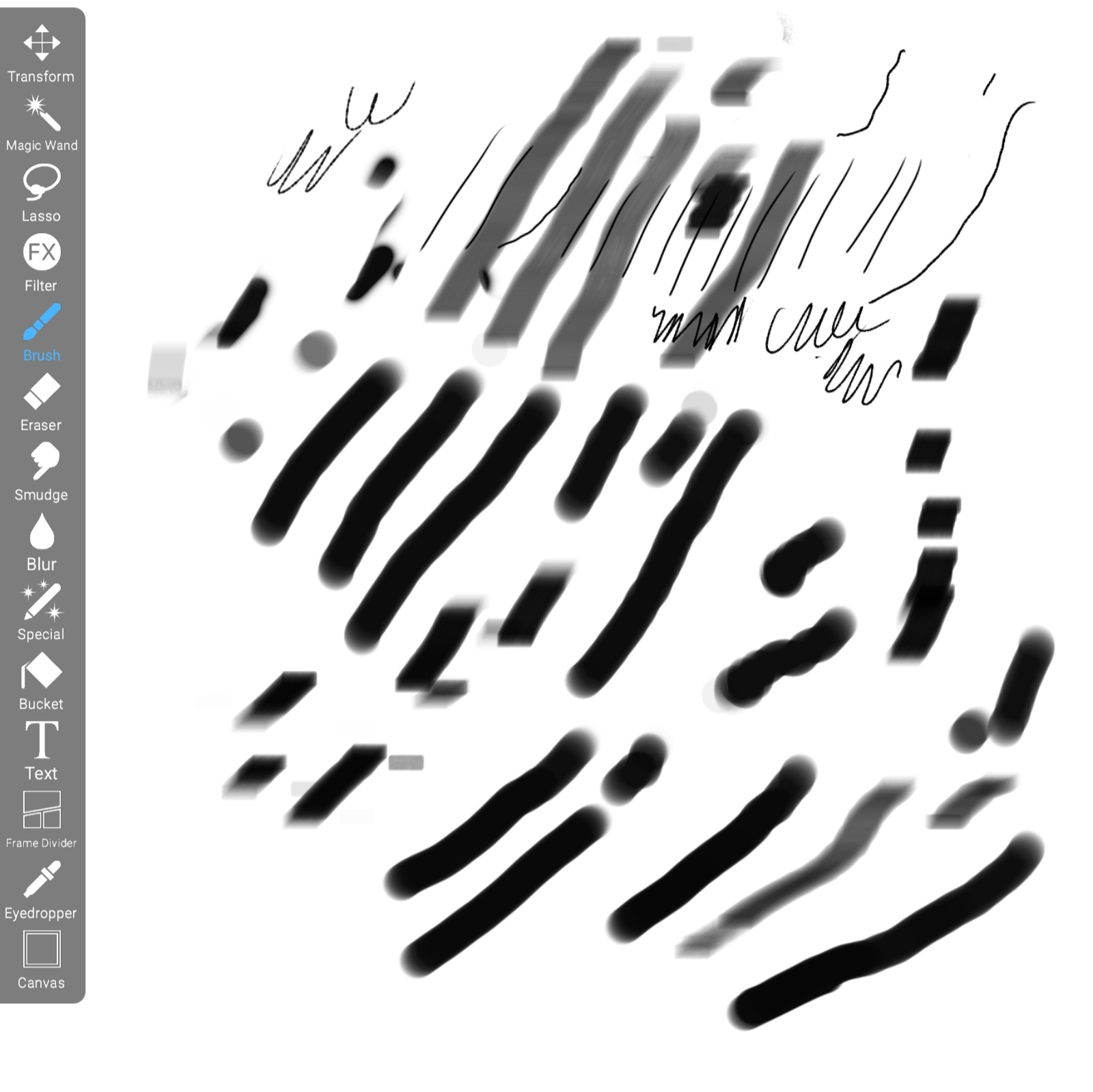
That means that something has changed, either in krita’s settings or in the behaviour of the stylus.
Which stylus are you using?
Does the krita tablet tester still show a maximum pressure signal of 28% when you press very hard on it?
Have you tried setting the global pressure curve as suggested by @Lesqwe56 in a previous reply?
Did you only installed 5.1.3 which work fine at first, or updated from an older version which works fine?
Edit:
Since you have mentioned uninstall and reinstall krita in first post, I wonder if uninstall krita on Android will also clean up the config files…
Maybe try go to android setting → app and clear Krita’s data and cache to make sure it got reset?
I installed from google play only. And yes I’ve cleared the cache.But no change.The only thing worked as in brushes started working was when I changed Settings>Configure Krita> Keyboard shortcuts and changing shortcuts schemes to tablet pro. So I assumed that brushes wasn’t working because I’ve been using the desktop version instead of changing to tablet mode. Now that I again installed the same thing is happening and even tablet pro option isn’t working
I did and no change
The pressure curve suggested by @Lesqwe56 was intended to compensate for a situation where the maximum pressure from the stylus was 28%.
If you’re now down to 2% then that won’t work of course.
This needs somone who has experience of an android tablet and an S-pen.
Can you please install the app from this link: XP-Pen Artist 12 (2nd gen) other issues on Android, Samsung Note 9 - #6 by sh-zam and try tapping the “Touch Here” area with your pen and then post a screenshot. This should give us better idea of what is going on with your tablet.
1 Like
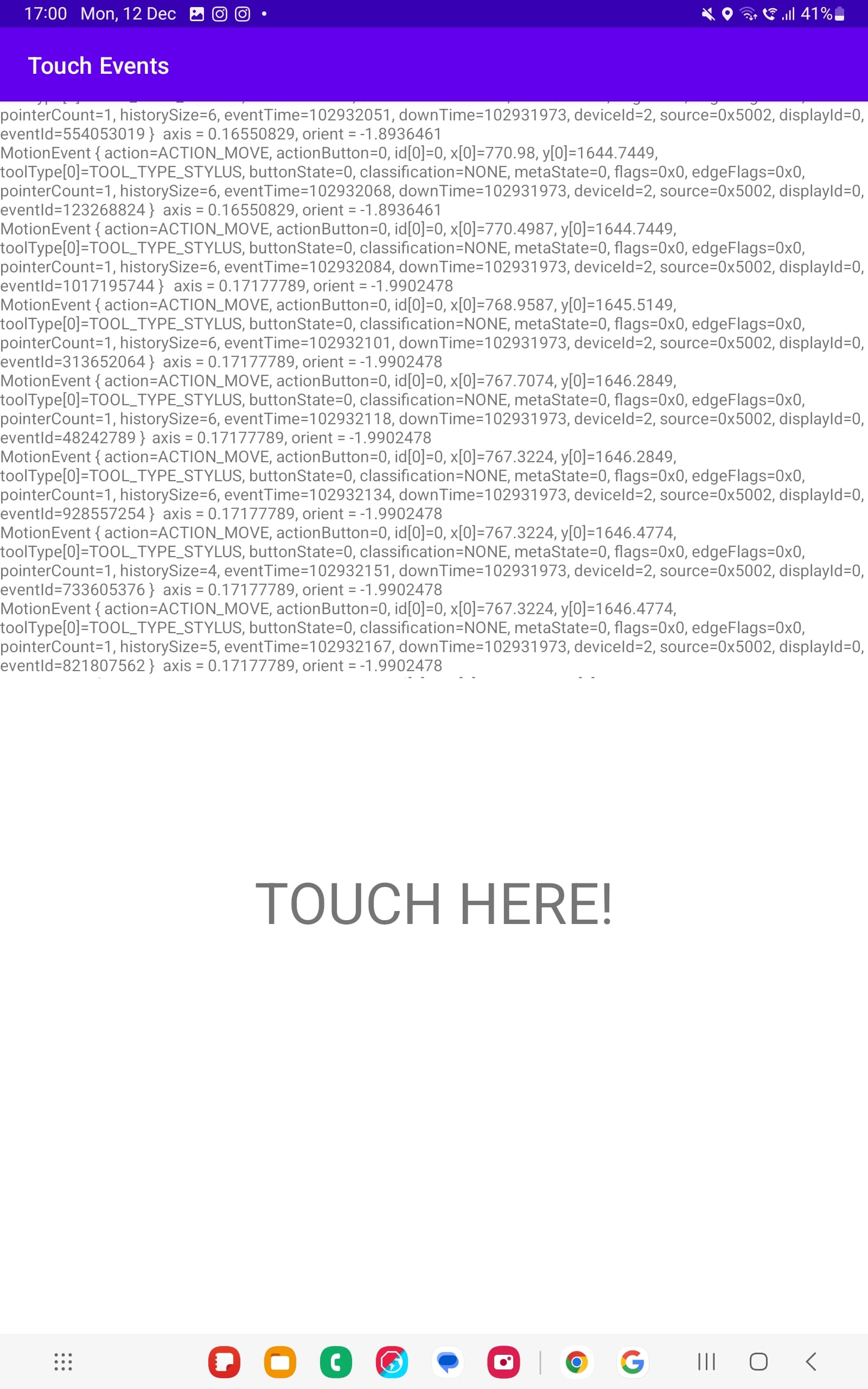
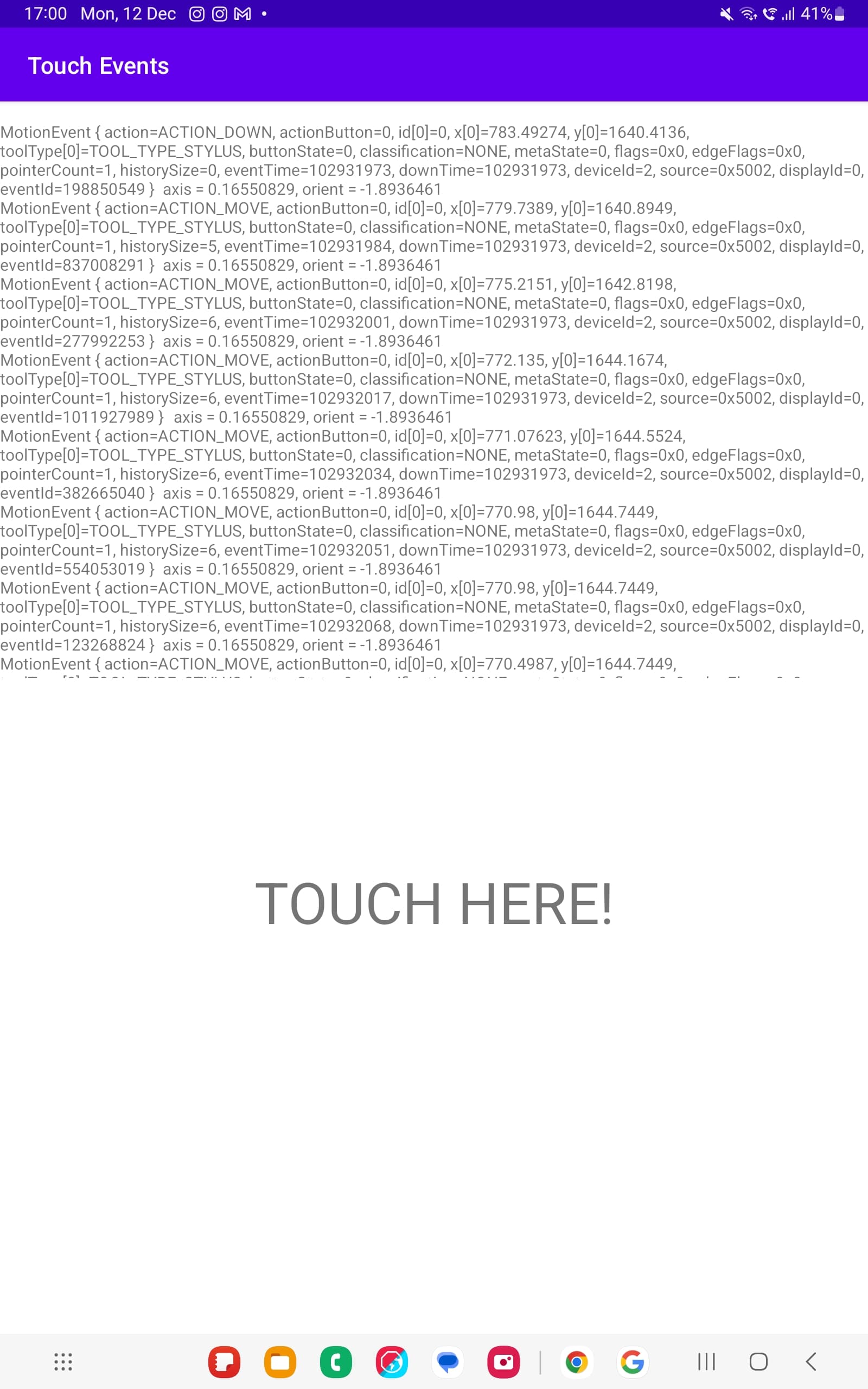
Thank you for the screenshot. But my bad, unfortunately it doesn’t contain pressure info. I’ve modified the APK to add the pressure info can you please reinstall this: https://drive.google.com/file/d/1J40BXLHbE7YhvinGEEfKQSKKvKQjmbIX/view?usp=share_link (the same link, but different version).
Also, try to press stylus relatively hard and scroll down to see where the pressure value is high and screenshot that 

Update : I contacted Samsung to check out if its something with the tab/pen and found out that the Spen is not properly being connected.I am sending it to service centre now.
6 Likes
This topic was automatically closed 15 days after the last reply. New replies are no longer allowed.