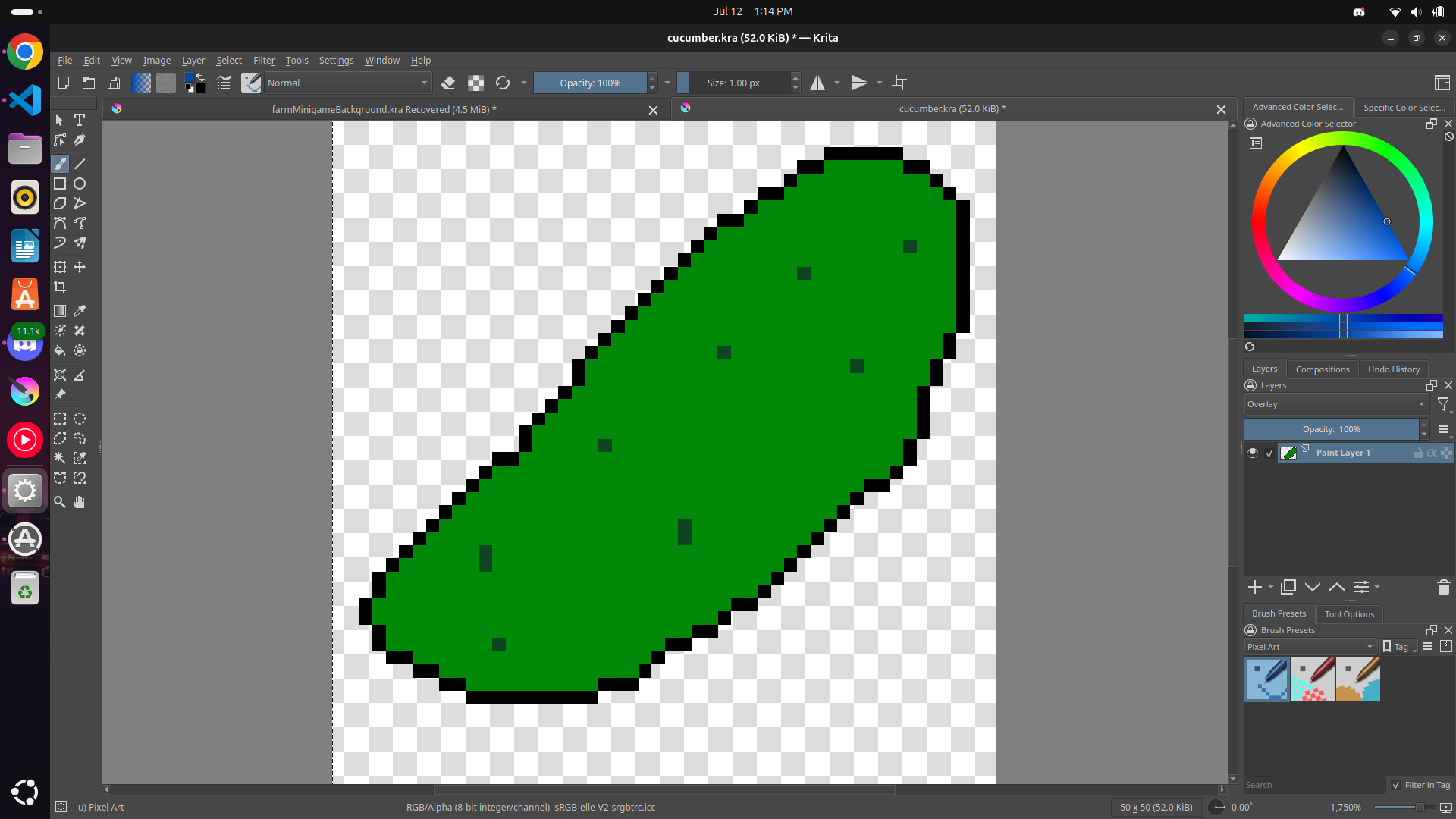
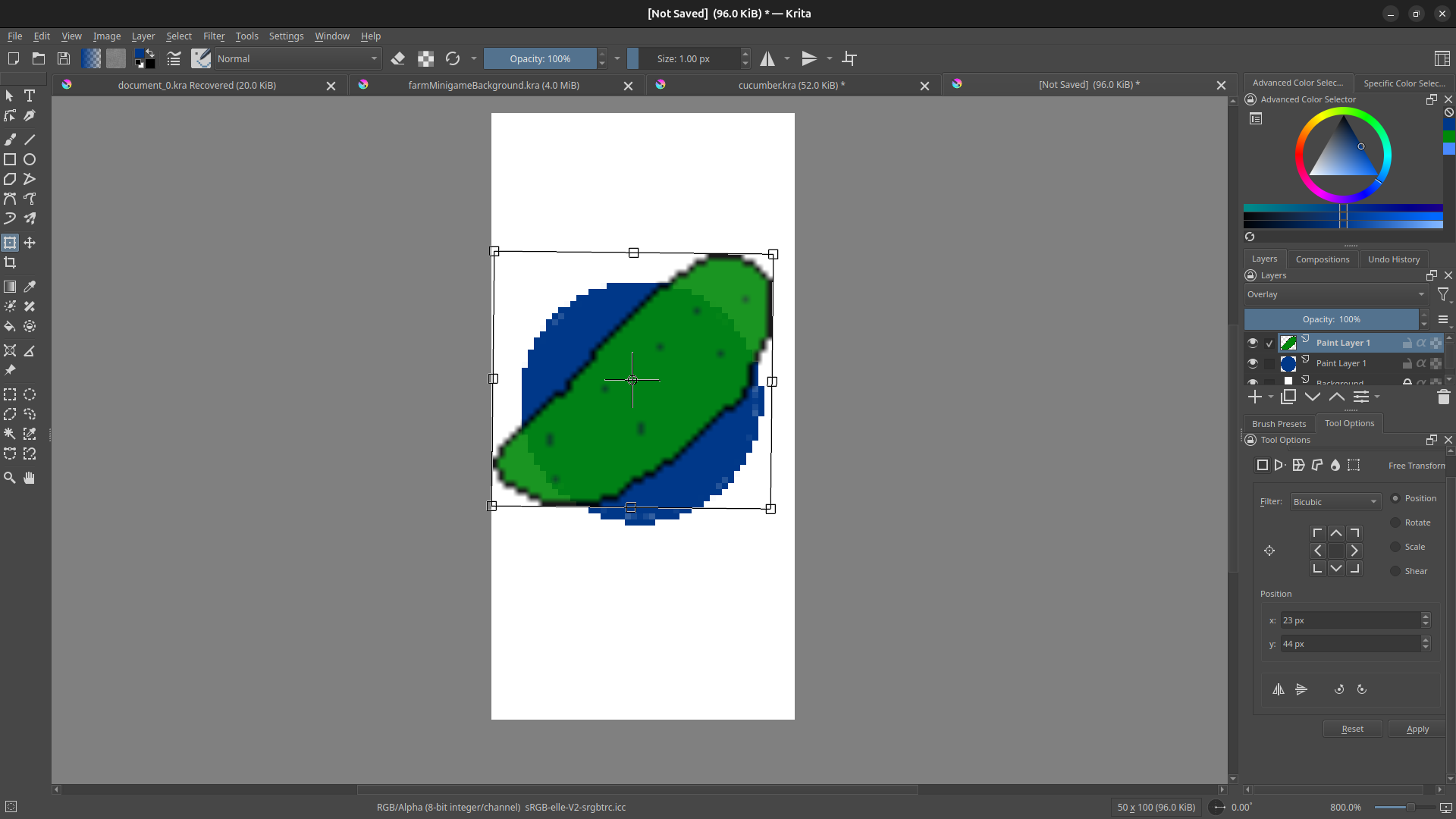
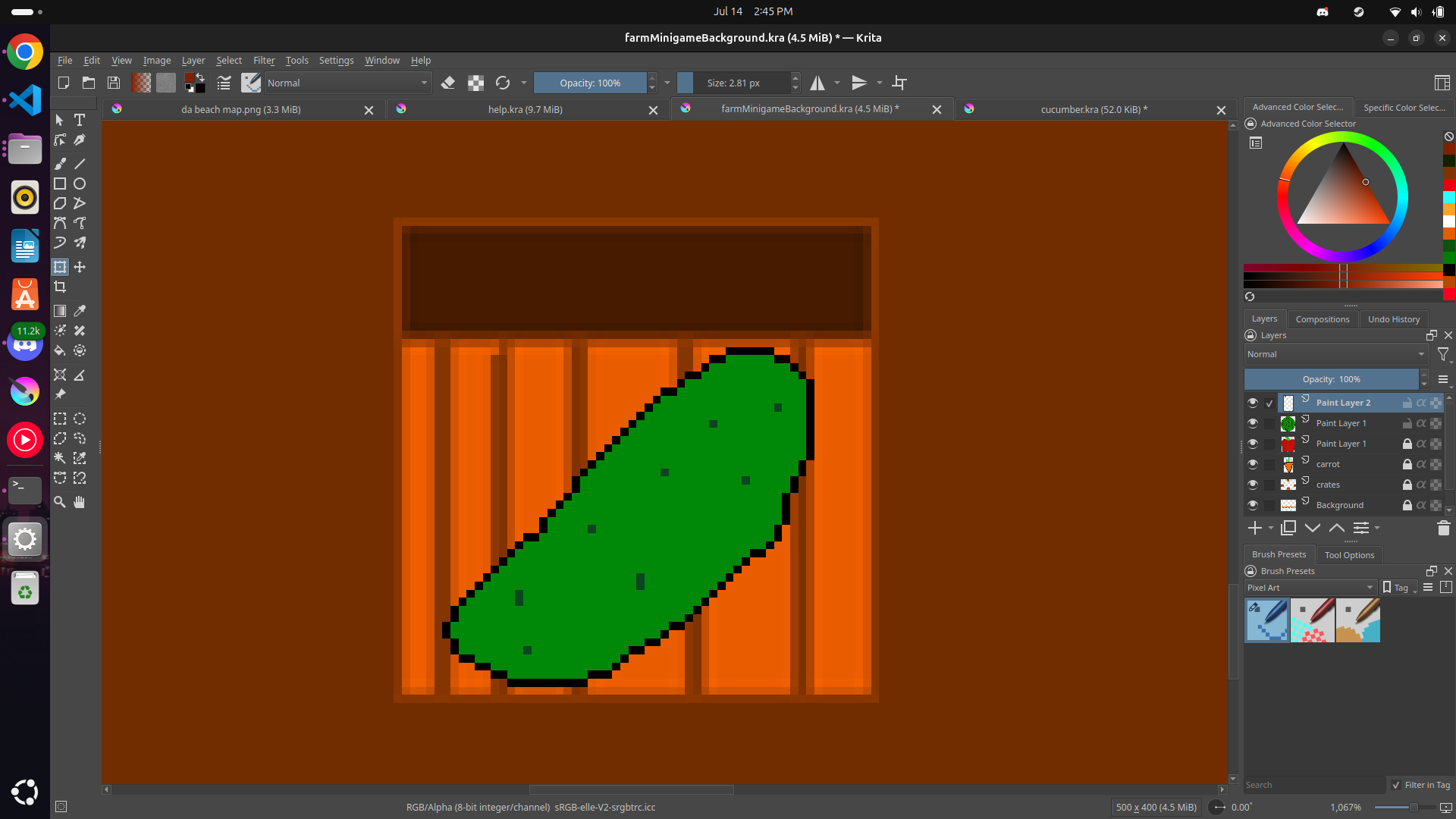
I am simply trying to copy and paste an image to another.
The opacity is 100% and looks good on the initial image but when I copy and paste it appears more see through. It is not in the second screenshot but the opacity of the pasted layer is also 100%.
Not sure what I am missing, but any help is appreciated. Thanks!
Here we would need a screenshot in the state with the two, or more, layers, and please as complete as your first screenshot. We also need your OS and the version of Krita.
By the way, although it is not needed for this screenshot, in screenshots you should have the Tool Options Docker instead of the Brush Presets Docker in front, because it holds the settings for each tool you select on the left in Krita’s Toolbox. That makes the Tool Options Docker the most important docker for screenshots in many cases.
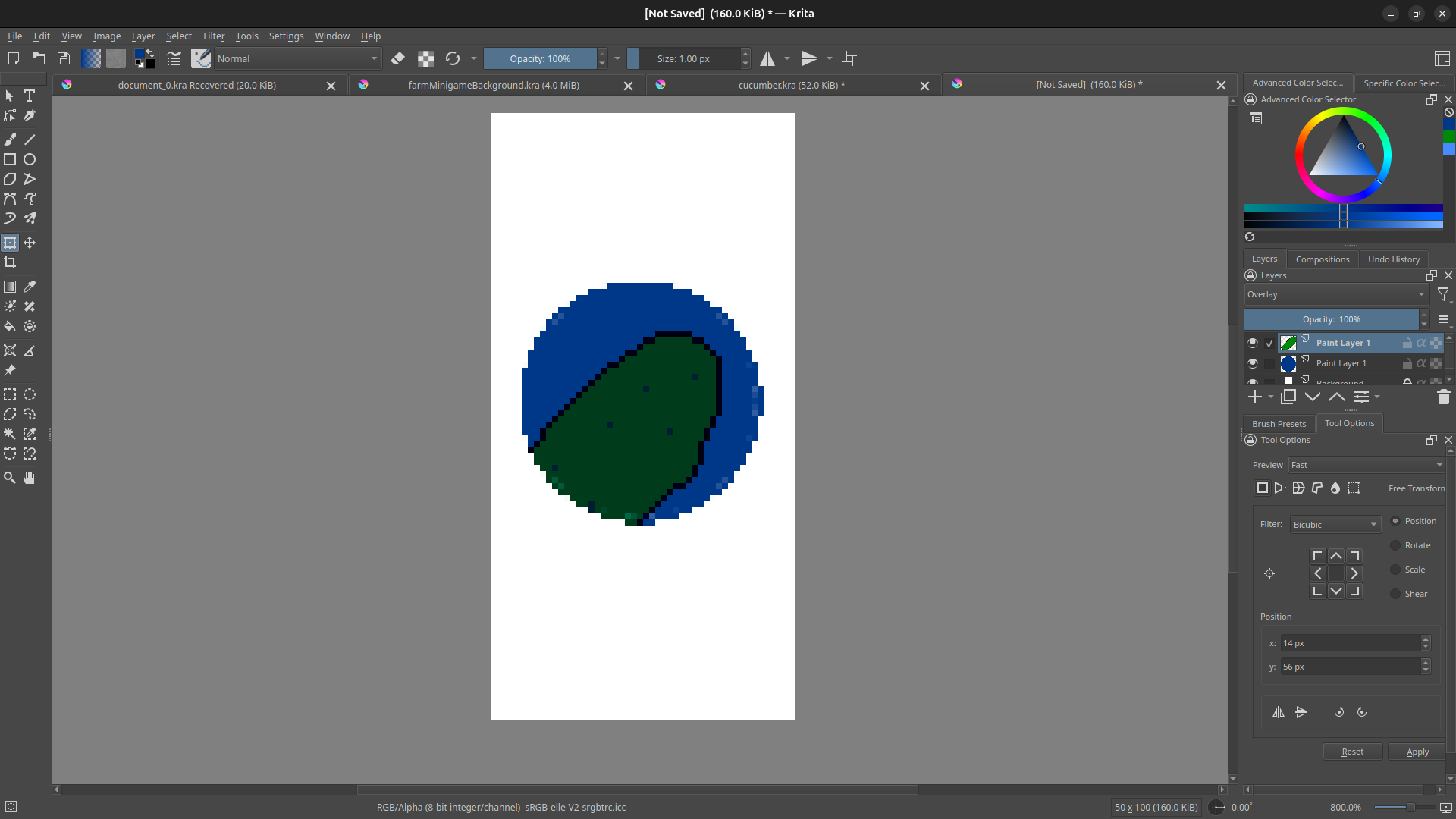
I am on Ubuntu and Krita version 5.2.9. It appears to only live in the circle in the new screenshot, but I just would like it to be opaque and above everything. I was able to copy and paste other art and it worked, so I am not sure what setting I changed on this one.
Okay, everything looks normal, so the only guess that makes sense here is, that your cucumber was not painted with a brush preset that offers permanently 100 opacity, all brushes that have “opacity” or “flow” in their name belong to this category.
The thing is, that only because a layer is set to 100% opacity does not hinder a brush to apply less opacity if it is a preset that reacts to brush pressure. I initially thought you may have had set different layer opacities, but there I was on the wrong way.
By the way, if an object, like your cucumber has less than 100% opacity, you can simply duplicate it and merge the duplicates right away with the original, if needed more than once, this way you theoretically should double the opacity each duplication/merge-step and get quickly a fully opaque object.
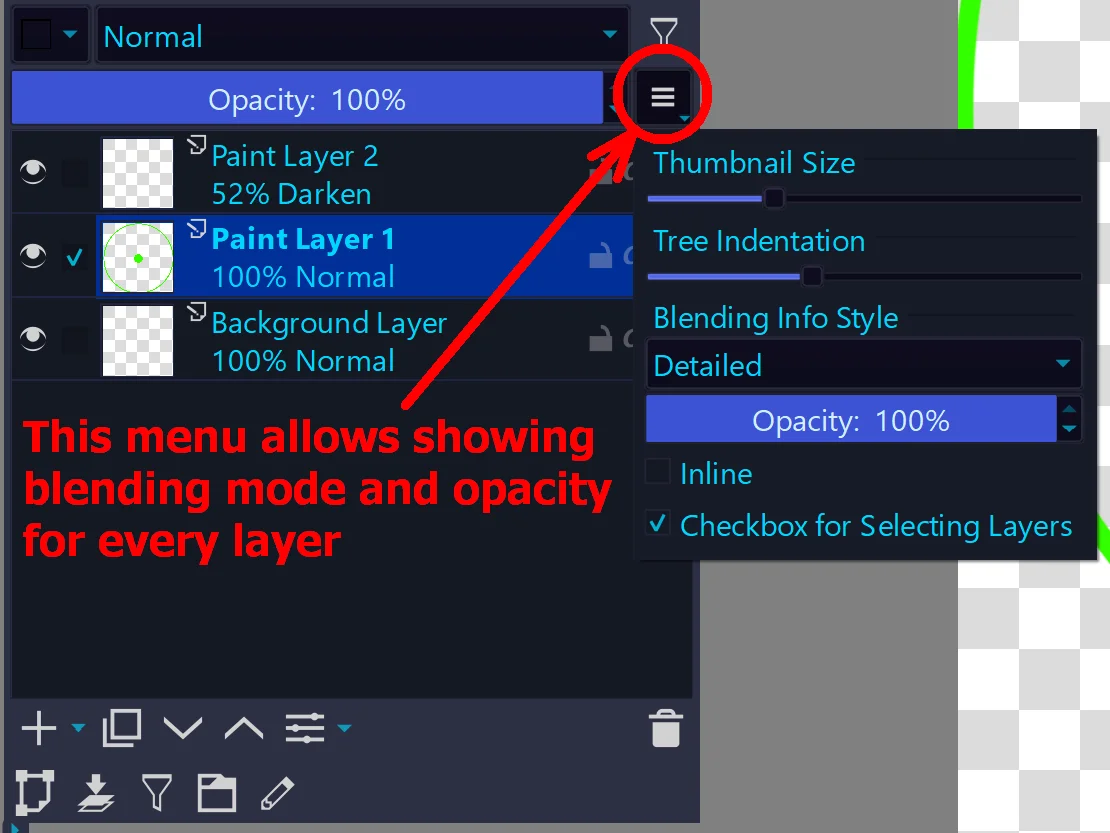
By the way, perhaps you haven’t discovered it so far, if you have a lot of layers and like to use different blending modes and varying opacities for your layers, you may find displaying that info in your layers directly as a helpful addition. Also, thumbnail size and group tree indentation can be adjusted there.
Furthermore, Krita has a new release version online, now Krita is at v5.2.10, you can get the new AppImage from Krita’s homepage. The Flatpak and snap versions offered there are no official versions, but their maintainers are allowed to offer them via Krita’s homepage.
Okay, this is great. Thanks a lot for the help. Although when I tried to paste a bunch it appeared see through until I merge it into the lower layer? I am just trying to learn more about how Krita works at this point, the initial problem is solved.
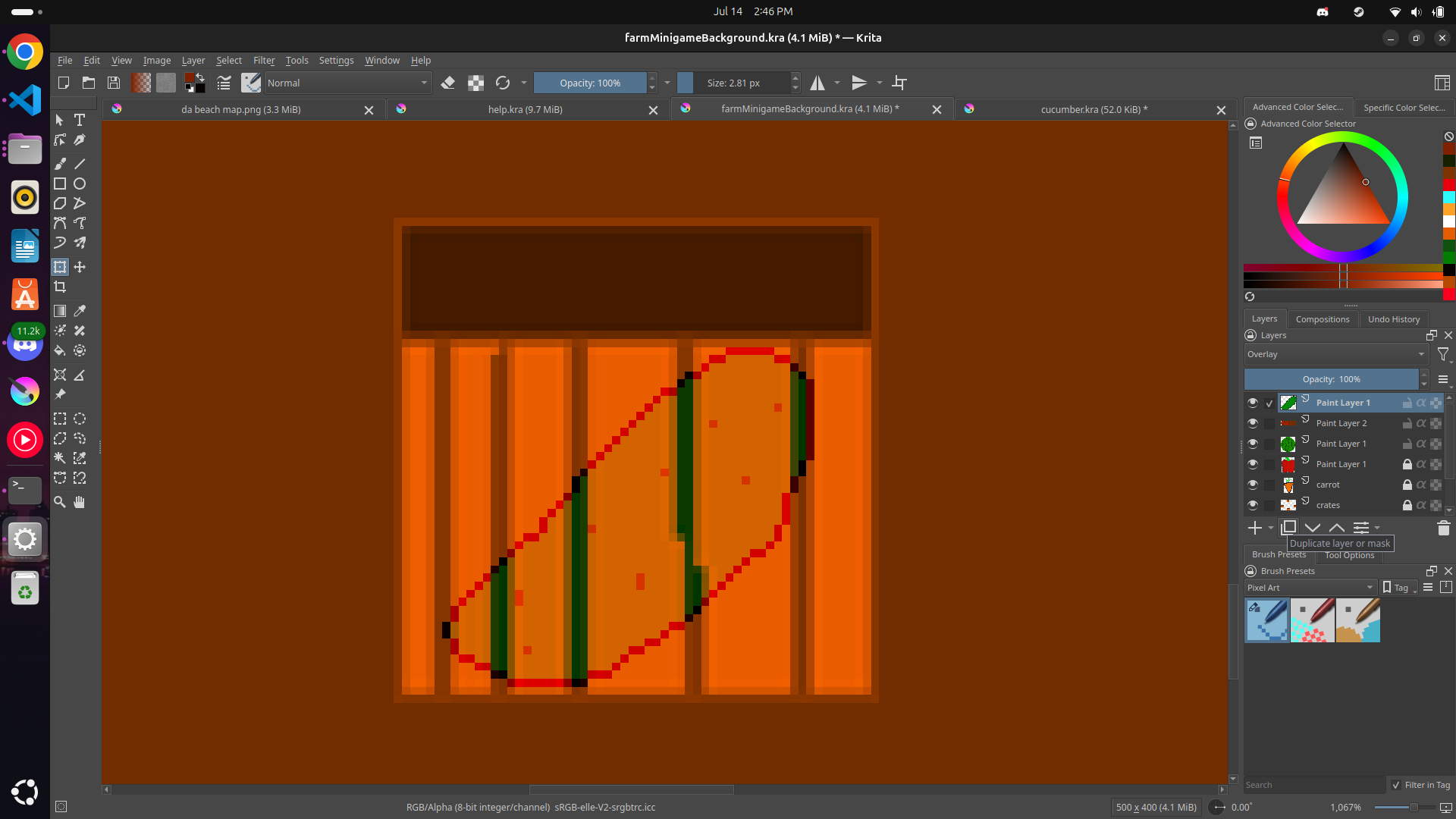
Here is what I mean:
Lots of cucumbers stacked before merge (like 20+):
LOL, I’m sometimes blind!
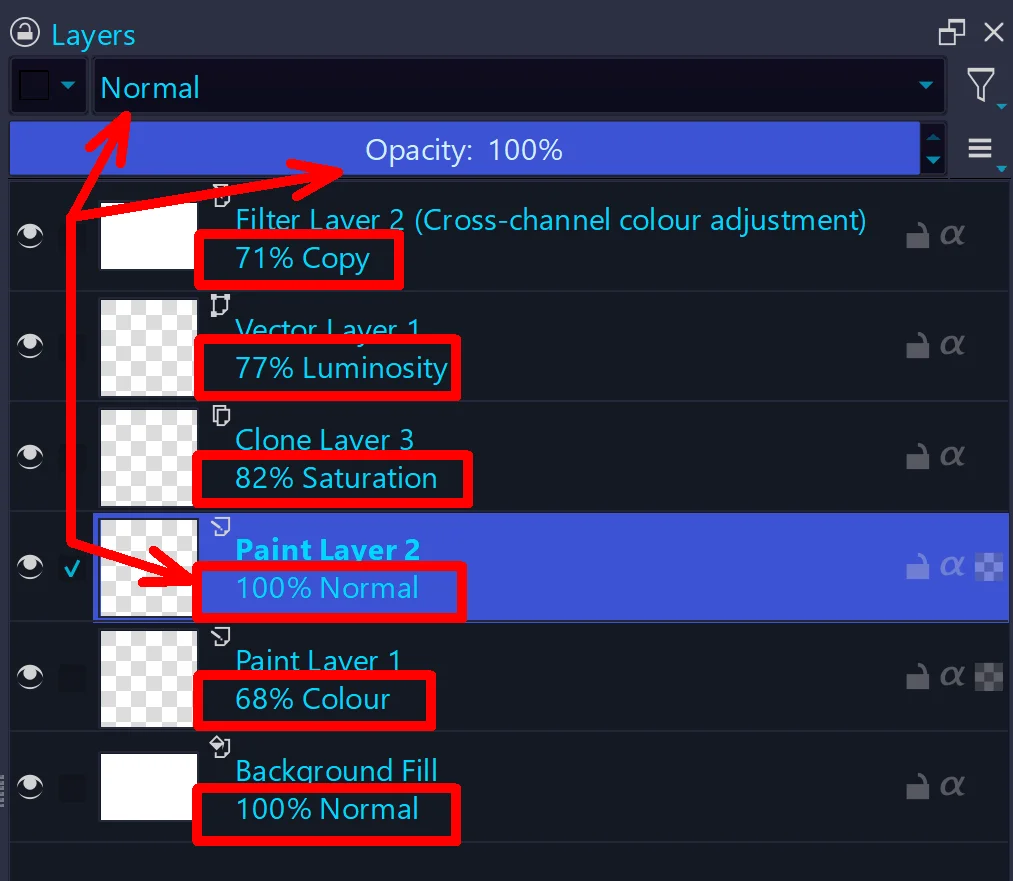
If you had set your cucumber layer to normal, the whole story would be a new one. But that was the reason for me to silently insist in showing all info about a layer in each layers badge in the Layers Docker. Like shown in my screenshot ↑ above ↑, where I have set Darken as blending mode and set the layers’ opacity to 52%, or in the following screenshot where I put some layers together for showcasing this and how helpful it is, especially with a lot of layers where you can accidentally change a blending mode without ever noticing it, but wondering about the effect it draws:
Here, you can see each layer’s settings with a glimpse!
Michelist
Add/Edit: Maybe worth to mention:
When you stack layers to merge them afterward for gaining opacity, then you can spare a lot of steps: The “joke” here is that if you just keep doubling and directly merging (so: double, merge, double, merge, …), you need fewer steps than if you immediately double 32 times and then merge them one by one with the layer below. Why? When you duplicate and merge, you double the opacity. If you then duplicate and merge the merged layer again, it has four times the opacity, then eight times, 16 times, 32 times. By creating 32 duplicates, you achieve the same result, but instead of duplicating 5 times, you have duplicated the first layer 31 times and then merged that 31 times in series.