Opaque layers appear transparent near canvas borders after transformation in 5.2.3

A couple of weeks ago I updated to Krita 5.2.3 on Windows 11. Since then, I notice a rare but strange new behavior that wasn’t present in 5.2.2. While painting on a larger canvas at a very low zoom level, sometimes using the transform tool will cause the solid background layers to appear transparent near some of the canvas edges when I zoom back in.

Let’s say I have a new A3-landscape file, zoomed out to less than 10% so I can block in shapes on the whole canvas. I leave the background layer a solid white or apply some other solid color, then make a new “Normal” blend-mode layer on top and start painting with a Normal blend-mode brush. I then use the transform tool to make some adjustments, and continue painting after applying the transform (no mask).

At some point, when I zoom in (while still painting, not actively transforming), I’ll notice that the transparent checkerboard pattern is peeking out at the bottom or sides of the canvas. It almost looks like I took the soft airbrush and erased a straight line from all solid background layers along the bottom of the canvas.

However, when I either hide then unhide the Background layer, or just undo my last brushstroke since zooming in, the transparency goes away and the canvas is back to being a solid color. Redoing my last brushstrokes does not return the transparency.

It seems like a rendering problem to me, like Krita 5.2.3 isn’t fully stepping out of the fast/instant preview mode across the entirety of the canvas. To be clear, nothing else looks fuzzy, it’s just the temporary transparency along the edge of the canvas, and it seems to get worse the more I zoom in. To be clear, I only think it’s the transform tool causing it, since I know the Instant Previews do tend to make things a bit fuzzy when zooming in while transforming or configuring a filter.

Unfortunately, it’s not very repeatable. I’ve only seen it three times since I updated Krita, and each time it left me wondering what I did to ruin my poor in-progress painting. I was just confused enough that I “solved” the problem each time before I could even realize what was happening or grab a screenshot.

For reference, I’m using Direct3D with High Quality Filtering for the scaling, and Bicubic filtering on the transform tool. My system is pretty beefy with an RTX 3080 and 32 GB of RAM, so I don’t see that being the issue.

The last time I noticed this, the brush I was using was the “Basic 5-Size Opacity”, so nothing fancy. I’ve also seen it with the “Charcoal Rock Soft” brush.

What is the canvas size in pixels?

Roughly how big, in pixels, is the region you’re transforming?

Is the transformed region close to the edge of the canvas?

Can you provide a screenshot of representative initial content?

Which particular transform and adjustments do you do.?

Thanks for the quick response!

The canvas is 4960 x 3508; the default A3 300ppi resolution.

The last time it happened, the selection/regions I was transforming was something like 4000 x 1900 or 2000 x 900. Again, just blocking in rough shapes. In this particular instance, I was doing distinct transformations on two non-opaque layers overtop the background layers.

Yes, and sometimes it might even extend beyond the canvas—either from a rectangular/lasso selection, or just the natural shape of the layer being transformed.

Generally I’d be using the default Free Transform for size, rotation, and even 3D perspective adjustments, but occasionally I will also Liquify.

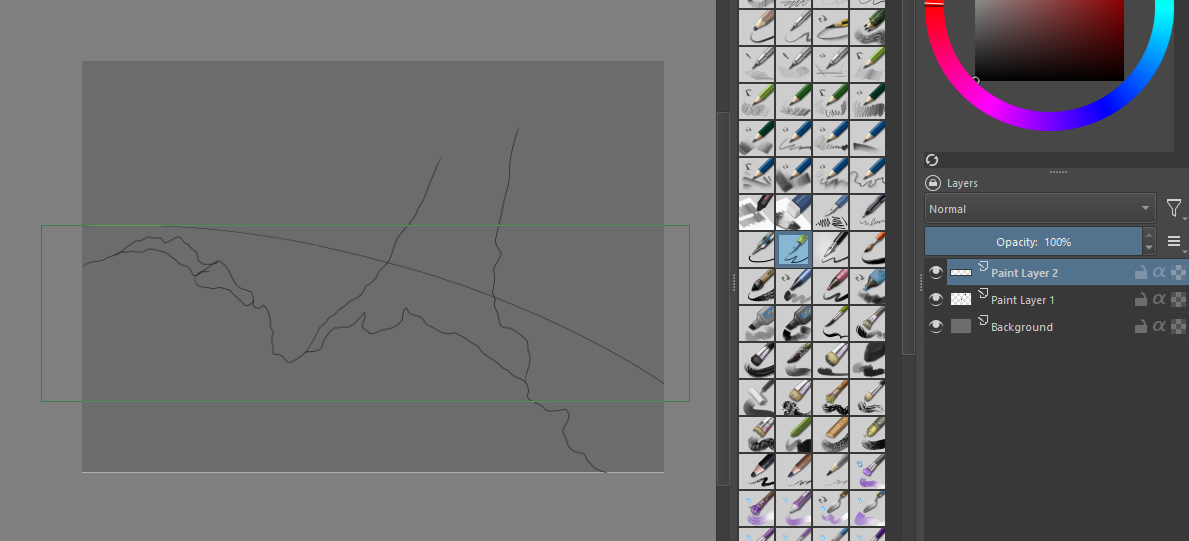
Here’s a screenshot of something I had just started working on today when the issue derailed things. It’s just a background, a solid layer on top of that, and two simple paint layers. Obviously I didn’t get very far into painting… though it’s happened in nearly completed works as well, where I had dozens of layers.

I just tried redoing essentially 1-for-1 what I did the first time around on a brand new file, but the issue didn’t repeat itself.

Thank you for the detailed explanation.
This will help people to try to replicate and investigate the issue.

Here’s hoping! Mainly looking to bring it to attention since it’s happened a few times to me, and only since updating to 5.2.3.

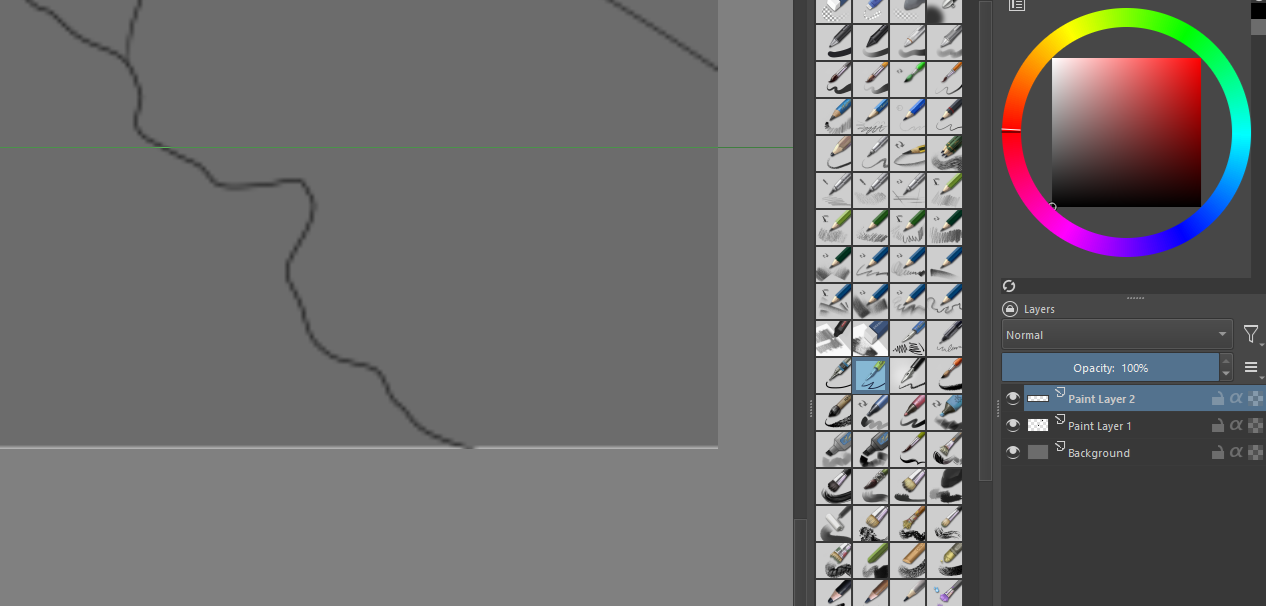
Just to give an idea, this is what it looks like when the issue does crop up (I had to fake it but this is pretty much exactly what it looks like).

As I mentioned before, toggling the background layers off then on will fix the transparent region, as will Undoing the last brush strokes (even though my last brush strokes were on the non-solid Paint Layer 2 in the example). Redoing the brush strokes will—obviously—bring back my last brush strokes on Paint Layer 2, but the transparent background issue will remain fixed.

Edit: Just wanted to add that I have the cumulative undo/redo option disabled.

I think I figured it out. That, or I found another glitch in 5.2.3.

I didn’t get the exact issue to repeat itself, but I started another new project today and noticed some really buggy Instant Preview behavior that seems related.

While using the Move (T) tool to reposition a regular drawing layer, when the tool is active (i.e. green border around the layer being moved): a) The instant preview quality is abysmal when zooming in; and b) A white line appears along the bottom of the canvas.

The white line doesn’t always show up if the layer is only moved around in the center (though sometimes it does). However, if you move the layer so that the green square crosses the bottom area of the canvas while the canvas is very much zoomed out, then when you zoom in, the white line shows up every time—at least on my system. Naturally, the canvas background should be a darker color to see it.

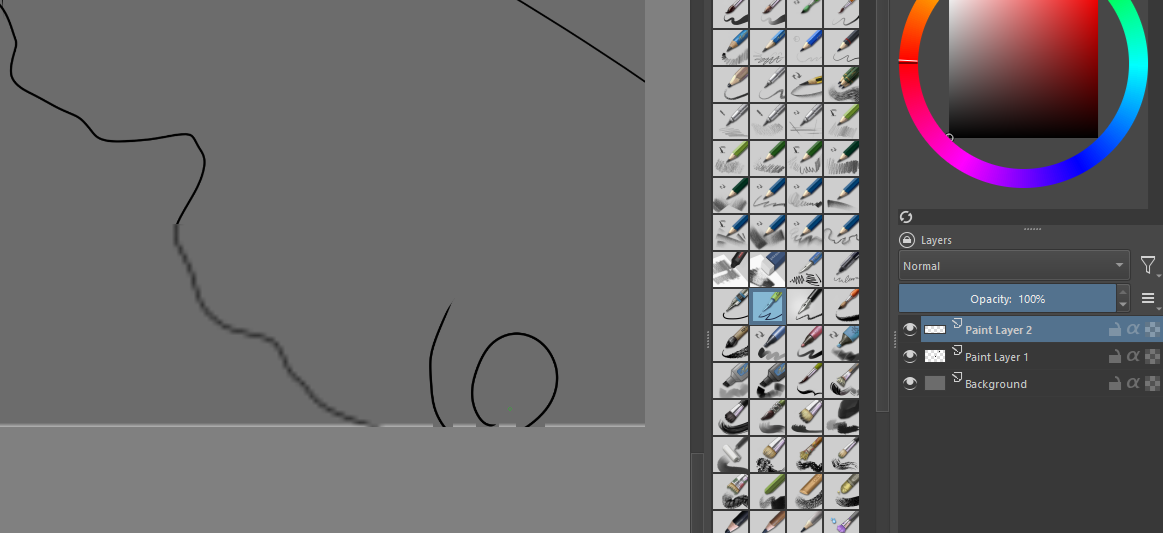
While the tool is still active, this is what that looks like when zooming in.

If you Move the layer back away from the bottom of the canvas then hit Enter to “finish” the move, the Instant Preview ends and the white line usually goes away.

BUT if you instead select a different tool (brush) or select a different layer while the green box and white line are visible, then the Instant Preview only stops near the green box of the Move tool.

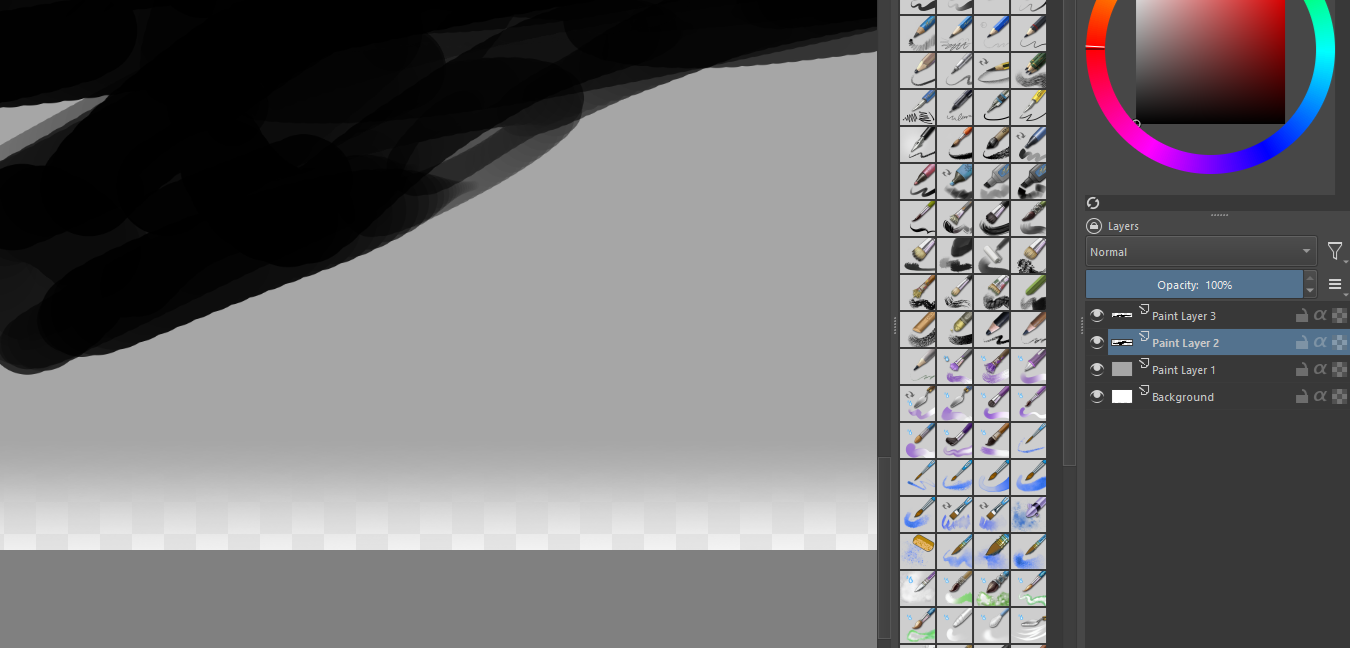
You end up with the bottom half of the canvas stuck in an Instant Preview. The white line remains and the canvas is extremely pixelated. Drawing overtop the “previewed” area will fix it where the brushstrokes land (like the swirl on the bottom right).

So, steps to reproduce:

  1. Make a new document: A3 300ppi landscape (4960x3508)
  2. Zoom out to about 8%, or where the canvas is tiny.
  3. Fill the background layer with grey
  4. Make a new paint layer, and draw some black squiggles near the bottom of the canvas
  5. Make another new paint layer, and draw a horizontal line in the middle of the canvas
  6. Select the Move tool on Layer 2
  7. Move the horizontal line to the bottom of the canvas, then back up to the middle (one click or two, doesn’t matter)
  8. Zoom in on the bottom of the canvas with the scrollwheel. You should see a white line along the bottom.
  9. Without pressing Enter, select the Brush tool.

Your canvas should now be stuck in a half-on Instant Preview mode.

I can only guess, but the transparent line issue that this topic is originally about seems very much related to this glitch. Perhaps after a while of not noticing it
while painting in another area of the canvas causes Krita to rerender the glitched area as transparency?

I do remember the Instant Preview quality being pretty poor in 5.2.2 when zooming in, but the white line and stuck-preview glitch thing I’m pretty sure is new to 5.2.3.

The plot thickens… Maybe I need to start a new topic for this?

TLDR; Krita’s default settings might be causing this. The solution seems to be as simple as opening the Settings dialog after every upgrade, and clicking OK. Seriously.

I was in the process of submitting an official bug report for my previous comment on this thread, when I went to check & mess around with some of the Canvas Acceleration and Instant Preview settings. I wanted to fully isolate the issue to make sure I put the bug under the right category.

Well, when trying to eliminate things for the bug report, I switched the Canvas Acceleration Scaling Mode from the default High Quality Filtering, to Nearest Neighbor, and noticed that the “white line” problem went away. I then switched it back to High Quality Filtering, but the problem never returned. This seems to have resolved the issue entirely. Now, my Instant Preview is clean and crisp without any pixelation or white lines or glitched canvas artifacts regardless of zoom level.

Well, after much testing, four Krita installs, two computers, and three different OS’s, I’ve discovered that the Instant Preview glitch is not only in other versions of 5.2, but also in the Linux AppImage build as well. It happens on every single fresh install or upgrade of Krita I’ve tried:

  • Windows 11 - Krita 5.2.3 (dedicated GPU [main system])
  • Windows 10 - Krita 5.2.2 (first install, integrated GPU)
  • Windows 10 - Krita 5.2.3 (upgrade from 5.2.2, integrated GPU)
  • Linux Mint 21.3 - Krita 5.2.3 (first install, Krita AppImage, integrated GPU)

In other words, most/all fresh installs/upgrades with 5.2.x builds experience this issue.

And after running a ton of config-file diffs with Git and resetting the linux config files for Krita, I’ve found out that the culprit (at least on Linux) seems to be in the ~/.config/kritarc file. I honestly can’t pinpoint what exact line(s) are at fault, but it seems to be pointing to a series of lines across multiple groups that look like this:

forceLodMode=true

These lines, as well as a ton of other kritarc config file entries, seem to be missing in new deployments of Krita. After opening the Configure Krita window and clicking OK, all missing config entries are added to the file, and Krita begins operating happily. No more glitchy and low quality Instant Previews.

After seeing this, I realized that on my main PC where I do all of my drawing, I never opened the Configure Krita window with intent to change a setting since upgrading to 5.2.3. I was happy with my settings from the previous version. (It also makes sense if nobody’s been able to reproduce this. If you’re on this forum or in the dev community, you’re probably playing with settings all the time.)

I’m not sure where the kritarc file is on Windows, but I get the feeling it might be a similar missing-config issue.

I don’t know if this will fix the overall transparent canvas issue that this post is originally about, but I finally have some hope?

Either way, consider this a PSA. After you install or upgrade Krita, make sure you open the Configure Krita window and click OK (even if you haven’t changed a setting).

EDIT:

Okay, nevermind (ish). The above seems to be a separate issue. I was only focusing on the Move tool today, and didn’t notice that the default setting (after opening Configure Krita and clicking OK) is to apply the Instant Preview to the Transform tool, but not the Move tool. Thing is, after a fresh install, it seems to apply to the Move tool as well until you perform the Config > OK ritual. Weird.

Anyways, problem wasn’t magically fixed like I had hoped/thought. It’s just migrated from the Move tool to the Transform tool since that’s the intedned default Instant Preview setting. It just seems to be entirely related to the Instant Preview at this point. So, I guess I know what category to post my bug report under now!

I’ve submitted the following bug reports:

Until those are acknowledged/resolved, the solution for anyone else experiencing this seems to be:

  1. Disable Force Instant Preview options for at least the Move & Transform tools
  2. Disable Use in-stack preview in Transform Tool
  3. If you upgraded Krita recently, make sure you click “OK” in Configure Krita, even if these options were already unchecked for you
  4. Ensure View > Instant Preview Mode is toggled off as well
1 Like

This topic was automatically closed 4 days after the last reply. New replies are no longer allowed.