Pen display settings disappeared and default shortcut not working

Hi everyone. I need some help, yesterday I was playing around with the shortcut composer plugin https://krita-artists.org/t/shortcut-composer-v1-5-4-plugin-for-pie-menus-multiple-key-assignment-mouse-trackers-and-more/55314?u=greh and while I was setting up the new shortcuts in krita the keybinds on my display started to swap around to different binds (I hadn’t set up) then the free selection tool’s shortcut stopped working altogether. Today I went back to work and the settings on my display had disappeared, all of it is gone not just krita’s keybinds but all the other application’s binds as well.
The free selection tool itself works if I click on it from the toolbox docker with mouse or pen, just not with the shortcut.
I’ve since re-assigned a different shortcut to the free selection tool and it works fine, only shortcut it won’t work with is the default “L”.
Any ideas?

Things I’ve tried:
*Checked hardware (both display buttons, and keyboard keys are working).
*Updated display drivers.
*Restored defaults on settings > configure krita.
*Did a reset on settings > reset all settings.
*Uninstalled and re-install latest version of krita (from official site)

Type of device* : pen display
Brand and version of the device: wacom cintiq
System** : windows 10 pro
Krita version 5.2.9
Was a good idea.

Which is the most useless action in the world of Krita, if you don’t delete at least your kritarc and Krita’s resource database resourcecache.sqlite beforehand (sometimes you also need to delete your krita5.xmlgui in that folder too, or in really nasty cases: Krita’s complete resource folder).
Because of this, I want to ask you to go into Krita’s resource folder via SettingsManage Resources... and a click on the button Open Resource Folder and then close Krita (or alternatively go into the folder via copying %APPDATA%\krita\ and pasting that into the address bar of Explorer, then a press of your Enter-Key will open Krita’s resource folder), and there, in Krita’s resource folder, delete your resourcecache.sqlite (which is only possible when Krita is not running!), now go into the folder %LOCALAPPDATA% (via copying %LOCALAPPDATA% and pasting that into the address bar of Explorer, then a press of your Enter-Key will bring you in your Windows’ local user folder), there, at the very end behind all folders, you will find your kritarc (it is not found in the sub folder krita that can be found in %LOCALAPPDATA% too) then, after you deleted kritarc and resourcecache.sqlite, you can restart Krita (a re-installation is not necessary in far over 99% of all cases) and with a little luck Krita will recreate all the stock settings it has right after a fresh and clean installation.


So, now I log off for a few hours more sleep and check back later to see if that could fix your issue with Krita.

Michelist

Hi Michelist, thank you. I deleted the kritarc and resourcecache.sqlite files as you suggested but no luck. Did another fresh install after just in case but didn’t work either. free selection tool’s shortcut still won’t work.

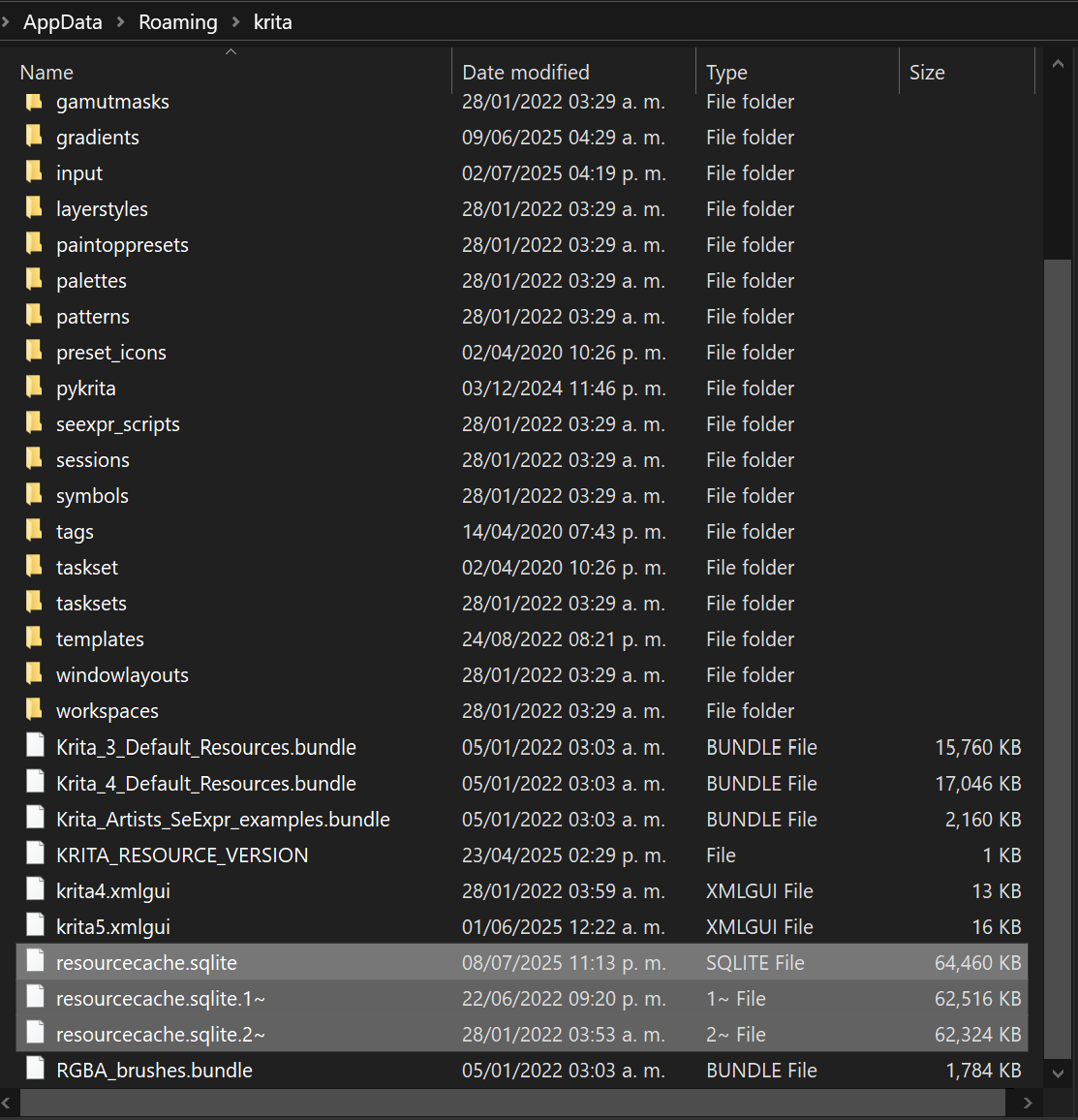
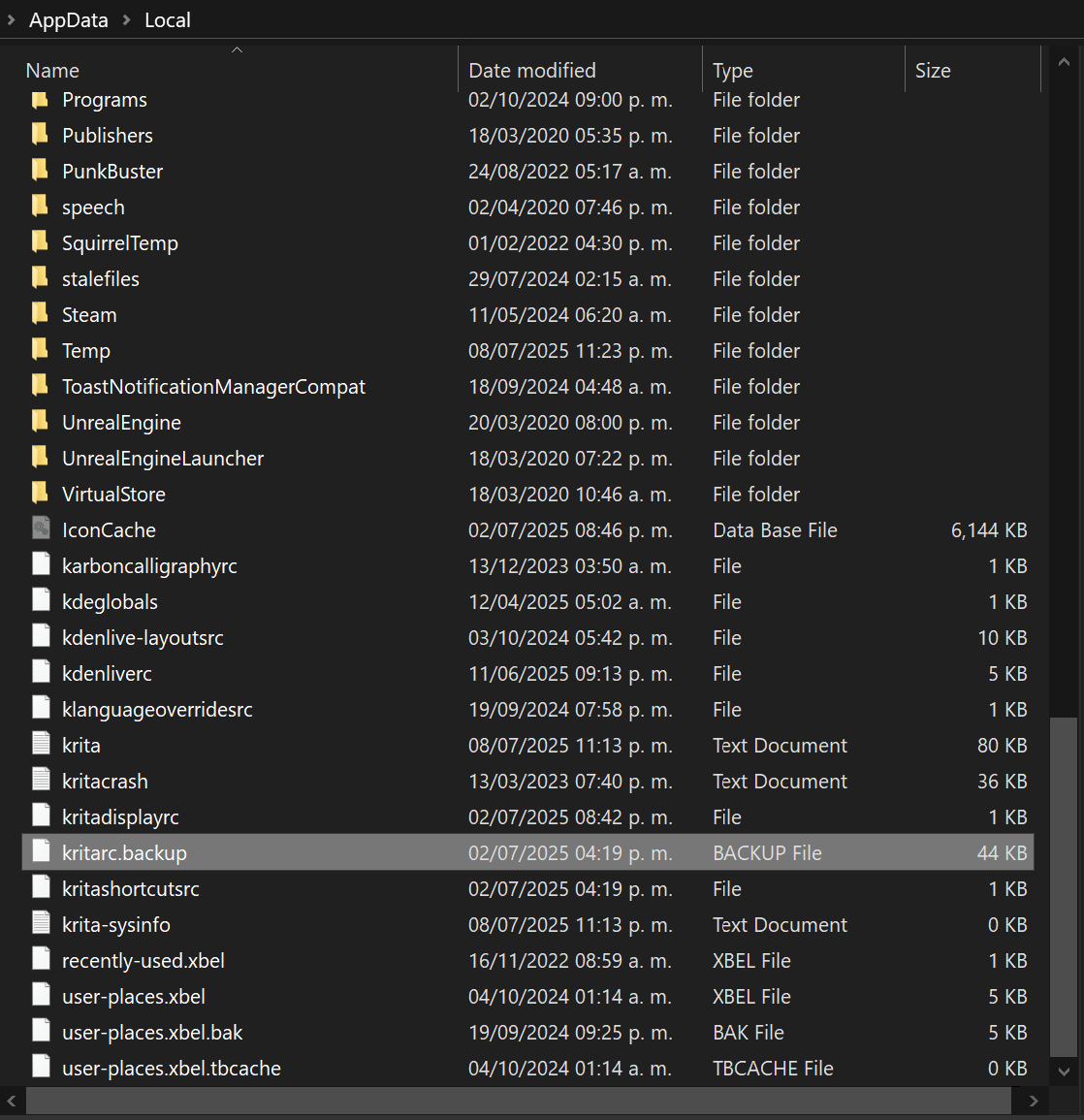
btw while I was in the Open Resource Folder and %LOCALAPPDATA% folder I noticed some redundant files, should I delete those as well maybe?


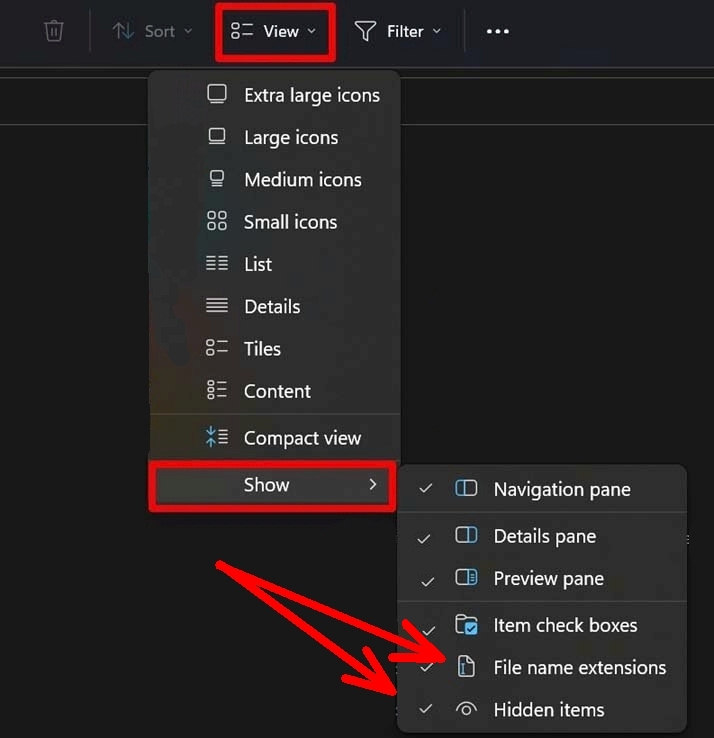
You can delete resourcecache.sq|ite.1~, resourcecache.sqlite.2~ and kritarc.backup, but you should enable the view of file name extensions when you are working with the files in the both folders of your screenshots. The thing is, that without the view of them enabled, Windows will rename a kritarc that you, for whatever reason, modify by hand, at the moment you try to save it as kritarc Windows will save it as kritarc.txt and you won’t even notice that when that setting isn’t made in your Explorer’s View menu.

For Windows 10, you will find the View menu here, I used to set all three hooks:

For Windows 11, you will find the View a little deeper in the UI, here you should at least set the last two hooks:


And sorry for me not recognizing this. This somewhat points more into the direction of your pen display’s driver messing something up. But how and why? Okay, the usual answer is an update of Windows or your driver. Windows updates can happen unnoticed in the background if these don’t need a reboot of Windows, you can discover this only analyzing the Windows update protocol, at least if you want to.
Because, if Krita can mess something up, then it will be only the settings Krita can reach via its settings-files/via the settings files Krita has access to. And drivers of other programs do not belong to that.

Do you mean the driver for your graphics card, for your “normal” display/monitor, or the driver for your pen display/graphics tablet? The last one is the driver that would make sense. And if updating/reinstalling that driver does not help, because you already use the recent one, then you should try to install the previous driver for your pen display, so downgrade it, just to check if maybe the most recent driver may be the culprit.

Another thing is, Wacom drivers are known to be very often influenced badly through updates of Windows, a thing that also points in that direction. My issue was that I concentrated my view on you setting up Shortcut Composer where things began to run out of control, but also Shortcut Composer can only mess up its own and Krita’s settings, not those of other software.

Michelist

ok, got rid of these files as well. It didn’t work unfortunately.
Is it time to get rid of this file now? :backhand_index_pointing_right: krita5.xmlgui
of which I have two of course :sweat_smile:


I also enabled the view’s file name extensions checkbox as you recommended. thank you.

No problem. appreciate you coming back to it.

The pen display’s/graphics tablet driver. And I updated it after the incident.

I think you might be onto something here. I did get one of those forced windows updates a day before if not the same day of the incident.

Yeah, unfortunately, I fear your issues are not caused through Krita malfunctioning.
Therefore:
I am not familiar with the driver installation for Wacom, but in your case, I would first completely remove the Wacom driver, disconnecting the graphics tablet from the PC beforehand if possible. After uninstalling it via the Windows software management window, i.e., the window where all installed programs are listed and can also be uninstalled from there, please open the device manager and search for any remnants of the Wacom driver. With a bit of luck, it will be listed under Graphics Tablet, otherwise check under HID (Human Interface Device), but do not select anything that does not clearly “claim” to be Wacom, and then select all Wacom driver remnants in sequence and select Uninstall Driver in the right-click menu and confirm when asked if the driver should also be deleted.
Now the PC must be restarted using the power button, which means you have to shut down the PC completely. Sleep mode or hibernation must be turned off for this (if in doubt, ask Google how to disable these two modes, which are only responsible for the premature demise of today’s SSDs; the speed advantage at startup has become negligible with today’s SSDs).
Regarding the reinstallation of the Wacom driver, if the manual says it is okay to install the driver while the tablet is not connected, this is preferable, because Windows normally tries to install the “best possible” driver the moment you connect the tablet, but if you can install the driver from Wacom’s homepage without the tablet beforehand, then Windows will have the best possible driver when you connect your tablet afterward, namely the original one. However, if the tablet must be connected for installation, install the latest Wacom driver over the Windows driver (it’s not elegant, but it works). After reinstalling the driver, the PC must be restarted as before using the power button without hibernation or sleep mode active.
With any luck, that’s it.
I will probably have little time today and possibly tomorrow as the nursing home is celebrating its 50th anniversary this weekend, and I want to try to experience as much of it as possible (as much as my body allows), so please don’t expect quick answers.

Michelist

Hi Michelist. Hope you had a good weekend! :partying_face: :tada:

Display’s driver seems to be working normal since I did the update though, should I still do the uninstall and all that anyway?
Also Free Selection Tool’s ‘L’ shortcut doesn’t work on keyboard either. Doesn’t that point to something on Krita’s side?

oh! btw I was working with krita today and I found out that if I hold down the ‘L’ key and tap with the pen/left mouse click, it does activate the Free Selection Tool. What do you think that’s about?

The question is, did you set it up to be L or L + LMB as shortcut, because it is not Krita’s default setting but an option of the tablet pro shortcut-scheme, or it could also be a single setting you changed yourself on your behalf (what is okay, but then you should tell such things)?

Here we are at the point where it is hard to help when you are not bringing up all circumstances used on your side, because how should we know from afar which modifications you did to your Krita? When you set up your Krita to use a different shortcut-scheme, then we suddenly talk about different things, because on the helpers side we expect someone using Krita’s standard settings as long as the user tells us to use another scheme. We do not sit beside you, don’t look over your shoulder and can not read minds (okay, we are not allowed to), and our magic crystal ball is currently at service for refilling the thaumaturgic energy!

At this point I’m asking myself, and you should ask yourself the same question, did you perhaps change your shortcut scheme by accident and were therefor wondering that most Krita shortcuts were not working as before? It is enough to go over that drop-down menu with a turning mouse-wheel to change that setting, and if you closed that dialog then via the OK-Button, you made it set.

Michelist

I haven’t set it to anything at all. I’ve always used the default shortcut.
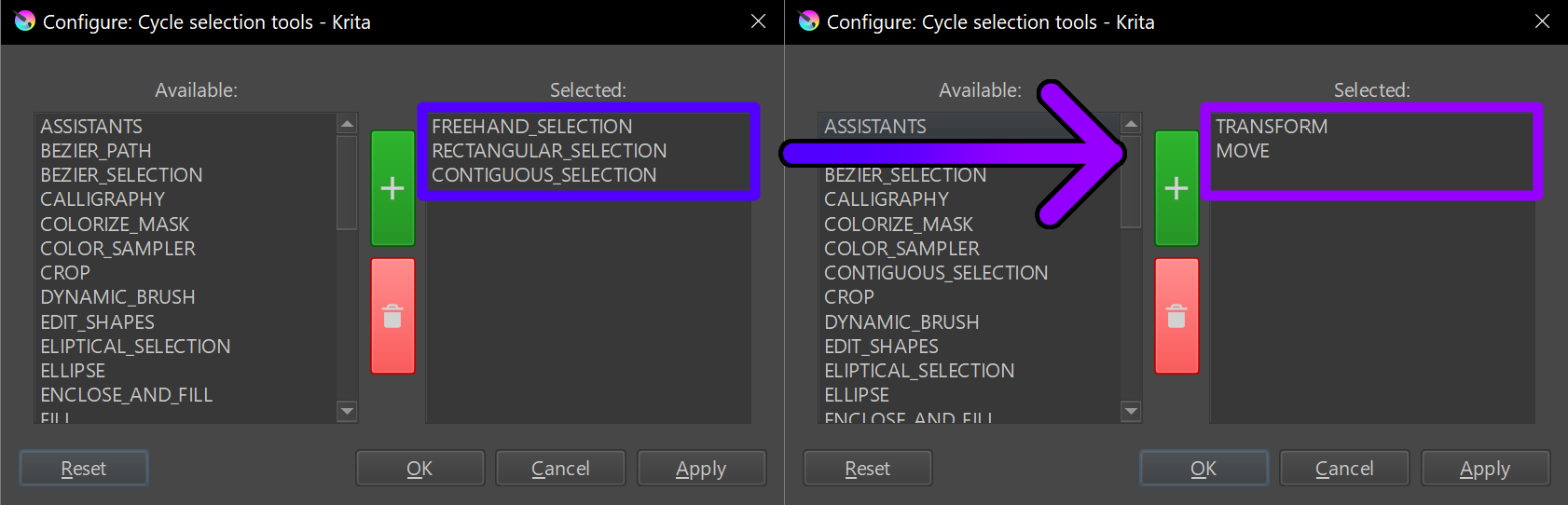
Only time I’ve done anything remotely close to changing anything about the Free Selection Tool was to swap it for a different tool from the Shortcut Composer’s ‘Cycle Selection Tools’

And like I pointed out in my original post, after the incident one of the first things I did was restore everything in krita to default settings.

Here on my side I have checked now the versions from 5.1.5 over 5.2.0, 5.2.2, 5.2.6, 5.2.9 to 5.2.10 (each a fresh installed one) and none has it set as it is in your Krita according to your description of your Krita’s behavior.

This leads me to believe that some magic must have happened to your Krita, because how can it be set to this, if you and nobody else did set it? Krita’s standard for pressing L is to make the brush preset color a bit “Lighter”, and holding it permanently down results very quickly in a fully white color, and that is what Krita did in all tested versions (besides I had wondered if it were otherwise). And for pressing L + LMB is nothing defined in a fresh from scratch installed Krita (tapping your stylus on canvas results in a LMB (also called Left Click)).

I have read it, and if you talk about pressing the Restore Defaults-Button: It would not revert an accidentally changed shortcut-scheme back to Krita’s standard-scheme, it only would revert changes made to the currently selected scheme, and that only if you pressed that button on the “Keyboard Shortcuts”-category.
That was why I asked, because I do not see what you see and have to rely on the information you give. I can only give tips or clues where you can look for something unusual or try something to solve your issue, because I don’t sit in front of your machine, can not check these things for you.

Also, you have to click this Restore Defaults-Button on each of the sub-categories the option dialog offers, it is not a global revert. If you really want to restore Krita to its factory settings, you have to use ‘‘Settings’’ >> ‘‘Reset All Settings’’, the option at the very end of the ‘‘Settings’’-Menu. “That” will scrub your settings!

Michelist

I’m sure mate

I only brought it up because anyone can forget and/or overlook things :backhand_index_pointing_down:

So is there a way to erase krita completely and start fresh? I saw recently krita got a new update.
I’m ready to nuke this :rocket:

Of course, that is possible:
Delete your kritarc and anything that has the word krita in its name in the folder %LOCALAPPDATA%, do not forget the folder named krita (only a cache-folder, nothing that influences Krita’s behavior) that is also found there. Furthermore, you need to delete the folder %APPDATA%\krita\ completely.
Then uninstall Krita and clean the Windows Registry from all keys belonging to Krita. That registry cleaning is only for the assignments installed by Krita’s shell-extension, and the reinstallation will recreate them again, but if you “really” want to completely destroy all remnants of Krita, then that has to be part of your cleaning action. If you use a tool for registry cleaning or do it manually is up to you.
Now you install the update. That’s it. Absolutely radical!


But in principle, it would be enough to follow my initial description:

Where you should delete kritarc, resourcecache.sqlite and krita5.xmlgui. If you want to go even further, delete your whole resource folder %APPDATA%\krita\, which contains every ever installed bundle, brush preset, etc., and in %LOCALAPPDATA%anything in the folder that has the word krita in its name.
If you really want to drop anything is also up to you. I can see that you already used this folder with Krita 4 before you upgraded to 5 so you could probably have a lot to lose. You decide, don’t blame me afterward if you may miss a loved resource.

Michelist

No worries, I already did a back up. And I’ll try the simple method first and work my way up depending on how that goes, thanks.

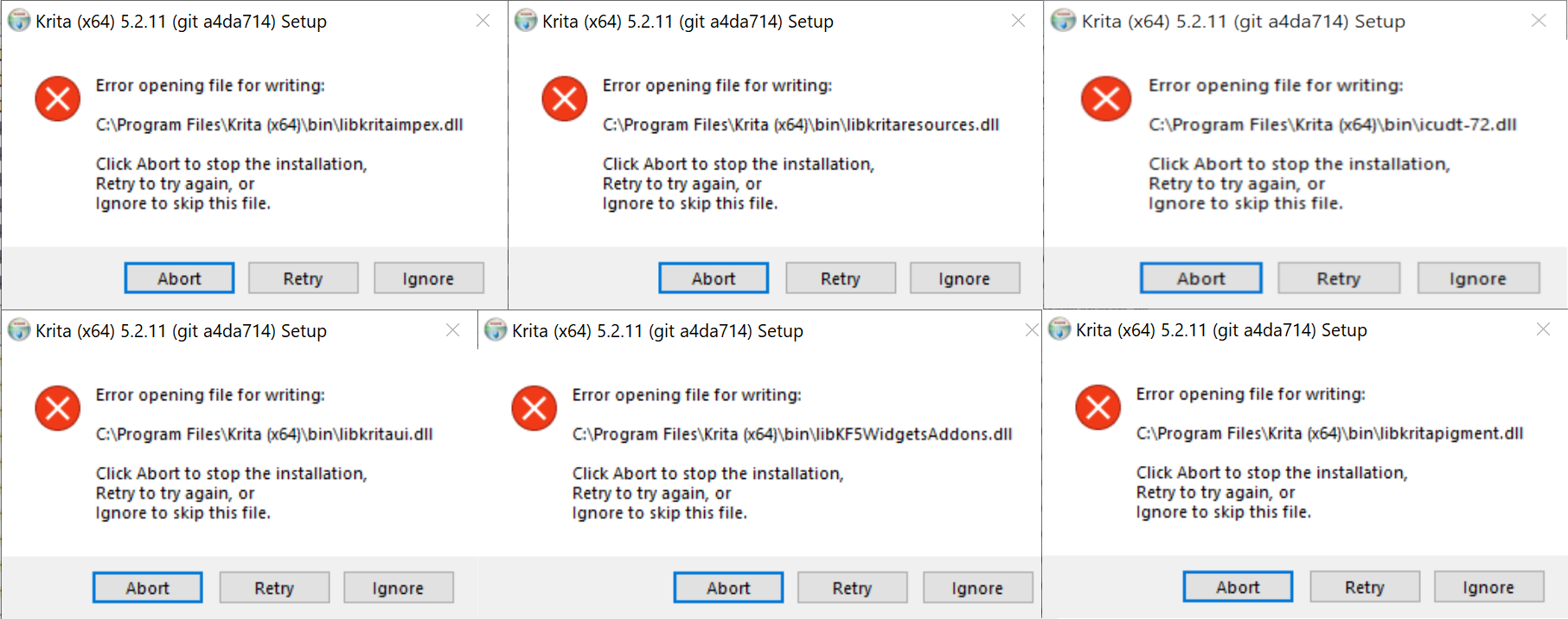
ok, got rid of those files and tried to install krita 5.2.10 and 5.2.11 but keeps giving me this error messages and won’t let me install


if I click ‘Ignore’ just gives more error messages

Is that normal? Should carry on deleting the %APPDATA%\krita\ and %LOCALAPPDATA% next?

In no way delete your whole %LOCALAPPDATA%!

This would shred your Windows in full and need you to re-install Windows from scratch.
In %LOCALAPPDATA% you can only safely delete the files that carry krita in their name and if you want to, you can delete the cache-folder krita which is also found there.

If you want, you can delete %APPDATA%\krita\ in full, that are only the resources and the settings hold in your krita5.xmlgui. But only %APPDATA%\krita\, not the other folders in %APPDATA%!

For the error warnings you get, it is possible that you installed Krita using admin rights and now are disallowed to remove them because of missing rights.

Do you know how to set user rights for a folder?

Or better, download Easy Context menu v1.6 a portable tool that can take over the ownership of folders that will allow deleting/overwriting these files via a normal installation.
Since this can be a mighty tool with a few settings, be careful using it!
There you need to activate only one command under the group Folder Context Menu and that is Take Ownership then activate this setting with a click on the left toolbar button Apply Changes (or similar, can’t remember right now).
So after you set up that tool, you go to c:\Program Files\Krita (x64)\ and do a RMB on the folder Krita (x64) and select the new entry Take Ownership, now you should be able to install Krita.

I hope you haven’t done stupid things in between!

Michelist