Yesterday the eraser function on my stylus stopped working mid-project. For reference I’m working on a Lenovo Thinkpad Yoga 12 with Windows 10, the pen is a Fujitsu Lifebook Pen (Product No.: CP389602-04) and it operates with Wacom.
The pen eraser has always been a bit wonky with Krita - it seems like if I start the program fresh, it defaults to the eraser, but afterwards it usually (but not always) “remembers” the last function and does that with the eraser instead. E.g. if I use the selection tool and then switch to brush tool but then go to erase with the stylus eraser, it selects things. It seemed to “remember” correctly that the erase function was on as long as I stayed using the brush. The pen does not do this on any other program, and I don’t actually have the option to change the eraser input on my pen settings in Wacom or in Windows. On all other programs it’s an eraser if erasing is an option, and “touch” if eraser is not an option.
Yesterday while I was drawing, the pen eraser suddenly decided that it specifically will not “remember” any changes to the brush/tool setting - meaning if it’s on erase it will erase for both, if it’s on “normal”/the eraser is off it will draw for both. Confusingly, it still differentiates between other tools (like the brush/select example above). It just can’t “remember” any changes within a specific tool. I hope that makes sense. Functionally it means my stylus can no longer erase without clicking the tiny erase button in the corner (and I’m on a tablet so I can’t input E while I’m drawing).
I’ve tried to restart the program, restart my computer, update Krita, and none of those have helped. I checked to make sure the pen was still functioning normally in other programs (like OneNote, Microsoft Word), it still seems to. I tried to map a secondary button to erase, which then worked in other programs but not Krita (even after switching on “Use Mouse Events for Right- and Middle-clicks”). “Temporarily Save Tweaks to Presets” is on, tried to toggle it, nothing happened. I tried switching to Wintab for the Tablet Input API - that made the pen non-functional. Not sure what I’m doing wrong. Any help is appreciated!
I don’t know if this will solve it for you but Krita doesn’t recognize that second stylus tip as an eraser, it sees it as another stylus and remembers the brush preset you last selected for that stylus tip during your session. So as soon as you do anything else with that “eraser” tip, that’s what Krita will remember during your painting session.
Thanks for the reply. I recognize that it doesn’t see it as an eraser (even if that’s what the wacom input says), my problem is that it isn’t treating it as a separate stylus - at least not fully, from what I can tell. If I’m on a brush and I make changes to the settings using the eraser head, it used to only affect the eraser head and the pen tip would remain the same. Now it affects both the eraser head and the pen tip, as if I only had one stylus. But confusingly when I change the tool with the eraser head, for example to “fill”, and then switch back to the pen tip, the pen tip is still a brush and the eraser head still does the fill function. So there’s still some degree of fidelity but not what there was before.
Sorry, I know the language I was using wasn’t so straightforward - it’s a little hard when the “eraser” terms are overlapping. Let me know if I can clarify further.
Here’s something we can look at: Go into Krita’s tablet tester and make strokes with both ends. Read the text output and see if Krita is seeing 2 separate styluses.
I’m not sure if this answers the question, but it says “eraser brought near” or “eraser taken away” when the eraser is near the screen and “pen tip brought near” or “pen tip taken away” when the pen tip is near the screen. Both end with “mouse release” when the stroke is finished.
When you’re drawing on the grid area, it should show repeated ‘Stylus move’ or ‘Eraser move’ records.
So, krita does recognise that there are two different ‘tips’ available.
They should be treated as two independent painting tips so that you can switch between two different brush presets.
So using the ‘Eraser’ tip, you can select an Eraser brush preset then erase with it.
Using the ‘Pen’ tip, you can select some kind of painting/drawing brush preset and paint/draw with it.
After that, whatever brush preset you select with either of those tips will be remembered on that tip for the rest of the session. That’s how it should work.
Did you also disable Windows Ink in the tablet settings utility, if that is possible?
Which version of krita are you using? The latest release is 5.2.6.
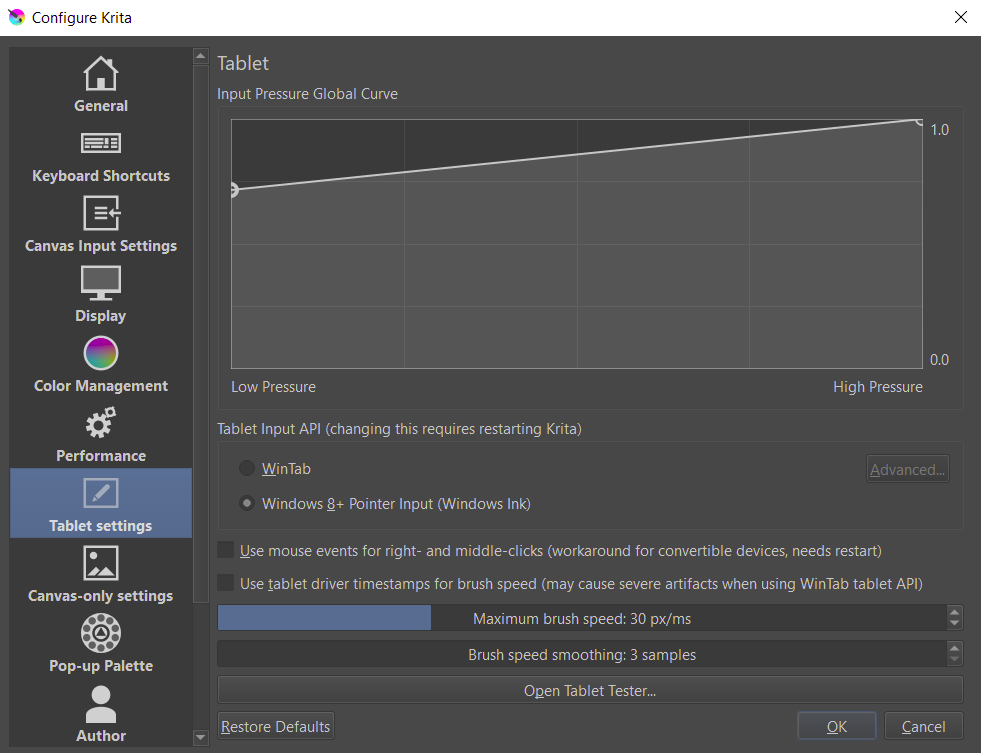
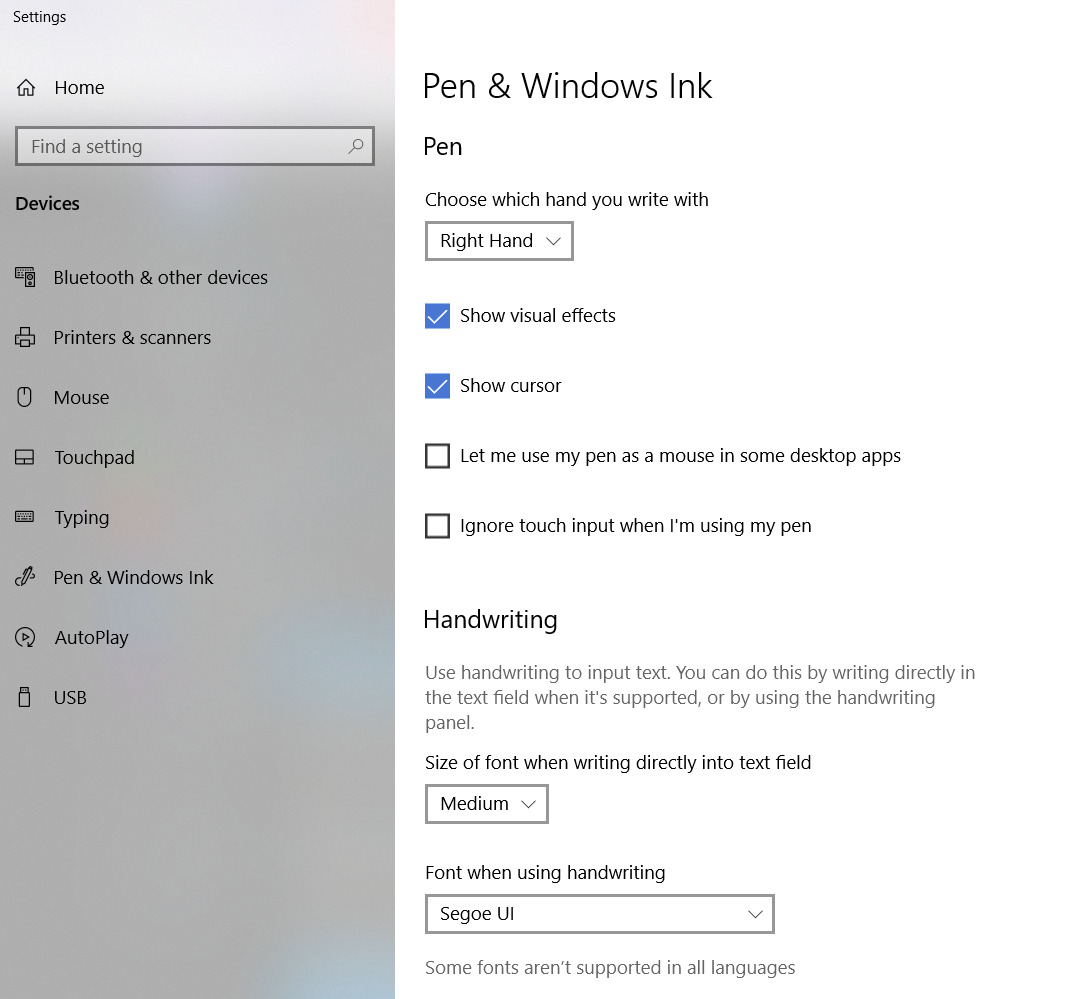
I do not see disabling Windows Ink as an option in the tablet settings, unless you meant disabling it on my computer settings. I’ve included a screenshot in case I’m looking in the wrong place.
I updated when the problem started. My current version is 5.2.6.
I have an old but working Wacom Graphire tablet with a stylus that has an ‘eraser end’ and it behaves as yours does, based on its Tablet Tester output.
It also behaves as I described earlier with selecting different brush presets, behaving as two different and independent ‘painting tips’.
The screenshot you show is the krita tablet settings.
You show Windows Ink selected in krita. That needs to be matched by Windows Ink being enabled in the pen settings in the pen/tablet settings utility software, wherever that is.
If you choose Wintab on the krita side then you must disable Windows Ink in the pen/tablet settings.
I don’t know what that means and whether you do have a settings utility for that pen or if it relies on the Windows operating system to take care of it.
What facilities do you have for configuring pen/tablet behaviour?
I don’t know that I have the option to enable or disable Windows Ink in any of the settings that I can see.
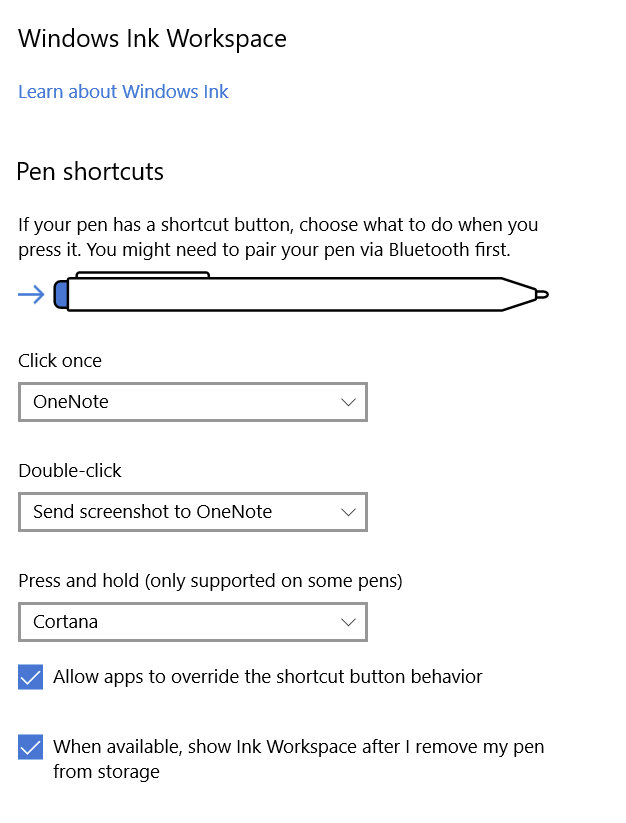
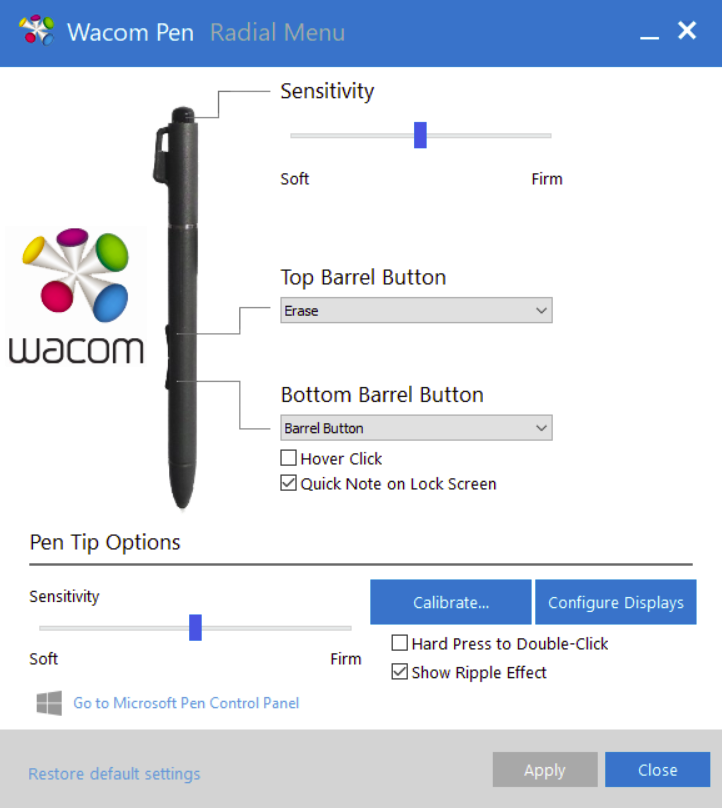
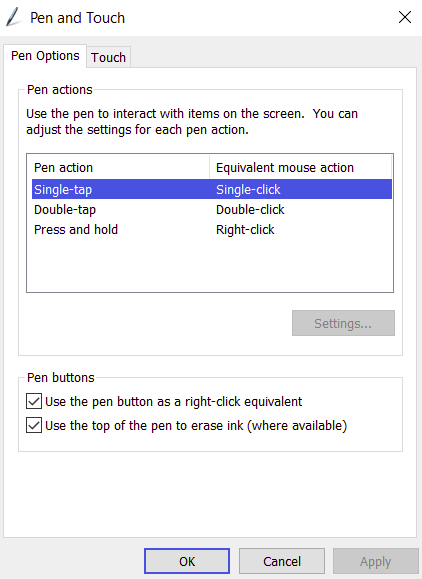
Wacom is the program that the pen came with (if I remember correctly - that was a decade ago; otherwise it was already installed on my computer and is the default tablet program). It does not have an option related to Windows Ink, nor does the pen and touch control panel it links to. When I search for Windows Ink in my computer’s search bar, this is the only menu I get, which has a broken link to “tips” (this tries to lead me online to a website on Windows 11 features).
Here’s screenshots of the Windows menu that comes up when I search Windows Ink.
I’ve just noticed in your screenshot of the krita settings that you have an unusual Input Pressure Global Curve.
It’s usually a straight line from lower left to top right though some people bend it to suit their personal preferences for ‘feel’.
Your setting will result in no low pressure capability for any brush preset in use.
What was your reason for setting it like that?
Does your Tablet Tester event log show any pressure signal - P=xy.z% ?
What you have is a Microsoft - Lenovo - Fujitsu hybrid tablet-screen + pen system that uses technology licensed from Wacom and driver software licensed from Wacom. It’s bound to be confusing.
It will be configured for use only with Windows Ink and no Wintab capability.
Also, Windows updates will probably ‘optimise’ system settings to be whatever is best for Windows Ink capable Microsoft Windows applications.
If I had this arrangement, I’d disable every option possible to remove Microsoft’s ‘fancy stuff’ (show visual effects, show cursor etc, etc.)
Apparently, your pen may have a button at the ‘back end’ that is labelled Sensitivity though I’ve no idea what that does.
Further, if you have such a button, the Pen and Touch options can be used to enable using the top of the pen to erase ink.
Do you have that thing on the top of your pen?
Krita behaves well on Windows with graphics tablets from Wacom, Huion and XP-Pen (after they’ve been configured properly). The only random problem is when a Windows update messes up the installed driver or fools around with the settings.
I’ve no idea what could be going wrong with your particular arrangement and it is a complicated mixture of things.
It was just personal preference. I’m usually just drawing silly line art and it helps me connect lines while keeping them mostly the same size. Didn’t realize it was so unusual, haha. The tablet tester does show a P with a percent that changes throughout the stroke.
The sensitivity is just referring to the eraser sensitivity. It’s not a separate button from the eraser.
I tried to remove the “fancy stuff” and nothing changed. Maybe I had an update that Krita did not agree with. But I think I’m just gonna chalk it up to an error with my 10 year old computer - it’s not the first piece of functionality that it’s lost.