Hey, everyone. I don’t know if this is an issue with Krita or with my tablet, so I’m seeking answers in both places.
Whenever I restart my computer, I have to re-download the driver for my tablet because the cursor/point of the pen appears on the tablet screen about an inch to the left of where the physical tip of the pen is. This issue only occurs in Krita - I can use the pen fine to navigate around the internet and my document folders, for example.
This is extremely consistent, every time I turn the computer on. It’s a pain in the butt, but manageable. However, this time the issue is not correcting itself when I re-download the driver. I have turned the computer on and off again, downloaded the driver twice, made sure everything is up to date, etc.
Does anyone have a similar problem? How can I fix this? Tia.
ETA: I’m using a Huion Kamvas 13 tablet on a Windows desktop computer.
Another thing you can try, in the Huion settings/control utility, is to create an application profile for krita while krita is running.
Then select that profile if you every want to make changes to your tablet settings for krita.
(I’m assuming the Huion utility has that facility.)
I don’t know what would happen if you had different application profiles for AppA and AppB and you were running and working with AppA and AppB at the same time.
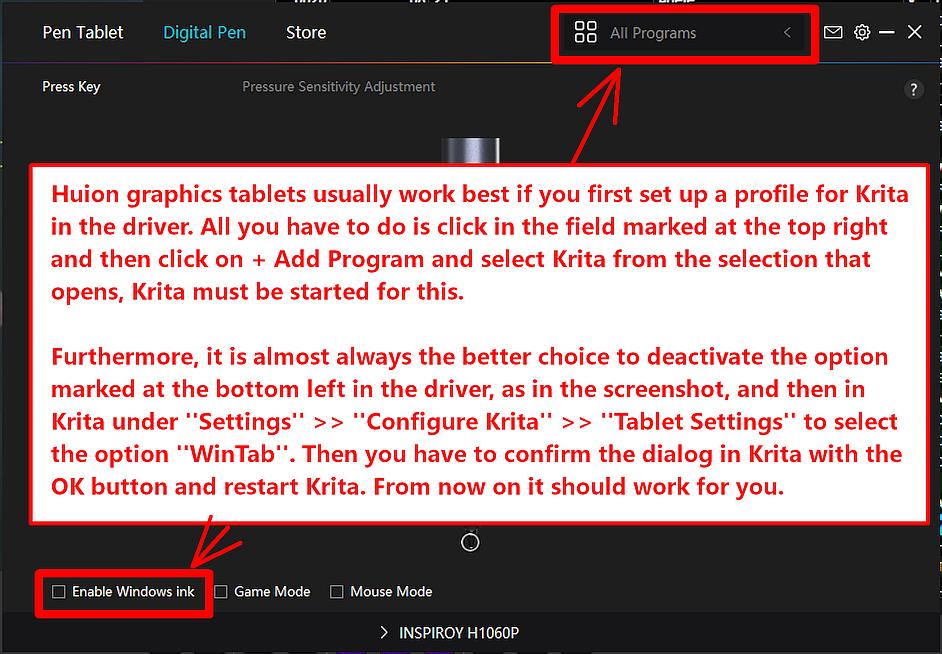
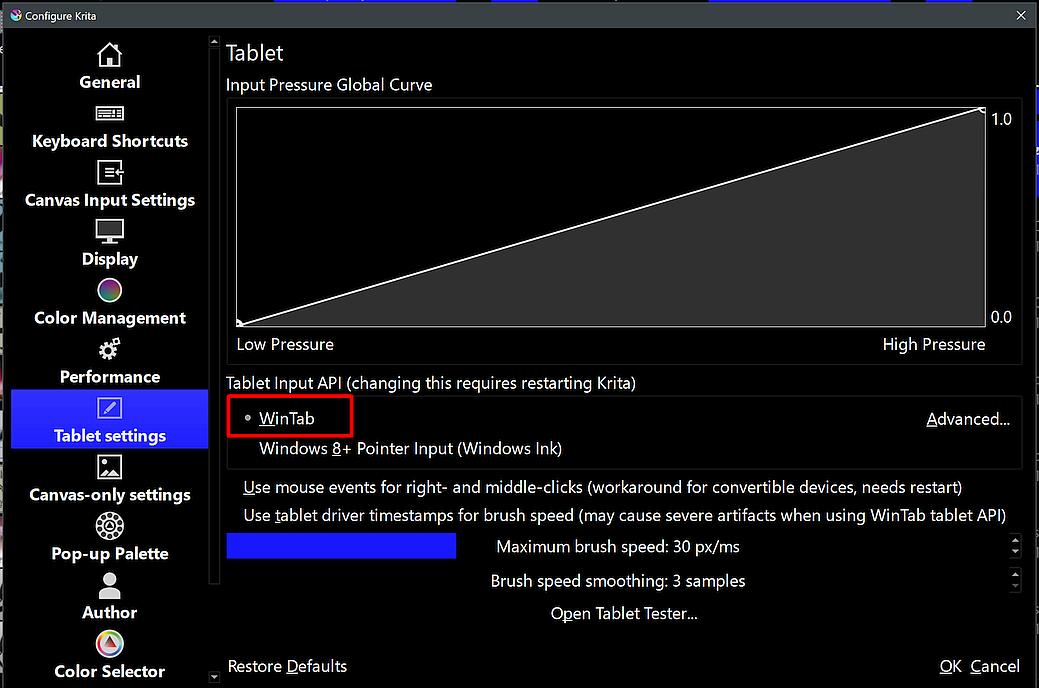
Hi, I prepared a screenshot for you, usually this is the way to make a Huion graphics tablet working with Krita using Windows.
Huion graphics tablets usually work best if you first set up a profile for Krita in the driver. All you have to do is click in the field marked at the top right and then click on + Add Program and select Krita from the selection that opens, Krita must be started for this.
Furthermore, it is almost always the better choice to deactivate the option marked at the bottom left in the driver, as in the screenshot, and then in Krita under ‘‘Settings’’ >> ‘‘Configure Krita’’ >> ‘‘Tablet Settings’’ to select the option ‘‘WinTab’’. Then you have to confirm the dialog in Krita with the OK button and restart Krita. From now on, it should work for you.
This was a welcome topic.The solutions posted seem to have cured a problem I (and a few others) had talked about with our Huion pen displays. I have a Kamvas 22 Pro display and was experiencing a lot of trouble with the Krita UI freezing up - among other problems. A “cure” was to disable the rocker switch functionality on the stylus. That certainly worked, but it took out the feature of being able to erase with a button click right under my fingertips. Wasn’t a huge burden though because I had the erase function programed into my mini-dial USB keypad. This thread solution took care of everything. Now I have my stylus eraser function back and no more freezing UI. And it frees up a button on my mini keydial. I believe setting up a profile for Krita in the driver solved the problem. Good find by the way!