About 2 days ago I was getting ready to start a drawing but my pen pressure just wasn’t working. I tried literally everything to fix this and nothing is working. My pen pressure works just fine on other apps like Ibis paint, but it only isn’t working for Krita. I have it set to windows ink in the config krita tab, i’ve updated krita and Huion driver and nothing is working. Whenever I use krita with my Ugee s640 it works fine and normally, but with my Huion and it just does not want to work right. Please help.
 Hello @arokaro4, and welcome to the forum!
I can’t believe that. 
Usually, you have to create a profile for Krita in the Huion driver and use WinTab instead of Windows Ink, then it will most likely work. But since it’s the default setting for using Huion tablets on Windows with Krita, I’m confident it will work. By the way, it makes sense to set up your Ugee the same way if this works for your Huion, otherwise you would have to switch Krita and restart it each time you switch tablets before you can use it.
So, try this, please:
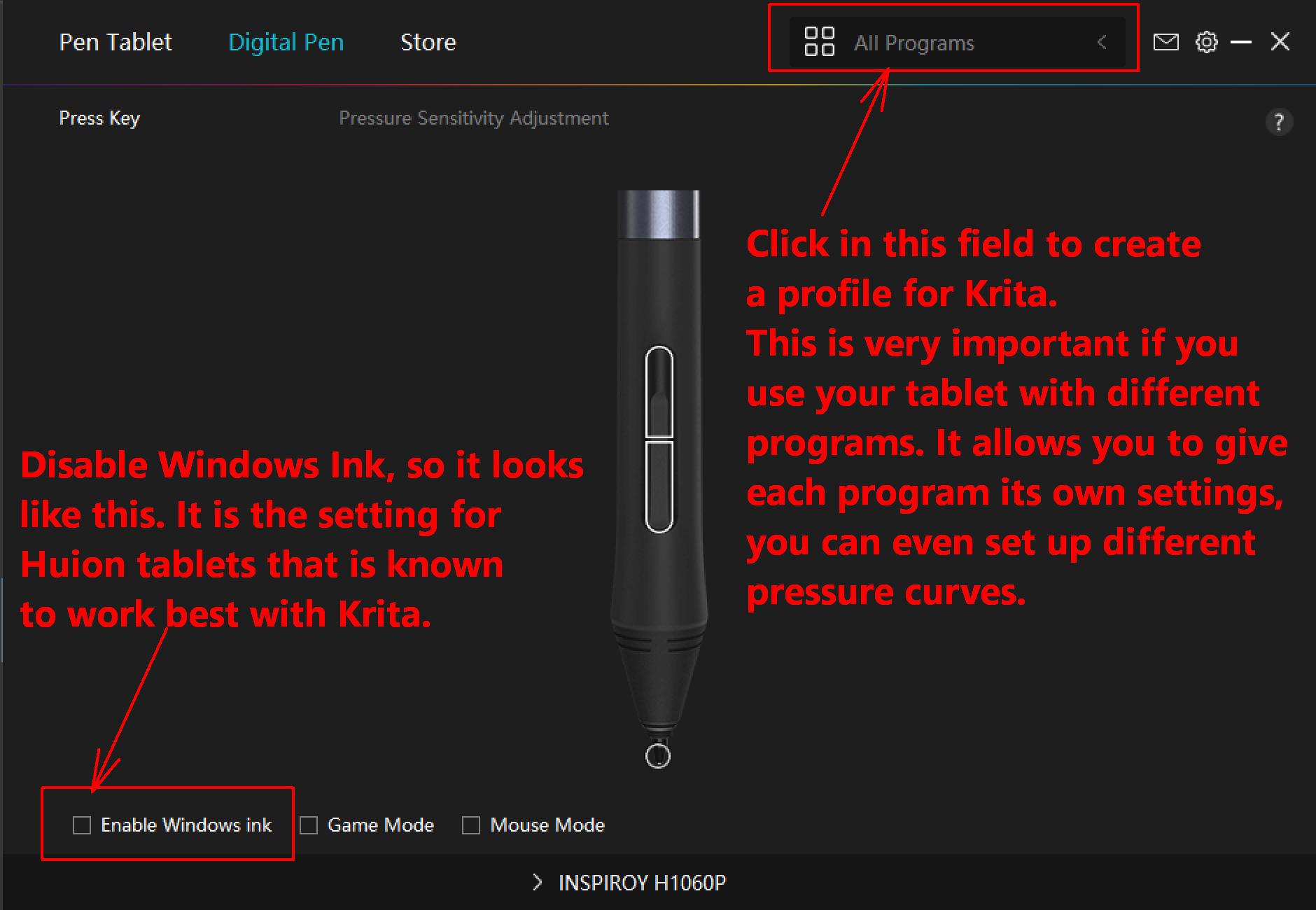
First, you have to create the profile for Krita. To do this, you must have started Krita, then simply click on the “All Programs” drop-down menu in the title bar of the driver and select Krita.
Then uncheck the “Enable Windows Ink” box under “Digital Pen” in the Huion driver. Done.
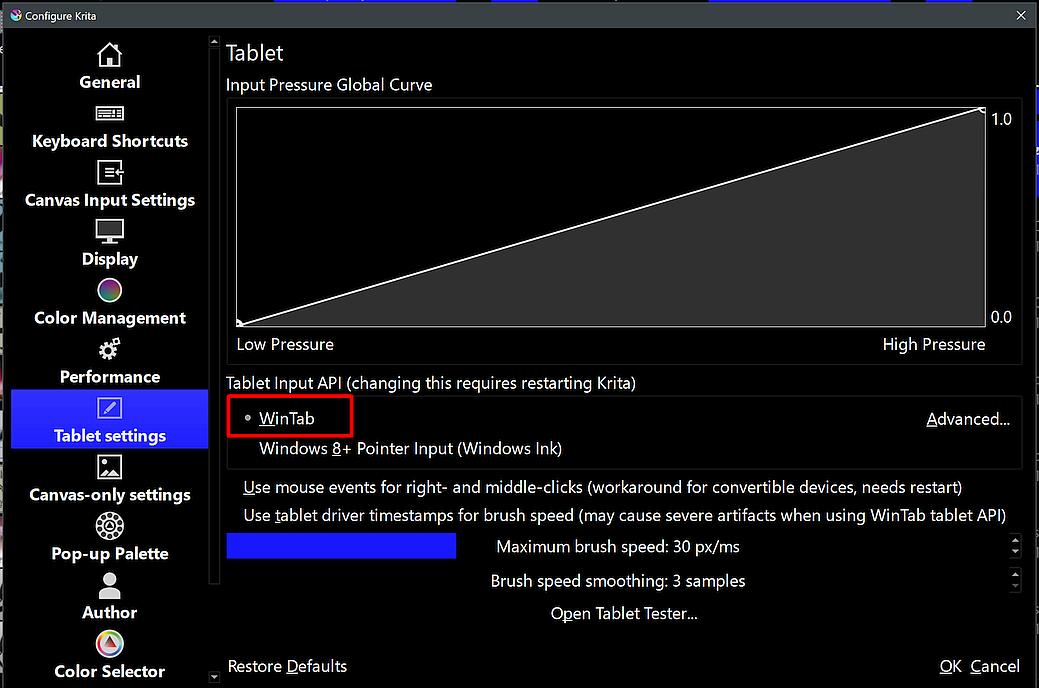
In Krita you have to activate the radio button at ‘‘WinTab’’ under ‘‘Settings’’ >> ‘‘Configure Krita’’ >> ‘‘Tablet Settings’’, and then confirm this setting with the OK-Button in the lower right corner of the dialog and restart Krita. See screenshot:
And here you see what to select in Krita:
If, contrary to expectations, this does not help, then you will have to help us, since we are neither all-knowing nor all-seeing here in the forum and are still not allowed to read minds, your description is the least helpful for someone who wants to help you, because you did not describe what you did. In addition, it does not apply in well over 99% of all cases. And our magical crystal ball is once again in need of a service to replenish thaumaturgic energy, too many users like you are constantly sucking the energy out of it.
Therefore, if the above tip did not help, we need the following information from you:
The version of your operating system you are using. Which Windows, Linux, macOS, Android or ChromeOS is it exactly, please?
Which version of Krita are you using? Krita 5 is not a complete specification, we need the exact three-digit number, in the case of nightlies even the complete Git number. You can find this in the splash screen and also in the dialog under ‘‘Help’’ >> ‘‘Bug Report’’ behind ‘‘Version:’’.
Where did you get your version of Krita? Depending on the answer, this information makes targeted help possible in the first place.
Please describe briefly what you did so far and where you are stuck, because: “I tried literally everything”, does not help, and most users haven’t done what they claim.
Michelist
I’m on 5.2.9, Win10. I’ve updated Krita, my Huion driver, restarting my pc, uninstalling and reinstalling krita, switching from Wintab to Windows ink. It feels like i’ve done everything everyone has suggested I do and nothing is helping me fix this. Also when I opened Krita today the pen pressure was working normally for about a split second before it went back to not working right.
I’m sorry, but the following sounds like the schoolmaster is giving a sermon. But I just want to help you.
Although driver reinstallation will in most cases work without the ancient full power-off restart yo-yo, in some cases it is the last resort working (but don’t ask me why this computer-voodoo works, I can only tell it helped quite a few, where nothing else did the trick). Important for this was always to do this full power-off restart first after the uninstallation of your driver (remember to unplug the tablets while doing this!). Then install the driver according to the manufacturers’ installation instructions, and do this full power-off restart for the second time.
Full restart means that you must turn your computer back on using the power button after it has shut down. However, if the power LED on your keyboard or an LED on your computer signals that it is not fully off, you must unplug it after your PC has only faked shutting down.
It is not enough to close the lid of your laptop, this is NOT a shutdown, it is a method to save time when waking up the PC by writing the entire memory content to your SSD (and thus aging (destroying) the SSD much faster than a regular shutdown, which with today’s SSDs hardly takes longer than waking up from this sleep mode, hibernation is similar, and just as damaging).
By the way, it is also important that you have sleep-mode and hibernation function disabled for this full power-off restart, because these functions sabotage what you want to achieve with this restarting yo-yo, completely flushing your computer’s memory.
If you don’t know how to completely disable hibernation and sleep mode, then please refer to the manual of your computer or look it up via the search engine of your choice, it is a relatively simple task, but makes the huge difference needed.
Reinstalling Krita will only change anything if you delete Krita’s settings file kritarc, that is found at the very end of the folder %LOCALAPPDATA%, and you have to do this manually, there is no automatism. This was done on purpose because it preserves the settings that users have made in the Krita user interface. And there are users whose kritarc is several years “old”, a well-maintained file, if you want to call it that, and they would probably be very unhappy when an update messes up their long maintained UI.
Because you say, you are using other programs than Krita with your tablet too, a profile is a must.
Important for the switching from WinTab to Windows Ink or vice versa is to obey that it always has to be confirmed using the OK-Button and needs a restart of Krita, this is mandatory not an option, there is no room for negligence, it is a must!
Additionally, when you select to use WinTab in Krita, you must disable the use of Windows Ink in the Huion tablet driver, or the same vice versa for using Windows Ink, if you enabled Windows Ink in Krita, you have to enable it in the driver too.
One more thing occurred to me this evening. Even though it works in most cases, there were a few reports where you had to decide which tablet to use with Krita. This was with users who were using more than one tablet, and those users could only fix the problem of one tablet by completely uninstalling the driver of their second graphics tablet.
Michelist
This topic was automatically closed 30 days after the last reply. New replies are no longer allowed.