Is there a way to pin a corner or specific point in a layer to a point so that it wont move when transforming the layers width, or height? If this is unclear maybe the usecase would make it clearer: I want to layer maps on top of eachother, but with how experienced I am now, it constantly shifts and I have to readjust 20 times.
Hi! I think that you want to resize (scale) a layer around a specific point. I don’t think you can do that in Krita, it seems that you can only change the center of rotation in the Transform tool. For scaling, Krita will only use one of the 8 points available around the bounding box (corners and mid-span of the box).
Workaround I have used in the past:
- Using a separate layer, draw a skinny rectangle between two known points that should match between the two maps. This will be your “scale bar”. Make one scale bar per each map, and each bar needs its own layer.
- Move the scale bars into the corner of the bounding box of each layer (map) that needs to be scaled. Group them together (1 map + 1 scale bar).
- Move layers around so that the non-moving corner ends of the bars are in the same spot.
- Start scaling your group with the transform tool, but instead of looking at the map, match the length of your scale bars together. The map will scale accordingly.
- Move the groups so that maps re-align.
Tip 1: the longer the bar, the more accurate your scaling will be. You want to establish a scale between two remote points, not points close to each other.
Tip 2: I did not address the rotation of the maps. You want their rotation to match BEFORE you start scaling them. Just use the 2 points you picked above and make sure they align on X or Y axis.
The problem also is that im using maps with differing projections. Some are as a flat plain, some curve with the globe, some are squashed more. As far as my thinking power gets me, your solution would not work. Although I could be wrong, but I’m certain enough not to try unless told otherwise /:
So you’re using Krita to match maps that have completely different geometry and curvature. Any particular reason you picked Krita instead of some CAD software that could perform advanced functions like this?
Because I barely understand something as simple as Krita XD I can’t imagine how horrible it would be for me to use really advanced software. Maybe in the future though (:
Using the transform tool, you can scale with a fixed point remaining in the same place.
If you move the pivot point (which is usually in the centre of the content bounding box) to another place, even outside the content bounding box, you can then use corner handle dragging (not side handle) with Shift+Alt as a post-click modifier.
i.e. place the cursor over the corner handle, click and hold down the left mouse button, then press and hold Shift+Alt, then move the mouse. The pivot point will stay in the same location.
@AhabGreybeard just invalidated my Very Long Smart Post with a single Shift+Alt
I feel beaten. Going back to Read The Fine Manual.
I don’t think you should look at it that way. Also, I made a small error.
It’s not Shift+Alt, it’s just Alt on its own. The additional use of Shift doesn’t affect the end result.
Also, you can do it by enabling the ‘Anchor Point’ control in the Tool Options docker:
Transform Tool — Krita Manual 5.3.0 documentation
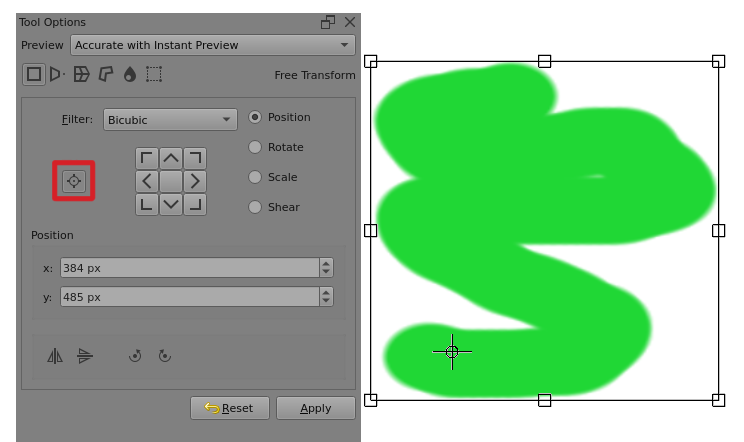
Then drag the corner handles with no need for a post-click modifier key.
The modifier keys are Ctrl, Shift and Alt. So there are seven possible combinations of using those three keys.
They can be used pre-click or post-click so there are fourteen ways of using the modifier keys.
Try using Ctrl as a pre-click modifier before doing a rotation with the transform tool then do horizontal and vertical movement of the cursor 
I experiment with the modifier keys to see what different effects they have and they sometimes do cool and/or useful things. It’s quicker than using the manual but not really a substitute.