Hello everybody
I am quite new to Krita and have only worked with it on drawings so far.
Today I learned that Krita 5.2 comes with a storyboard docker and that’s exactly what I need for a new project. I want to develop a storyboard for a short animation which consists of text, images and drawing.
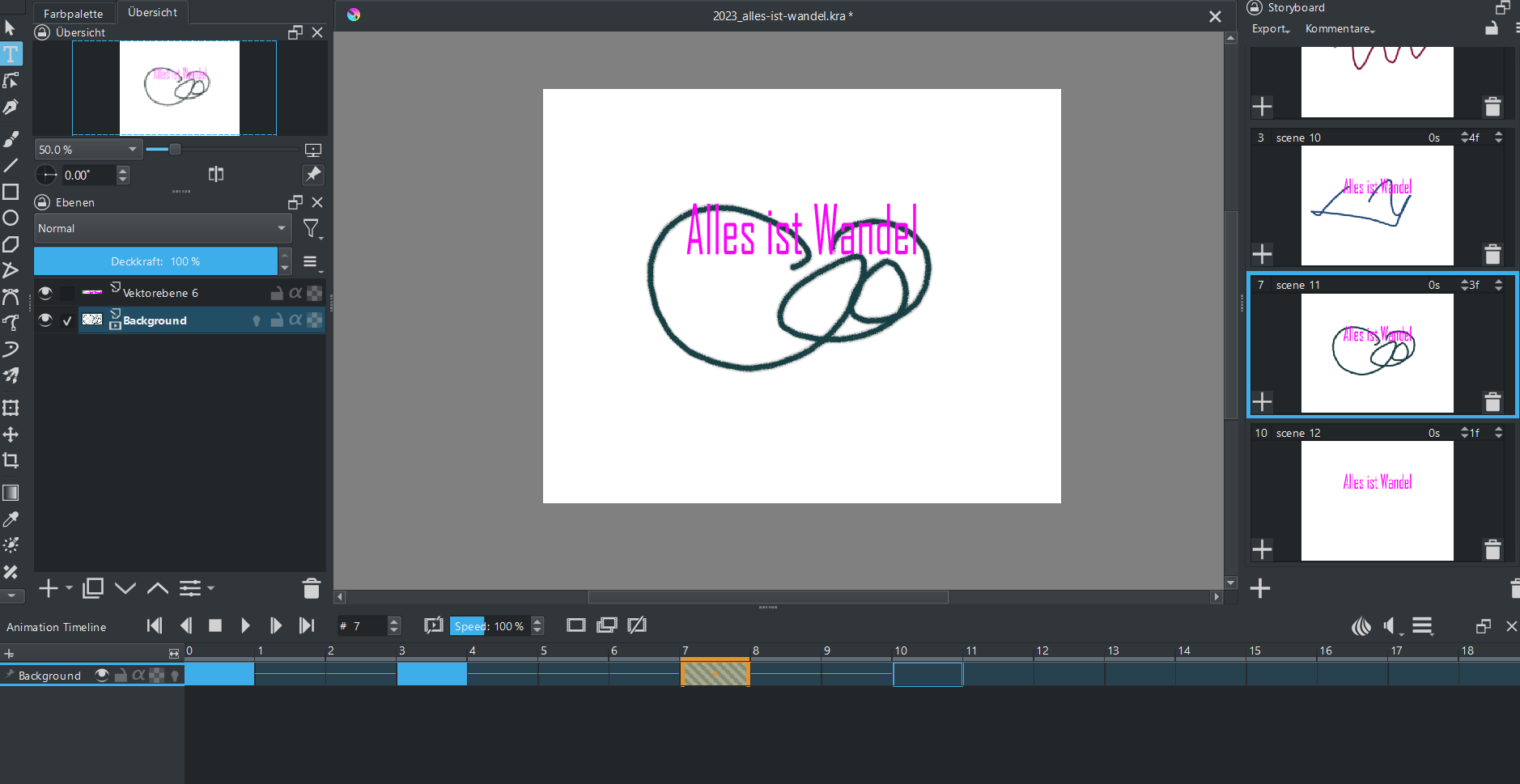
The first 4 scenes of the story are short sentences. But with each text a new vector layer is created by Krita. So, when trying the animation in the timeline all text from all vector layers is constantly shown in every scene. I also converted the vector layers into regular layers, but this didn’t help.
The visible difference to just adding drawings in the timeline is, that these are not added as new layers at all, they are only added to the timeline.
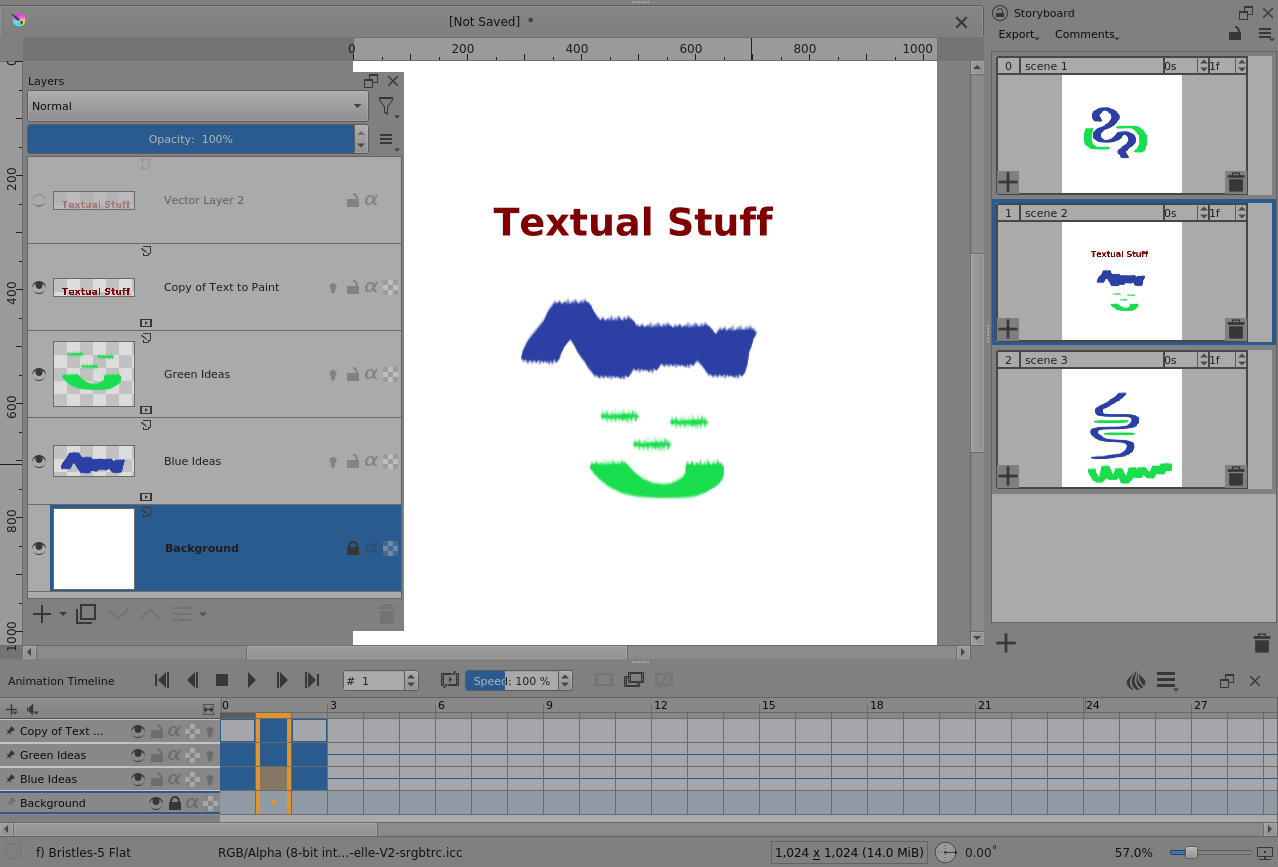
Here is an example, maybe this makes more clear what I am trying to describe:
I started with 3 scenes, each only consists of a drawning. All 3 drawings were added by Krita to the background layer and are seen in the timeline at the positions I defined.
Then I added one scene with text. Krita creates a text layer wich is permanently seen in every scene.
The Storyboard docker is a ‘concept-presentation’ GUI that’s used to create, modify and present the scenes. It uses the animation facilities to do that where a scene is stored as a keyframe of an animation on a paint layer.
A text/vector layer can’t be animated so it can’t store a sequence of separate keyframes with independent content. So, just like a static (not animated) paint layer, anything on a text/vector layer will be visible in all frames of the animation, i.e, all scenes of the storyboard.
To get around that, you need to ‘work the animation’ using animation creation/manipulation methods in the Layers and in the Timeline.
You can Convert a text/vector layer to a paint layer with right-click → Convert → Convert to Paint Layer.
It’s a good idea to do that with a duplicate of the vector layer so that the vector text can be used later for text editing to make different text captions (unless you’re sure it won’t be useful again).
Then on the paint layer, that now has an image of text on it, go to the Timeline frame-0 and do right-click → Create Duplicate Frame.
That will create an animation keyframe of the image at frame-0. You now have an animated paint layer.
You can drag that keyframe to another frame, i.e, another scene of the storyboard.
That will also result in an empty keyframe being made at frame-0, which is what you want.
It will also result in repeated Held frame after the text image keyframe so you then do right-click → Create Blank Frame after the text image frame.
Then you have a single frame/scene with the text on it:
On the Timeline you can select frames and do right-click → Cut/Copy/Paste Keyframes between animated layers all over the place. You can do it between other open animated documents.
@AhabGreybeard Thank you so much for your incredible help!
I had figured out the conversion from vector to paint layer but didn’t know how to move on from that point.