Hola, disculpen tengo un problema con la varita mágica, cuando selecciono algo con ella solo selecciona el fondo y no me deja seleccionar algo especifico. Muchas gracias por su ayuda.
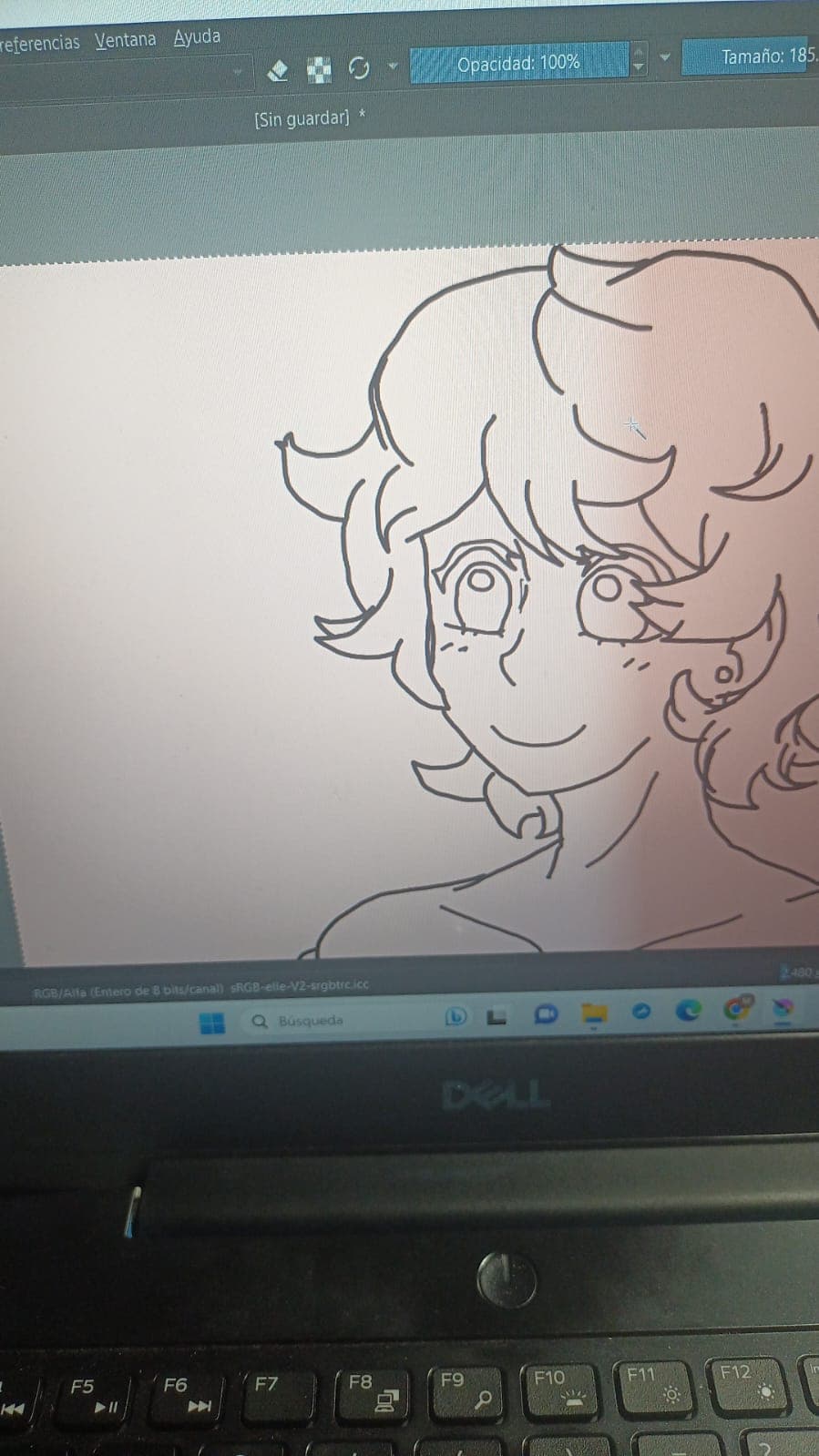
Translated by Google Translate:
Hi, sorry I have a problem with the magic wand, when I select something with it it only selects the background and doesn’t let me select something specific. Thank you very much for her help.
Hi @Mafer - I translated your topic title and the text using Google Translate. Please consider translating your posts into English so that the helpers here can see your question and start assisting you right away.
2 Likes
Please upload a screenshot instead of a photograph.
A full screen screenshot that shows the Layers docker and the Tool Options docker is usually the most helpful.
Partial screenshots for specific problems can also be useful.
I believe that you’re using the ‘Contiguous Selection Tool’.
This has various ‘Action’ options: Replace, Intersect, Add, Subtract, Symmetric Difference.
For simple direct selections, you should use Action = Replace:

If you accidentally use the ‘Subtract’ option, the results can be confusing.
I suggest that you experiment with the different Actions using a simple test image to learn what they do.
2 Likes
¡Debajo de este post encontrarás una traducción informática al español!
Below this post you will find a computer translation into Spanish!
Please also add a translation into English to your texts, so everyone willing to help can understand them and you might get much more and sooner support with your problems.¹
Screenshots:
I wrote this because users who submit photos usually do not know how to take screenshots.
Screenshots are usually very easy to make in Windows.
You just have to press a certain key, but unfortunately I don’t know your keyboard to tell you which key it is.
Usually it is the key to the right of the F12 key.
If you have an English keyboard, please check if there is a key with Print or Prt written on it (sometimes there is more than just Print or Prt written on it). If there is this button, press it once, then go to the “Windows Accessories” folder in the Start menu and open the “Paint” file (not Paint 3D!). In “Paint” press first the key combination CTRL + V to paste the screenshot you just made, and then the key combination CTRL + S to save the screenshot as a file.
I suggest you save the screenshot either in your download directory or on your desktop (unless you prefer a different directory for screenshots). Both directories should be displayed in the save dialog in the left sidebar.
If this works, then you have just created your first Windows screenshot, congratulations!
Michelist
¹(This is a template) If you have language problems, you could use DeepL, probably the best free online translator, or Yandex Translate to translate texts you don’t understand. Furthermore you could use Google Translate or Bing Translate, as well as Reverso, or if you speak Chinese you may want to use Baidu Translator.
For the Firefox browser there is a plugin, an extension, which can translate entire web pages TWP - Translate Web Pages. I also like these extensions: To Google Translate and Simple Translate.
I don’t know about other web browsers, but there will be such extensions too, ask a search engine for “web page translation plugin” and add the name of your browser.
For Windows computers there are also programs to install, DeepL has a translation app for Windows and iOS, furthermore there is the versatile QTranslate which combines many services, also Yandex and DeepL are included. Usually we talk here in English, but if you have difficulties with English, you can attach to your text in English the original text in your native language, as I do here. This way you make it easier for others to communicate with you, and you also get a lot more answers and faster help. For macOS and Linux there also will be software to translate your texts before you post them.
I just found out that the apps for DeepL are available for the following platforms:
DeepL for Android, DeepL for ChromeOS, DeepL for iPhone, DeepL for iPad, DeepL for Mac, DeepL for Windows, DeepL extension for Chrome, DeepL extension for Edge
#######################################
#######################################
#######################################
Por favor, añade también una traducción al inglés a tus textos, para que todo el mundo dispuesto a ayudar pueda entenderlos y puedas obtener mucha más y más rápida ayuda con tus problemas.¹
Capturas de pantalla
Escribí esto porque los usuarios que envían fotos no suelen saber cómo hacer capturas de pantalla.
Normalmente es muy fácil hacer capturas de pantalla en Windows.
Todo lo que tienes que hacer es pulsar una tecla determinada, pero desgraciadamente no conozco tu teclado para decirte qué tecla es.
Normalmente es la tecla a la derecha de la tecla F12.
Si tienes un teclado inglés, busca una tecla que diga Print o Prt (a veces hay más que sólo “Print” o Prt en ella). Si esta tecla está ahí, púlsela una vez, luego vaya a la carpeta “Accesorios de Windows” en el menú Inicio y abra el archivo “Paint” (¡no Paint 3D!). En “Paint”, pulsa primero la combinación de teclas CTRL + V para insertar la captura de pantalla que acabas de hacer y, a continuación, la combinación de teclas CTRL + S para guardar la captura de pantalla como archivo.
Te sugiero que guardes la captura de pantalla en tu directorio de descargas o en tu escritorio (a menos que prefieras un directorio diferente para las capturas de pantalla). Ambos directorios deberían aparecer en el cuadro de diálogo de guardar de la barra lateral izquierda.
Si esto funciona, entonces acabas de hacer tu primera captura de pantalla de Windows, ¡enhorabuena!
Michelist
¹(Esto es una plantilla) Si tienes problemas con el idioma, puedes usar DeepL, probablemente el mejor traductor online gratuito, o Yandex Translate para traducir textos que no entiendas. También puedes utilizar Google Translate o Bing Translate, así como Reverso, o si hablas chino, Baidu Translator.
Para el navegador Firefox existe un plugin, una extensión, que puede traducir páginas web enteras TWP - Translate Web Pages. También me gustan estas extensiones: To Google Translate y Simple Translate.
No sé en otros navegadores web, pero también habrá extensiones de este tipo, pregunta en un buscador por “web page translation plugin” y añade el nombre de tu navegador.
Para ordenadores Windows también hay programas para instalar, DeepL tiene una app de traducción para Windows e iOS, además está el versátil QTranslate que combina muchos servicios, también Yandex y DeepL están incluidos. Normalmente hablamos aquí en inglés, pero si tienes dificultades con el inglés, puedes adjuntar a tu texto en inglés el texto original en tu lengua materna, como hago yo aquí. De esta forma facilitas que los demás se comuniquen contigo, y además obtienes muchas más respuestas y una ayuda más rápida. Para macOS y Linux también habrá software para traducir tus textos antes de que los publiques.
Acabo de enterarme de que las aplicaciones para DeepL están disponibles para las siguientes plataformas:
DeepL para Android, DeepL para ChromeOS, DeepL para iPhone, DeepL para iPad, DeepL para Mac, DeepL para Windows, DeepL extensión para Chrome, DeepL extensión para Edge.
2 Likes
Hello, is this solved for you? In case it’s not:
Did you use the magic wand tool on a different, and empty, layer than the line art? Looking at the picture you provided, the only way I can recreate the selection boundary shown is to have the line art on a different layer, go to a separate empty layer, then use the wand tool.
If I use it on the same layer, even if there are gaps in the line art so it’s not a closed shape, then there would be dotted lines around the line art. But in your picture there aren’t.
If it is the case that you are trying to use it on a separate layer to the line art, you can make the selection take the line art into account by going to Tool Options for the magic wand and clicking the ‘reference’ button which makes it look at all layers, not only the current one. So you can use it on an empty layer but it will still stop at the boundaries of the line art of a different layer.
Hola, esto te soluciono? En caso de que no sea:
¿Utilizó la herramienta de varita mágica en una capa diferente y vacía que el arte lineal? Mirando la imagen que proporcionó, la única forma en que puedo recrear el límite de selección que se muestra es tener el arte lineal en una capa diferente, ir a una capa vacía separada y luego usar la herramienta de varita.
Si lo uso en la misma capa, incluso si hay espacios en el arte lineal, por lo que no es una forma cerrada, habría líneas punteadas alrededor del arte lineal. Pero en tu foto no las hay.
Si es el caso de que está tratando de usarlo en una capa separada del arte lineal, puede hacer que la selección tenga en cuenta el arte lineal yendo a Opciones de herramienta para la varita mágica y haciendo clic en el botón ‘referencia’ que hace mira todas las capas, no solo la actual. Por lo tanto, puede usarlo en una capa vacía, pero aún se detendrá en los límites de la línea de arte de una capa diferente.
3 Likes
Thanks it helped a lot
1 Like
Ok, I know a little bit of english so i can write. Sorry for the trouble and thanks for the tips
2 Likes
It was already resolved, thank you so much for the help
1 Like
Thank you soooo much for the translation of my text. For now on i’ll write my questions on english
This topic was automatically closed 30 days after the last reply. New replies are no longer allowed.