I am not able to render the recordings made in krita, I tested several ffmpeg, I changed the “video fps” and the “input fps” several times, but it always gives an error and the file is not rendered, and when it is, it doesn’t last even one Second, I need help
Which version of krita are you using and, more importantly, which operating system are you using?
As a separate but related issue, can you render video output from animations in krita?
(If you don’t make animations, you don’t need to answer that.)
Can you upload screesnhots of the windows for rendering out a recording?
i am using the latest version of krita, about the operating system, not sure where i see this. I won’t be able to take the screeshot, however, I’ll detail it for you.
I tested several ffmpeg and I always varied the video fps and the input fps, I tested it several times but it all failed, I don’t know if it’s some krita configuration, but both in png and jpg, it’s not working.
Hi @Aganseo - Your operating system is one of these: Windows, macOS, Android, Linux or ChromeOS (Chromebook).
The Krita version # is easy to get. Click on Help > About Krita. The number will be in the upper right.
Also, if you do Help → Show system information for bug reports, in the first few lines of the text output it tells you the OS information.
You can copy and paste that to a reply here. Please do that.
If you can’t do screenshots, can you take good quality photos of your screen?
Edit:Add: If you’re using Windows then I’d recommend that you get this ffmpeg:
https://www.gyan.dev/ffmpeg/builds/ffmpeg-release-essentials.zip
Please download that, leave it in your Downloads folder and right-click → Extract it there.
Krita
Version: 5.1.4
Installation type: installer / portable package
Hidpi: true
Qt
Version (compiled): 5.12.12
Version (loaded): 5.12.12
OS Information
Build ABI: x86_64-little_endian-llp64
Build CPU: x86_64
CPU: x86_64
Kernel Type: winnt
Kernel Version: 10.0.18363
Pretty Productname: Windows 10 (10.0)
Product Type: windows
Product Version: 10
Locale
Languages: en_US, en_US
C locale: C
QLocale current: en
QLocale system: pt
QTextCodec for locale: UTF-8
Process ACP: 65001 (UTF-8)
System locale default ACP: 1252 (ANSI - Latino I)
OpenGL Info
Vendor: “Intel”
Renderer: “Intel(R) HD Graphics 400”
Version: “4.4.0 - Build 20.19.15.4474”
Shading language: “4.40 - Build 20.19.15.4474”
Requested format: QSurfaceFormat(version 2.0, options QFlagsQSurfaceFormat::FormatOption(), depthBufferSize -1, redBufferSize -1, greenBufferSize -1, blueBufferSize -1, alphaBufferSize -1, stencilBufferSize -1, samples -1, swapBehavior QSurfaceFormat::DefaultSwapBehavior, swapInterval 1, colorSpace QSurfaceFormat::DefaultColorSpace, profile QSurfaceFormat::NoProfile)
Current format: QSurfaceFormat(version 4.4, options QFlagsQSurfaceFormat::FormatOption(DeprecatedFunctions), depthBufferSize 24, redBufferSize 8, greenBufferSize 8, blueBufferSize 8, alphaBufferSize 8, stencilBufferSize 8, samples 0, swapBehavior QSurfaceFormat::DoubleBuffer, swapInterval 1, colorSpace QSurfaceFormat::DefaultColorSpace, profile QSurfaceFormat::CompatibilityProfile)
Version: 4.4
Supports deprecated functions true
is OpenGL ES: false
supportsBufferMapping: true
supportsBufferInvalidation: true
forceDisableTextureBuffers: false
Extensions:

Ok, you’re running Windows 10, this is very usual.
Here is a screenshot of the Export Timelapse window and the Recorder docker on my computer:

It’s a Linux system so the ‘Recordings directory’, the ‘FFmpeg’ location and the ‘Video location’ will be different from your Windows computer.
Can you show a photo of those for your computer?
Please make sure that you download and use ffmpeg from the link I gave earlier.
Do you have a Recordings directory (folder) created and does it contain lots of images after you’ve made a recording?
How much memory do you have?
That is shown in the ‘Hardware information’ section of the ‘Show system information for bug reports’ listing that you got earlier.
yes, it forms several images in sequence, the folder is different from ffmpeg, in terms of storage, I have little however, I was always able to display the recordings normally
Yes, it will be. They are different things stored in different places.
Can you please show a photo as I asked above?
Are you saying that you don’t have much memory in your computer?
How much memory do you have in your computer?
Are you saying that you used to be able to produce timelapse videos at some time in the past but can’t do it anymore?
I have 3 g, and yes, that before installing the latest version of krita, I was able to make the timelapse smoothly, however, I am not getting any more, about the screenshot, which part do you want?
I think I’ve seen this malloc error before with the exact same number, 28812544. The user said it went away after reverting the “Render as” profile, which is done by clicking the ‘Edit’ button next to it and then the ‘Revert’ arrow at the top right of that dialog.
3 Likes
If you don’t know how to take a screenshot, then that’s no problem (you’re not the only one who is sending photos). Screenshots are usually very easy to take in Windows, so if you like to go on, here is a description of how you can take a screenshot in Windows.
You only have to press a certain key, but unfortunately, I don’t know your keyboard to tell you which key it is for you, usually this is the key right beside F12¹.
If you have an English-language keyboard, please check if you can find a key with the inscription Prt, Print or PrintScreen (sometimes there is more or something other than just Print, PrintScreen or Prt on it), if the keyboard is in your language look for a key whose inscription is “Print” or for an abbreviation or a synonym of it, in other words, a description that points to the term.
On full-size keyboards, you’ll find this key very often on the right side of the key F12.
When you have found this key then press it once, then please go to the folder “Windows Accessories” in the start menu of Windows and open the file “Paint” (not Paint 3D!). In “Paint”, first press the key combination Ctrl + V to insert the screenshot just taken, and then the key combination Ctrl + S to save the screenshot as a file.
I suggest you save the screenshot either on your desktop or in your download directory. Both directories should be displayed in the save dialog in the left sidebar of Windows Explorer (for use here and now in the forum this should be okay, and if you want it to be a different folder, then please use a folder that you certainly have access to).
If that works, then you may have just taken your first Windows screenshot, congratulations!
If it is too large for the upload here, then you can reduce the size of the file, also in the program Paint, for this you press the key combination Ctrl + W and reduce the size by half and then save it as before.
We need your complete Krita-Window, including Status-Bar and Title-Bar.
Michelist
¹ Your 3 GB sound like a Notebook-Configuration, there this key can be located in a different location then beside F12.
@freyalupen is referring to this here:
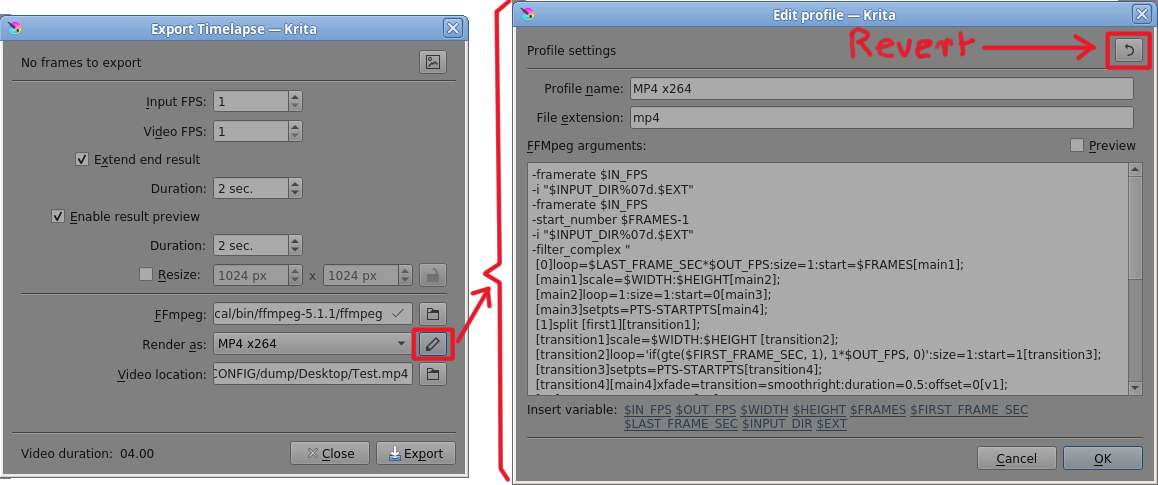
Please try that to see if it improves the situation.
For the screenshot (or photo) I meant the same as I posted earlier. The Recorder docker and the Export Timelapse window.
The latest version of krita is 5.1.5 and you are using 5.1.4. This should not matter because the Recorder works fine in both versions.
However, you have only 3GB of RAM (memory) on your computer and that may be a problem. That is a small amount for running Windows 10 and krita and ffmpeg.
Windows 10 takes at least 2GB of RAM to run itself and then krita uses RAM and ffmpeg uses RAM.
It may be that version 5.1.4 uses more RAM than the previous version that you were using.
It may be that you are now making longer timelapse recordings that use more RAM.
It may be that Windows has had an update that makes it use more RAM.
Also, you must not run any other application on your computer while you are running krita, if you are doing that.
If the suggestion to Revert the profile doesn’t work, all I can think of is to go back to using an older version of krita. Also, please use the ffmpeg that I gave a link to.
1 Like
Guys, I did everything you recommended, however, the same error continues, I will try to download the previous version, do you know where the 5.1.3 version is?
Here is the 5.1.3 Windows portable .zip package:
https://download.kde.org/stable/krita/5.1.3/krita-x64-5.1.3.zip
Here is the 5.1.2 version if you want to go back further:
https://download.kde.org/stable/krita/5.1.2/krita-x64-5.1.2.zip
I’ll download it, if it works, I’ll come back here to let you know
well, it didn’t work, neither did the old version, do you know another way to get the images from the recordings and render them in another software?
You can try OBS, sometimes it is called OBS-Studio, it is a software free of charge, it is relatively easy to learn and understand, and it is very robust and solid.
Michelist
Kdenlive can render image sequences to video, just need to find where krita store its image sequences recording. Kdenlive Image Sequence - Youtube
It is a video editor which is also free and open-source.
1 Like