I have been using Krita for a number of years. One thing that has persistently frustrated me was resizing a layer with transparency. When I select the transparency layer and click on the resize icon it fills the transparency area with colour. There seem to be some rather cumbersome work arounds but this seems to me like a very obvious thing that many people would want to do on a regular basis. Is there any straightforward/easy way to do this?.
Hello @TimW and welcome to the forum 
Yes, Colour filling only happens withing the canvas area.
Do you mean the layer that has the transparency mask applied to it or do you mean the transparency mask itself?
Do you mean the Crop Tool or something else?
That sounds like the Background layer colour being revealed, maybe.
Please provide full screen screenshots that show this happening and ensure that the entire contents of the Layers Docker is visible.
It would be helpful if you used an image that you create specifically to show this situation, to make sure that everybody understands exactly what is being done and what is happening.
This puzzles me. I’m transforming (resizing and everything) layers in Krita since over a decade and never made it me lose the transparency of that layer.
I mean the layer that has the transparency image on it.
I mean the resize icon. The square box with dots around the edge.
I have attached 2 screen shots. The first (bottom) shows an image with transparency all around it. The second shows the image filled with white after the resize icon and layer are selected. After resizing the white background remains. This is not the background colour which was set as black for this example or foreground colour which was set to red.
This is Krita 5.2.9. I am also playing around with 5.3.1 on another computer so try and find a work around,
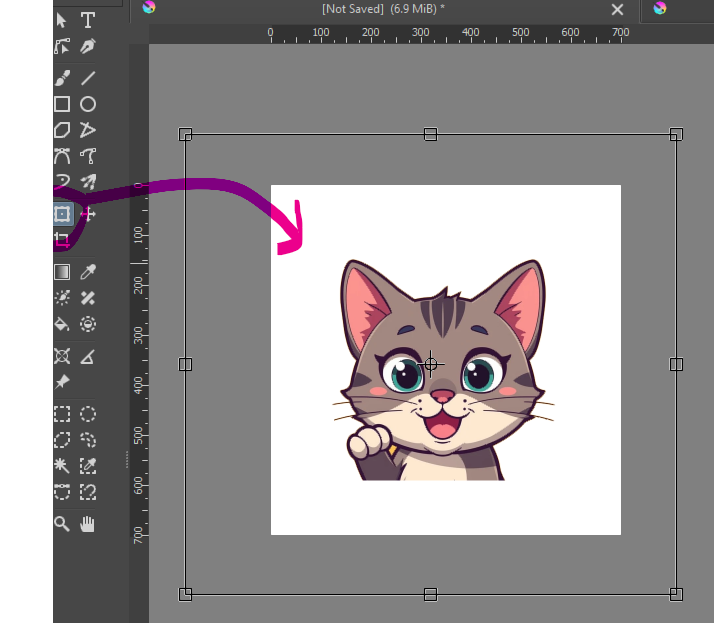
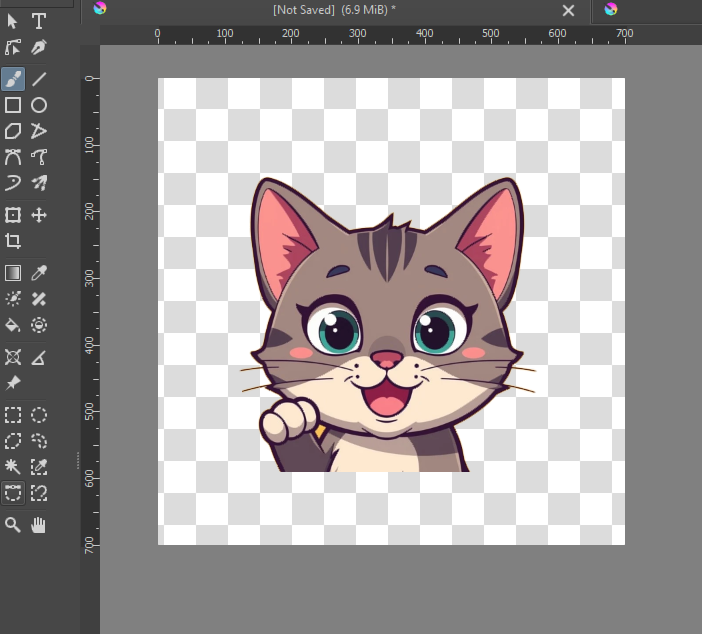
This happens when a layer has an opaque default color.
If you do Edit->Clear (or Del if you use default shortcuts) it turns all white instead of transparent, right?
I think only layers created as background layers when creating a document have this property.
Thought this means that you must have at some point manually cleared this layer by selecting everything and clearing it.
Unfortunately this property is neither user visible nor editable.
You can however get rid of the detault color by making a new layer (which should be all transparent, its default color) below this layer and merging it down into this empty layer.
That will get rid of the opaque default color, however may leave some white order outside the canvas that you may have to trim off manually (not sure if that’s really supposed, seems like a bug).
Next time maybe just create a document without an opaque background layer (see the “Content” tab when creating a document), then this won’t happen.
I personally never let Krita create paint layers with non-opaque default colors anymore, their behavior has never been useful to me.
Since you didn’t provide full screen screenshots, showing the layers docker, it’s still not clear what is happening.
It’s still not clear whether it’s the image Paint Layer or its attached Transparency Mask that you mean.
Krita does not have a Transparency Layer. (It does have a Filter Layer.)
It has Transparency Masks that are attached to parent Paint Layers (or to Group Layers.)
That is the Transform Tool.
Your screenshot of the Transform Tool in use indicates that there is off canvas content before the Scale action is performed.
This is just one of the reasons why it’s useful to create an image specifically for illustrating a problem instead of using an existing document which may have complications in it that make understanding difficult.
Please let us know if the suggestions by @Takiro above are a good solution for you.
I did create an image to specifically demonstrate the problem and I thought I had demonstrated it quite well. I agree that the problem is off canvas content. My original question was is there an easy/straightforward way to fix this problem rather than a lot of tedious workarounds. I need to do this sort of operation quite frequently.
Attached are two screen shots of the layers docker.
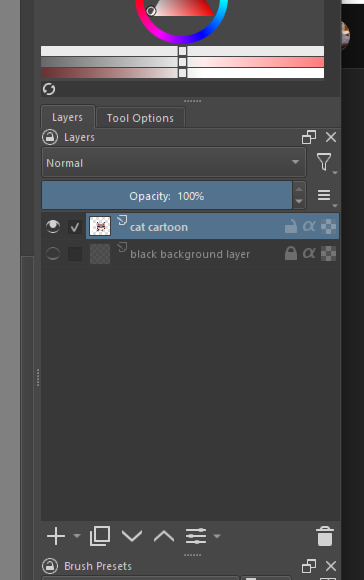
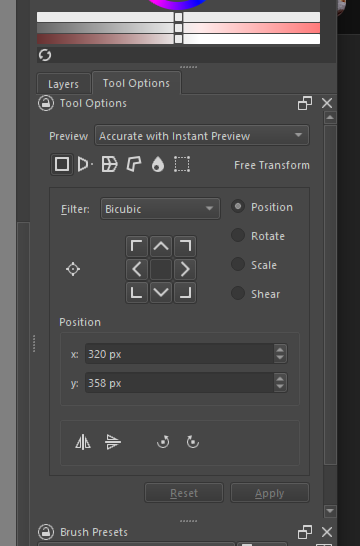
Ah, I was expecting a couple of blobs of paint, not what appears to be ‘proper artwork’.
Also, you are not using a transparency mask as I first thought.
You are only using a paint layer that has transparent areas on it.
I don’t know if the off-canvas content is a problem. It depends how it got there and what it is.
What is it and how did it get there?
To remove off-canvas content (from all layers) do Image -> Trim to Image Size
(Unless you actually want or need the off-canvas content. It can be deliberate and useful.)
Can you try the suggestions by Takiro and let us know if they seem suitable for you?
Same. The only time I’ve experienced anything like that, was because I created a new document from an existing image, where Krita made the image the base (background) layer. In which case, the outside bounds of the image were filled white, because Krita assumed it was supposed to be the canvas, and that I wanted it solid.
I am sorry but I couldn’t really understand what Takiro was saying and when I went back to look again the post seems to have been deleted. In the meantime think I have worked out an acceptable solution to my own original question.
Which is …
- Use the rectangular selection tool to select the visible image area.
- Edit/Cut
- Edit/Paste. This creates a new layer.
- Delete or hide the original layer
- Transform the new layer. I think this works by removing any off canvas content so that the transform tool works as expected.
I would like to thank everybody for their help.
1 Like
I am sorry. I was jumping between replies at that time.
The previous post in this topic that I meant is this one.
It does seem that you initially made the cat cartoon layer by erasing the paint from a standard krita Background layer.
If so, it’s best practice to leave the deafult Background layer alone and create a new Paint Layer for any artwork.
They are useful if you want to Resize the canvas to make it larger while having a consistent background colour.
If you just make a copy of the original layer you have exactly the same problem with unwanted off canvas content which you cant see or easily get rid of. Also I don’t want to have to relearn work flow that I have been using for 30 years, originally with Photoshop, just to deal with Krita’s Idiosyncrasies. In any case I now have what seems to be a simple enough work around after some years of frustration. I hope this exercise helps somebody else.
1 Like
Could you describe the workaround because it may be helpful to other people.
I have already done exactly that in a previous post. Here it is again. Which is …
- Use the rectangular selection tool to select the visible image area.
- Edit/Cut
- Edit/Paste. This creates a new layer.
- Delete or hide the original layer.
- Transform the new layer. I think this works by removing any off canvas content so that the transform tool works as expected.
1 Like
I selected your comment as the solution.
Could you please tell us how did you arrive at that situation? It is clearly Krita thinking that it’s the background layer with opaque color. You can see it in action when you go to File → New → Custom document → and in Content tab choose for example a blue color, and after that create a new layer on top and fill it with red, and then go to Image → Resize Canvas and make it bigger, you’ll see that the blue area expanded, and the red area didn’t. That’s because the default color of the blue layer is blue (like for all background layers), while the default color of the red layer (like for all new layers) was transparent. It also shows why it even exists.
So if you tell us how you created this document, we’ll be able to ensure that the default color for new documents created this way will be transparent instead of white.
There are numerous ways the situation I described seems to occur. It often occurs when bringing in external images or layers where background around an image has been removed. If the image is bigger than the canvas there is likely to be invisible background on the transparency layer. It is however not visible or detectable by any means I know of and probably only needs one or two pixels of background off the canvas to cause this problem. Photoshop somehow seems to handle this situation OK but Krita doesn’t.