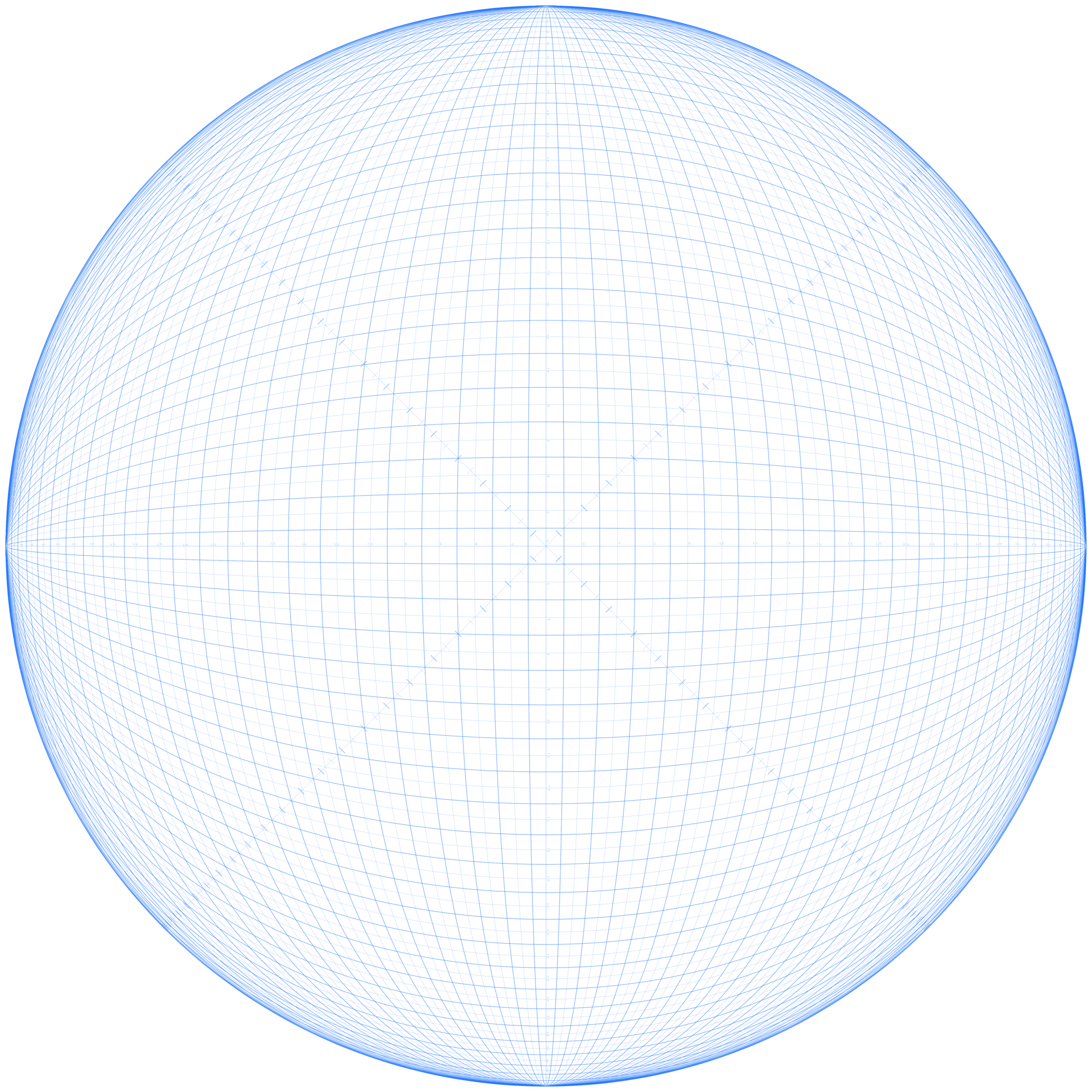
I use a very specialized technique to draw in curvilinear (or “fish eye”) perspective. The cornerstone of the technique is having the ability to rotate an ellipse ruler or assistant without altering the ellipse’s position, size, or shape. This is possible in Clip Studio Paint (the application I’m trying to switch from) but not in Krita. Krita does have an assistant tool called “Fish Eye Point” that would simplify my technique a great deal, but the crucial ability to rotate the tool on a central point is still missing.
Apart from this one drawback, I’m really liking Krita and I would love to make it my default art program, but I also love drawing in curvilinear perspective and lacking this feature is a huge disruption to my workflow. Therefore, I am requesting that this functionality be added to Krtia.
Here’s an overview of how the technique works. Basically, you lock an ellipse tool’s height and position. You can change the width of the ellipse and rotate it on its center, but the height must always be the same as the circle of your “fish eye.”
From there, you then use this ellipse tool to draw every “straight” line in your piece. You can even apply the rules of regular, linear, perspective so long as you lock the height of the ellipse and only rotate it on its center point.
Unlike traditional five-point perspective (or simply using Krita’s Fish Eye Point assistant, which lacks the ability to rotate on a central point), this technique allows a lot more freedom when composing your scene.
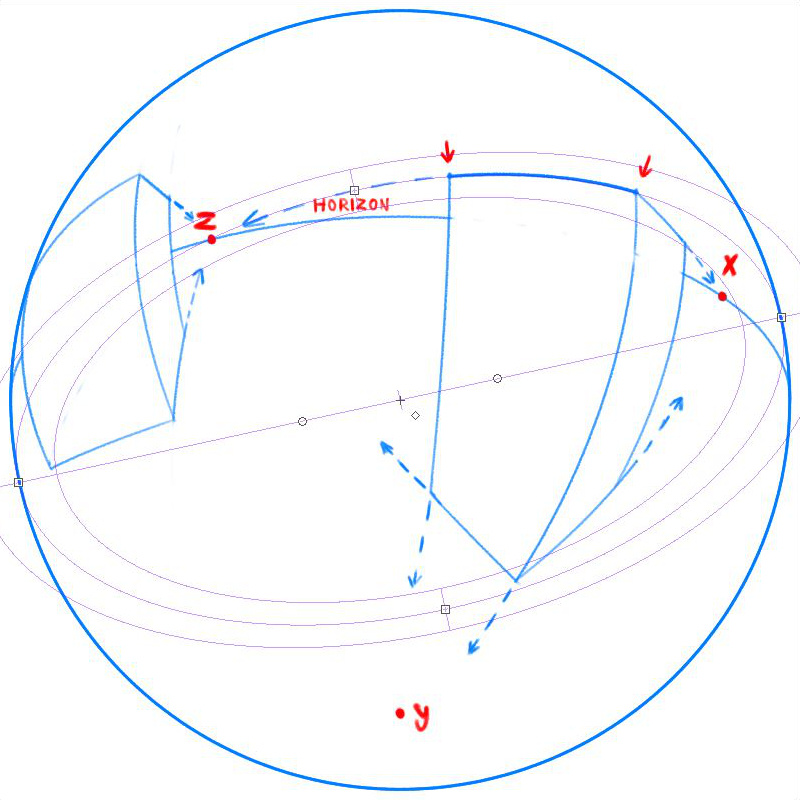
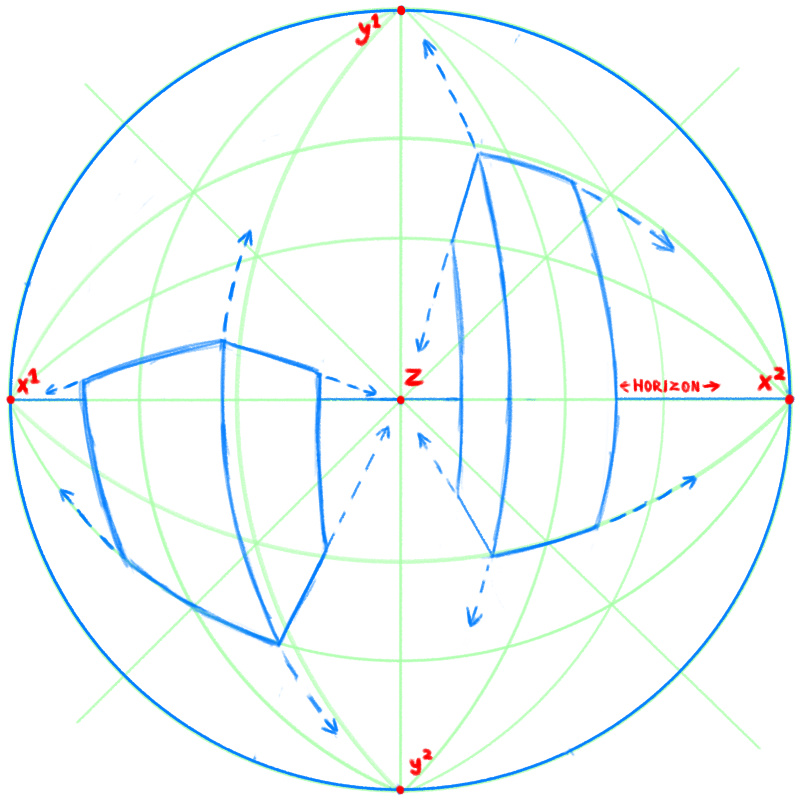
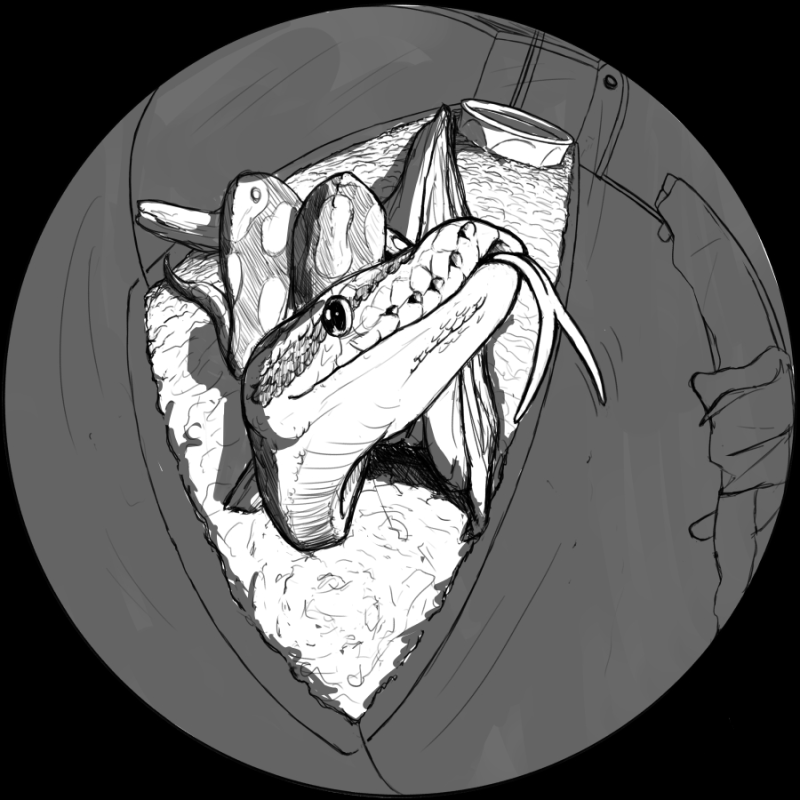
With five point perspective, your horizon and main vanishing point must always be in the middle of the canvas. You can never raise or lower it, and neither can you shift your vanishing point to the left or right. As you can see in the images above, this technique allows you to do so and therefore allows more interesting composition. The traditional technique (seen below) restricts you to a flat viewing angle.
It is simply not possible to draw this way in Krita right now, at least not with any degree of precision. Not unless they add the ability to rotate assistant tools on a central point.
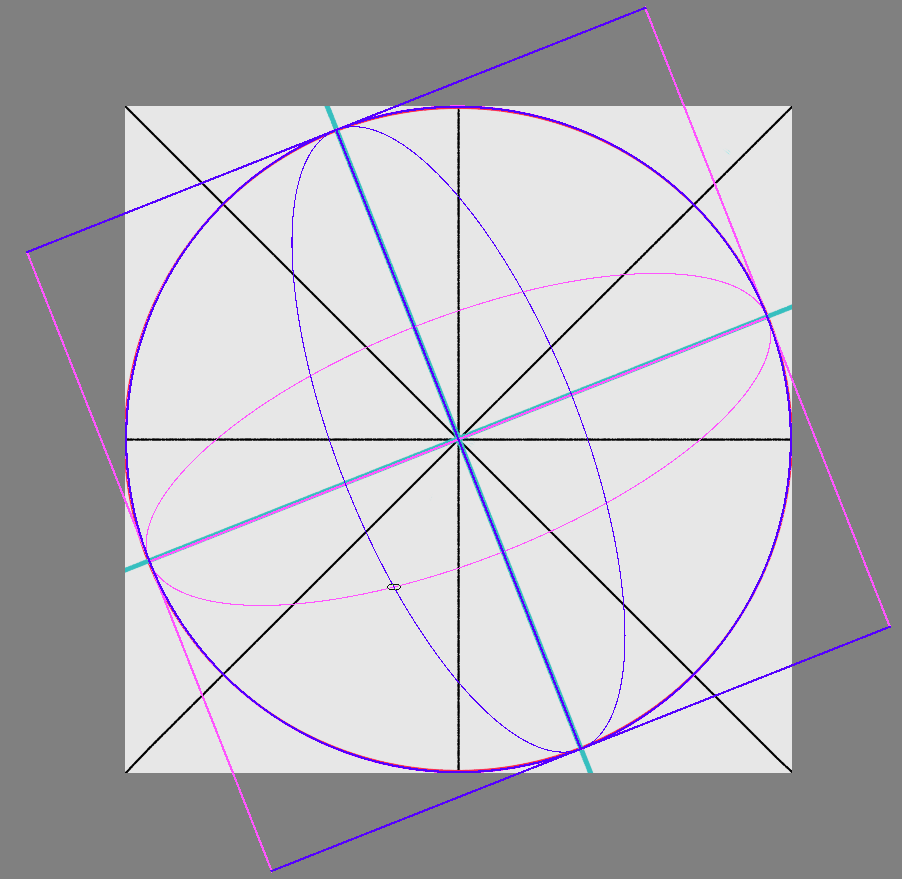
Then I copied a vertical and horizontal line and rotated it around the center. Colorized for convenience. This will be a guide for the angle of rotation of the perspective. And I turned the assistants along it. Yes, it may be inconvenient to rotate these points. Without “any degree of precision”. But it’s possible for 95% accuracy.
Of course, if I understood correctly what you want at all.
Yes, using a layer with pre-drawn ellipses on it is a less precise alternative to an elliptical ruler. I actually made a high-res grid for this purpose a long time ago, when I first developed the technique. Rotating it to the correct angle can help you approximate the line you want to draw, but of course there’s no snapping.
One of the things I like about working in perspective is getting lost in the details, so I put a lot of value in the precision of a ruler tool I can actually reposition with ease. Until the feature is added to Krita, I think I’ll just load up CSP when I want to do curvilinear perspective.