I am using a Galaxy 360 Pro convertible laptop/tablet with S-pen. I can get pressure sensitivity if I use the “Windows 8+ Pointer Input (Windows Ink)” API, but even though I have ‘use mouse events for right and middle clicks’ box checked, a long press with the pen does not act as a right-click. If I use the WinTab API, it’s the other way around: I get no pressure sensitivity, but the long-press works as a right click and the pop-up palette will appear. Is there any way I can get both pressure sensitivity and right clicks working with my s-pen on my device?
Try this.
Settings > Configure Krita > Canvas Input Settings > Show Popup Widget
Set a gesture to One Finger Tap.
Make sure this line looks exactly like mine (don’t worry about the other lines within the Show Popup Widget section).

I know one-finger tap doesn’t sound right, but it’s actually a long press so it might work.
EDIT: add
If that doesn’t work, try this one:

I don’t have an S Pen so I can’t test these.
Hi! Thanks for your reply. My settings already looked like your first image, with one finger tap and right mouse button. Interestingly, a long press with the right mouse button works as a right click while in the settings menu, but not while I’m in the canvas area. I can sometimes get the widget to come up with a long finger press instead of using the pen, but it is inconsistent. I see a round indicator where I press with my finger, then a square, and about 30% of the time when I release my finger the widget appears, but the rest of the time nothing happens. When I change settings to left mouse button like your second image, it a) tells me there is a shortcut conflict, and b) I can’t draw because I DO get the popup widget as soon as my pen touches the canvas instead of my pen drawing a line.
A long press being interpreted as a right-click is something that is controlled by the Windows system level settings. You can find those settings under ‘pen’ or ‘windows ink’ in your Windows start menu.
I’m not sure how that could be affected by the Wintab vs Windows-Ink settings changes at the krita end.
If you use something like a text editor (e.g. Notepad), does a long press get treated as a right-click?
@sooz ‘Left Button’ is used for the main tool activation so it’s not a good idea to use it for anything else:-
Is that a small white circle that lasts a short time every time you touch the tablet?
If so, that is Windows being ‘helpful’ by telling you that you’ve touched the tablet and where you’ve touched it.
You can get rid of that deep in the Windows pen settings.
On my canvas, a long right-click with the mouse gives the popup palette when I release the right button. Have you accidentally used Right Button somewhere else in the Canvas Input settings?
Hi, @AhabGreybeard, thanks for replying.
Yes. In any other application, and anywhere else other than the Krita canvas, a long press with the pen is properly interpreted as a right click.
Sorry. I meant to say “a long press with the pen” when in the settings menu works properly as a right click. Like I said, it seems to work correctly everywhere but in the canvas area.
Just as a matter of interest, if I enable finger touch sensitivity on my tablet then a two finger tap activates the popup palette.
It shows as a B=2 button press in the tablet tester so that explains it but I don’t know why it does that and the Canvas Input settings show two finger tap as Undo.
@lwlzr Can you post screenshots of Settings → Configure Krita → Tablet settings?
Then post a screenshot of what happens in the Tablet Tester if you do a long press on the test area grid?
Also, show screenshots of every adjustment UI there is for the S-pen and associated pen-stuff in Windows.


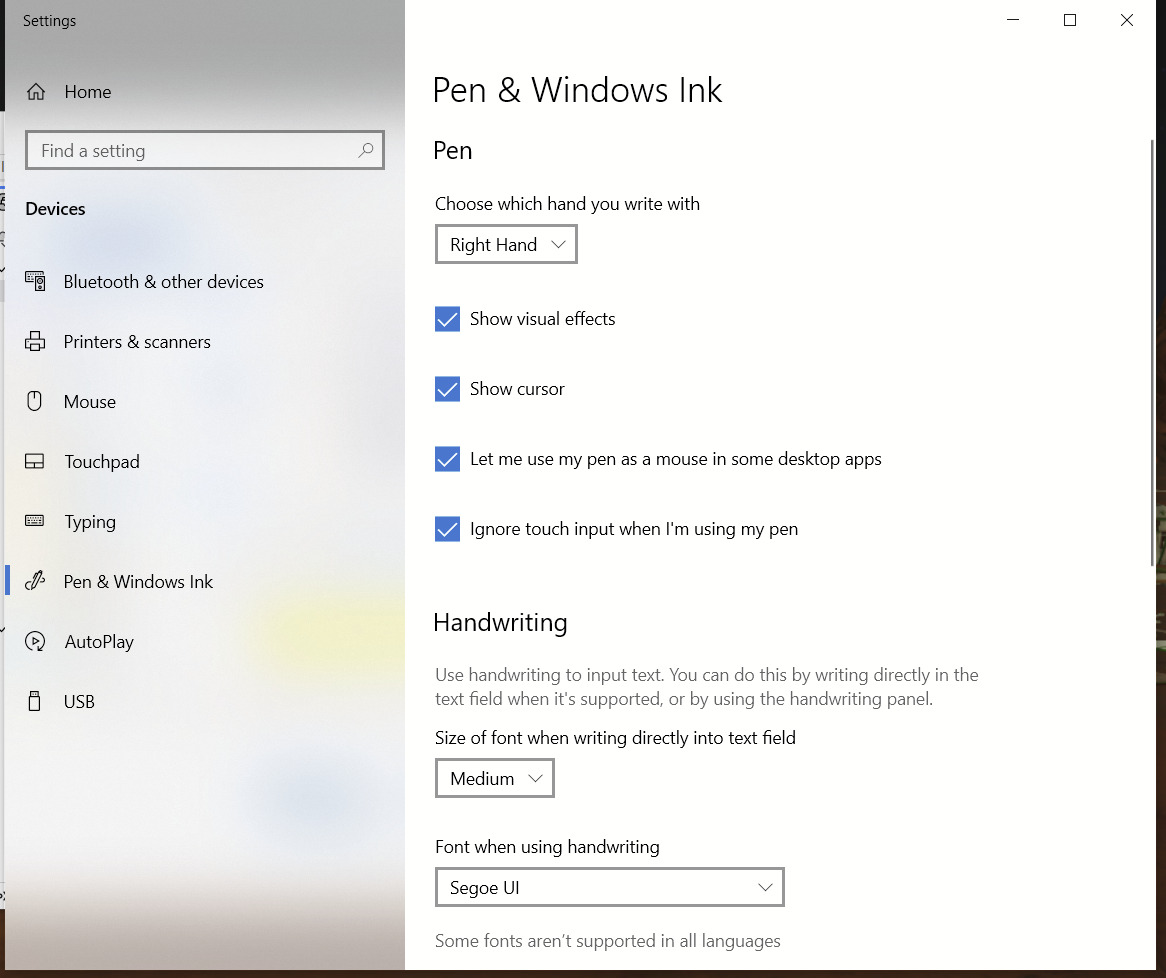
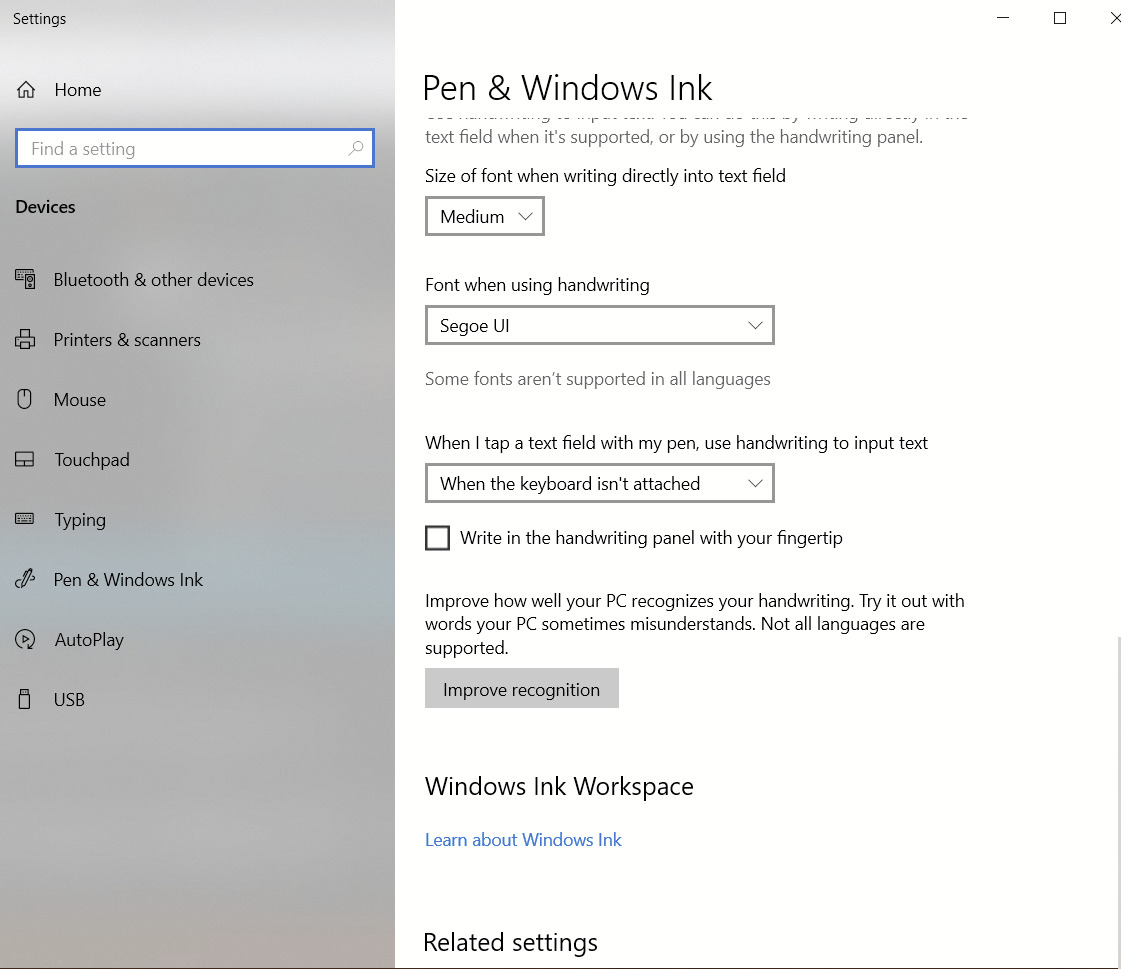
You have ‘Show cursor’ enabled in the Pen & Windows Ink settings and I’m sure that’t what gives you the little white circle when you touch the screen. Disabling that should get rid of it.
As for long press interpreted as right-click, that is in a different part of the Windows settings and is explained in this interesting article:
Remove Windows' Circle "Pen & Touch" Feature – MacHollywood | Your Premier Tech Partner
You’ll see it’s in the ‘Pen and Touch’ interface (see Part 2) and in the Settings of that as shown in Part 3.
In your case, that is probably enabled since it works in other applications.
I can’t see anything wrong with your krita settings but I’ve never used a touchscreen so I’m wondering what happens if you disable ‘Use mouse events …’
DIsabling “mouse events…” made no difference for me. However, when I went to the “pen and touch” settings you pointed me towards, setting the minimum speed and duration for touch did make it so if I press and hold with my finger I can consistently get the pop-up palette so I should at lest be able to work pretty well that way. Since it is only in Krita and only in the canvas area that my pen’s press and hold doesn’t work, I suspect there may be a bug within Krita relating to how the canvas interacts with the Windows Ink API, but at least I now have a reasonable workaround using the touchscreen. Thanks for your help!