As far as an accessibility feature I think you’re completely correct in your summation.
User interface should always strive towards the fewest button presses possible.
The reason I’d argue it makes more sense to have selection tools be combined with the move tool (at least as a toggleable option) is that I can’t imagine a scenario where you’d select something and then accidentally move or transform it, other than if you were redrawing the same selection for a second attempt and started inside the selection. And that could be corrected by clicking outside the selection or hotkey deselecting all, which is way less bother for one and only one case whereas everyone has outlined how many instances they have of where they wish they had the move tool integrated to avoid multiple tool changes or binding an additional dedicated hotkey for this purpose alone. It has one very miniscule con and many more pros.
Here is the selection and move tool hybrid in Aseprite.
Unlike Krita you only engage the move tools when you’re inside the selection or at the edges, so you can deselect easily by clicking outside of it. Rotate and manipulate have their own small areas to engage them instead of it being the entire outside of the selection like in Krita.
Add to selection is engaged with shift, subtract with ctrl, and these prevent using the move tool at all unless you are exactly on the selection edges (I’ve never had any problems with this happening, to the point that I never even knew that was possible til now). I use all of these modes in rapid manipulation of selection edges and don’t accidentally move things.
Overall I prefer the way it works in Aseprite and have never had any issues with it.
I just read this thread this morning and was thinking the whole day about it. First I was thinking “why not?” but now I think I wouldn’t like this behavior if the transformation tool is activated directly just by selecting an area. The unified transform tool in Krita reduces the quality of the selection as soon as it gets activated to provide a fast preview of your operation. When you don’t want to transform your selection this is probably not what you want. I often use selections to fill very small areas and I want to see all details when doing that.
So just making a selection should not trigger the transformation tool. But having the option to quickly access it would be a nice idea. I think I would prefer the solution that @Minh posted, with an popup toolbar close to the selected area. However the transform tool should be triggered first when you actually transform your selection.
If there is a selection, however it’s been made, you can right click on the canvas to get the popup widget for the selection, which is a context menu.
One possibility would be to add a Move Content option where the move properties are as set in the Move Tool options in the Options Docker.
Then the cursor changes to a Move cursor, operates as the Move Tool does then returns to the Selection Tool when the move is completed.
This may sound a bit stupid but I just realized when I’m holding the stylus of my tablet, there is no right click by default. I use a Wacom Cintiq 21UX, it’s quiet old so I can’t tell if this is a “problem” on newer models too. The pen has two buttons, one triggers the quick menu with brushes, color selector, etc. The other button moves the canvas.
I never thought about this. I almost never need a right click in my workflow.
That sounds like the popup palette which is triggered by a right-click by the default Canvas Input settings.
It’s actually the popup widget and it’s different for different tools. Painting tools get the popup palette (as might be expected). Other tools get various context menus.
Yeah, you are absolutely right. I guess I confused this a bit with GIMP where the button on the pen always triggers the same right click menu. Also there is no popup palette.
I usually just select the transform tool on the toolbar when needed.
Okay, so, if you use the generic Paste command it pastes into a newly created layer and doesn’t select move. BUT if change your paste to Paste Into Active Layer, it does automatically switch to the transform tool (move tool).
Personally I prefer paste into active layer because that’s what I want 90% of the time and if I want a new layer I’ll just make one. It seems like this is an oversight and there should probably be an option you can turn on and off independently of which kind of paste you use.
I’m often not finished with my selection after the first selected bit. I’ll keep adding or removing bits with the modifier keys until the selection is truly finished and I’m ready to do whatever with it. And if I use drag fill, I can do select - fill - select - fill - etc without ever needing to switch out of the selection tool.
Automatically switching out of the selection tool would hinder both of these.
If you look at my Aseprite video clip posted previously, I added to selection with Shift and subtracted with Ctrl without it ever leaving the selection/move hybrid tool. Holding those automatically locks out the other controls until you release them.
The key point is that you can just combine the tools and you never leave the selection tool, it works just fine for Aseprite.
I don’t know what a “drag fill” is, there doesn’t appear to be that named tool in Krita. If you’re talking about a Filled Selection Tool or Fill With Foreground Color then that still doesn’t change anything I said.
Your wording of “selection becoming the move tool” made me think you were talking about switching to Krita’s move tool as it is. (Especially since the linked existing feature request seems to already be about a hybrid tool that you seem to have in mind.)
I should probably more correctly have said drag & fill: Dragging & dropping a color onto the canvas is basically a shortcut for the fill tool, not an extra tool on itself.
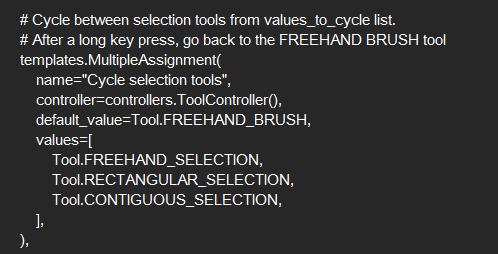
Recently I’ve been using @wojtryb 's Shortcut Composer’s temporary selection tool which lets u use selection tool on key hold and switch back to brush on release.
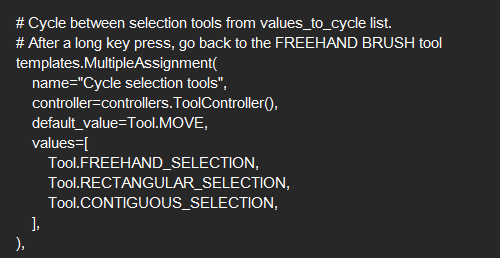
I tried modifying 1 line in the actions.py file to change it to move tool and it does what you want it to; you just have to start with setting a shortcut for the “Cycle selection tools”