I have been playing with the smudge brush in version 4.2.8 of Krita and so far I have been impressed. The smudge engine currently has support for animated gih brushes, canvas textures, brush dab spacing, jitter, rotation, and full support for Wacom pen rotation. The only feature so far that I would like to see is the ability to control how the smudge brush blends individual color channels (RGB, and Alpha). The ability to lock how much the smudge brush blends with the alpha (transparency) channel could be useful for simulating painting with a wet oil brush on a clean, dry canvas. When there is not already any paint on the canvas, oil paint will not mix with the dry canvas and only spread out the paint. Unfortunately, I don’t have any oil paints at home so I don’t know how to demonstrate this property better.
The ability to limit how much the smudge brush blends with the other color channels (RGB) might be useful as well, but I cannot currently think of a reason for only wanting to blend certain color channels but not others.
As I have mentioned earlier, I do not own oil paints; however, I could at least demonstrate what I’m trying to explain with an example from another image manipulation program that I own (Artrage 6). I believe what I’m trying to describe is the behavior of undiluted oil paints painted alla prima on a dry canvas. Perhaps a more senior forum member can demonstrate what I’m trying to explain using actual oil paints.
Maybe one of the developers can explain whether or not adding this feature is feasible under the current smudge brush engine for Krita. I’m not a programer so I don’t know what challenges would exist in implementing this feature.
I would also be unlikely to gain any benefit from manipulating the blendability of any of the color channels other than the alpha channel with the smudge brush. I believe I may have already mentioned this in my first post. I only suggested having the ability to also control the blendability of the other color channels (R, G, and B) for the smudge brush in case there were ever a digital artist who would benefit from this feature. Maybe @RamonM can give some input on my proposed feature.
Welcome Rigognos. As Tiar is telling you, Devs are really busy, but after that i think they will have more energy to absorve more ideas coming from the community. Sometimes a little idea can open the door to big and productive changes.
Now we need to wait. I don’t want to bother devs with more ideas, like (New brush editor redesign talked with Scott, New RGBA with selectable color from Color wheel talked with @dkazakov or Masked feature with color smudge talked with @dkazakov for a future new feature that could be amazing.
Also i have been reorganizing all my resources for Future projects.
I’m wondering now if any early alpha version of this feature would encounter glitches when blending with partially transparent color. As far as I’m aware, I haven’t found any digital art programs that specifically allow the user to control blending with transparency, so the developers might be flying blind once they get around to developing this feature.
I don’t really understand what your feature request is. The amount of “underlining color” mixed into the brush stroke is controlled by “Smearing Rate” option. The amount of “paint color” in the brush is controlled by Color Rate option. From what I can see from the screenshot, the proposed effect should be possible to implement via a combination of these two options. Or you mean something different?
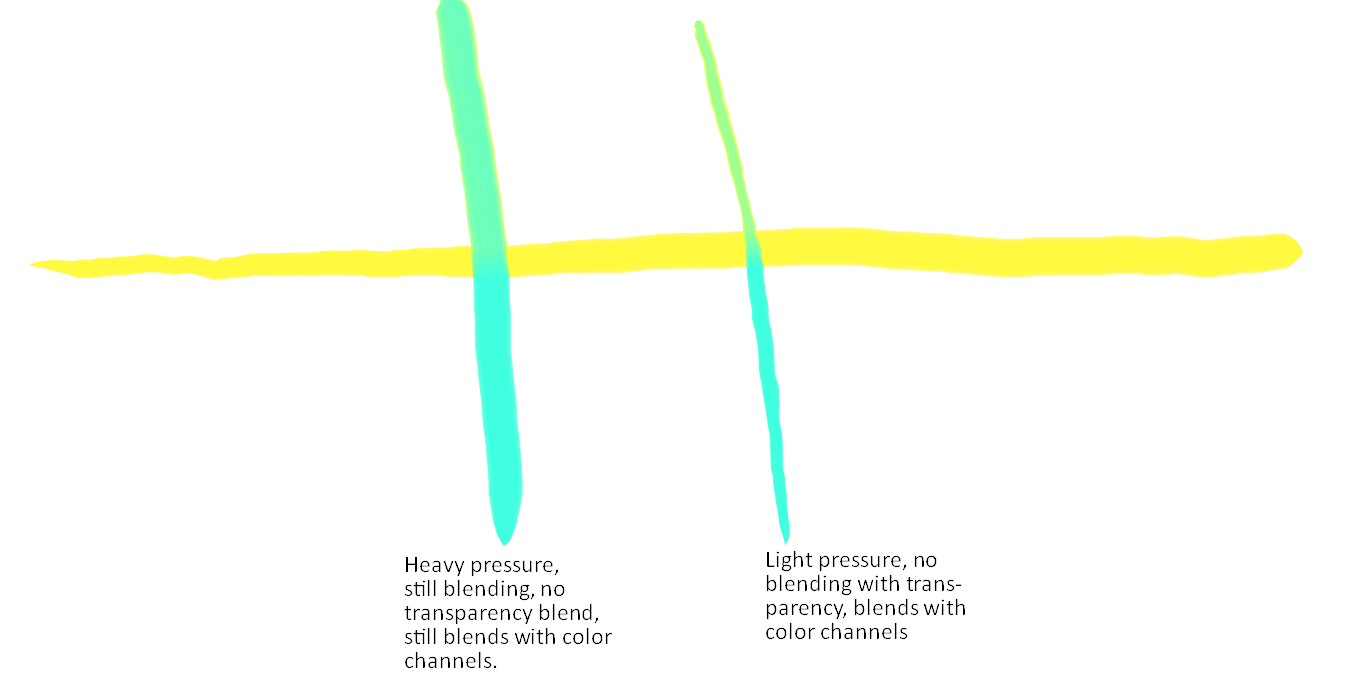
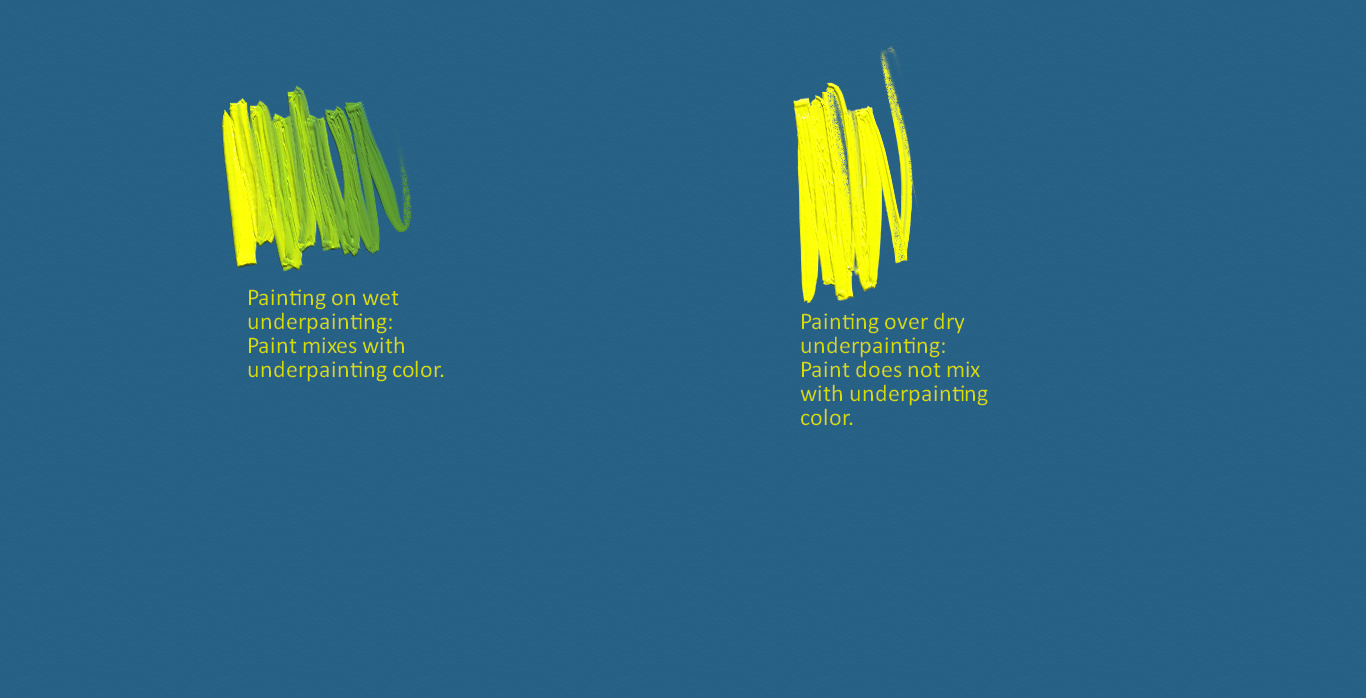
The goal is to be able lay paint on a layer without the color mixing with transparent pixels on a layer to emulate how oil paint behaves when it is applied to a fully dry underpainting or fully dry gesso canvas without an underpainting. Here is an image I shared with @RamonM demonstrating what I mean:
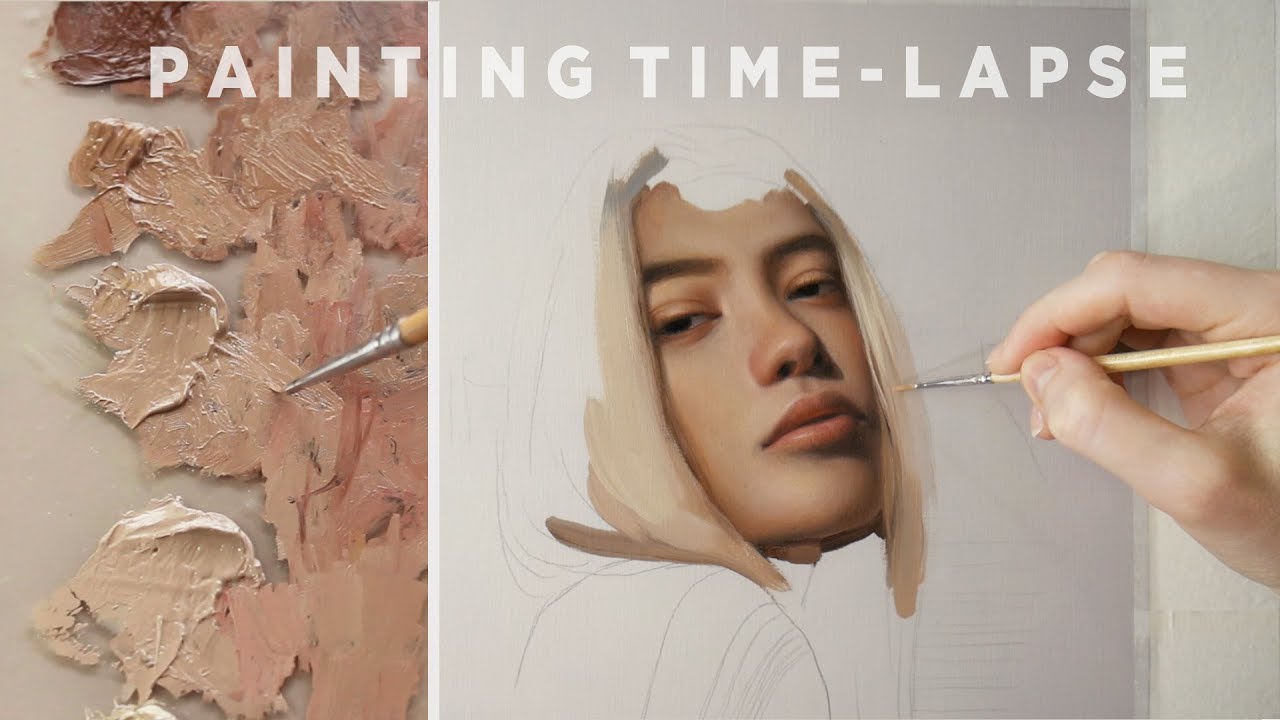
Another good example is a timelapse portrait oil painting I found on YouTube where the artist paints directly onto gesso primed canvas without an underpainting.
With the current features in Krita, I cannot control whether or not the paint is able to blend with transparent pixels on a given layer with the smudge brush even with the smear rate and color rate settings.
Well, the right image is just a Pixel Brush, isn’t it? You can disable mixing of color by setting “Smudge Rate” to zero (e.g. via low pressure). I still don’t understand how your example is different from this case…
@dkazakov Actually both example strokes are from another image editing program (artrage 6). If I had real oil paints, I would demonstrate the behavior with real oil paints.
Here is another example of wet oil paints blending with each other over a fully dry underpainting. https://www.youtube.com/watch?v=jxSsMiYwFgg
If you look closely, the oil paint does not blend with the underpainting, but it does blend with other already wet paints. I am assuming the easiest method of replicating this behavior would be to control how the RGB color channels smudge with the alpha (transparency) color channel in the smudge brush engine. A switch could either entirely disable the RGB channels from blending with the alpha channel in the smudge brush engine or control how much the RGB channels are capable of blending with the alpha color channel.
I start to understand your idea, but not completely
You mean that when a painter paints, there are two layers of paint: one is dry and the other is wet, right? And the former should not affect the mixing and the latter should, right?
If so, then there is the main question: how should we separate “dried” and “wet” layers? If we consider as “wet” only the current stroke, without layer’s content, then the brush will not mix anything at all and will just paint as if “Color Rate” is 100% and “Smudge Rate” is 0%. How should we distinguish, which pixels of the layer have dried out and should not be mixed into the brush color, and which pixels should be mixed in?
I’m assuming the best method of distinguishing “wet” pixels from “dry” pixels with the smudge brush engine is to assume the fully transparent pixels (alpha=100%, red=0%, Green=0%, Blue=0%) are dry. Thus, the smudge brush won’t smear color on fully transparent pixels. In order to separate a “dry” layer from a “wet” later, the user could paint the underpainting on a new layer and then create another new layer above the underpainting layer to paint the rest of the painting. Because new layers are fully transparent by default in Krita, if the fully transparent pixels are treated as “dry”, the paint will not smear with the transparency and the artist can apply solid color down without worrying about the color being diluted from it mixing with transparent pixels.
In case you still need some more examples to show what I’m trying to explain, here is another video of an artist oil painting. He is applying wet paint on a dry canvas. The video is a bit long (about 36 minutes), but if you look closely, you’ll notice that the paints do not smear with the white of the canvas, but they do smear with other wet oil paint colors that have already been applied. https://www.youtube.com/watch?v=r-kxPLRaz_0
Erm… but ColorSmudge brush doesn’t mix colors from other layers unless you have “Overlay” brush option enabled (disabled by default). Perhaps you have this option enabled and therefore cannot split the mixing with layers?
I guess I forgot to distinguish “pick up underlying color” from blending color with the alpha/transparency on the layer. Both modes have similar behavioral quirks. When “pick up underlying color” is enabled in many drawing programs, the brush “picks up” color from the layer below and mixes it in the current layer.
The behavioral quirk of the smudge brush in Krita I’m refering to in Krita is slightly different. The smudge brush currently smears with transparent pixels in the active layer, but I would like the ability to not blend with transparent pixels but still blend with opaque pixels on an active layer.
Since I’m still having trouble explaining what behavior I’d like to see implemented in the smudge brush engine for Krita, I had to upload videos to my YouTube page to explain what I mean. The first video shows the current behavior of the smudge brush engine in Krita 4.2.9. Notice how the paint smears with transparent pixels on the canvas as I apply less pressure. https://www.youtube.com/watch?v=tt8VquHTPrY
In the next video, I’m using a demo version of Corel Painter 2020. In the first part, I use an oil preset without “enhanced layer blending”. Notice how the paint smears with transparency at lower pressure. In the second part, I enable “enhanced layer blending”. Notice now that the paint does not smear with transparency, but it still smears with opaque colors. https://www.youtube.com/watch?v=uZDvTBk4E3A
But from your demonstration it looks like… what you ask for won’t give you what you want. If you want to not touch transparency, the solution I gave you would suffice. (Because then the value of transparency doesn’t change, only the color changes, so it’s basically the same as ignoring alpha channel in smudging).
But what you want if a mode when the smudge brush only increase the transparency, never decrease it. Does it sound correct? If so, it’s this wish report: https://bugs.kde.org/show_bug.cgi?id=388237