Hello, I am writing again with the same problem that I had. I have no brush sensitivity on my laptop when I draw on a graphics tablet. I already wrote to support that I have weak brush sensitivity. But then I was drawing with a regular gaming mouse. They wrote to me that the brushes are intended for graphic tablets. I bought Parblo Intangbo X7 and I decided to try testing it on a tablet, and miraculously there is brush sensitivity. although the settings are default, and I didn’t change anything before testing, just like on the laptop. but the problem remains the same
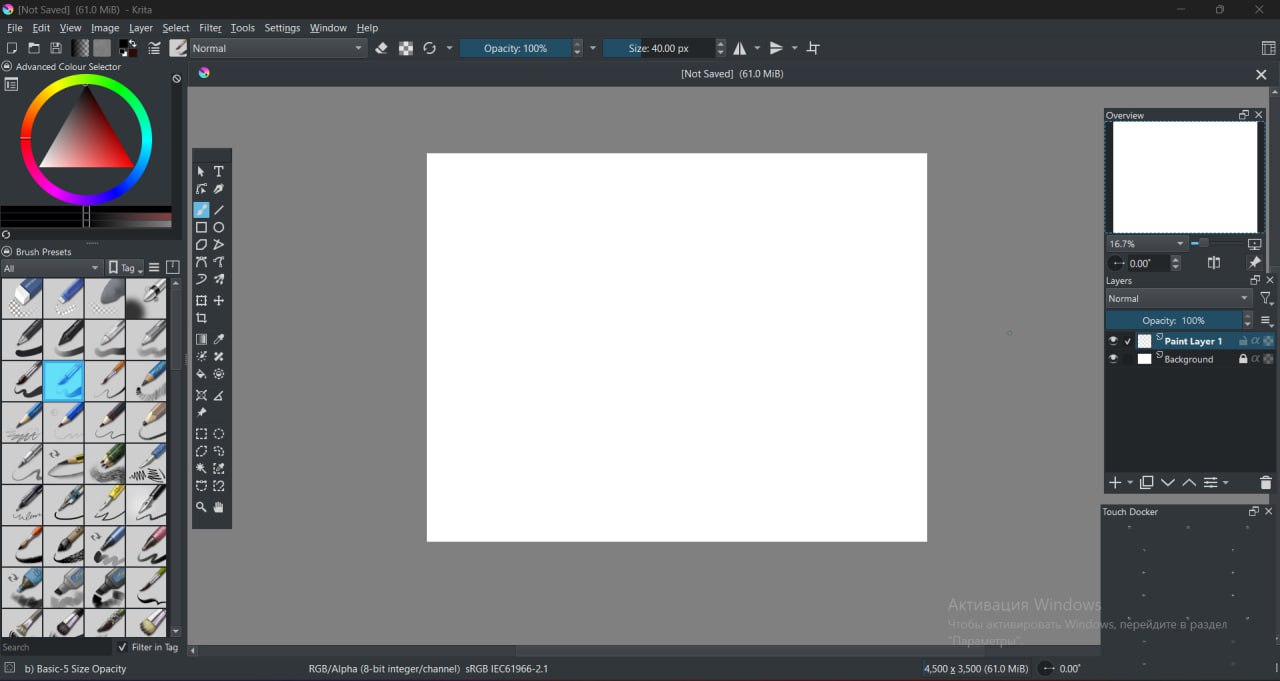
could you post a screenshot of your Krita screen? This would help with the troubleshooting process
If you were drawing with a mouse before, then it was impossible for any brush to use pressure sensitivity because a mouse doesn’t measure the pressure at all.
If you didn’t download and install the drivers for your device from producer’s site, I recommend doing that. It may solve the problem.
Also, if you want to check if the pressure is correctly passed to Krita, it has a Tablet tester.
Settings → Configure Krita
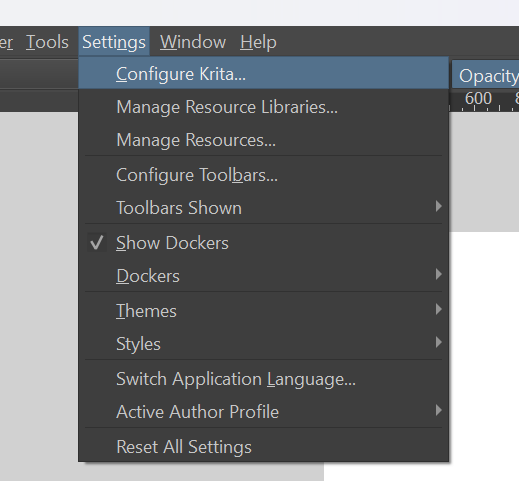
Then:
Tablet settings → Open Tablet Tester
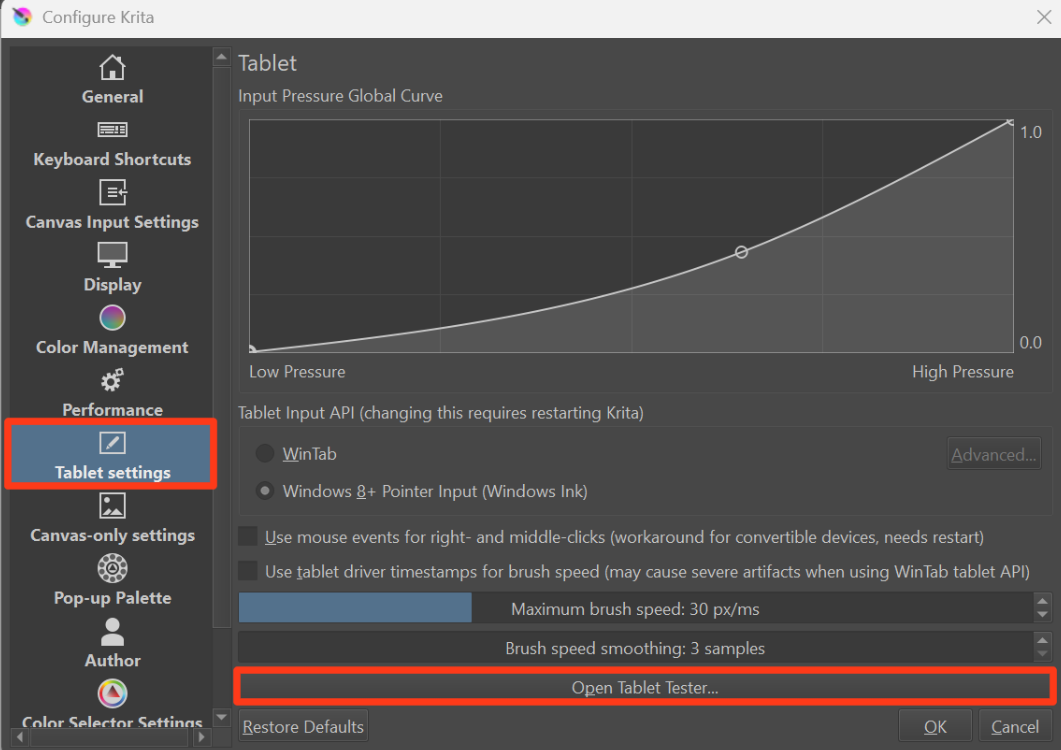
If you try drawing on the gridded surface, it will show all the measurements from your tablet. If the P value changes, it means the pressure is being measures, if it stays on zero, I’d expect it to be an issue with the drivers or system settings.
4 Likes
Still nothing works, I did everything as you explained to me but it still doesn’t help. I installed the drivers as soon as I bought it, and it tells me that everything is fine with the sensitivity, when I checked the sensitivity in the driver, it was ideal. For some reason, I have this problem on my laptop. As I wrote, everything worked perfectly on my tablet, but on my laptop it’s completely different. Maybe if I delete Krita and then reinstall it, everything will be reset to factory settings and this problem will go away? I have been using this program for a long time. And I noticed this problem not so long ago, but not when I installed it
And it turns out that in your explanation where you need to move the stylus, I don’t have it P and it says that I’m drawing with a mouse, although I’m using a stylus
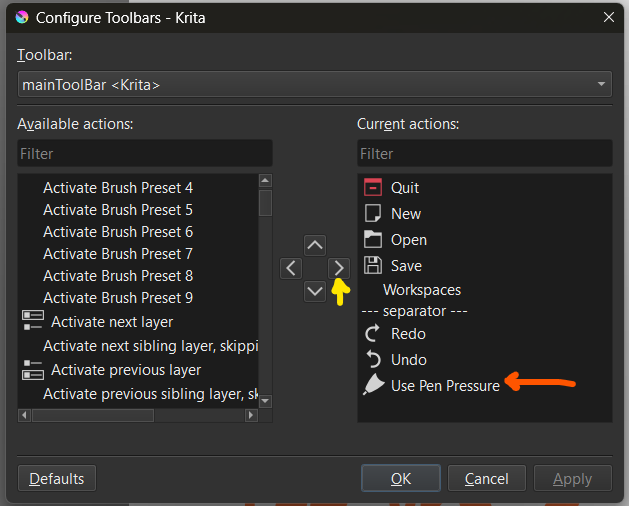
this problem is globally? All your pressure sensitive brushes are effected? If so there is a button that will enable/ disable pen pressure that I do not see in the screenshot. I am not sure if there is a area to enable/ disable other then that button. If you go to settings/ Configure toolbar/ then in the filter type “Use Pen Pressure” (as shown in the image below), you can add it to your toolbar by highlighting then pressing the arrow key to move it right (yellow). “Use Pen Pressure” should move to the right (orange). When highlighted (in green circle) there will be pen pressure globally, if the brush settings call for pressure sensivity. If turned off, no pen pressure.
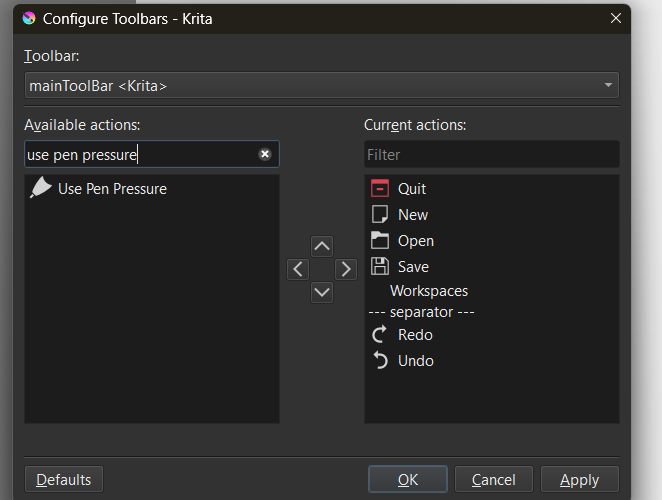

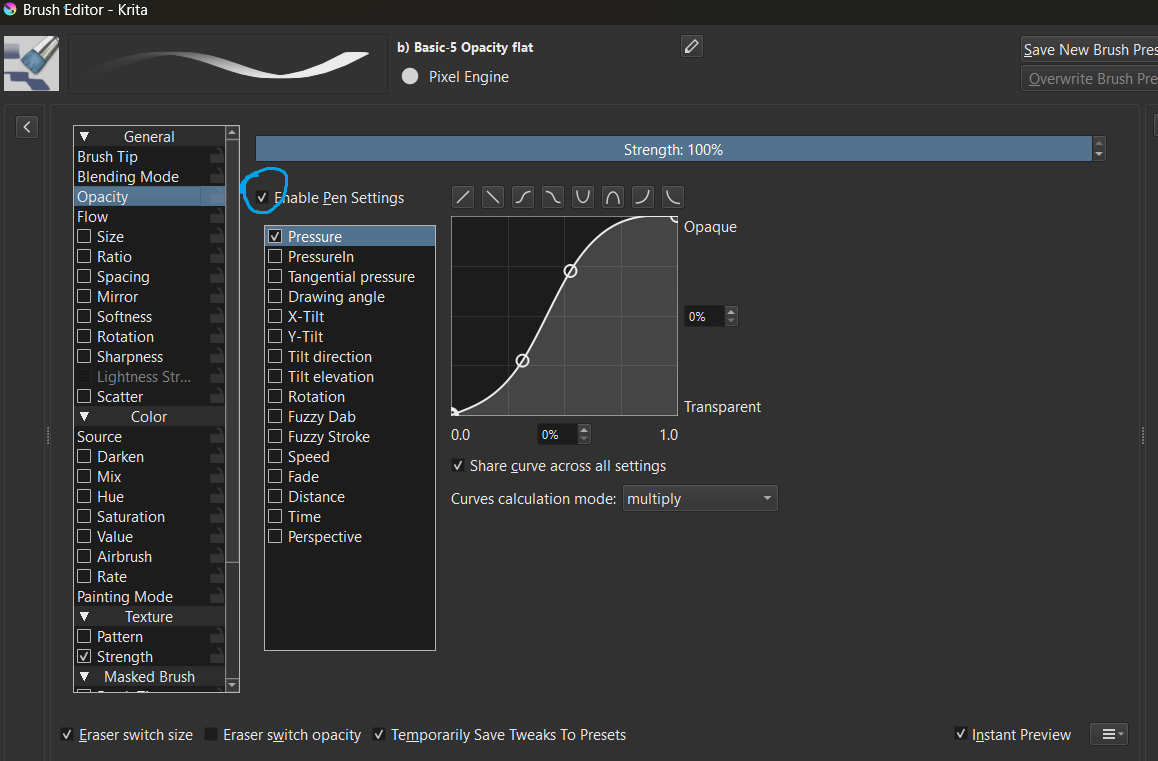
All that is if all pressure sensitive brushes are not working. If a individual brush is not, but is supposed to have pressure sensivity, Check the sensors in the brush editor (press F5)
Thanks, but it still doesn’t help. Maybe I should just reinstall Krita? Because I don’t see any other way to avoid this problem.
1 Like
In Krita’s Settings - Configure Krita - Tablet Settings are two options:
- WinTab
- Windows 8+ Pointer Input (Windows Ink)
Check which one is selected.
Then open your tablet driver. In its pen settings check if Windows Ink is on or off.
Rule:
If Krita is set to WinTab then your tablet driver Windows Ink must be off.
If Krita is set to Windows 8+ Pointer Input (Windows Ink) then your tablet driver Windows Ink must be on.
A lot of users have luck with WinTab instead of Windows Ink.
So try first:
Set Krita to WinTab. Restart Krita.
Disable Windows Ink in your tablet driver.
If that does not give you pressure sensitivity, then try switching Krita and your tablet to Windows Ink.
4 Likes
Omg, thank you so much. I have been struggling with this problem for months, and finally I found someone who could help me in this situation.
1 Like
This topic was automatically closed 30 days after the last reply. New replies are no longer allowed.