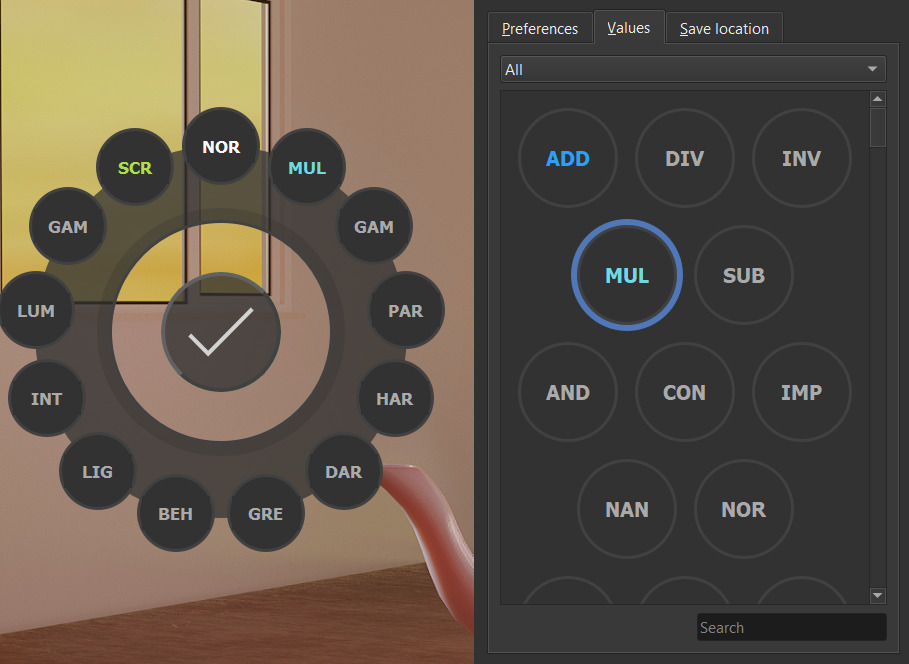
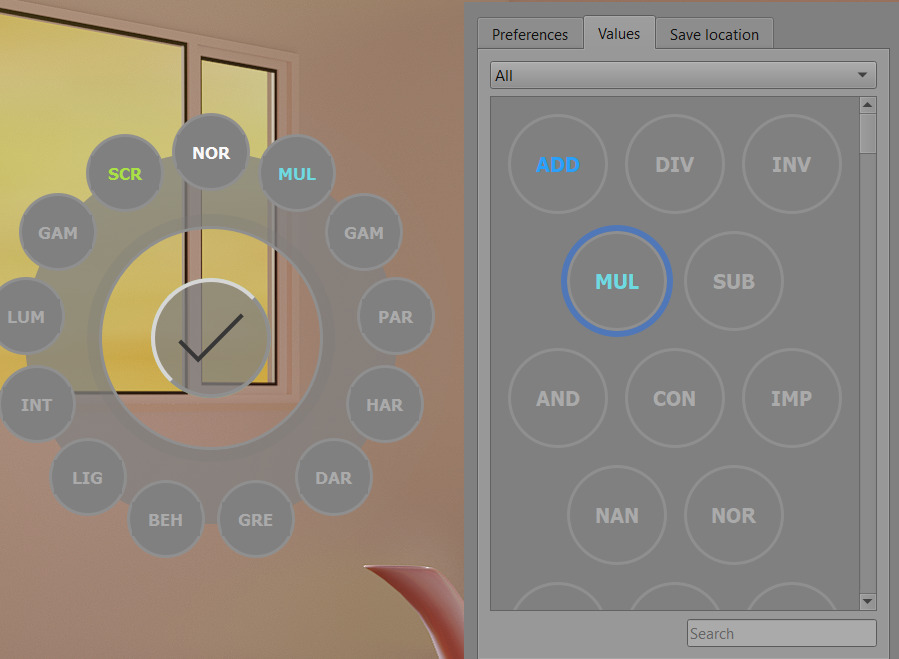
I wasn’t refering to the background color of the menus, i know it’s krita’s theme (dark in my case), i meant the color of each blending mode label, for example, screen blending mode is green and multiply is turquoise, etc, but most other blending modes are just grayed out so it’s a bit harder to read for me (unless i changed my ui theme) I just wanna know if it’s possible currently or in the future to change this to my preference.
I did notice the color changes depending on the theme so i realize this complicates things. (Light theme is easier to read though but i prefer using dark theme).
Another suggestion, I also thought it would be nice for custom colors for labels to be available in actions as well, it would help distinguishing tools further, for example the action “Make brush color more red” can just be shortened to “Red” + the color red (if we could also use custom names), and I think there’s a few other cases where this could be useful.
I’m not sure how this would be implemented in the ui, but i don’t mind changing a bit of code to get this (though i know very little about python), I doubt this would be feasible with icons.
Thank you for reading and responding to my questions and suggestions wojtryb, I look forward to any improvements made In future updates.
There is no GUI way to manage colors currently, but you could customize it manually by editing shortcut_composer/composer_utils/label/label_text_colorizer.py file.
You can add/change custom colors and assign them to any blending mode there. You could also do the same for actions too if you import Action enum and then just do the mapping where blending modes mapping is done.
For custom action names, you could do that as well in shortcut_composer/api_krita/enums/action.py but you’d have to add custom “pretty name” for each action you think necessary, similarly how it’s done for blending modes in blending_mode.py.
Edit: Thanks for the reply wojtryb~ It was working, I guess I’m just dumb lol sorry!
Resumo
Hi! I’m not sure if it’s the right place to share issues. But when trying to use the plugin, it seems I’m not able to add shortcuts to it for some reason. I’ve tried to import the stable version, and also the development one, but the same thing happens.
When I go to ‘Settings > Configure Krita > Keyboard Shortcuts > Scripts > Shortcut Composer’, only the ‘Shortcut Composer: Utilities’ has a toggle to add a shortcut to ‘Configure Shortcut Composer’, while the other ones are empty.
I have a problem when reading your source code. I saw you create a class ReleaseKeyEventFilter from QMdiArea and reimplement eventfilter, but not call “installeventFilter” for any widgets. why it worked?
I’m not an expert in Qt, but it looks that when you instantiate a class which inherits from QMdiArea, it does receive all events, and you don’t need to install it anywhere - this minimal extension code prints messages on linux terminal:
from krita import Extension, Krita

from typing import Literal

from PyQt5.QtCore import QEvent
from PyQt5.QtWidgets import QMdiArea


class MyEventFilter(QMdiArea):
    def __init__(self) -> None:
        super().__init__(None)

    def eventFilter(self, _, event: QEvent) -> Literal[False]:
        print("EVENT")
        return False


class MyExtension(Extension):

    def __init__(self, parent) -> None:
        super().__init__(parent)

    def setup(self) -> None:
        pass

    def createActions(self, window) -> None:
        self._my_filter = MyEventFilter()


Krita.instance().addExtension(MyExtension(Krita.instance()))
@wojtryb thanks for the continued updates to the plugin! I do however notice that the “Scroll canvas zoom or rotation” tool suffers from the canvas drifting when using the rotation function. This used to be a bug with Krita, which I believe is now solved. Perhaps you could look at the solution here?
Huh, indeed I can confirm this behavior. It is definitely less severe than that original bug. In case of the Krita bug, the drift happened all the time and was very visible. With Shortcut Composer it’s minimal and I can see it the most if I keep invoking the action (press button, move, then release and repeat). It does happen in a single action too, but only minimally.
I suppose this must be floating point rounding again.
I managed to recreate it - the canvas is getting moved by a few pixels after using the shortcut multiple times.
I tried to find a workaround fast, but neither rounding the value before passing it to krita nor limiting number of function calls worked.
I suppose it should be considered a bug in krita python api, as calling a method for rotating the canvas should not cause it to move (we can’t move the canvas in python anyway).
When the rotation drift bug was fixed, I added a new “transactional” rotation mode, where you would begin, adjust, and finalize the rotation. This helped minimize the numerical error.
However, the Python API goes through the classic single-shot setRotation() that is prone to getting an error. Maybe it’s worth double checking that part if anything could be improved…
It’s very easy to see the drift with this simple script.
from krita import *
canvas = Krita.instance().activeWindow().activeView().canvas()
canvas.setRotation(1)
canvas.setRotation(2)
canvas.setRotation(0)
If the canvas is perfectly centered (e.g. after fit to view + scale to 100%), then it won’t drift at all. But if you pan the canvas slightly to the side (especially just a bit to the top/left), and then spam run this script in Scripter, it will start drifting like crazy.
I was also thinking, with a regular keyboard the addon works perfect the way it is, but I also have a programmable keyboard which I set up so that keyholds such as D or F become Ctrl + D or Ctrl + F. Would it be possible to add a mode switch so that if I use the brush size and opacity scroller, I could press F, move my pen and click to confirm the result? This behaviour is actually the way Blender works, so I can imagine it’s not specific to my use case.
E: I can see myself switch between the modes occasionally as well depending on my input devices.
That’s interesting. I also dislike having to press Ctrl+Z constantly, but in this case, I bound it to Z in Krita settings, rather than the keyboard itself.
It’s not really possible to handle mouse events on bare canvas.
As the canvas is not a usual Qt widget, but something implemented specifically for krita it handles mouse events on its own without any way to intercept them in python. As you may notice, you can still draw while using those shortcuts, and there’s nothing I can do about it.
It’s possible to do that when you have any widget between the canvas and the cursor (like a pie menu), but I don’t really want to have some “brush preview widget” here as I don’t think I can do better then the one in krita
Hello, i am curious about what keys are prefered by people for all the possibilities of new shortcuts that this plugin offers.
i would be interested to see what seems the best workflow for people, to decide what should be prioritized, and if anyone filled all the empty spaces and with what keys.
Thank you for sharing your chosen shortcuts