Possibility to hide the selector widget with “Hide widget” in its settings
Support for two missing blending modes: Lambert Lighting (Linear) and Lambert Lighting (Gamma 2.2)
Modified
All formats of krita version are now properly supported, when detecting the version on startup
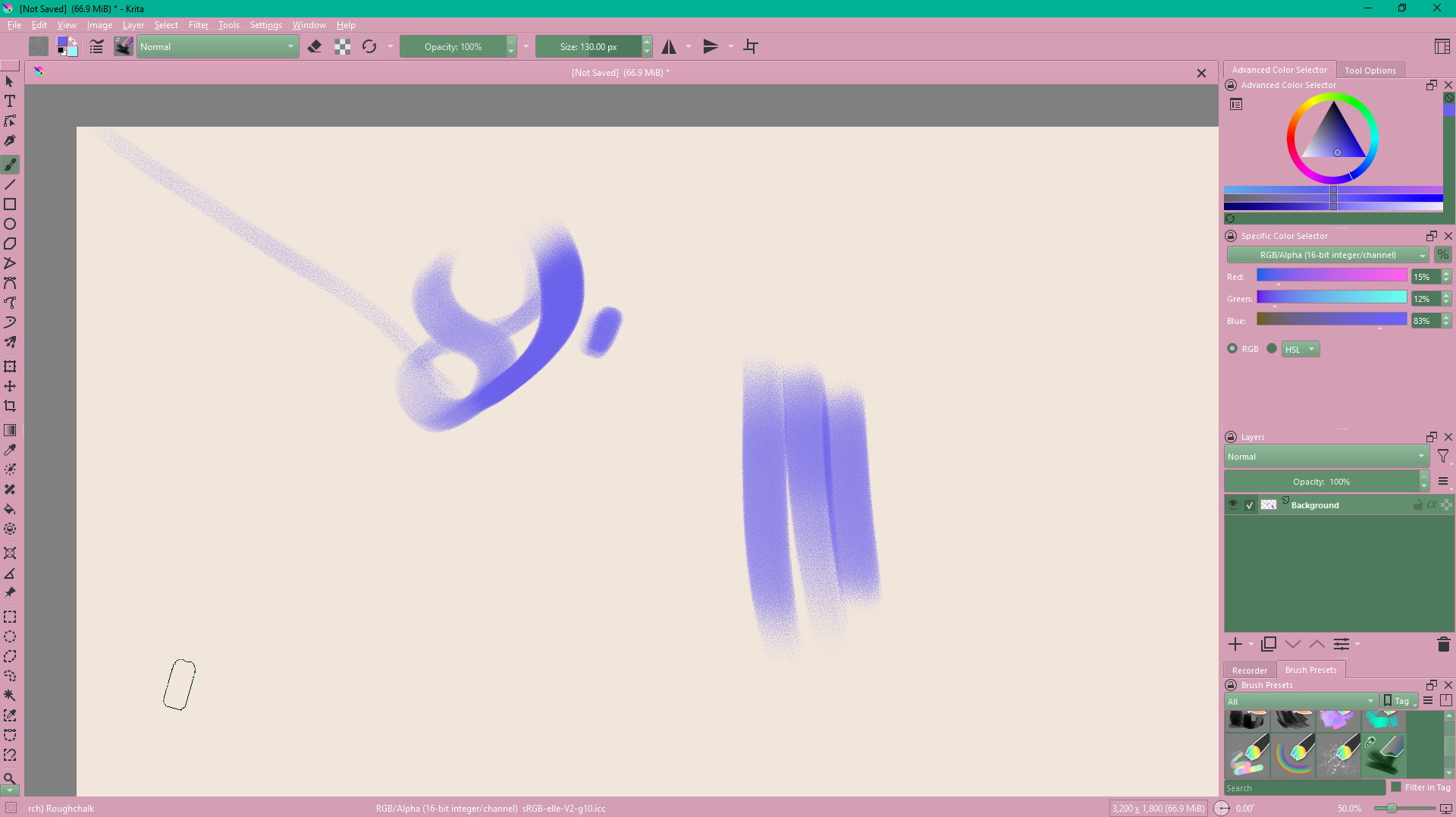
I’ve decided to implement the request from @hulmanen as it turned out to be easy enough - now one can hide the pie selector with the checkbox in its settings. Settings are still available with the button at top left corner of the screen.
A small issue, when the new “Hide widget” is used for rotation selectors the settings will open at the top left corner of the screen making them inaccessible. Should open at the center of the screen when hidden, as it does with Multiple assignment settings.
I’ve hidden the rotation selection widget and now i cant turn it back on. The settings button doesnt appear for me. Ive tried reinstalling the plugin and deleting the folder completely, but the issue persists.
Hold the rotation selection shortcut, its settings button will pop at the top left corner of the canvas. Click it to open settings and you can turn widget back on.
If it opens off screen (bug in current plugin version on Windows) resize it so title bar appears then drag it in so you can configure settings.
Forgot earlier… There should be a new entry in kritarc (settings) file for the brush rotation selector’s hide widget option. You could try deleting that line alone or the entire section related to the selector settings.
Not at my PC currently to check the exact entry but within kritarc file search for anything “Shortcut composer” and find where rotation selector saved hide widget value. Deleting that should use default (not hidden).
On windows the kritarc file is under User >App Data>local (scroll all the way down, not in the krita subfolder). You can make a backup copy just in case as well before editing the file in any text/code editor.
Edit:
Checked the file so updating what exactly you should look for.
In kritarc file located under:
%LOCALAPPDATA%\ (Windows)
%LOCALAPPDATA%\Packages\49800Krita_*RANDOM STRING* \LocalCache\Local\kritarc (Windows Store install)
~/.config (Linux)
~/Library/Preferences (macOS)
Open the file in any text/code editor and search for “Rotate brush” (without quotes) and in that section edit last entry “Is widget hidden=true” to false or delete entire line:
[Rotate brush]
Active color=51,51,51,255
Deadzone scale=0.0
Deadzone strategy=KEEP_CHANGE
Inner zone scale=0.0
Inverse zones=true
Is widget hidden=true  <----! change this to false, or delete entry
Hope this fixes it. Widget should be visible again but why the settings button isn’t showing up for you when widget is hidden is weird, I couldn’t get that to happen on my side.
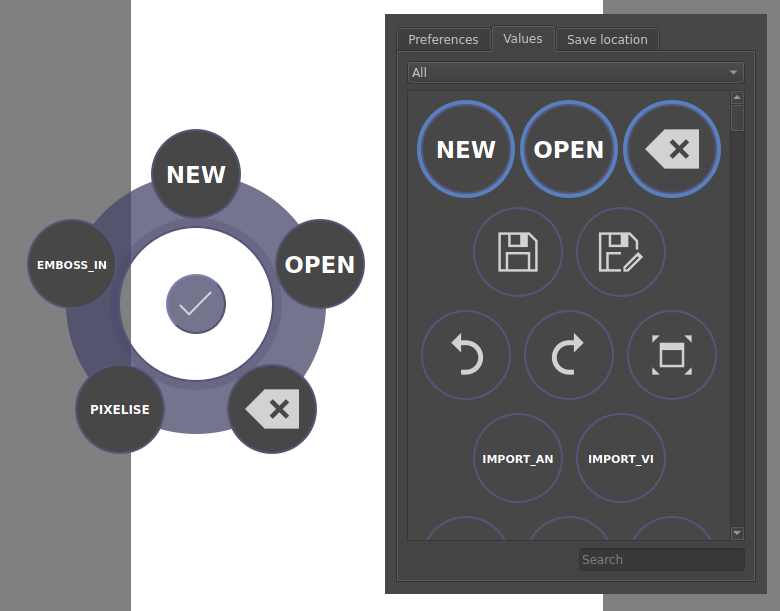
Is it possible for a user to apply custom icons to this system? As you can see the multiple INC labels doing different things is not particularly edifying. Could we add text or a custom graphic to make them self explanatory?
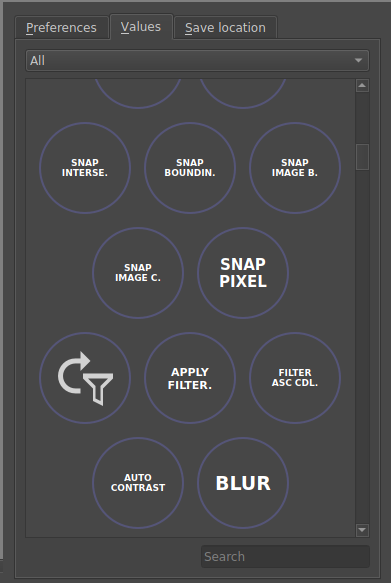
Currently not possible. Icons are set automatically if icon for said action exists, otherwise it’s abbreviated to first 3 letters of the name. You can see full name left of search bar when hovering label but currently no popup on pie itself.
Best you can do for now is remember where you place each of those actions that lack icon but start with same 3 letters.
An optional full name popup when picking actions would be useful in this case.
It’s true that there is no GUI for that, but it could be done with relatively easy changes in code
In fact you could modify shortcut_composer/core_components/controllers/core_controllers.py like so:
def get_label(self, value: Tool) -> QIcon | LabelText:
    """Forward the tools' icon."""
    icon = value.icon
    if not icon.isNull():
        return value.icon
-   return LabelText(value.name[:3])
+   return LabelText(value.name[:9])
to allow having more than 3 signs.
You can also modify shortcut_composer/api_krita/enums/action.py to remove icons, as well as use custom icons from krita:
    @property
    def icon(self) -> QIcon:
        """Return the icon of this action."""
+       if self in CUSTOM_ACTION_ICONS:
+           return CUSTOM_ACTION_ICONS[self]
        try:
            return Api.instance().action(self.value).icon()
        except AttributeError:
            return QIcon()

    @property
    def pretty_name(self) -> str:
        """Return the name of this action."""
        try:
            return Api.instance().action(self.value).text().replace("&", "")
        except AttributeError:
            return "---"

+
+CUSTOM_ACTION_ICONS = {
+    Action.NEW: QIcon(),   # remove original icon, so that name is used
+    Action.OPEN: QIcon(),  # remove original icon, so that name is used
+    Action.QUIT: Api.instance().icon("edit-clear"),  # krita icon
+}
+
Here I removed icons for “NEW” and “OPEN” actions, and replaced current icon of “QUIT” with a “edit-clear” icon. You can find some of the krita icon names in krita scripting school.
Adding custom icons from svg file is out of scope though.
Anyway, allowing more signs than 3 looks well, so maybe I’ll think about doing that for actions and blending modes.
Sorry if its not the right way or the right place to ask, but im having an issue here… i set shortcut for pie menus and works just fine pressing the keyboard but when using wacom expresskeys the menu just flashes for a sec but doesnt stay open. I have latest version of both krita and shortcut composer with a wacom intuos 4
Hi, i have a few questions/requests about the pie menus.
Is it possible to change the name of the tools? many tools have long names that don’t appear fully on the pie menu, it’d be nice use a shorter label when possible to distinguish them better.
Is it possible to cancel a pie menu by right-clicking before releasing the key? often i end up desiring against picking a tool after pressing the key for it, but there’s no way to cancel (specially if “pick top” or “pick previous” is on), so i need to undo, canceling by right-clicking would save that minor issue.
Can Krita tools be added as a category on the actions pie menu? the calligraphy tool is already there to chose and i think it wold be handy if the rest would be there too, it might seem redundant, but i think it’s handy for combining both actions and tools in a single pie menu
I’m having issues when increasing the number of letters shown in the brush blending mode pie menu, it’s stays on 3 letters even after editing it on node_controlers.py, only the new layer blending mode increases the letter amount. Related to this, i would like to change the values of the labels here to be brigther so they are easier to see.
Lasty it would also be nice if we could add items to the pie menus by clicking the tool or brush we want instead of always draging them. Just a nice to have, since i don’t like dragging every brush in or out while on manual mode.
Thank you very much for this plugin. It’s helped me take better advantage of krita’s features and enhance my workflow.
in the next update I plan to rework how the text in displayed in the labels. I know that first three letters are not working well enough, and I want to expand that to up to two lines of 8 characters.
Custom names of actions require changes in code. I hope the new text system I mentioned will make that not necessary.
That’s doable of course, but not trivial. I’m rather cautious with making changes to how pie menus work. You’re right that it’s not possible to cancel when in “pick top” or “pick previous” though
They could. Those two types of pies are separated as tools were supported long before the actions. It would be best to remove tool controller now, but it can’t be done now. I’ll think about adding those tools to actions, but as you mentioned it is redundant, and calligraphy tool is there by mistake
I hope the new text system solves your problem. Also you discovered a bug where the text was always white regardless of the theme. As for the label background color - it’s krita background color, and it should work with your theme when I release the fix
As I said in 2, I’m cautious with making changes to how pie menus work. All alternative ways of doing things make everything more complex and harder to test and maintain. I’m afraid that for now this is how it has to stay