Hi
I used to control flow and opacity with “A” now it is controling opacity and size which I have no use for. Is it possible to revert to opacity and flow? You recommended a fix above, but hat just makes it flow+size not flow+opacity
Hi
I used to control flow and opacity with “A” now it is controling opacity and size which I have no use for. Is it possible to revert to opacity and flow? You recommended a fix above, but hat just makes it flow+size not flow+opacity
Each plugin update reverts all your custom changes.
The code I posted here in this thread is flow+opacity, you should be able to simply copy/paste the entire thing.
Just make sure to use FlowController and OpacityController, not SizeController.
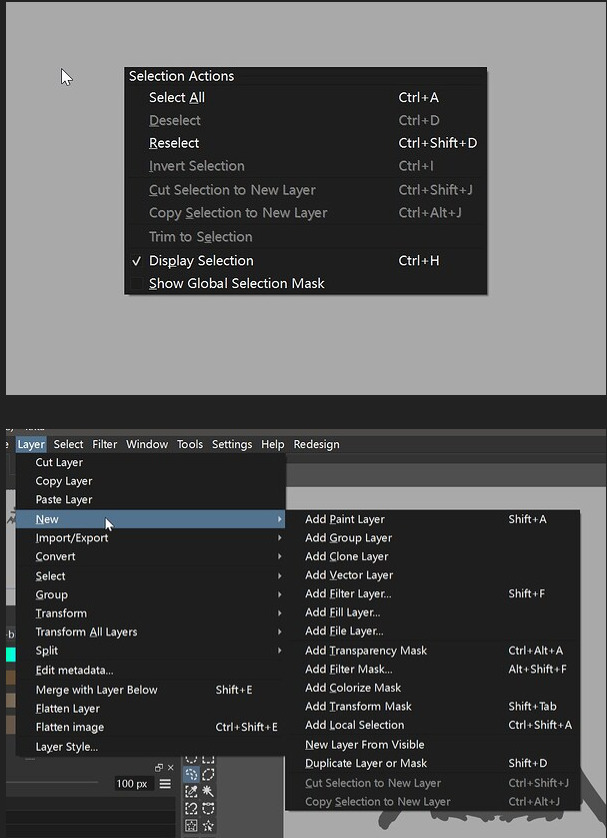
Can we add a menu of this type, similar to the system right-click menu? This way, no icons are needed, and it is often more convenient and detailed to use.
This would also make up for the issue in Krita where submenus can’t be called up via keyboard shortcuts. I’d really like to use a popup menu to invoke the Layer > New submenu in Krita, but unfortunately, this feature isn’t available in the software.
Honestly I never thought about it.
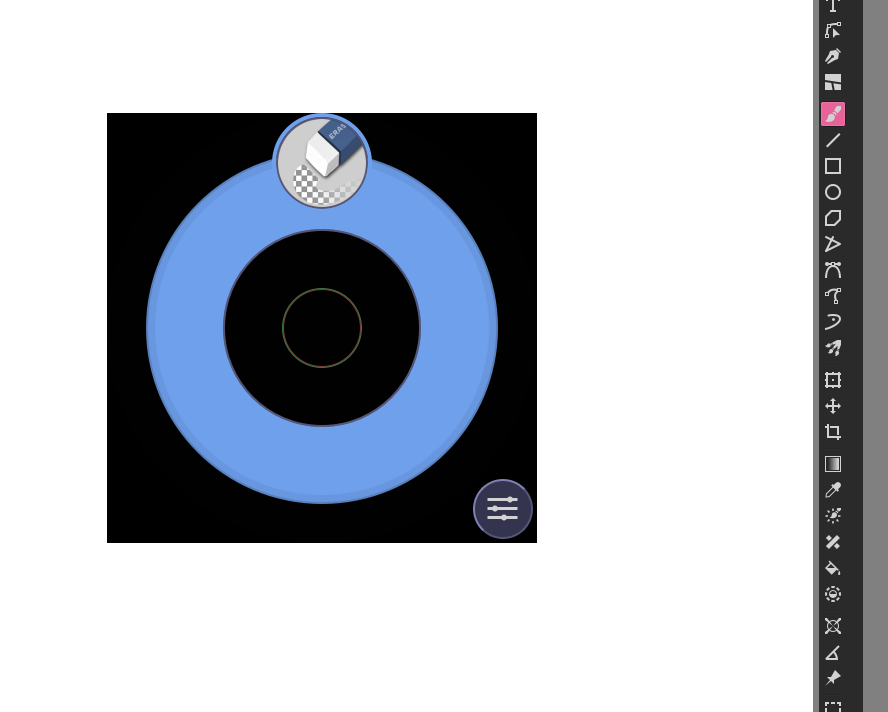
Technically it should be possible to recreate those menus in a plugin. The problem is that this feature is already covered in Shortcut Composer, as there are customizable action pie menus there.
I understand that it’s a matter of preference and probably those list-like context menus are more suitable when you have a large amount of actions. But from my perspective this looks like a lot of work (you need both those menus and GUI for configuring them) to create a feature that feels redundant in a context of my plugin.
Anyway this is a great idea for a separate plugin. But I’m afraid it’s not something I would be interested in coding myself.
Hi, your plugin is wonderful. I really enjoy using it while drawing, it’s truly very convenient. Thank you so much for creating and sharing it.

Absolutely great addition to the software, this plugin is an amazing (must have) tool to any artist trying to improve his handling of the software.
Thank you
I’m glad you think so! Thanks
thanks for the plugin!
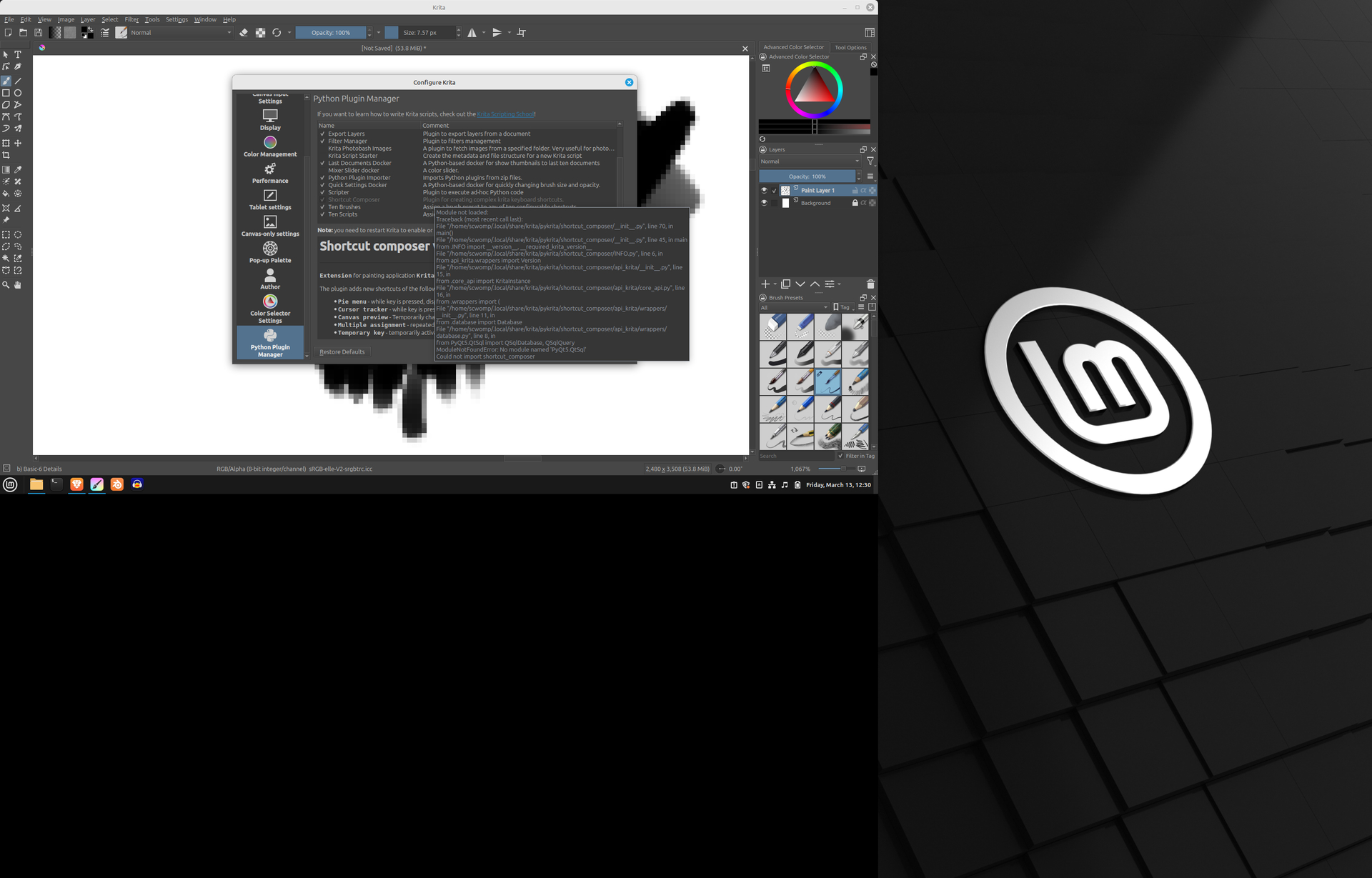
I’ve really enjoyed using this plugin for the last year, though I’ve done a recent reinstall of linux mint, and I can’t seem to get the shortcut composer to work. When I go to the plugin manager, this is the message I’m getting:
Any help would be greatly appreciated!
You’re missing PyQt5 library.
Most likely you are not using .appimage version of krita which is the only official way of distributing krita on linux.
To use krita from unofficial sources (like repos from your distrio), you’ll have to manually install all the libraries that usually come with the appimage.
Hello, hello!!
First of all thank you for the Amazing Plugin. It has been a before and after for me since you released it! And I recommend it whenever I can!!
Now to the topic! I have been dreaming of migrating to Linux. And last week I did!!
I installed CachyOs, with KDE Plasma, because of some compatibility issues that I had, I am using X11 instead of Wayland. And installed Krita from the App Image as you recommended
Krita and the Shortcut-Composer worked great, except for 1 specific thing.
The Cycle selection Tools. I assigned the shortcut and it works normally. But I have a problem with the [ Shift ] key to add to selection, for some reason when I am pressing [ Cycle Selection Tools shortcut + shift ] it just changes to the brush and I can’t add to selection, but with [ Alt ] Key it works as intended removing from the selection.
Here is a video with the behavior.
In theory it should work. I think I have the same configuration as I have in Windows.
I am in the latest stable version of Krita and Shortcut-composer on both Windows and Linux.
The Normal selection Tools work as intended with [ Shift ] Key as well as the rest of the Krita tools.
With a Clean installation deleting all config files I also have the same problem.
So if Anyone knows at least what may be happening I would be thankful. Or I will have to go back to the Dark days before Shortcut composer for the selection tool, But I just the use the selection tool so much. It would be painful  . I even have thought of changing the [ Shift ] modifier inside Krita, but didn’t know how t do it
This looks like a shortcut assignment conflict.
Have you tried assigning the action to different key, or have you checked what action is assigned to shift+“key”? Pressing shift when “key” is pressed, could lead to calling this action regardless of the order you pressed them, and it could be OS/environment dependent. I’m quite sure it did happen on linux, haven’t tried that on windows.
I would also advise not to use the modifiers while keeping the Shortcut Composer key pressed down. Those actions end the moment you release any key, and releasing shift could end this action. You can always just tap the button to get into the correct tool, then use the modifier alone. At least that’s how I learned to use that, specifically because pressing multiple buttons at once could cause clashes like that.
You won’t be able to change the modifiers for selection tools, as krita has those hardcoded.
On the side note, if you want to synchronize your config files between systems, mind that there are many of those spread across the system. For linux these are most likely located there:
~/.config/kritarc # main config file
~/.config/kritadisplayrc # display related
~/.config/kritashortcutsrc # custom shortcuts
~/.local/share/krita/krita5.xmlgui # topbars
~/.local/share/krita/input/kritadefault.profile # canvas inputs
Yes. It is a strange problem, right?
I have tried with different key Combinations all with the same issue. And yeah I think I will just keep it simple and press the shorcut once, use the modifier and then I’ll let it pressed again to change to the brush or just use the brush shortcut that I also have in a convenient place, I can get used to that. It was just that I was so used to that specific workflow that is a little ingrained in me It is one of the shortcuts that I use the most.
Thank you!! And again Thank you so much for the Amazing Plugin.
Did a little bit of testing under Gnome (Wayland), and thought maybe I should explain what really is the intended way it should work.
Right now, every action ends, when any keyboard key is released. So if your action is under shift + Z, then it ends when you release either the shift or the Z key. Also you can’t really use two actions at the same time, as releasing one, ends both of them.
Initially I had the system that was meant to recognize which key was released to end only the related action, but it was problematic - sometimes the action would never end. It also was failing to detect key releases on non-latin keyboard layouts. That’s why I decided to switch to current solution, which is not ideal in rare cases like yours, but it’s simple and more predictable than the previous system.
I believe that the plugin may work “as intended” on your end, but your perception of what is intended is different for you and me  Also the alt key sometimes causes problems under linux, as I heard about some distros handling it differently, making it some sort of a “OS related key”. I believe that’s why it does not end the action for you.
Maybe it would be good to do not end the action when the released key is a common modifier (ctrl, shift, alt), especially as it turns out that Windows already does not recognise those keys being released (which is not really how I wanted it to work). But that could cause other problems I’m not aware at the moment. Also krita allows you to use any key as a modifier, which could result in further inconsistencies.
Not sure if it’s worth working on, but I’ll try to keep that in mind.
This release of Shortcut Composer addresses changes in krita 5.3/6.0. It allows to use the plugin under krita 6, while it makes use of extended API for plugin developers.
If you plan to use krita 6.0, this update is mandatory for Shortcut Composer to start.
Update krita to 5.3 or 6.0 first, then install this version of the plugin.
Windows 11
Krita-x64-6.1.0-prealpha-b81ffc42 (Latest)
I tested Shortcut Composer in the environment described above. The pie menu, which should be semi-transparent, appears opaque.
This was already known to me. In Krita 6, it is not possible to create transparent widgets using the conventional method.
However, is it possible that widgets with proper transparency are displayed in other environments?
Thanks for bringing it up. I was not aware of this problem.
I’ll check it out on Windows and see what can be done about it.
Hello!
I’ve encountered a bug related to the plugin’s zoom function with cursor tracker after updating Krita to 5.30.
Whenever I try to zoom-in or zoom-out with the cursor tracker, the screen’s zoom level will immediately reduce to its minimum value, totally not being based on the current zoom level value.
For example, when I try to zoom-in from 133% zoom level by pressing the button and moving my cursor upward, the zoom level immediately goes to something like 5.6% and starts to zoom-in from that value.
It’s still usable, but a little bit uncomfortable.
I’m using KDE Plasma on Arch.
Thank you!
Thanks for reporting.
It looks like krita 5.3.0 fixed an issue in python API returning wrong zoom level. I removed my old workaround for this, so it should work well now. You can download plugin from development branch - currently there is nothing more there than this bugfix.
It will be released with 1.7.1, but first I need to find a Windows machine and debug some other issue on krita 6.
Thank you! It works perfectly fine, and that was soooo fast!