Hello @lololou, and welcome to the forum!
Have you tried reinstalling your tablet driver yet? I see it as a last resort at the moment, as your description at least sounds like you’ve done everything that needs to be done, but maybe I’ve misunderstood/misinterpreted something?
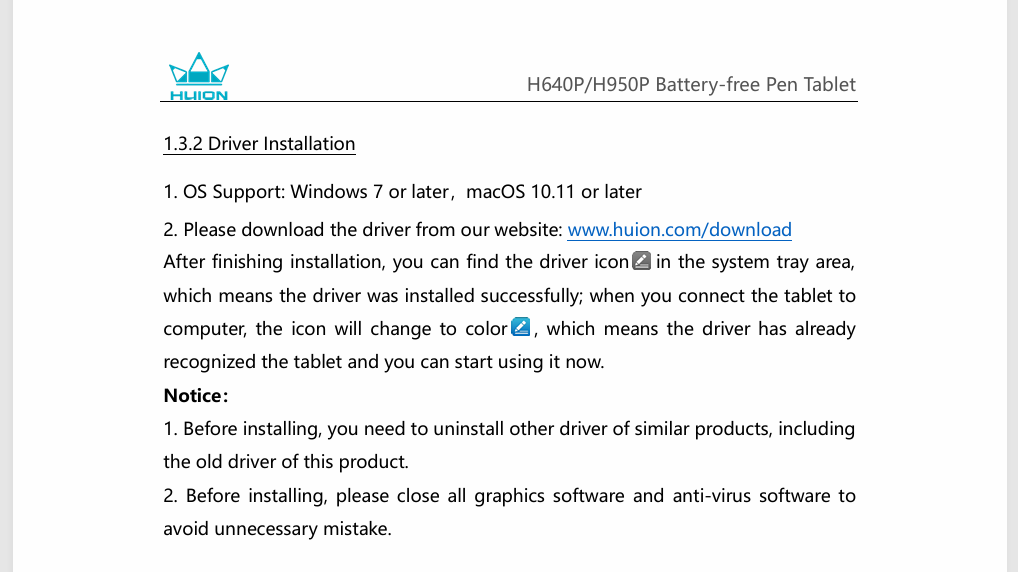
And you should probably uninstall/reinstall it the good old way! So uninstall your driver according to your manual, if that gives instructions on this, else use the uninstaller.
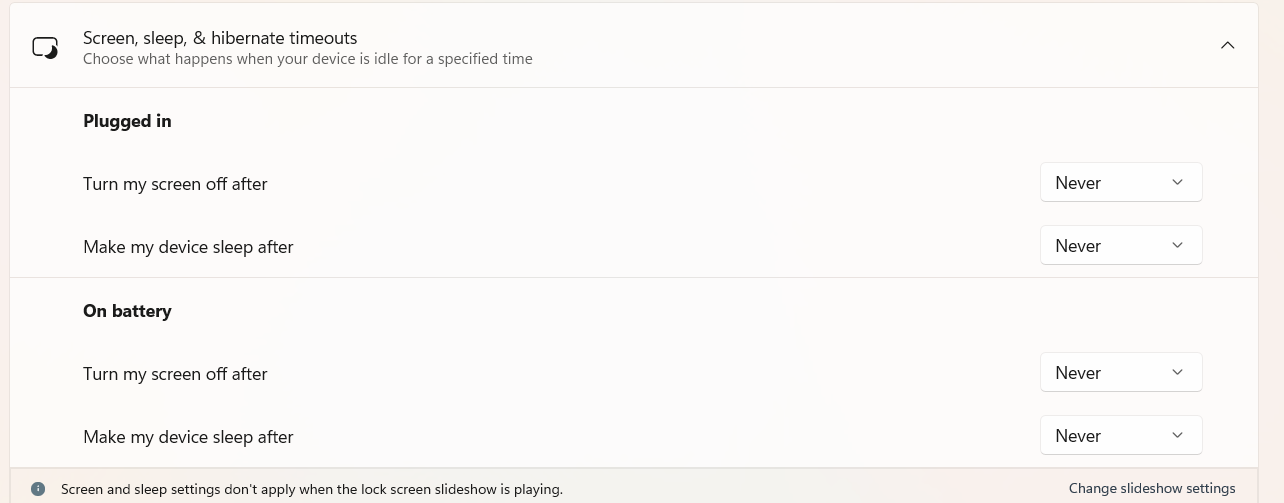
Now, and that’s important, shut down your PC completely. If you have Sleep mode and/or hibernation on Windows enabled, then disable these functions beforehand, in question of how to do it ask your preferred search engine (these functions also harm your SSDs because of the insane amount of data written each time you shut down your PC (everything that’s in memory gets written to your SSDs, and it doesn’t start up noticeably faster than without using hibernation, but with sleep mode you gain a little time if that is of worth for you)).
After your PC has switched power off, wait a few seconds and then start it again. Now install the driver according to the instructions in the manual and obey if the tablet has to be wired to the PC or not, often this makes a difference.
After you have installed the driver anew, you should do this shutdown-reboot voodoo again. We don’t know why this even these days often makes the difference, where Microsoft wants to tell us it is no longer needed, but we have observed often enough that it made the difference. Since it is only time-consuming and does not harm you or your hardware, it is at least worth a try.
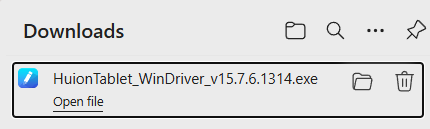
The most recent driver for your tablet is found on this Huion-Page:
https://www.huion.com/index.php?m=content&c=index&a=lists&catid=16&myform=2&down_title1=Inspiroy%20H640P&down_os=Windows&down_type=Driver&category=undefined
But for recapitulation:
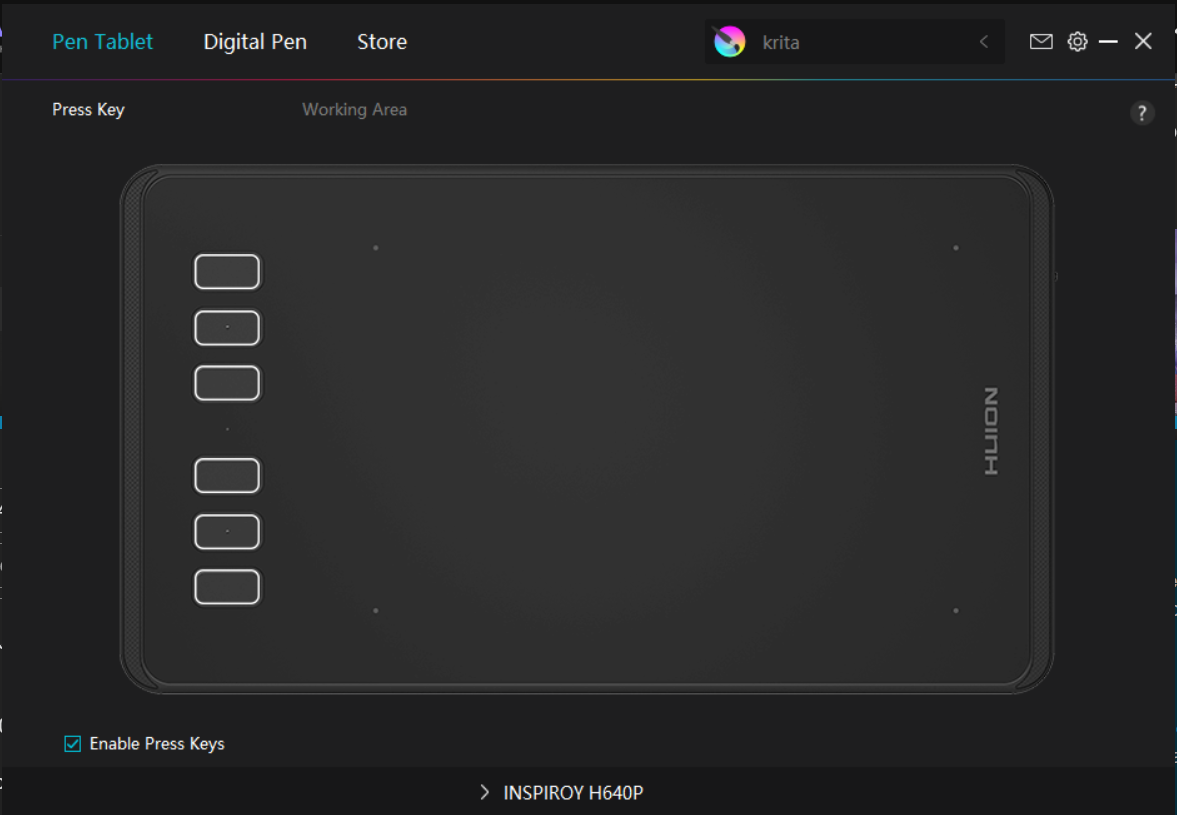
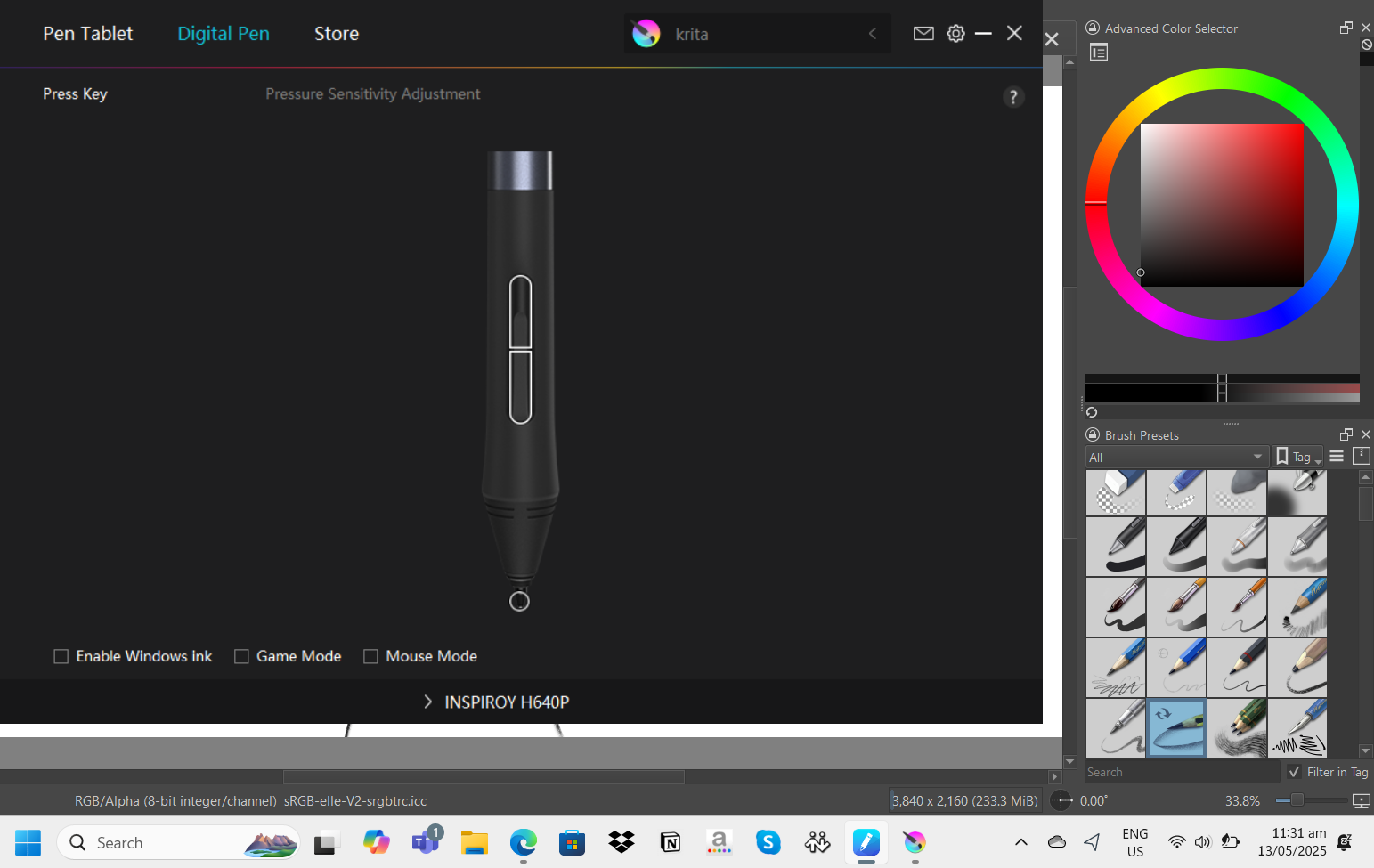
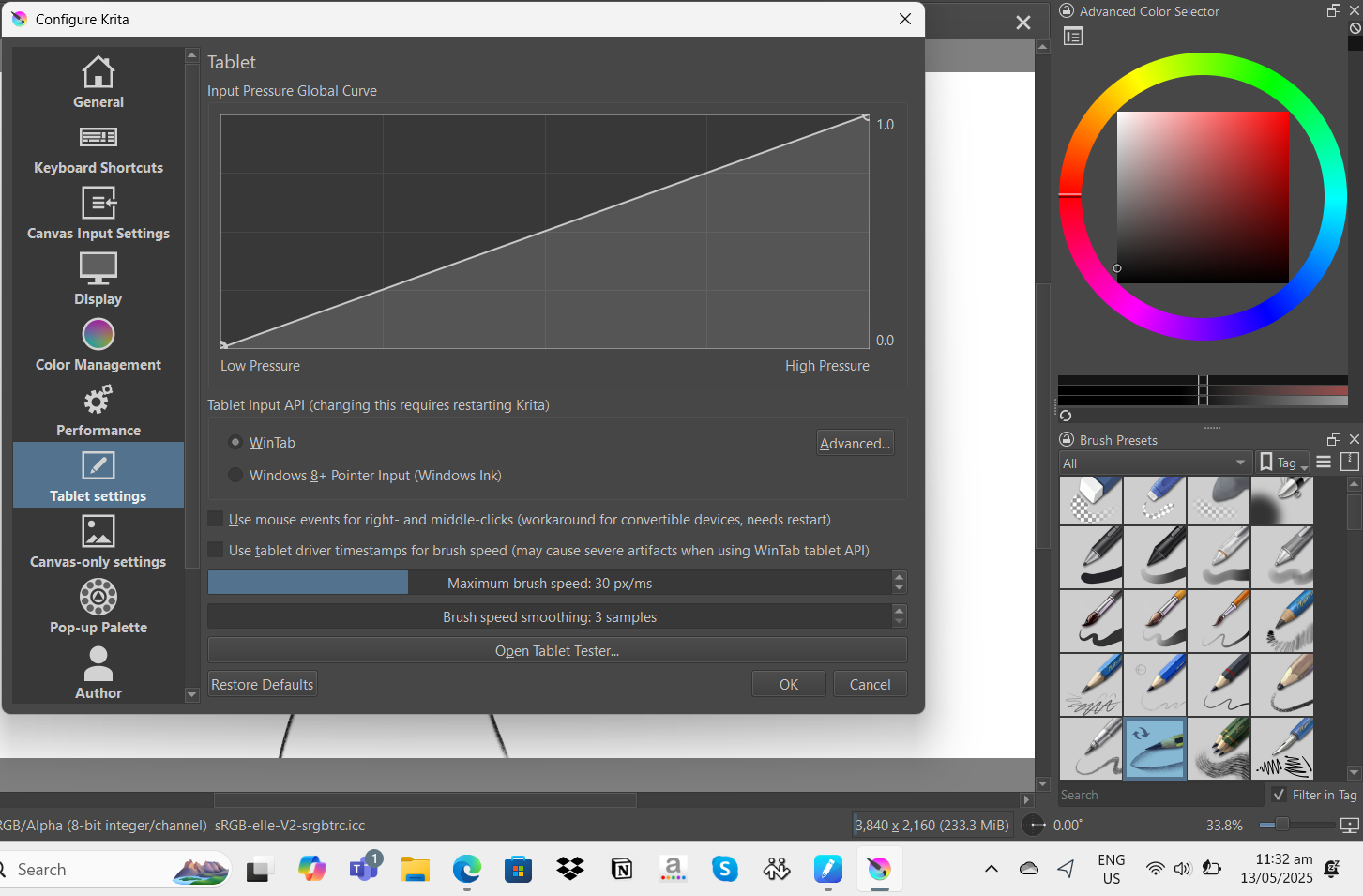
The important thing with WinTab and Windows Ink is that these have to match another on Krita and tablet. When you select to use WinTab in Krita, you must disable the use of Windows Ink on the tab “Digital Pen” in your driver-application in the lower left corner, and if you want to use Windows Ink it has to be enabled in Krita and your driver as well, so the “trick” from before but vice versa.
To enable one of them in Krita, you have to set the radio buttons found on your first screenshot accordingly, and then you must confirm that setting with the OK-Button in the lower right corner of that dialog and restart Krita, without confirmation and restart it will not be changed.
Normally, WinTab is the preferred API when it comes to using Huion tablets on a Windows PC, but exceptions prove the rule that nothing is impossible and in rare situations Windows Ink may work better for a user. But it is rare.
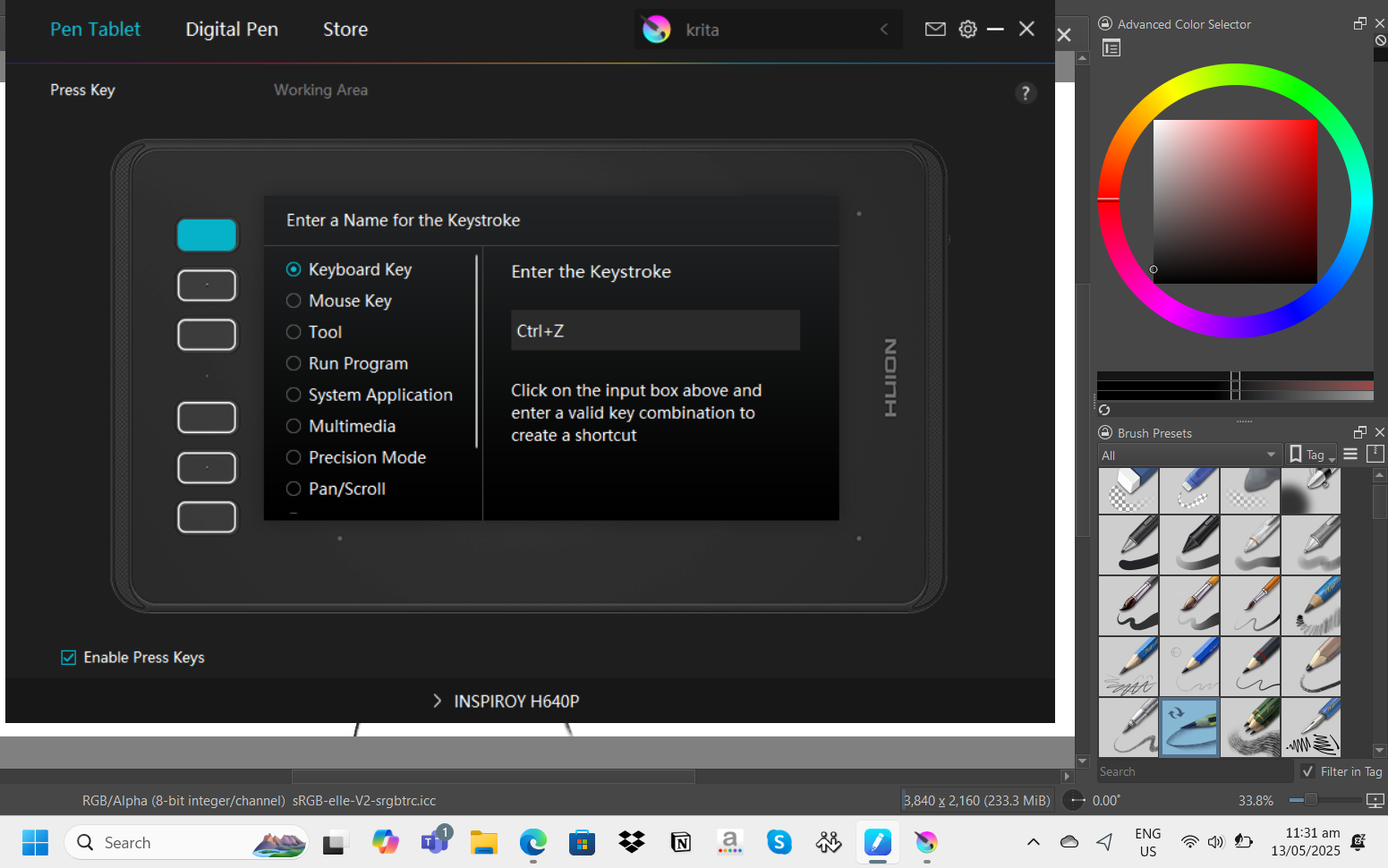
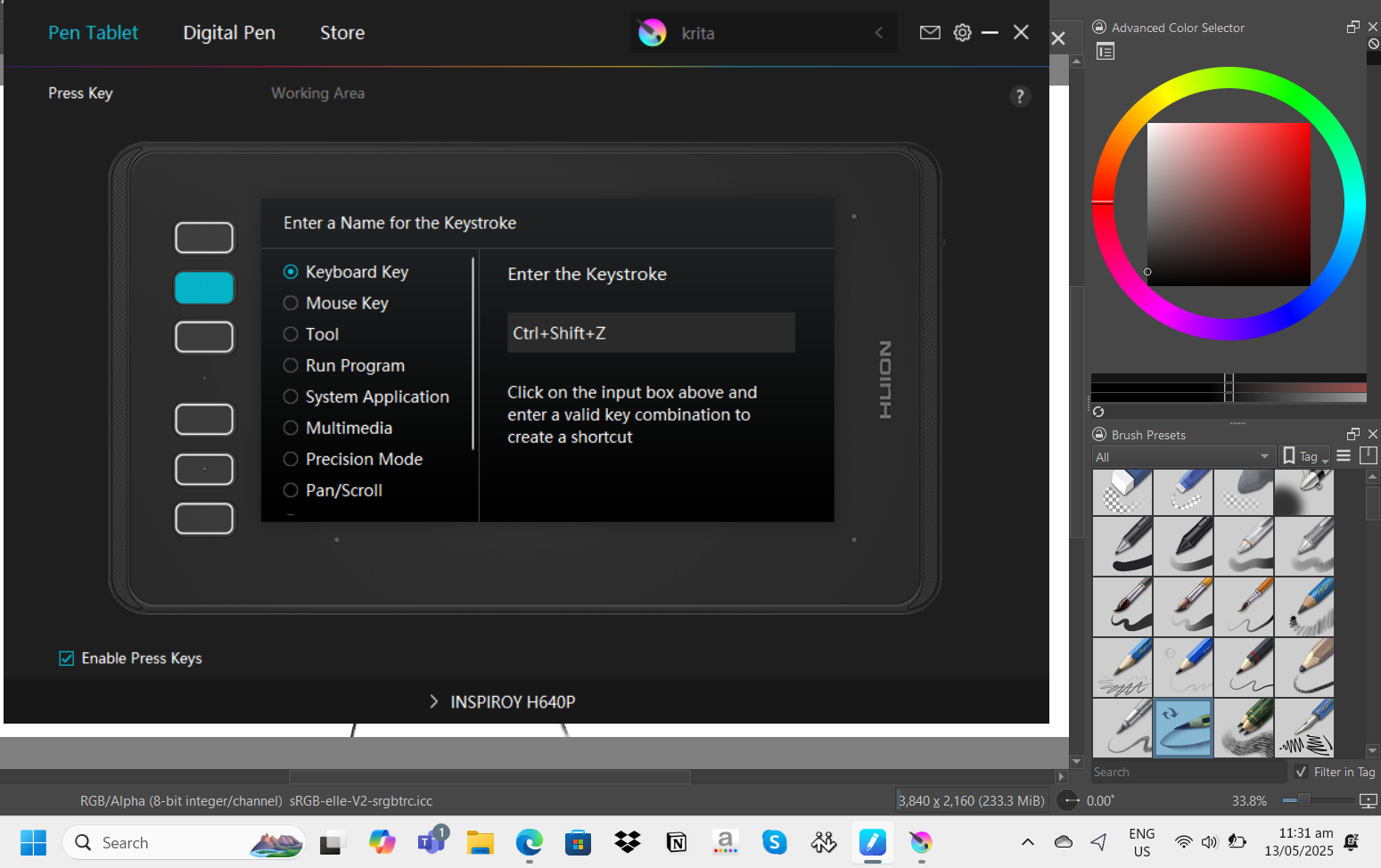
Mouse events should not interfere with keyboard shortcuts you set up for your shortcut keys on the tablet, as long as you don’t have mouse-actions put on them, but it does not harm to try to toggle this setting to check it out, as you said you did.
Important is to do the same as above: Confirm that setting with the OK-Button in the lower right corner of that dialog and restart Krita.
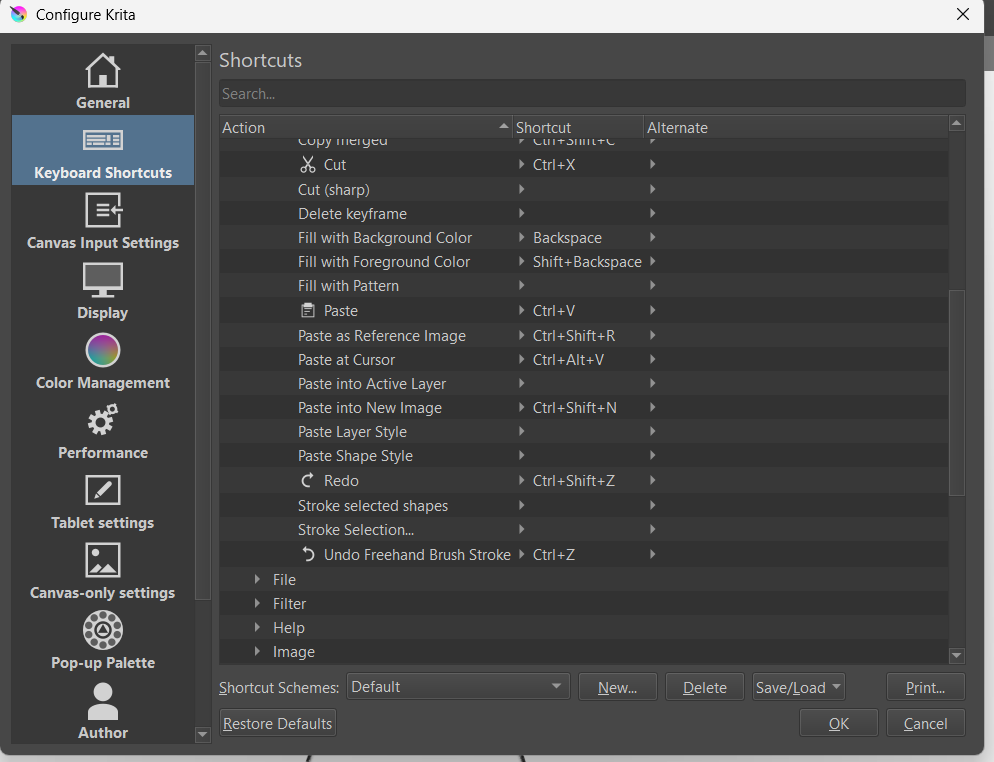
You said, you have set up the shortcut keys on your tablet to the Krita default shortcuts, have you checked them after this incident happened to you, or do you assume they did not change, if the latter then please check this under ‘‘Settings’’ >> ‘‘Configure Krita’’ >> ‘‘Keyboard Shortcuts’’.
In case this does not work, or you have further questions, feel free to ask. Please add a brief description of what you did so far and where you are stuck.
It may be that I’m not back before tomorrow, so there may be other who step in to help you further.
Michelist