Work Timer Plugin v1.0.1
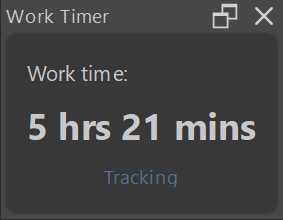
A smart work time tracker for Krita that measures your document’s actual working time by including time spent thinking/researching via user feedback.
Why not just look at Document Information?
Only Krita’s .kra file type supports “Total editing time” tracking and simply tracking brushstrokes is not an accurate way to measure time spent on creative work anyways. When working on a project, you may be planning, researching, or gathering references while the file is open. A typical time tracker cannot account for this, because it only measures direct activity. This plugin addresses that limitation by asking you whether periods of inactivity should count as idle time or as productive thinking and research time. The more you respond to its prompts, the more the plugin learns from your choices and reduces how often it prompts you.
Plugin Features

-
Scroll on the timer to resize its font. Resize the docker as small as you wish
-
Automatically tracks time spent actively working on your document
-
Accounts for time away from the file (thinking, planning, researching) through simple user prompts
-
Learns from your responses to reduce interruptions over time
-
Tracks time before a file is even saved (don’t have to save files to start tracking time)
-
Saves work time per file and restores it when reopening
-
Preserves tracked time when image files are moved or renamed
-
Imports existing editing time from Krita .kra files
-
Works in the background without requiring the docker to stay open
Installation
Download the plugin:
Get the latest version now or visit the plugin’s github page
Open Krita and in the top bar click:
Tools > Scripts > Import Python Plugin From File >select the zip file
Restart Krita:
Close and open Krita
Same steps for Updating
How It Works
Automatic Tracking
When you draw, edit, or navigate your canvas, the timer counts. When you stop interacting, it pauses (after a short buffer) to avoid counting breaks. You don’t need to have the Work Timer docker open since the plugin is also an extension. If the plugin is enabled, it will automatically track your document work time.
What Gets Tracked
- Mouse clicks and drags on canvas
- Keyboard shortcuts and input
- Pen and tablet strokes
- Canvas navigation (zoom, pan)
Timer States
| State | Meaning |
|---|---|
| Tracking | Actively counting work time (saved file) |
| Tracking (unsaved) | Counting work time for an unsaved file |
| Paused | No activity detected, timer paused |
| No document | No document is open |
Unsaved Document Tracking:
The timer tracks your work even before you save. When you save the document, all accumulated time is automatically transferred to the saved file. If you close without saving, the time is discarded.
Tracked Time Persistence
Per-File Time Tracking
Your work time is saved for each individual file and persists across sessions. When you reopen a file, your accumulated work time is automatically restored.
How Files Are Identified
| File Type | Identification Method | Survives |
|---|---|---|
.kra |
Document UUID (embedded in file) | Renames, moves, and copies |
.png, .jpg, .psd, etc. |
Content fingerprint + path | Moves, renames (if content unchanged) |
Move Detection for Image Files
When you move or rename a .png, .jpg, or other image file, the plugin can detect this and preserve your work time. It creates a content fingerprint based on:
- Image dimensions (width × height)
- File size
- A sample of the image content
When you open a file at a new location, the plugin checks if it matches a previously tracked file and automatically migrates your work time.
Note:
Move detection works as long as you haven’t edited the file since the last save. If you edit and save the file after moving it, the fingerprint will change so the plugin may lose your work time for that file.
Importing Time from Krita Files
.kra files have embedded work time so when you open one with the plugin, it reads the .kra’s built-in Total editing time metadata and uses it as a starting point. However, fully trusting Krita’s editing time metadata would be innacurate since it’s only the recorded time you spent on brushstrokes and not also the time you’ve spent thinking about your project. Due to this, the plugin starts your work time after putting the Total editing time through a formula.
Example: My .kra painting file that is 4 hrs 15 mins in editing time would be recognized by the plugin as 5 hrs 21 mins

Technical Note:
The adjustment uses a logarithmic formula that applies a higher multiplier to short sessions (~1.4x for 2-minute sessions) and a lower multiplier to long sessions (~1.2x for 2-hour sessions). This accounts for the fact that planning and thinking are proportionally higher at the start of a project.
User Feedback and Prediction
The Prompt Dialog
When you return after a pause, the plugin may ask you to state if you were thinking about your project. The dialog shows:

- How long you were away
- The system’s confidence level (how sure it is)
- Option to respond Yes (add time) or No (discard)
Auto-Decisions & Undo
When the plugin is confident about its assumption of the nature of your idle time, it may auto-add or auto-discard time. You’ll see a brief notification with an Undo button if you disagree.

Accuracy Indicator
The docker shows an accuracy indicator that reflects how well the plugin understands your work patterns:
| Level | Meaning |
|---|---|
| Learning | Still gathering data (prompts more often) |
| Medium | Developing understanding of your patterns |
| High | Confident in your patterns (fewer prompts) |
The indicator is visible if you right click the Work Timer docker.

Reset Tracked Time (v1.0.1)

Under the accuracy indicator there is an option to reset your work time for the currently opened file. While a .kra file is open, the time is reset to the adjusted total editing time, not 0. Any other file’s work time will be reset to 0 when the reset is confirmed.
From previous example: The work time for the .kra painting will always be reset to 5 hrs 21 when Reset Tracked Time is clicked.
Data Storage
All tracked data is stored at:
Windows: %userprofile%\AppData\Roaming\Krita\work_timer_data
Linux: ~/.local/share/krita/work_timer_data
The .json file in that folder contains:
- Work time for each tracked file
- Your learning profile (patterns the plugin has learned)
Tips
- You can press Y to reply yes, or N / Esc to reply no to the prompt dialog.
- Answer prompts honestly to improve the tracker’s accuracy
- To preserve your work time for non .kra files, don’t edit and rename between times you open them in Krita
Work Timer Plugin for Krita – Smart time tracking for artists
