Is it possible for a user to enter a few lines of code into Krita scripter to multiply the pressure values coming from a wacom type tablet? or better still to cause a dialog to pop-up with a slider.
Why do I think this is needed? I am about to purchase another Wacom style tablet because the old one is all rough, scratched and the tips are worn out.
Pondering this problem I got an idea. I taped a piece of paper to a kitchen scale and measured the pressue required by a HB pencil and a half-inch bristle brush. The pencil “working range” is from 30 to 115 grams. The bristle brush range is approximately 20 to 50 grams.
A modern graphics tablet gives us around 8192 levels of stylus pressure resolution. But, to realize this in its entirety requires up to 400 grams of stylus - pressure even when tablet controls and Krita set to maximum stylus sensitivity (tip-softness). This is partly the reason I now need a new tablet!
Would there be an any clever coder listening who could help me to relieve this excess pressure?
After reading this I’m still not sure what your goal is. To make the required pressure closer to a real pen or what exactly? This is also a mechanical issue. I don’t think you can make it consistent with the same stylus and simulating different drawing tools. This is why Wacom pens can also have special tips with springs, for example.
Mu goal is to multiply the pressure information going from wacom to Krita by a factor range of say 2 to 10. This would allow the full 8192 levels of pressure to be achieved in 0 to 100g of stylus pressure. Less hardship on the wrist and the tablet.
That’s what the pressure curves are for. Your graphics tablet has a global one for all software in the Wacom settings (assuming you use Wacom), Krita has an application wide global in its settings and each brush preset has its own too. These curves determine the multiplator and are multiplied by each other too, I believe. It determines how high the output value is based on the input (the physical pressure). The amount of available pressure levels of the pen doesn’t really have much meaning for the maximum softness or stiffness, its mostly for the resolution (allows for more control).
Thanks for the explanation. I don’t wish to grind the gears but, . . . . with the pressure curve set to max it still demands 400g of real world pressure from me on the stylus. I would like to half that if possible. I naively thought this might be simple to achieve!
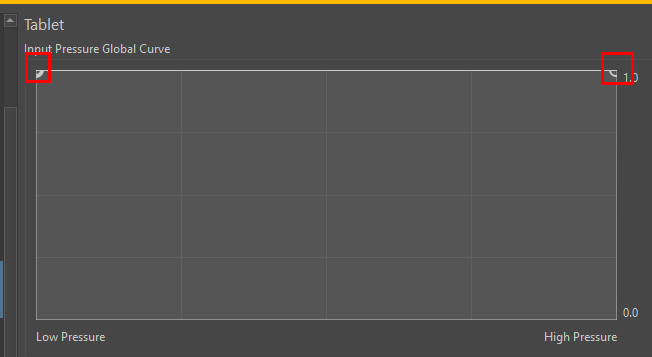
What exactly did you have set to max? Because when you set the curve to 100% fo everything, even the slightest pressure signal will crank the brush to its absolute max values. It really depends on what pressure is used for but if it were size it would always paint at maximum brush size or for opacity it would be at what is set up as the maximum for that individual brush preset too. It would be like basically drawing with a mouse.
As you can see (in the red squares) both points for low and high pressure are set to be at 100% (not recommended). You can tweak this even further by changing the curves in the individual brush presets.
The amount of force you need to press your stylus tip all the way in, can not be changed by software, since it is determined by the spring inside the pen.
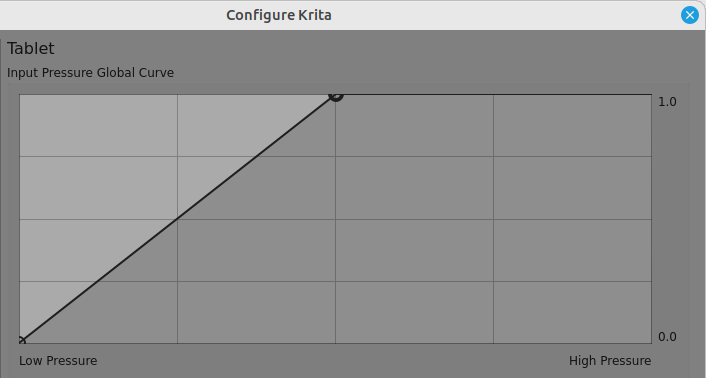
All you can do is to change the pressure curve in a way that the signal reaches maximum at lower pressure levels.
Perhaps it’s best when you show us what settings you already have.
That will result in a stylus force range of 0g to 200g giving an internal krita pressure signal of 0 to 1.0 with a theoretical 4096 levels of pressure over that range.
If you use a Basic-2 Opacity brush preset with 8-bit RGB/A then the most variation you can get is 256 different levels of opacity.
If you use a Basic-5 Size brush preset with a 2,000 x 2000 canvas, you’d get a controlled resolution of 0.5 pixels if the brush Size was set to 2,000 pixels.
That assumes that krita can control the brush size to that resolution.
Thank you @AhabGreybeard ! Yes that makes perfect sense! I tried your solution and I now have the lightness of touch that better mimics the real-world tools. It also means tips will not wear out so fast. Apologies to Wacom for the lost revenue.