Type of device* : windows laptop with touch pad, sonar pen usb c connector
Brand and version of the device: ?
System** : windows 11
how tf do you get sonar pen to work properly?
i’m having difficulty finding anything on the web and the advice on their web site just plain doesn’t work.
it supposed to work with windows machines with the fancy responsive touch pads, which i have. (but i don’t have a touch screen) but while the configure screen gives me the whole screen to draw on when trying to use it in krita all i get is a tiny little window. their site SAYS i should be able to reposition and resize the window using my scroll and resize gestures on my touch pad… but it doesn’t.
on top of that i don’t get any kind of indication of where the stylus is on the canvas until i set it down, and then I’ve already made a mark. the pressure sensitivity is spotty and jerky at best.
at this pot i CAN use it as just a plain stylus using my touch pad tap gestures to start and stop drawing without actually activating the “Sonar pen” bits, but i don’t get the pressure sensitivity at all, and frankly i might as well have just bought a $5 stylus instead of a $45 piece of junk.
yes i’ve turn up all the volumes in my windows settings and chosen the windows ink setting on krita.
so I poked some more settings and restarted my computer a few times, and suddenly i could resize the pen window… until i re-calibrated my pen, and suddenly it reverted back to small and i couldn’t resize it again. @elton any advice?
had 2.1.2 upgraded to 2.1.3 of driver and the performance got worse, it takes too much pressure to start drawing so that I miss a lot of the lighter pressure at the beginning of a stroke, and the pressure detection is super spotty, …like it jump up super fast sometimes and is really hard to keep it stable, even after multiple attempts to calibrate.
and like I said, the window will occasionally just… stop recognizing the touchpad for resizing etc
Since you mentioned drawing window, I guess you are using trackpad to draw. What about OS and version?
the 2.1.3 supposed to be better than the 2.1.2. A lot of bugs got fixed (at least it works much better in our lab). We are currenlty working on the MAC OS driver, and it has adjustment for gliding and drawing, so user can choose the switching point of gliding to drawing. These function will be back ported to the Windows version.
As of now, during the calibration process, when you are asked to draw light strokes, instead of drawing super light strokes, try drawing normal light strokes. That may help.
yeah i’ve tried super lite and normal strokes, and now I cant really remember but i think the super light was better for the start drawing pressure…
at one point i had it where there was no tracking, it just automatically drew when it was on the track pad. and i couldn’t float or hover or whatever to see where i was placing the stylus to start drawing, but now i have it so i can see the curser and move it around without drawing, but i have to press harder to get it to start drawing. and if i continue the stroke i can go “back” to lighter pressures, but i can’t START with that lighter pressure becasu i have to press too hard to get the stroke to start. (this isn’t HUGELY noticeable except for in brushes where fade/opacity is linked to pressure, where it becomes very difficult to get really light strokes right off the bat)
also… there is no pal rejection, and i can’t find any way to set it, so i can only really draw on the right hand half of my track pad, becasu if i far too far to the left my pal hits teh pad and does all sort of funky things to my strokes, and i can’t move the drawing pane off screen so i can only draw on half of my actual screen …
(and even without my hand hitting the track pad it still will glitch and do weird jumps on teh canvas, or wierd jumps or drops in presure)
Sorry I missed the Windows version in the OP. There is no palm rejection on MAC or Windows driver yet. What brand is your notebook? I am thinking the audio utility may have causing issue.
No problem, let see if the following make sense to your setup and if it able to improve the pressure reading.
SonarPen uses audio signal to communicate to the device, it works quite well when the audio is in its raw form. However, since 5 years ago, notebook manufacturers starting to add “audio features” to their computers. These features are likly to mess up the audio signal that a SonarPen is rely on.
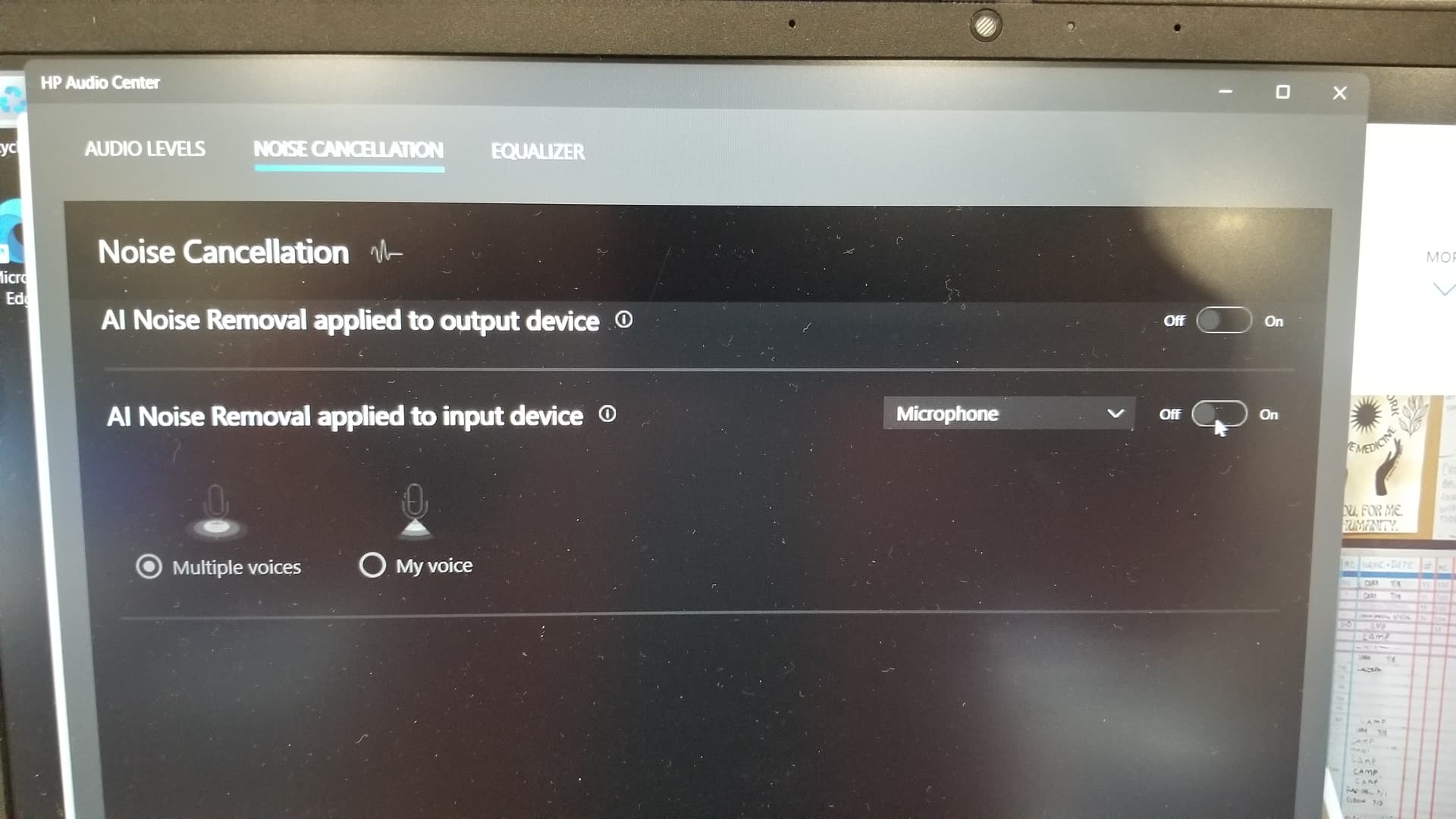
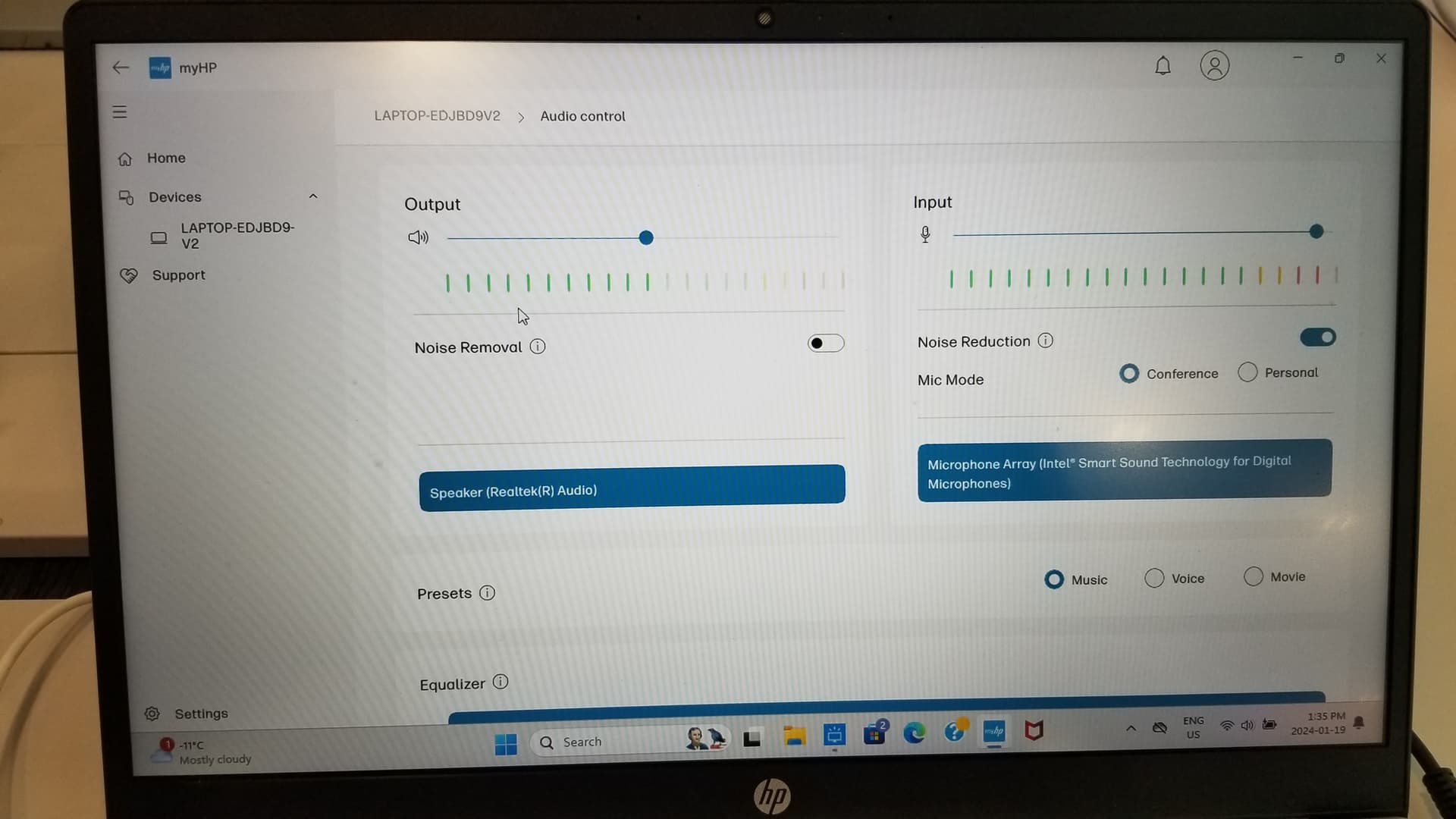
For HP computer you may find the “myHP” or the “HP Audio Center” app on the start menu. Plug in the SonarPen to your computer and try turning off any kind of “Noise Removal” or “Noise Reduction” on audio input and output devices.
These photos are taken from 2 HP computers that we had, your computer may have different apps that do the same thing. Also if your computer offer 3D sound, you need to switch it off too.
hmm, there wasn’t any noise removal stuff, but there was something about spacial sound in the other settings and about allowing app to control it? so i unticked those, but now it’s stopped responding.
so i’m going to have to restart i think, which is a bit annoying…
ok, yeah, actually that a lot smother and less spastic now.
i still need to work on teh hand eye coordination, but that’s def. a me thing
i’m still having difficulty when my hand accidentally hits the track pad, so i only really effectively can use, like, 1/3 of the drawing space. if i could move part of the pane off the screen so only the bits I can use are covering my canvas that would be way better. because i’m not too sure that i can really work with the tiny amount of drawing space this affords me at the moment.
either way, thanks for all the help, even if I can’t use it, my son’s computer had a touch screen, so he’ll be able to get more use out of it. and I’ll know to warn him to check for weird audio settings when setting it up.
can you take a pic of the setting that you have changed? So I can setup a FAQ for HP users. Windows is good in its raw form, but the brands add to many stuff and make it hard to work with.