Hello,
How do I stroke a selection and get sharp corners instead of rounded corners?
Example:
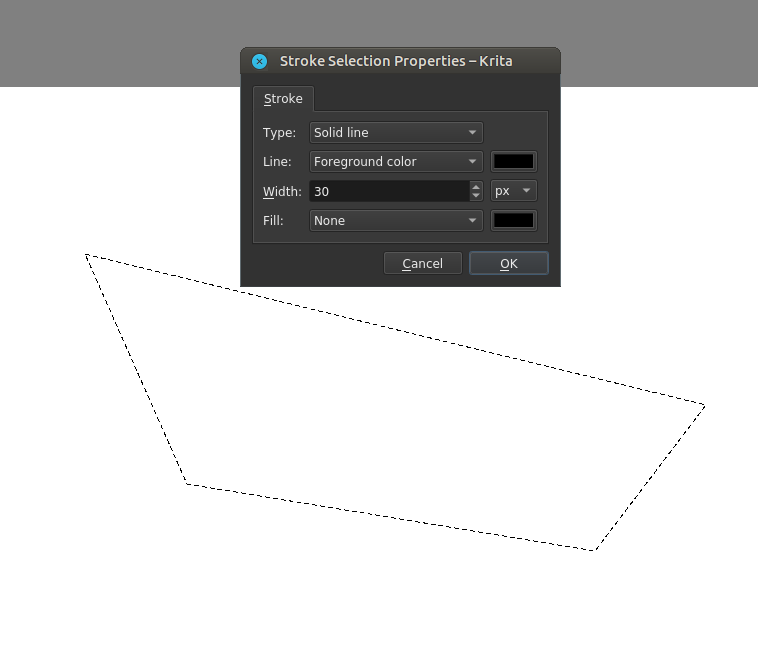
But I always get rounded corners,
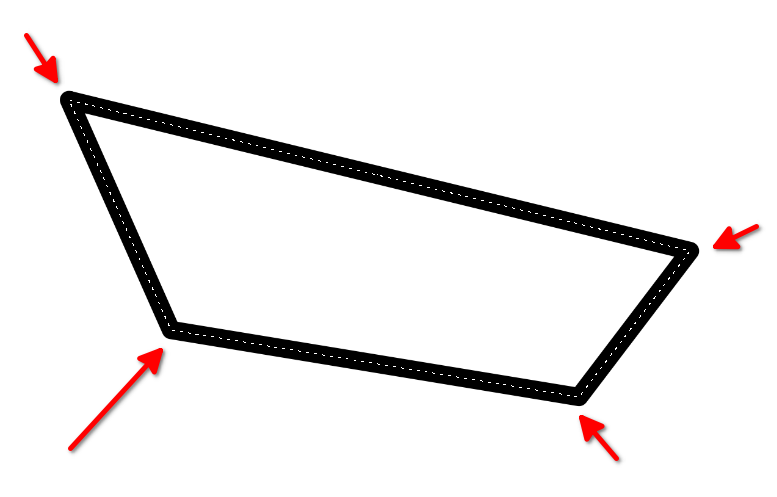
I’m quite very new to Krita still searching around 
Or may be you do it a different way?
Hello,
How do I stroke a selection and get sharp corners instead of rounded corners?
Example:
But I always get rounded corners,
I’m quite very new to Krita still searching around
Or may be you do it a different way?
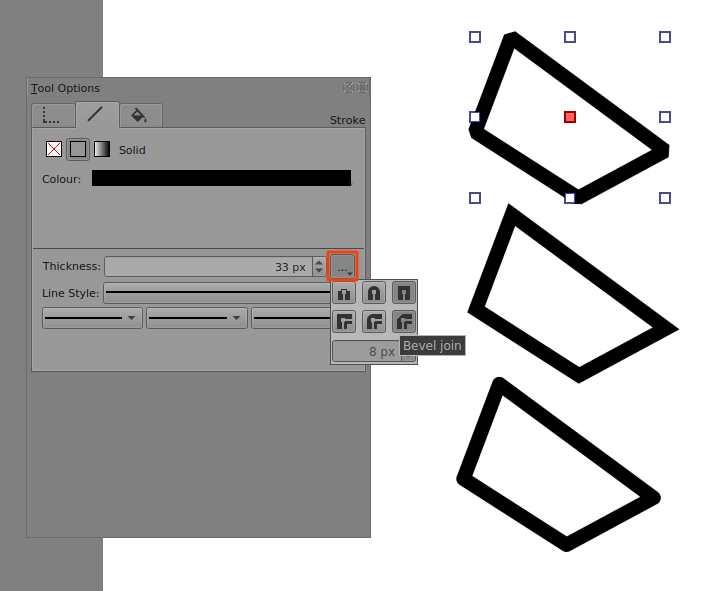
This is a vector shape right? If so, select it and check the tool options docker, there is a button for stroke endings and I think corners too. It’s easy to miss. I can’t send a screenshot right now because I’m at the doctor’s office.
It’s the caps and joins selection area which is tucked away on the stroke tab of the Tool Options docker:
Thanks for the input.
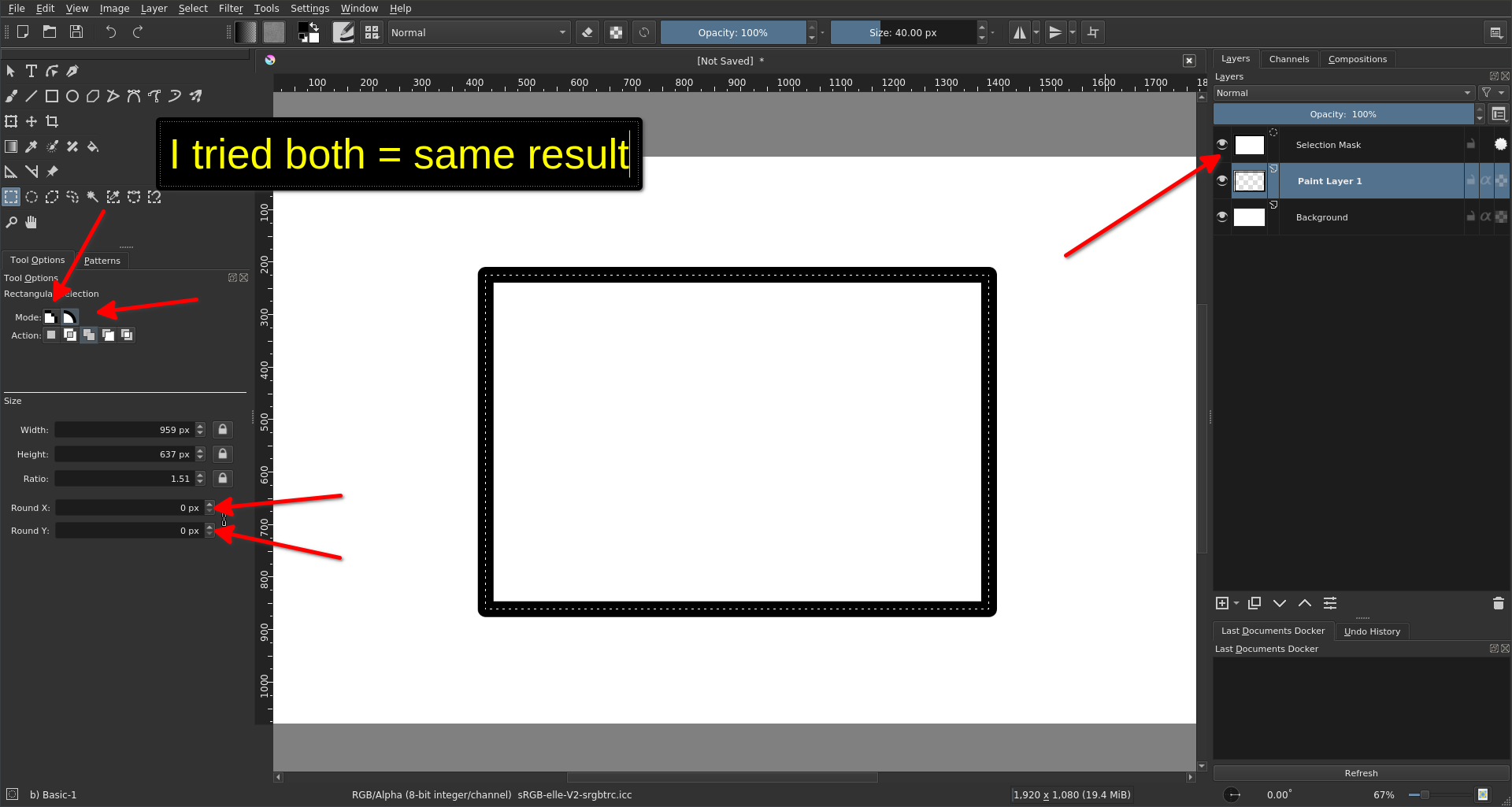
I don’t know if vector or not, but when I select the selection in the layer docker it put a red mask outside the selection and tool options docker don’t change (still shows options for the selection)
to reproduce, I just create a new document, add layer, selection tool, make a rectangle and Edit > stroke selection (with a line (NOT a brush)
setting in tool option are at zero for “round x and y”…
Below is a screenshot to see what I mean 
Yes, that’s what I was searching for 
But How do I get that tab in the docker? also the one with dots in 90 degree angle
You need to draw the shape on a vector layer.
Select the shape using the Select Shape tool
Go to new layer by clicking the arrow next to the add layer[+] button and select Vector Layer.
Otherwise, you are drawing in a paint layer. If you want to use a paint layer, you can either disable outline and only draw a square based on fill only. Or you can keep the outline which is drawn by a brush, so you would have to select something like the Pixel Art Brush.
But generally, vector layer is easier.
You need to use the Select Shapes tool. Then you can click-select the vector shape you’ve made and change its Stroke properties.
The Stroke Selection action used rounded corners the first time I used it. Then after I used Select Shapes to change it to angular joins, the Stroke Selection made angular corners.
After that, no matter what I did, Stroke Selection made angular corners.
I can’t figure out if it remembers the last used setting or not.
Thanks for your help, it’s getting near now 
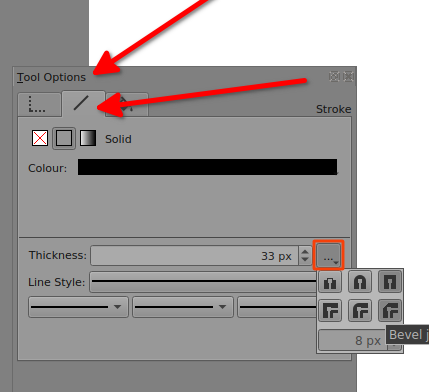
So I tried all polygonal tool rectangle and so, as well as the selection tools rectangle, polygonal on a VECTOR layer, so yes now it’s squared at the corner, but those tabs (see below) do not appear in the tool options to allow me to fine tune or change line style or so 
Those tool options are for the Select Shapes tool, as used on a vector layer.
Can you post a full screen screenshot?
Now that you are on a vector layer, you can follow Ahab’s instructions. Click the select shapes tool (the arrow button all the way on the top left next to the text button on your toolbar) and then select the shape, you will then see those.
It was a very re-active thread and I see that I have read some answers a bit too fast 
Thanks a lot to all of you, I very much appreciated!
Have a great day 
This topic was automatically closed 7 days after the last reply. New replies are no longer allowed.