I am using a Windows device with an Artist 13.3 Pro V2 XPPen tablet, but when I try drawing with the stylus, it moves the canvas around instead of making any sort of line. Why is this happening and how do I fix it?
By any chance, did you change one or more shortcuts? It sounds like your stylus tip, which is read as left mouse button, is giving the signal to pan the canvas.
1 Like
Sounds like the pen tip button sends the signal equivalent to the middle mouse button.
What should the pen be set to? I have the bottom pen button set to “left click,” the top button set “disabled,” and the eraser button set to “eraser.”
It worked fine for a while, then I went to look at the Kria manual, and when I came back, I had this problem.
Also, when I press the button set to “left click,” it erases, even when it’s set to pencil or pen.
By default in the graphics tablet driver settings the pen tip should be set to left klick. The side buttons (if your pen has any) should be set to right click (so you can open context menu) and (if there’s a second side button) middle mouse button (for panning/rotating/zooming the canvas). If the pen has a second tip on the opposite end (just like a pencil), this should be set to eraser (however in Krita you can use it with any brush preset, not just eraser).
However from your description it sounds like the button setting are all messed up.
Left click will erase too if the selected brush preset is an eraser preset or the brush is you in “eraser mode” (which can be toggle with the E key or by clocking the eraser icon in the tool bar).
Left click will also pan the canvas if the active tool is the pan tool instead of the freehand brush tool.
So perhaps you just have the wrong tool active?
Would be interesting to know if it’s also all wrong when using the mouse instead of the pen.
This does not happen when I use the mouse. How do I change the settings for the tip? I am using the X3 Pro Smart Chip Stylus, and I can’t find anywhere to change it. I assume it still uses the default setting, whatever it is. I also checked and it is on freehand draw and a pen tool when the problem occurs.
A quick look at the manual (available at Artist 13.3 Pro|Drivers Download | XPPen)
seems to show that the pen tip signal can not be changed (click image to open as large size):
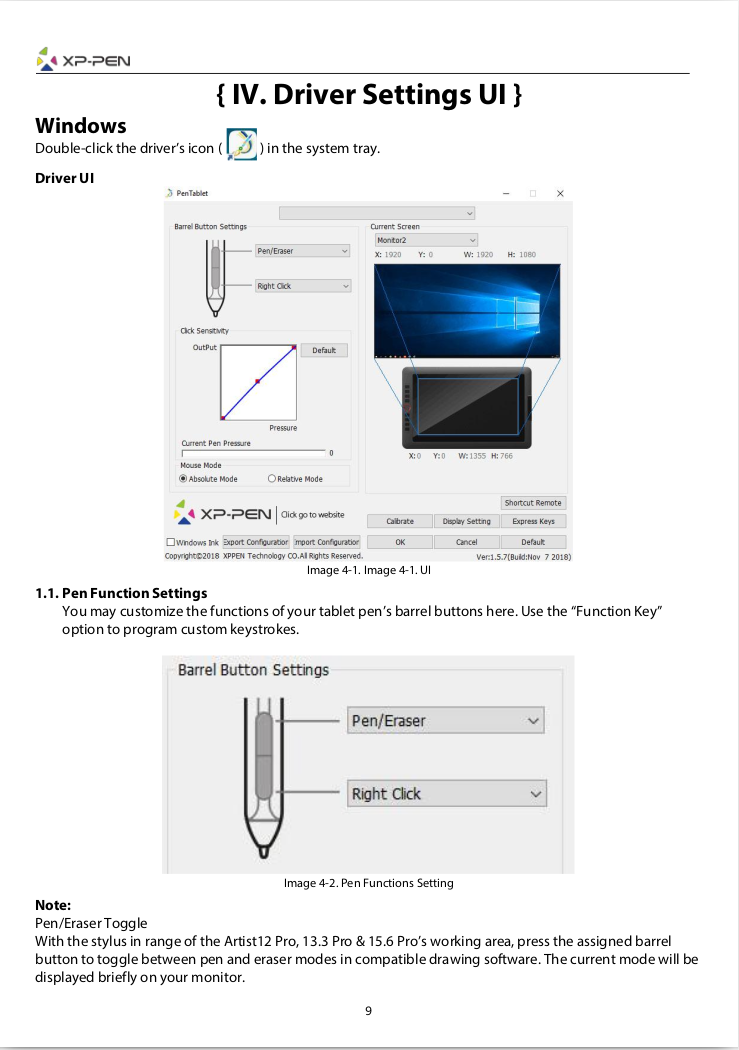
So it’s probably set to left-click by default which would be sensible.
Pages 15 and 16 of the manual show that you can set the tablet to recognise that it is being used for different software applications so it would be a good idea to add krita to the group of software applications that it recognises. As delivered, it will probably have only one application ‘profile’ which is shown as “Other”.
The main website (Artist 13.3 Pro V2: Best Drawing Tablet for Beginners | XPPen) shows what seem to be three different styluses for the tablet.
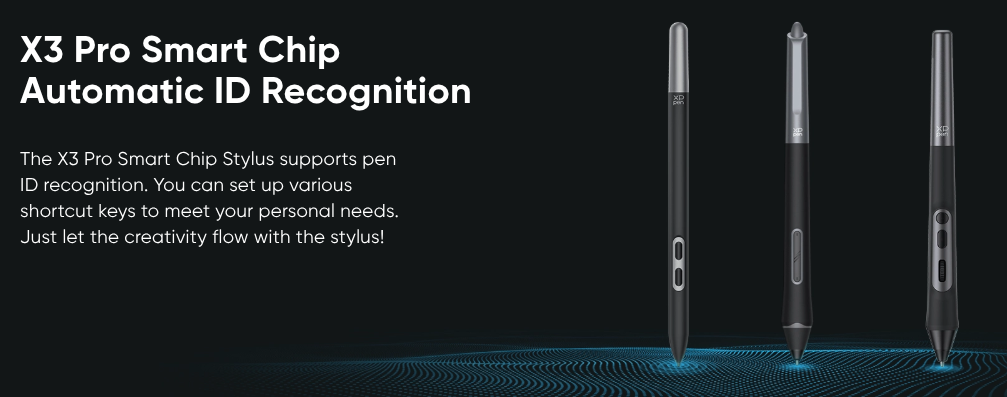
The middle one in the image looks like it has an ‘eraser end’ and that would be another level of complexity for use and explanation if you have that one.
So, which stylus do you have?
You need to provide more details and also some screenshots of what you have and what the settings are to allow people to understand what is going on here.
It would be useful to show a screenshot of the output of krita’s internal tablet tester which can be found at Settings → Configure Krita → Tablet settings → Tablet Tester.
Here is a sample output from my tablet which works:
Pen tip brought near
Stylus press X=76.74 Y=103.31 B=1 P=33.4% TX=0 TY=0 S=0.0
Stylus move X=76.74 Y=103.31 B=1 P=44.7% TX=0 TY=0 S=0.0 (DRAW)
Stylus move X=76.74 Y=103.31 B=1 P=47.8% TX=0 TY=0 S=0.0 (DRAW)
Stylus move X=76.74 Y=103.31 B=1 P=52.1% TX=0 TY=0 S=0.0 (DRAW)
…(similar lines removed for clarity)
Stylus move X=84.53 Y=107.22 B=1 P=0.0% TX=0 TY=0 S=0.1 (DRAW)
Stylus release X=84.53 Y=107.22 B=0 P=0.0% TX=0 TY=0 S=0.1
Pen tip taken away
What do you get when you use the Tablet Tester?
A full screen screenshot would be useful. They always are.
Depending on your answers, further questions will probably need to be asked.
1 Like
At least we now know that it’s most likely not a configuration issue with Krita.
I have the middle stylus with the eraser tip, and this:
Mouse press X=114 Y=47 B=1 S=6.07108
Mouse move X=115 Y=47 B=1 S=6.10005
Mouse move X=115 Y=48 B=1 S=6.09772
Mouse move X=116 Y=51 B=1 S=6.19148
Mouse move X=116 Y=52 B=1 S=0.318904
Mouse move X=117 Y=54 B=1 S=0.380415
Mouse move X=117 Y=56 B=1 S=0.433825
Mouse move X=117 Y=57 B=1 S=0.321806
Mouse move X=118 Y=59 B=1 S=0.385886
Mouse move X=118 Y=62 B=1 S=0.423982
Mouse move X=118 Y=66 B=1 S=0.529172
Mouse move X=118 Y=68 B=1 S=0.580515
Mouse move X=118 Y=71 B=1 S=0.620134
Mouse move X=118 Y=73 B=1 S=0.570948
Mouse move X=119 Y=76 B=1 S=0.526809
Mouse move X=119 Y=78 B=1 S=0.525202
Mouse move X=119 Y=81 B=1 S=0.523644
Mouse move X=119 Y=85 B=1 S=0.627128
Mouse move X=119 Y=87 B=1 S=0.567477
Mouse move X=120 Y=88 B=1 S=0.537277
Mouse move X=120 Y=90 B=1 S=0.489528
Mouse move X=120 Y=92 B=1 S=0.38531
Mouse move X=121 Y=93 B=1 S=0.354674
Mouse move X=121 Y=95 B=1 S=0.384469
Mouse move X=122 Y=97 B=1 S=0.396403
Mouse move X=122 Y=98 B=1 S=0.343362
Mouse move X=123 Y=100 B=1 S=0.385469
Mouse move X=123 Y=101 B=1 S=0.335232
Mouse move X=123 Y=102 B=1 S=0.271274
Mouse move X=123 Y=103 B=1 S=0.271157
Mouse move X=123 Y=104 B=1 S=0.258761
Mouse move X=124 Y=104 B=1 S=0.251207
Mouse move X=124 Y=105 B=1 S=0.208535
Mouse move X=124 Y=106 B=1 S=0.20784
Mouse move X=124 Y=105 B=1 S=0.207133
Mouse move X=125 Y=104 B=1 S=0.222638
Mouse move X=125 Y=103 B=1 S=0.222654
Mouse move X=126 Y=101 B=1 S=0.291577
Mouse move X=126 Y=100 B=1 S=0.290952
Mouse release
Is what happens when I use the tablet tester. I set Krita to one of the recognized apps, but I didn’t see any change. Here is a screenshot of the Krita app and all windows of the XPPen settings.

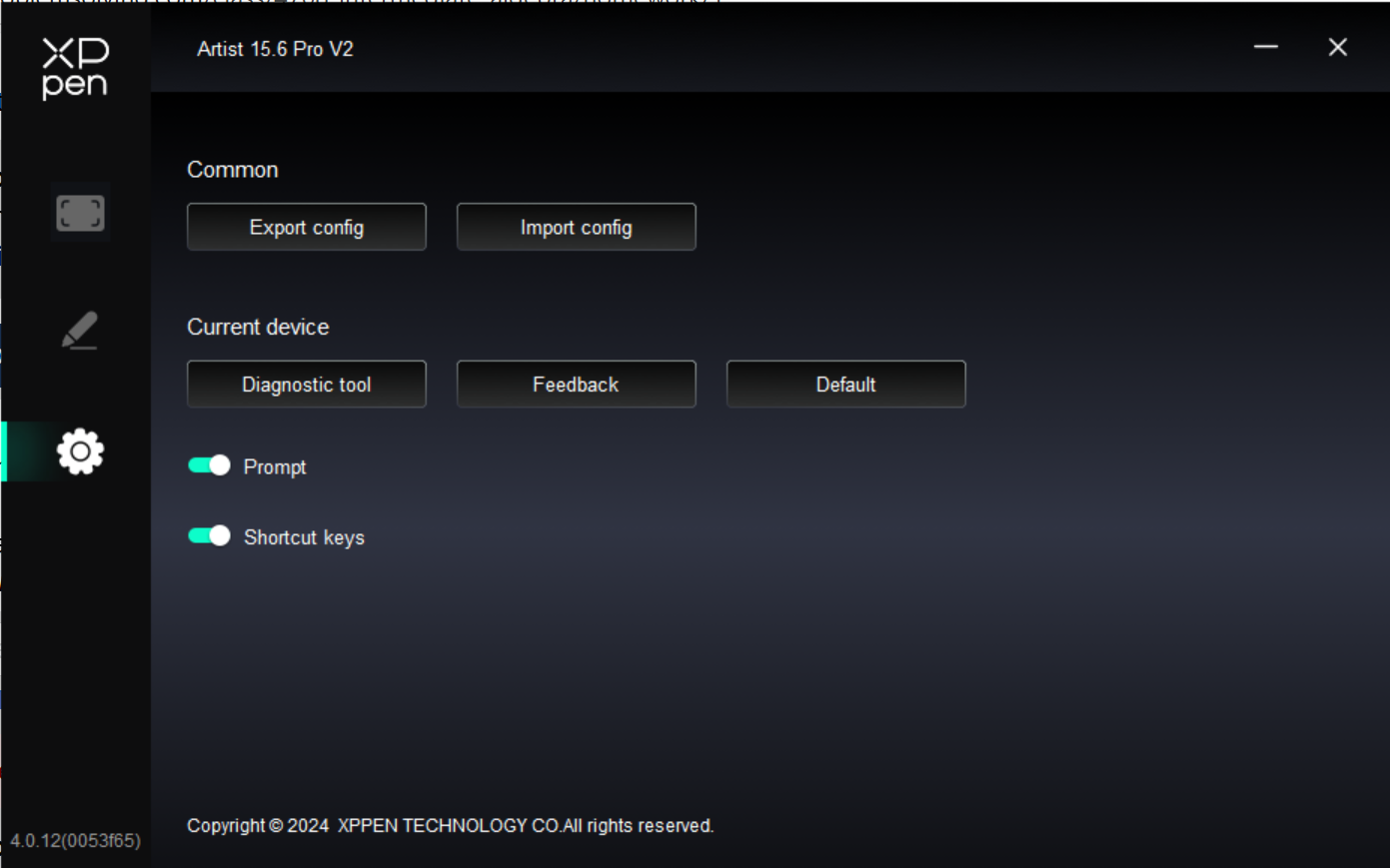
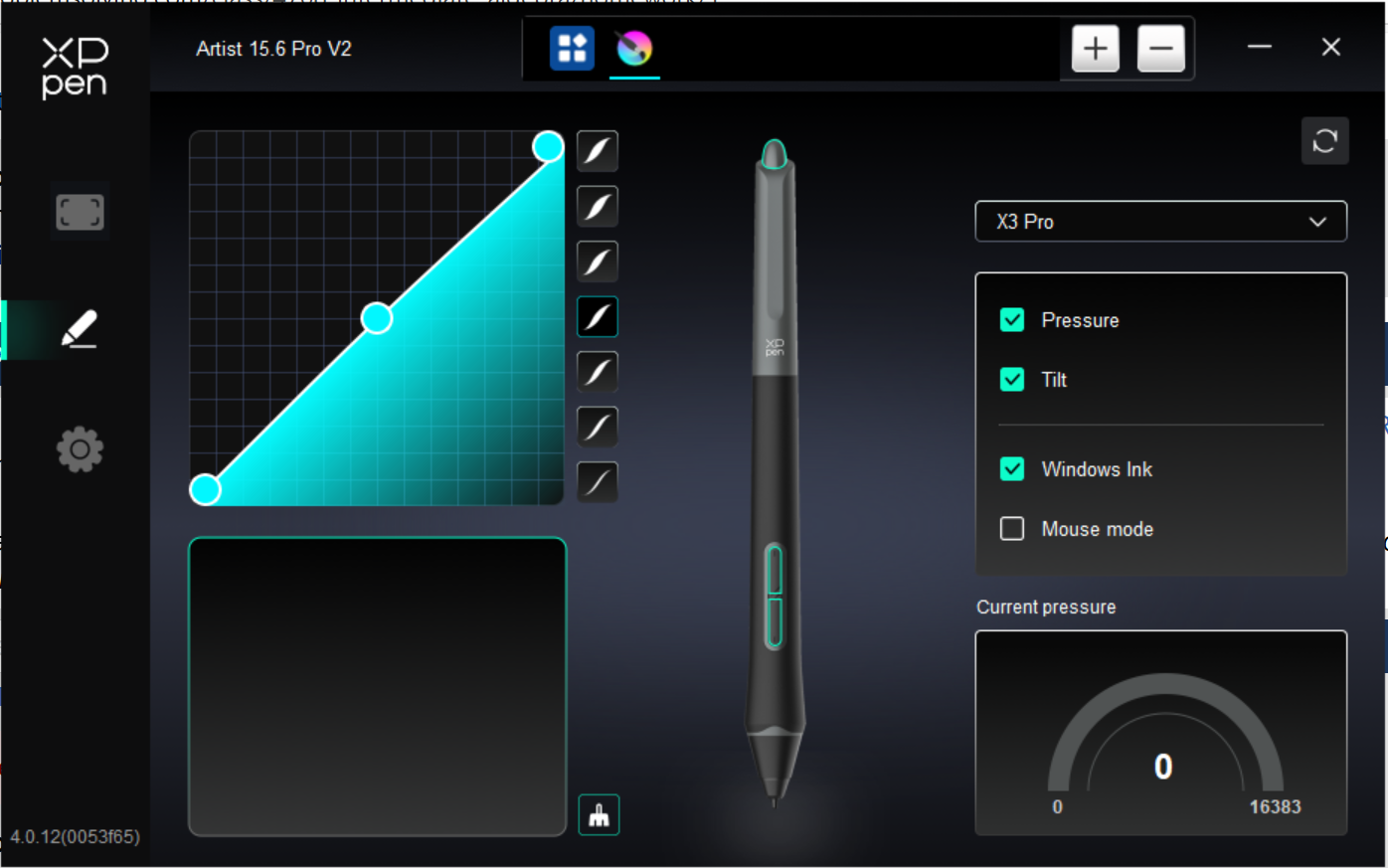
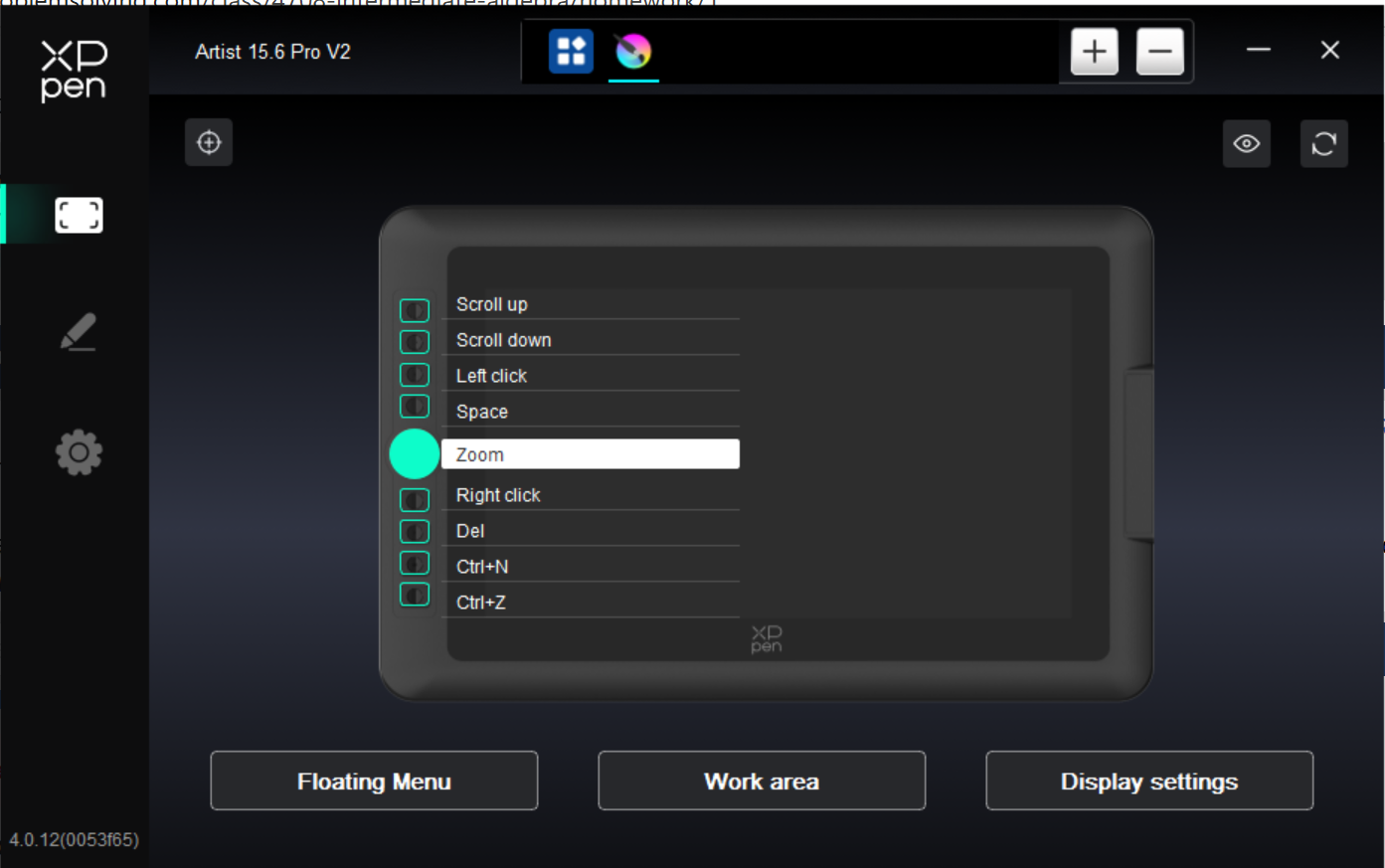
Your stylus seems to be reported as a mouse wich is strange. I see you have windows ink enabled in the tablet settings, do you also have it enabled in Krita? Both settings have to match. Krita needs to restart, when the setting is changed.
1 Like
It seems that I looked at the 13.3 Pro manual and not the 13.3 Pro V2 manual 
The 13.3 Pro V2 and the 15.6 Pro V2 tablets have the same driver which may explain why your XP-Pen settings utility displays “Artist 15.6 Pro V2”.
However, the 13.3 Pro V2 manual shows the tablet utility as displaying “Artist 13.3 Pro V2”.
That situation is confusing.
Your screenshot was taken at the same time as an autosave reporting message so the usual details on the status bar at the bottom are missing. It’s a good idea to have those present in any screenshot.
It looks like you’re using the Basic-1 brush preset but you’ve made changes to it using the brush editor. Please don’t change any brush preset properties until this problem has been solved.
I recommend using the Basic-2 Opacity brush preset or the Basic-5 Size brush preset for testing purposes because they give immediate visual feedback of variations in the pressure signal coming into krita from the tablet.
As noted by @Takiro above, according to your tablet tester event record, krita thinks it is receiving signals from a mouse. Even so, those signals look like normal mouse signals so there should be a line drawn.
What tablet tester signals do you get if you use a mouse to draw?
It’s generally a good idea to have the tablet setting as Windows Ink disabled and then select Wintab in the krita settings at Settings → Configure Krita → Tablet Settings. Then restart krita.
Please try that and see if it makes a difference to the tablet tester recorded events.
In your tablet utility, there is a ‘Current pressure’ meter of some kind. Does that display a varying pressure indication as you draw with the stylus and vary the pressure?
Does the cursor have the appearance of an open hand instead of a circle while this is happening?
When you lift the stylus from the tablet, does the cursor change appearance?
I fixed it! Thank you all so much for your help. Have a wonderful day.
So it was simply the not matching input API, so Windows Ink or WinTab and that these didn’t match. Right?
Michelist
I think so yes.
1 Like
Glad you got it working again.