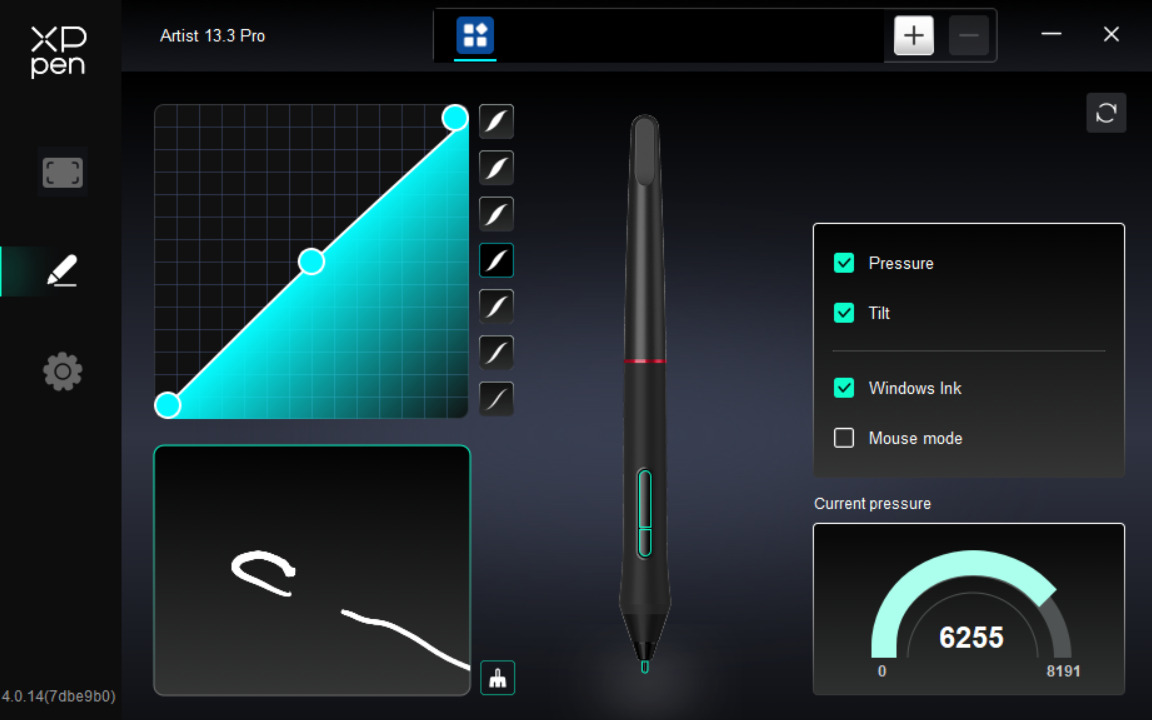
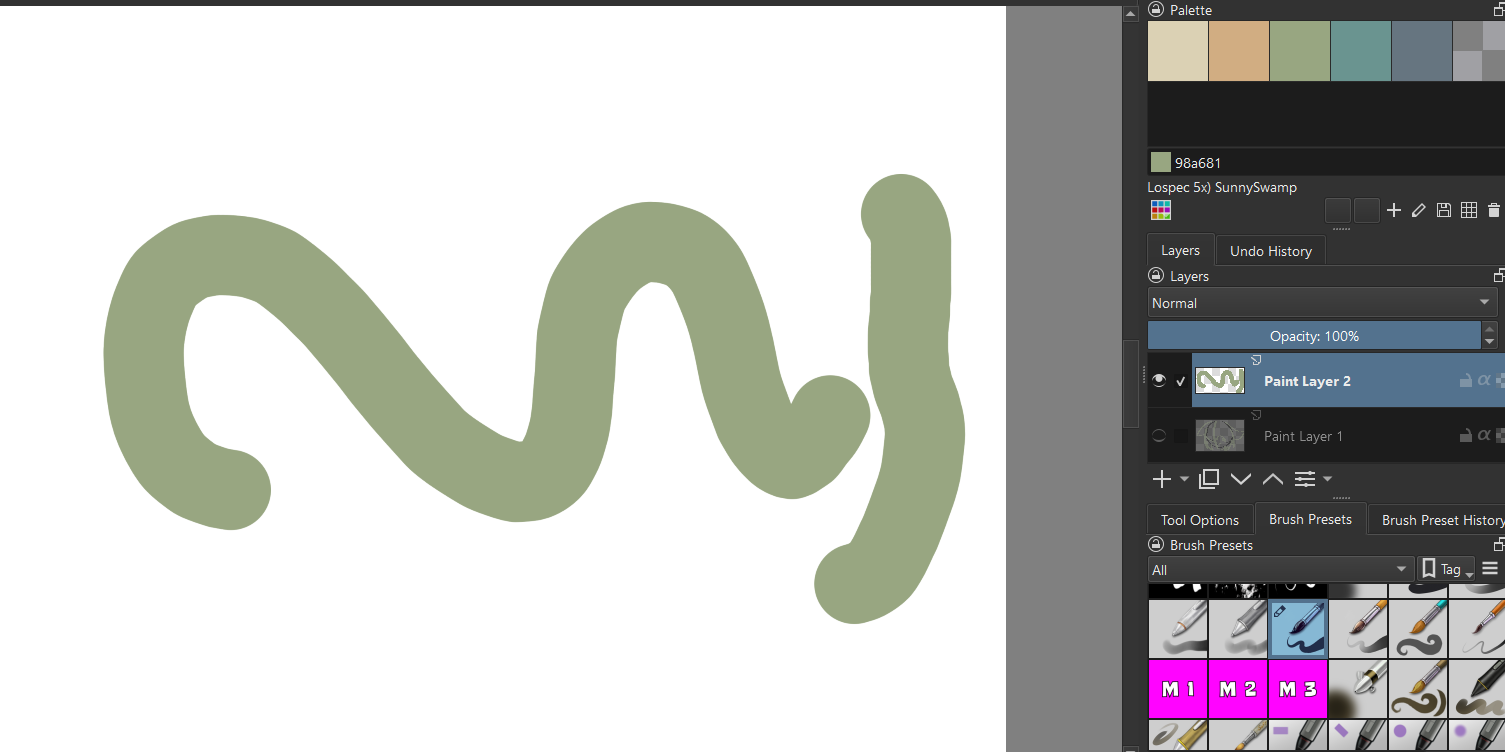
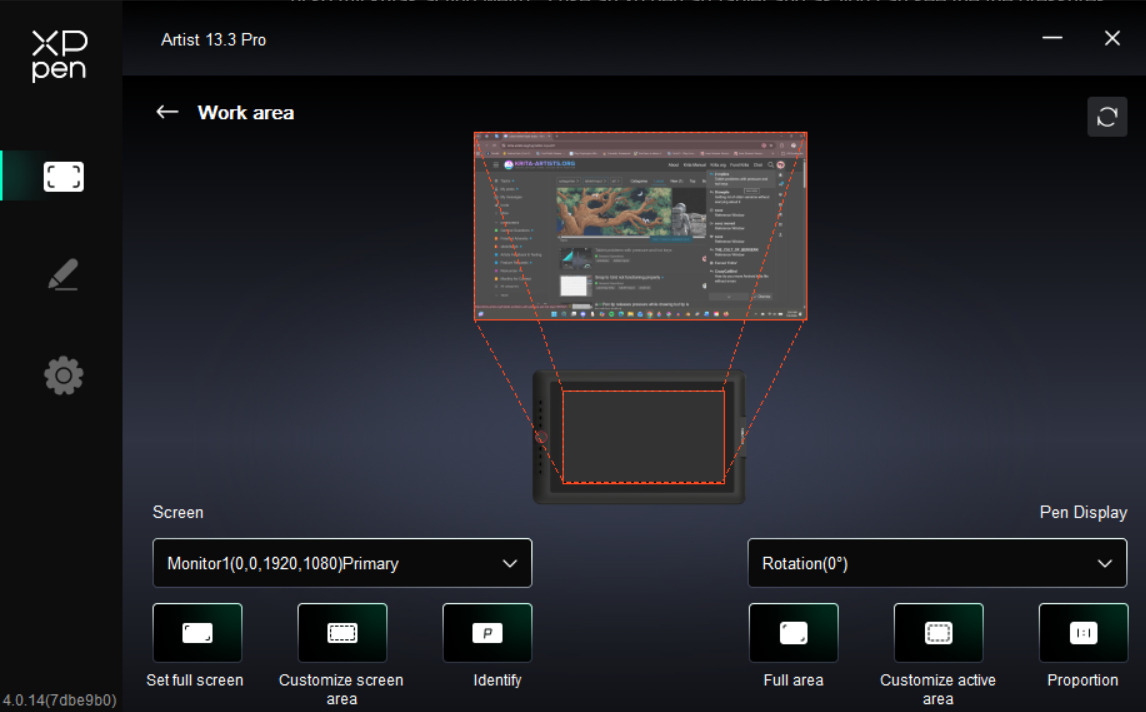
hi so my kritas acting weird , I use an xp pen art taplet and as you can see the the pressures working fine on the tablet and the hot keys are working fine but when i use it in krita they seem to not work. if anyone could help I’d appreciate it.
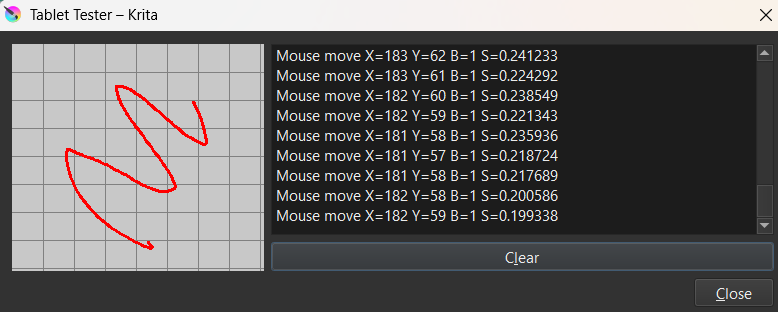
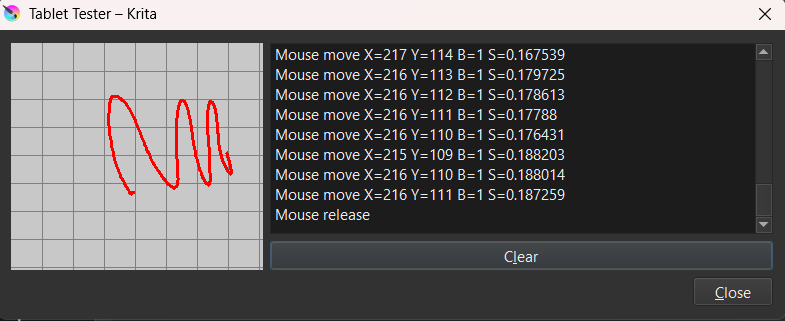
Krita doesn’t talk to your tablet directly, it relies on your tablet’s driver. Have you installed or updated it? The tablet test makes it look like the driver has not been installed yet.
Yes, it is installed and I even updated it. The first picture if the driver itself with the test of the stylus. The problem is that it all works fine but when I try to use the keys or stylus in Krita (windows), it won’t acknowledge the key input and won’t change pressures.
Yes, it is installed and I even updated it. The first picture if the driver itself with the test of the stylus. The problem is that it all works fine but when I try to use the keys or stylus in Krita (windows), it won’t acknowledge the key input and won’t change pressures.
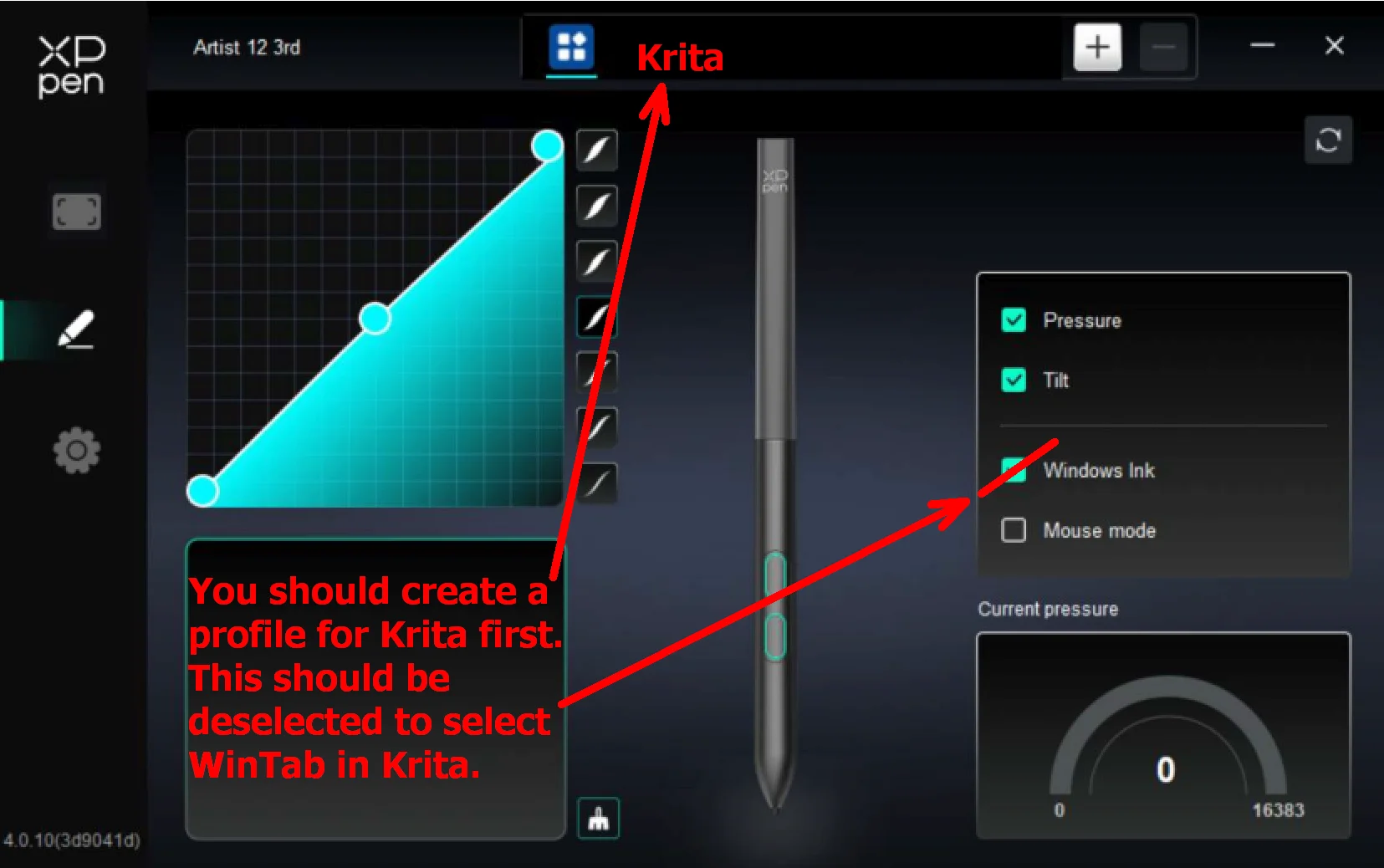
Also, at the top of your XP-Pen config/setup utility window, there is a list of application profiles.
It looks like you haven’t made any yet.
With krita as the only application running, press the ‘+’ icon and it should detect the krita application and create an application profile for it which will be shown as the krita icon on the top bar.
Then, click on the krita icon to select it before making any changes to the tablet settings for krita.
After making any changes to the settings, press any ‘OK’ or ‘Save’ button and then close the XP-Pen utility before testing things in krita.
It may be useful if you could also post screenshots for the ‘tablet area’ configuration settings (the icon above the ‘stylus’ icon) and also a screenshot for the ‘gear wheel’ icon settings.
As a result of the changes you’ve now made, is there any difference in the krita Tablet Tester output record?
(I see that you have the XP-Pen display set as a ‘mirror’ display for your Windows laptop and so there should be no problem with the Primary/Secondary option settings.)
Edit:Add: Also, try a full power off restart of your laptop and tablet.
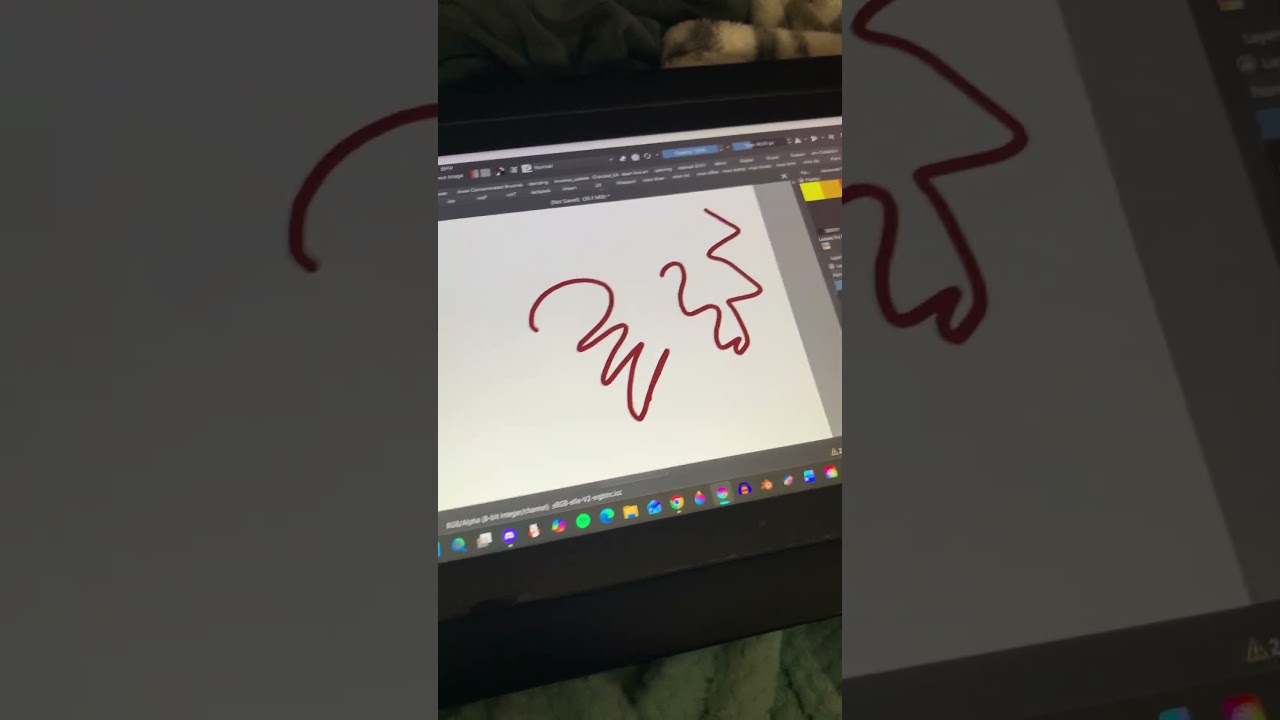
You have Windows Ink enabled in your driver, your video shows it clearly, and as you already was asked to, you must remove that hook in front of Windows Ink in your driver, the setting you showed in Krita is okay, at least if you haven’t set it in between to use (this illness from Microsoft called:) Windows 8+ Pointer Input (Windows Ink) instead of WinTab.
(P= pressure percentage. My stylus doesn’t have Tilt output so I have TX=0 and TY=0.)
I’m totally puzzled by your tabelt/stylus not giving a valid stylus identification and pressure signal to krita. I can’t think of anything else to try at this stage
Has your XP-Pen ever worked with krita?
Does it work with any other applications that are sensitive to stylus pressure?
It worked up until now. Idk if it’s something I did cause the last thing I did was doing some clean out of some brushes & plug-in download and get rid of the old update set up’s. I’m genuinely not sure how this happened.
At this point should I just save all of my formating (or tags and window configuration), uninstall Krita and then reinstall it back in?
I can’t think of how ‘cleaning out some brushes and plug-in download’ would stop the tablet/stylus from working and/or stop krita from recognising your tablet/stylus.
Did you make any changes at all to the contents of the krita installation folder at
C:\Program Files\Krita (x64) ?
If not then uninstalling and reinstalling will make no difference because of how krita works.
Not at the moment. There is a much simpler way of trying a fresh/new/default krita:
Make sure krita is not running.
Go into the folder at C:\Users\{your-username}\AppData\Local
Find the file called kritarc and rename it to kritarc-suspect
‘kritarc’ is the main settings/configuration file.
Go into the folder at C:\Users\{your-username}\AppData\Roaming
Find the folder called krita and rename it to krita-suspect
That folder ‘krita’ was your existing resources folder.
Now run the krita application. A brand new, fresh, default configuration form of krita will start and spend some time building a new ‘kritarc’ file and a new ‘krita’ resources folder. Wait for it to finish then make a New Image and try painting on the canvas with Basic-5 Size.