Terrible performance in Mint 21.1 Cinnmon on Kamvas 13 display

@Michelist

Thanks for the explanation. That helped a lot; I now understand how package managers work, lol.

That being said, I attempted to remove xserver-xorg-input-wacom driver, then installed the Huion driver, and nothing changed. I didn’t remove the other packages as they would’ve affected the system as a whole, or so it appeared.

I then removed the Huion driver and retried OpenTabletDriver. It worked smoother with the display on but the cursor still wouldn’t track to the display screen. When I turned the display off it got buggy and only registered half of the total work area.

@SchrodingerCat

Retried with Kubuntu 23.

Still no luck. Tablet wasn’t recognized out of the box. OpenTabletDriver worked-ish. Huion driver worked okay. No display with any of them; at least on Mint Cinnamon the display turns on.

I’ve appreciated everyone’s help. I’m so confused as to why this is happening. I emailed Huion support a few days ago and haven’t gotten a reply. I’m about to give up and either only use this as a non-display tablet, or resell it for a different pen display.

I noticed you have Nvidia, I’ve heard that that can come into conflict with tablets. Did you install a driver for Nvidia?

Did you try with the DIGImend drivers? Since it has support for your tablet, it is not shown on its page but it does have support.

Try this it should work for you:

1 Like

@LaTor

Didn’t even think of that, that’s probably where the problem is then. Multiple DEs, multiple drivers, it’s probably the GPU.

I downloaded a Nvdia driver when I first installed Mint. It says the Driver is v540.41.03. I looked up the newest driver and downloaded the .run file. I’m not sure how to execute it. Not sure how to revert back to the generic Linux driver that was installed before I got the official Nvidia one either to see if that works better.

ETA:

Here’s all my graphics info, not sure whether its pertinent or not… As I’ve said, I’m a beginner.

Graphics:
Device-1: NVIDIA TU117M vendor: Hewlett-Packard driver: nvidia v: 530.41.03
pcie: speed: 2.5 GT/s lanes: 8 ports: active: none empty: HDMI-A-1
bus-ID: 01:00.0 chip-ID: 10de:1f99 class-ID: 0300
Device-2: AMD Renoir vendor: Hewlett-Packard driver: amdgpu v: kernel
pcie: speed: 8 GT/s lanes: 16 ports: active: eDP-1 empty: none
bus-ID: 05:00.0 chip-ID: 1002:1636 class-ID: 0300
Device-3: Quanta HP TrueVision HD Camera type: USB driver: uvcvideo
bus-ID: 3-3:2 chip-ID: 0408:5365 class-ID: 0e02
Display: x11 server: X.Org v: 1.21.1.4 driver: X:
loaded: amdgpu,ati,nvidia unloaded: fbdev,modesetting,nouveau,vesa
gpu: amdgpu display-ID: :0 screens: 1
Screen-1: 0 s-res: 1920x1080 s-dpi: 96 s-size: 508x286mm (20.0x11.3")
s-diag: 583mm (23")
Monitor-1: eDP res: 1920x1080 hz: 60 dpi: 142 size: 344x194mm (13.5x7.6")
diag: 395mm (15.5")
OpenGL: renderer: RENOIR (renoir LLVM 15.0.6 DRM 3.42 5.15.0-75-generic)
v: 4.6 Mesa 22.2.5 direct render: Yes

@SchrodingerCat

I’ll give this a go in Kubuntu later today. I just tried in Mint and no devices showed up when I ran xwacomset --list devices per the Github instructions. Even though the tablet shows up on xinput --list devices.

Never do this. Install drivers from the distribution repositories. You also seem to have two gpu.

@raghukamath

Yeah, I noticed that awhile ago but never ran into issues on Windows so I forgot!!

I switched to the AMD GPU with poor results. When I switched back to Nvidia it worked! My tablet is super responsive now!! I feel so dumb haha. Thanks a lot for pointing that out! I think it was running on the AMD GPU and I had no idea…

I think the AMD GPU is integrated with my AMD CPU. No wonder I was having performance issues. I guess when I first set up Mint and it downloaded the Nvidia driver I assumed I was running on the GPU itself. I wasn’t paying attention. All that stress for such a silly overlook on my part!

Now I’ve run into a new problem though. The tablet is responsive but the cursor is way off from my pen. It also shows up on my tablet and my computer screen. I’ve set the default Mint settings to map to a single monitor (the tablet) but it doesn’t change anything. Not sure how to calibrate it.

The Huion driver is even worse and the cursor is slow. It’s only mapped to the monitor as well.

OpenTabletDriver input is faster than the Huion driver, but it’s only mapped to the monitor too, no matter which display I pick.

1 Like

Do not use the official huion driver. Use the driver from digimend.

Regarding the cursor offset, I think it is because of bad screen mapping. there is a tablet setting screen in Krita but that is for windows. On linux I use xsetwacom to map it to one screen.

@raghukamath

I tried doing that but it says the monitor output is wrong.

xrandr --listactivemonitors
Monitors: 2
0: +*eDP-1-0 1920/344x1080/194+0+0 eDP-1-0
1: +HDMI-0 1920/294x1080/165+1920+0 HDMI-0

xsetwacom --list devices
HUION Huion Tablet_GS1331 stylus id: 17 type: STYLUS
HUION Huion Tablet_GS1331 Touch Strip pad id: 18 type: PAD
HUION Huion Tablet_GS1331 Pad pad id: 19 type: PAD

xsetwacom --set “17” MapToOutput HDMI-0
Unable to find an output ‘HDMI-0’.

Should I be looking for the tablet monitor in a different way?

This is what it read when I ran the same command verbose:

… RandR extension not found, too old, or NV-CONTROL extension is also present.

ETA: I’ve also redownloaded the Digimend drivers and got rid of both Huion and OpenTablet so I don’t think there’s anymore conflict there.

LAST Edit, sorry!:

I found this issue here linux - xsetwacom unable to find output - Stack Overflow

When I changed HDMI-0 to HEAD-0 this is what happened:

xsetwacom -v --set “17” MapToOutput HEAD-0
… Display is ‘(null)’.
… ‘set’ requested for ‘17’.
… Checking device ‘Virtual core pointer’ (2).
… Checking device ‘Virtual core keyboard’ (3).
… Checking device ‘Virtual core XTEST pointer’ (4).
… Checking device ‘Virtual core XTEST keyboard’ (5).
… Checking device ‘Power Button’ (6).
… Checking device ‘Video Bus’ (7).
… Checking device ‘Power Button’ (8).
… Checking device ‘HP TrueVision HD Camera: HP Tru’ (9).
… Checking device ‘ELAN0718:00 04F3:30FD Mouse’ (10).
… Checking device ‘ELAN0718:00 04F3:30FD Touchpad’ (11).
… Checking device ‘AT Translated Set 2 keyboard’ (12).
… Checking device ‘HP WMI hotkeys’ (13).
… Checking device ‘Wireless hotkeys’ (14).
… Checking device ‘Bluetooth Ergonomic Mouse Keyboard’ (15).
… Checking device ‘Bluetooth Ergonomic Mouse’ (16).
… Checking device ‘OpenTabletDriver Virtual Artist Tablet’ (20).
… Checking device ‘OpenTabletDriver Virtual Keyboard’ (21).
… Checking device ‘OpenTabletDriver Virtual Artist Tablet Pen (0)’ (22).
… Checking device ‘HUION Huion Tablet_GS1331 Touch Strip pad’ (17).
… Checking device ‘HUION Huion Tablet_GS1331 stylus’ (18).
… Checking device ‘HUION Huion Tablet_GS1331 Pad pad’ (19).
… Device ‘HUION Huion Tablet_GS1331 Touch Strip pad’ (17) found.
… RandR extension not found, too old, or NV-CONTROL extension is also present.
… Setting xinerama head 0
… Remapping to output area 1920x1080 @ 0,0.
… Transformation matrix:
… [ 0.500000 0.000000 0.000000 ]
… [ 0.000000 1.000000 0.000000 ]
… [ 0.000000 0.000000 1.000000 ]

Still no change

Have you already tried the code that is in the github repo?

So the following code worked to direct my stylus input to only the tablet’s screen:

$ xsetwacom --list devices
Tablet Monitor Pen stylus               id: 16  type: STYLUS    
Tablet Monitor Touch Ring pad           id: 17  type: PAD       
Tablet Monitor Pad pad                  id: 18  type: PAD    

$ xsetwacom --get 16  Area
0 0 58752 33048

$ python3 xsetwacom_area_mapping.py
xsetwacom set DEVICE_ID area 0 -44064 78336 33048

$ xsetwacom set 16 area 0 -44064 78336 33048

$ xsetwacom --get 16  Area
0 -44064 78336 33048

For other area configurations, edit this Python script

1 Like

@SchrodingerCat

Ignore my previous reply, I had made a typo in the terminal

This is the output for those commands:

xavier@xavier-HP-Pavilion-Gaming-Laptop-15-ec1xxx:~$ xsetwacom --list devices
HUION Huion Tablet_GS1331 Pad pad id: 17 type: PAD
HUION Huion Tablet_GS1331 Touch Strip pad id: 18 type: PAD
HUION Huion Tablet_GS1331 stylus id: 19 type: STYLUS
xavier@xavier-HP-Pavilion-Gaming-Laptop-15-ec1xxx:~$ xsetwacom --get 19 Area
0 0 58752 33048
xavier@xavier-HP-Pavilion-Gaming-Laptop-15-ec1xxx:~$ python3 xsetwacom_area_mapping.py
python3: can’t open file ‘/home/xavier/xsetwacom_area_mapping.py’: [Errno 2] No such file or directory

Am I in the wrong directory?

You need to download this script modify the resolutions that appear there and then leave the file in your home.

@SchrodingerCat

Gotcha, I’ve never used Python before, apologies for all the questions.

Here is the terminal output, I followed what you said and nothing changed:

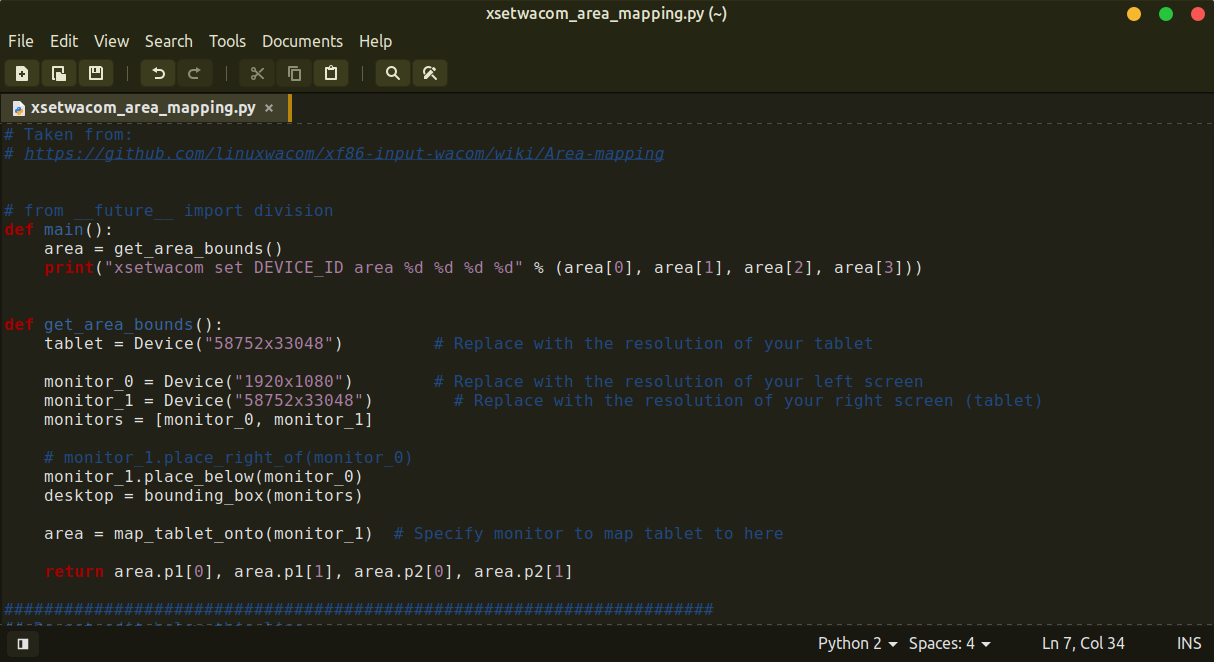
Here is the script file, the resolution matches what xsetwacom said unless I’m meant to edit something else?

You must modify everything marked in the script, such as the resolution of your monitor and that of your tablet.

My main monitor has a resolution of 2560x1440 and is placed above the tablet (with no X offset), like this

monitor_0 = Device(“2560x1440”) # Replace with the resolution of your left screen
monitor_1 = Device(“1920x1080”) # Replace with the resolution of your right screen (tablet)

@SchrodingerCat

Does this look ok?

ran the script again and fixed the area = map_tablet_onto(tablet, desktop, monitor_1) # Specify monitor to map tablet to here because when I only had it set to monitor_1 it didn’t work

Nothing happened ): I am going crazy!!! lol

Nope…

It is not working because you are setting the resolution wrong.

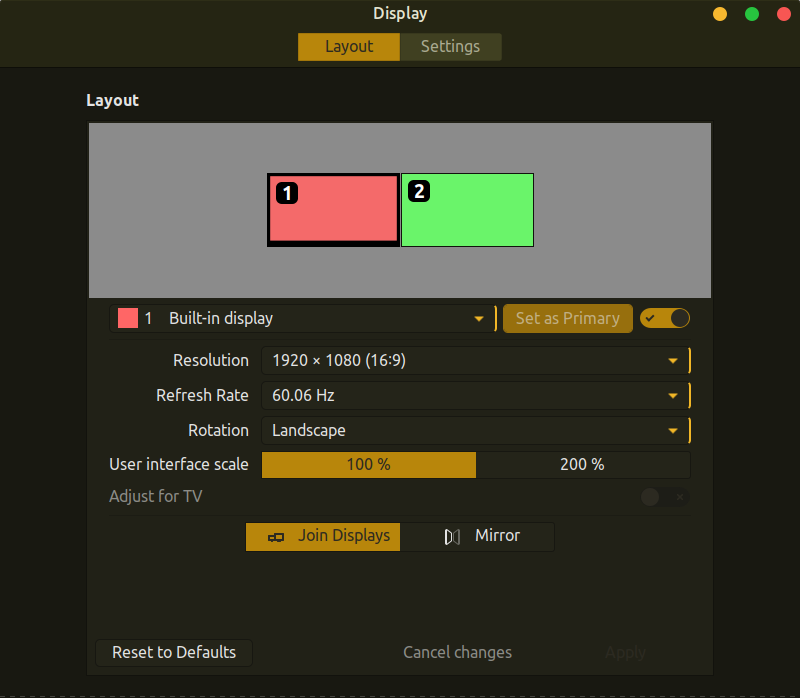
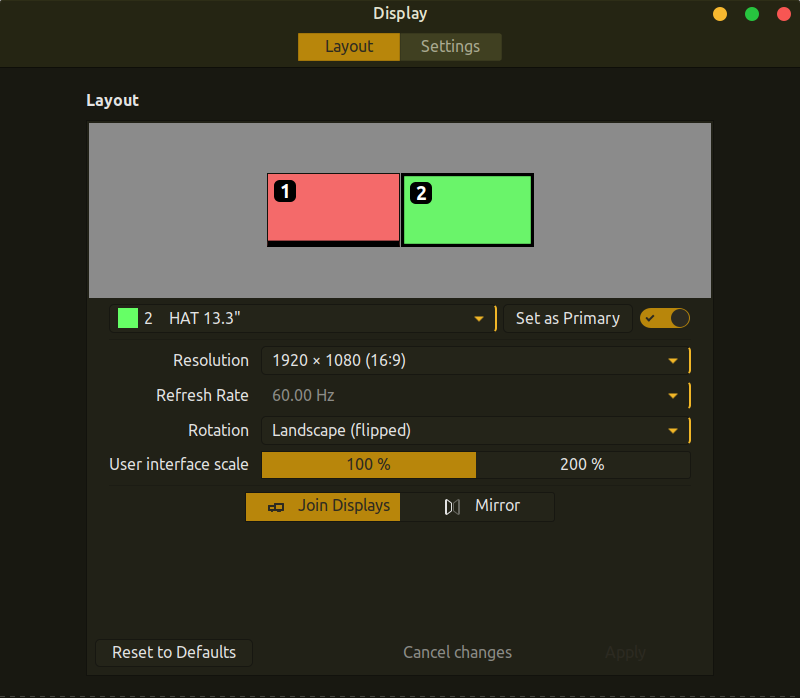
I need a screenshot of the Display Configuration.

@SchrodingerCat

Sorry about all this. Thanks for your help. I am a total noob as you can see lol. I’m learning a lot though.

Here is the display config. I don’t even remember where I got the values for the resolution in my previous screenshot. Probably from some random terminal command. It’s all blurring together at this rate.


So should I just set both resolutions to 1920x1080 in the script file?

The tablet display is flipped because I’m left-handed. Don’t know if that matters or not.

Ok try this, an apology for the delay, my internet is crashing.

#!/usr/bin/env python

# Taken from:
# https://github.com/linuxwacom/xf86-input-wacom/wiki/Area-mapping


# from __future__ import division
def main():
    area = get_area_bounds()
    print("xsetwacom set DEVICE_ID area %d %d %d %d" % (area[0], area[1], area[2], area[3]))


def get_area_bounds():
    tablet = Device("58752x33048")         # Replace with the resolution of your tablet

    monitor_0 = Device("1920x1080")        # Replace with the resolution of your left screen
    monitor_1 = Device("1920x1080")        # Replace with the resolution of your right screen (tablet)
    monitors = [monitor_0, monitor_1]

    # monitor_1.place_right_of(monitor_0)
    monitor_1.place_below(monitor_0)
    desktop = bounding_box(monitors)

    area = map_tablet_onto(tablet, desktop, monitor_1)  # Specify monitor to map tablet to here

    return area.p1[0], area.p1[1], area.p2[0], area.p2[1]

#######################################################################
## Do not edit below this line.
##

class Vector:
    def __init__(self, *data):
        self.data = data
    def __repr__(self):
        return repr(self.data) 
    def __add__(self, other):
        return Vector( *[a+b for a,b in zip(self.data, other.data) ] )  
    def __sub__(self, other):
        return Vector( *[a-b for a,b in zip(self.data, other.data) ] )
    def __mul__(self, other):
        return Vector( *[a*b for a,b in zip(self.data, other.data) ] )
    def __truediv__(self, other):
        return Vector( *[1.0*a/b for a,b in zip(self.data, other.data) ] )
    def __iter__(self):
        return iter(self.data)
    def __getitem__(self, index):
        return self.data[index]

class Rectangle:
    def __init__(self, p1=(0,0), p2=(0,0)):
        self.p1, self.p2 = Vector(*p1), Vector(*p2)
    def __repr__(self):
        return repr((self.p1, self.p2))
    def __add__(self, point):
        return Rectangle(self.p1 + point, self.p2 + point)
    def __sub__(self, point):
        return Rectangle(self.p1 - point,  self.p2 - point)
    def getSize(self):
        return self.p2 - self.p1
    def setSize(self, size):
        self.p2 = self.p1 + size
    def getOrigin(self):
        return self.p1
    def setOrigin(self, point):
        self.p2, self.p1 = self.size + point, point
    size = property(getSize, setSize)
    origin = property(getOrigin, setOrigin)

class Device(Rectangle):
    def __init__(self, resolution):
        x, y = resolution.split("x")
        Rectangle.__init__(self, (0,0), Vector(int(x), int(y)))
    def place_right_of(self, other):
        self.setOrigin(other.origin + Vector(other.size[0], 0))
    def place_left_of(self, other):
        self.setOrigin(other.origin - Vector(self.size[0], 0))
    def place_above(self, other):
        self.setOrigin(other.origin - Vector(0, self.size[1]))
    def place_below(self, other):
        self.setOrigin(other.origin + Vector(0, other.size[1]))

def bounding_box(rectangles):
    points = [rect.p1 for rect in rectangles]
    min_x = min([x for x,y in points])
    min_y = min([y for x,y in points])

    points = [rect.p2 for rect in rectangles]
    max_x = max([x for x,y in points])
    max_y = max([y for x,y in points])

    return Rectangle((min_x, min_y), (max_x, max_y))

def normalize(desktop, monitor):
    rect = Rectangle([ (monitor.p1 - desktop.p1)[i] / desktop.size[i] for i in [0,1] ])
    rect.setSize(monitor.size / desktop.size)
    return rect

def map_tablet_onto(tablet, desktop, monitor):
    norm = normalize(desktop, monitor)
    rect = Rectangle()
    rect.setSize(tablet.size / norm.size)
    rect.setOrigin ( tablet.origin - (rect.size * norm.origin) )
    return rect


if __name__=="__main__":
    main()
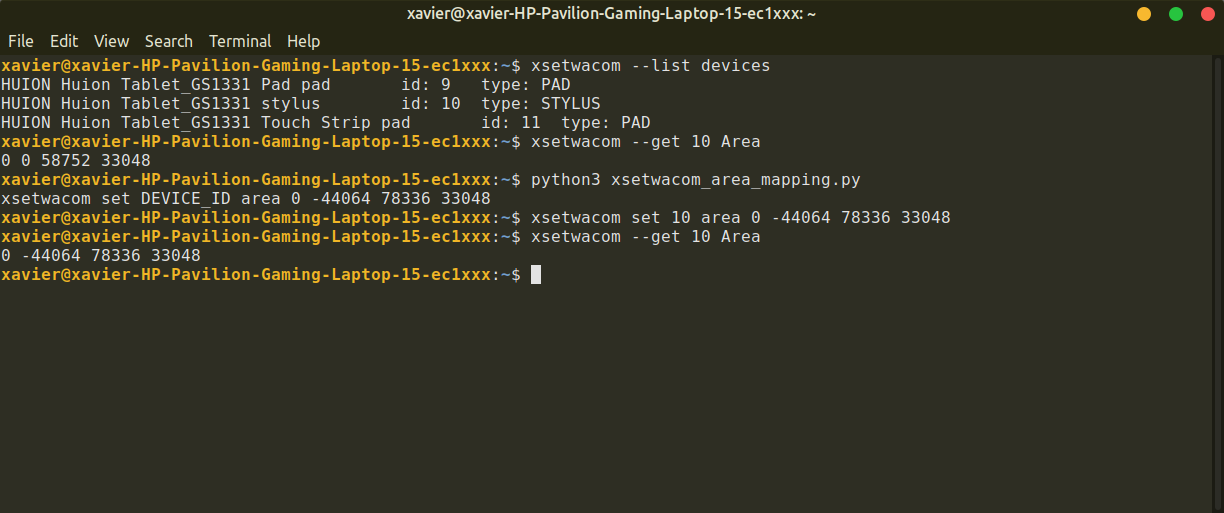
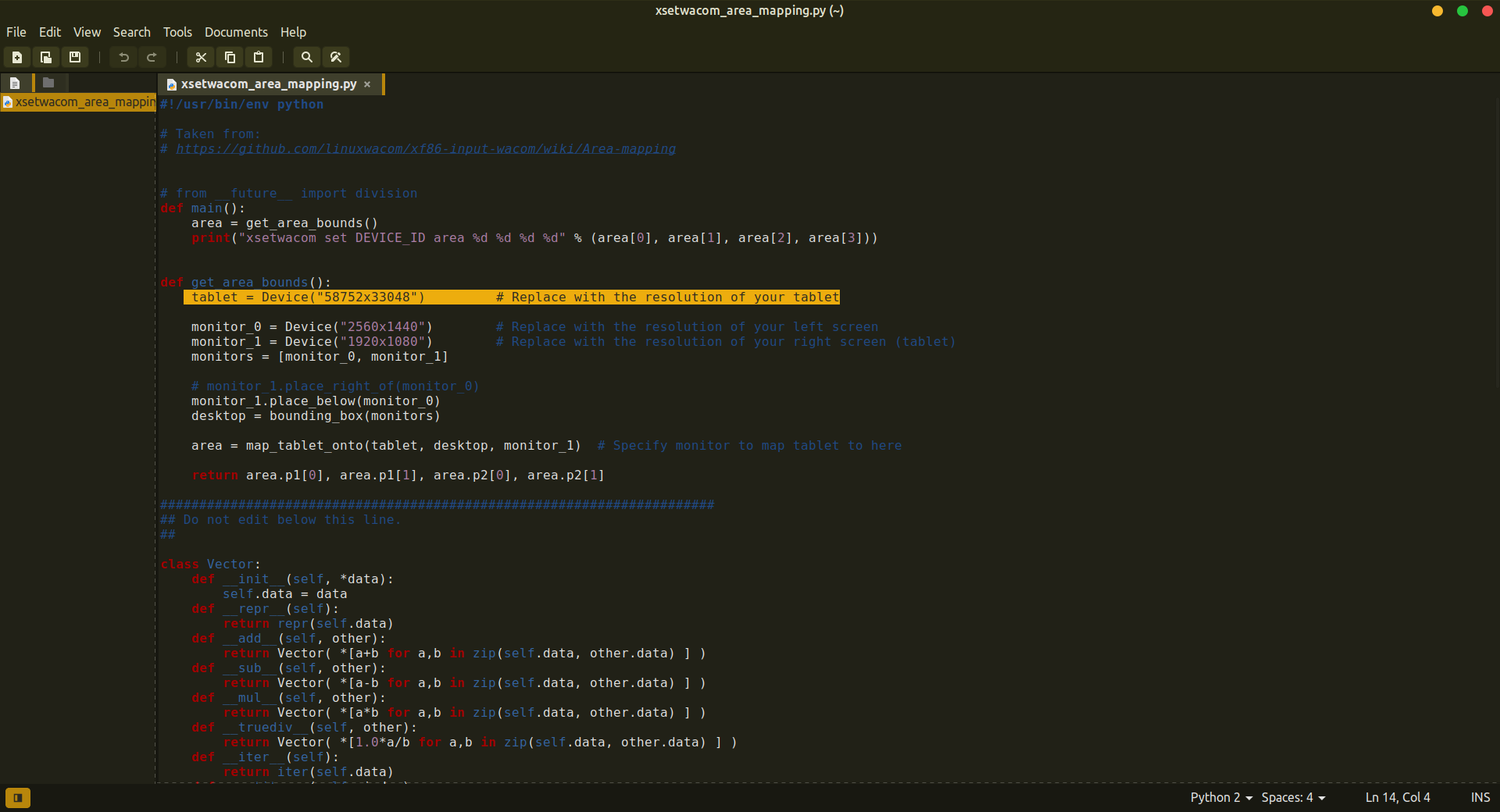
I couldn’t tell you, here is some information about Area mapping but it doesn’t mention anything about the flipped screen.

@SchrodingerCat no problem, I appreciate the help

I used the script you wrote and ran the same commands and nothing changed. Pen input still tracks on both monitors and only shows on tablet monitor if I move the cursor to it myself. And the pen input is still extremely offset.