Type of device* : Display pen tablet
Brand and version of the device: Huion Kamvas 13
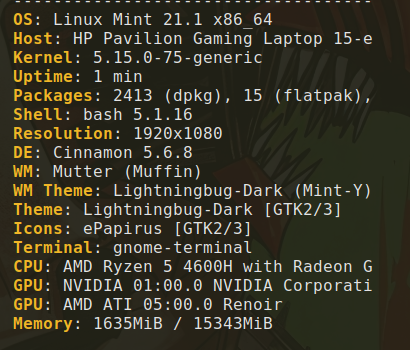
System** : Linux Mint 21.1 Cinnamon
I am in desperate need of help. I’ve been struggling for days.
Long story short: the tablet works fine if the display is off and I’m using Mint’s built in tablet driver. All I do is switch it to left handed mode and it’s good to go. When I tried using the official Huion driver, the pen input goes crazy.
The display is the problem.
When the display is on, I turn off left handed mode in Mint’s native driver, flip the display in the display settings, and it all seems fine. Half the time the second I tap the screen the cursor freezes. If I turn the tablet off/on it resets but the same problem happens. While writing this post, I tried switching to the Huion drivers after recreating the issue, and it made my system crash.
Regardless, whenever I manage to get the tablet working and Krita on the screen, the lag is so insane it’s impossible to draw. I allocated more RAM and unchecked canvas acceleration and neither tweak made it better.
I am at my wits end. I’m considering reselling the tablet and getting a Wacom which I hear has better tablet support, or trying a new DE. I already tried a live usb Kubuntu boot and my tablet wasn’t even recognized ):
I really like Linux and I don’t want to go back to Windows. Mint is the best DE I’ve used so far. But I have no idea what to do!
Open Tablet Drivers didn’t help. And my tablet isn’t supported on Digimend drivers. I’m all out of ideas.
ETA: I tested the tablet input in Krita settings and it was snappy and instant. So it’s something with the graphic rendering that is messing things up.
I tested Mint’s built in drawing program and MyPaint. Both worked fine on display mode.
Have you tried KDE Plasma as your DE for Krita? I also used to use Mint’s DE and Ubuntu 23.04 “Lunar Lobster” GNOME’s DE also behaves strangley, it does not let you move the layers around.
When I used Krita in KDE Plasma, everything was fixed.
In case you want to install KDE Plasma to test it out, use the Terminal to install the Kubuntu Repository and type:
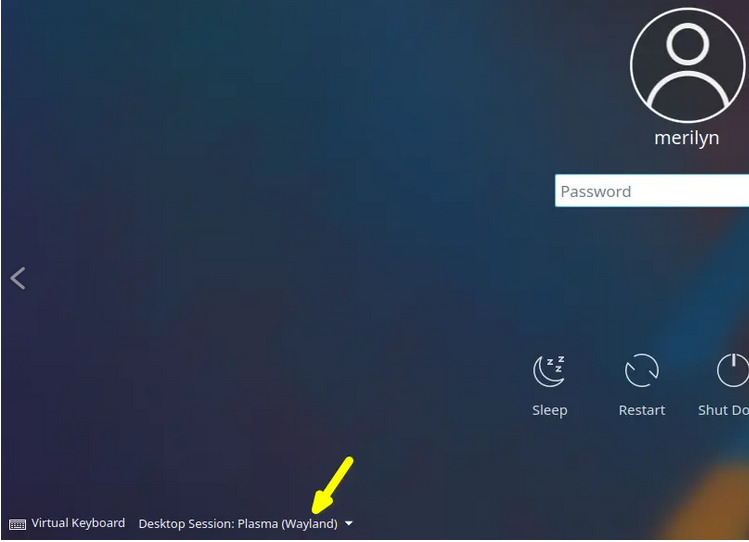
Restart your computer and choose KDE Plasma in for a new session. (If your computer automatically logs in, then restart, allow it to go into Mint, use the Application Menu and instead of Restarting choose Log Out. Now you can choose KDE Plasma by clicking on the icon next to your name.)
Use Krita’s appimage
(This can be done by installing Krita’s appimage from krita.org and executing it in Dolphin (KDE Plasma’s file explorer (How to Use AppImage in Linux [Complete Guide])) or by integrating it with AppImage Launcher (makes all your appimages accessible easily)).
After AppImage Launcher, click on Krita’a appimage, choose “Execute”, then “Integrate and Run” in the AppImage Launcher window to have it easily accessible.
I hope this works and let me know if you need any help.
A possible problem I think I see here, you’re not being very clear about this, is that you seem to have two tablet drivers installed at the same time. This will inevitably lead to difficulties if the drivers cannot be disabled 100% individually, which I think is unlikely.
So, if that is the case, then it could (would) be part of your problem, because then the two drivers are “competing” for the data sent from the tablet to the operating system. Both will then interpret the input supplied and return the processed data to Krita, also in competition.
The best way to test is to install it, live mode restricts many things.
KDE Plasma is the best DE if you want to draw, I recommended Mint to a friend of mine but in the end it wasn’t the best option, Cinnamon uses old libraries.
click on the Menu in Linux, and type ‘wacom’ this will bring up the pre-installed graphics tablet for mint.
Click “Map to Monitor” under tablets, and see if this helps.
So I installed Kubuntu and my tablet isn’t even recognized. Just says there’s no signal and powers down. I tried the native drivers and then installed the Huion drivers. Same difference. But it still shows up on xinput.
It seems to work okay without a display on the Huion driver. But the display won’t even turn on.
Display or no display, it doesn’t show up on the native KDE tablet settings.
I’m beginning to think this is a problem with the tablet and not Linux if I’m having problems across multiple distros/DEs
I uninstalled the Huion driver and the problems persisted.
I don’t feel confident uninstalling the Mint tablet drivers as I’m not sure where to redownload them once I’m done testing. Regardless, they appear to work better than the official Huion drivers.
Also if you are using some very large pixel brushes these will cause lag.
I’m using Mint 21.1 without any issues. I am not really good at Linux yet, so I may not be a ton of help.
I understand that the latest versions of Ubuntu and derivatives detect Huion tablets without problems, you just have to make a couple of adjustments, I say this because I have a Huion H320M and I only had to create a configuration file so that I can configure it with xsetwacom.
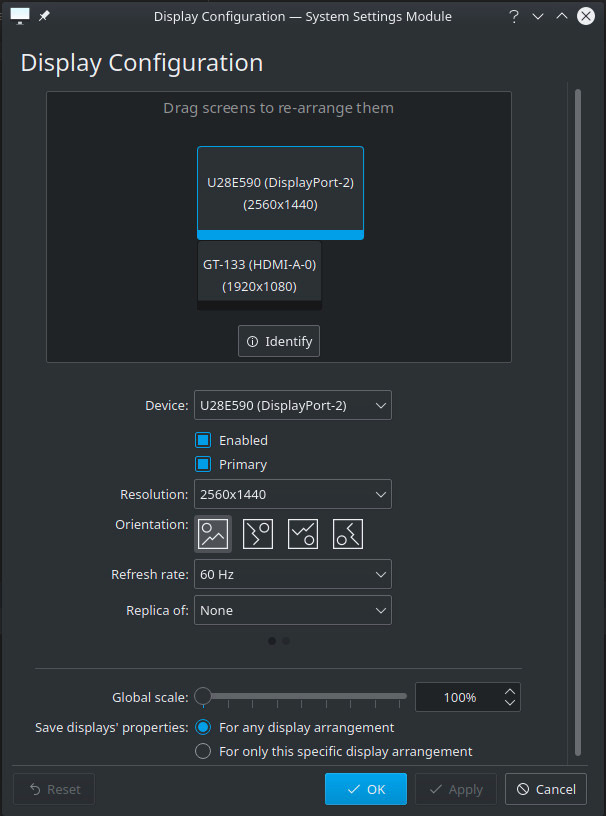
Regarding the configuration of your screen, have you tried going to Display configuration?
I’ve already tried OpenTabletDriver to no avail. It recognizes the tablet in display and non-display modes, but the display mode has the same problem with the cursor not tracking, and I’m unable to flip the work area in either mode to a left-handed orientation.
As far as Mint drivers go, do you mean redownloading them from here? Would I just uninstall the Graphic Tablet Settings in the GUI and reinstall with the bulk .deb package if need be?
No, I meant to use Mint’s inbuilt package-manager (software-manager, repo(sitory)-manager, and whatnot), the software that keeps track of nearly every piece of software installed on your distribution, and takes care of all the dependencies of the software installed on your PC, so you don’t have to. This should be the safest way to install and uninstall software on a Linux-PC, usually you can trust them and their databases, but nothing is perfect.
A bold guess, and a cheeky imputation >> click me <<
I can not say if every distro has one, and could imagine that the Top-Notch-Crazy-Super-Geek-Distros omit such because you look more Geeky if you can say from yourself, you are able to keep track of everything on your PC, but probably 99.9% will have one.
These package-managers have different names depending on the distro you are using, and I don’t know the names of them all, am even not aware of the name my copy of SUSE-Linux Tumbleweed uses for its current package-manager, back in the nineties it was called YAST and later YAST2, whereas YAST means “Yet Another Setup Tool”.
I recommend you use version 23.04 since it comes with Kernel 6.2 that comes with the most recent wacom drivers and also the most current version of Plasma.
It’s better to use xorg for now as xsetwacom only works on xorg.
I can’t tell you anything about the individual packages, because they don’t mean anything to me.¹ I can tell you the way in principle.
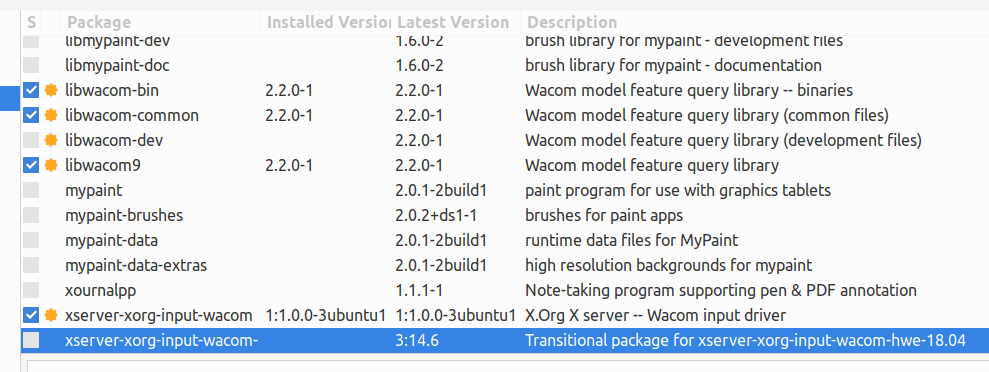
So, my own way of doing it is to search for the software I want to uninstall using the package manager search. Then I select it from the search results and uncheck the program entry, whereupon (when using Mint) Synaptic should automatically mark the associated (dependent) libraries, and then I confirm that I want to delete this program. Synaptic then checks if the libraries belonging to the software to be uninstalled are not also needed by other programs to run and should tell you if this is the case.
As I know it, you will be asked if you want to keep or delete these libraries, and you will be informed about possible consequences if you delete libraries needed by other software. Of course, you should keep everything that is still used by other programs, but all program parts that are marked as no longer needed can be removed. The good thing with Synaptic and the like is, that you don’t need deep knowledge about what to keep and what to delete, the packet-managers “care for you”. Usually you can trust them, but as always, nothing is perfect, bugs are possible but seldom.
That’s it.
So actually not overly difficult once you understand it.
Michelist
¹ I mainly use Windows, and although I’ve been involved with Linux since the beginning, I only permanently installed a distribution towards the end of the nineties, which was S.u.S.E.-Linux 5.3.