Hello, dear Internet users, could you please help with my problem.the fact is that in Crete the cursor is displayed further than it should be.for some reason, the system reads it as a mouse cursor.Please help me.
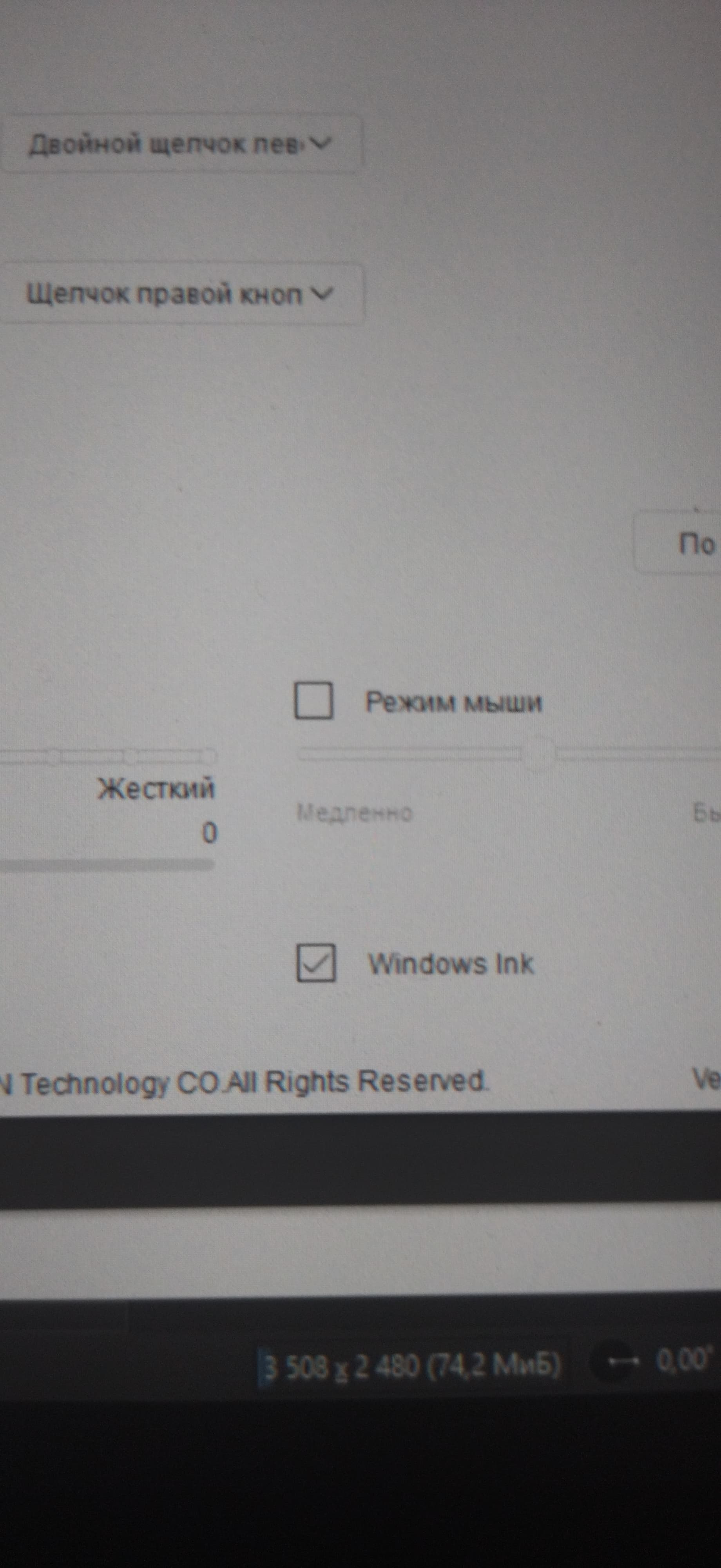
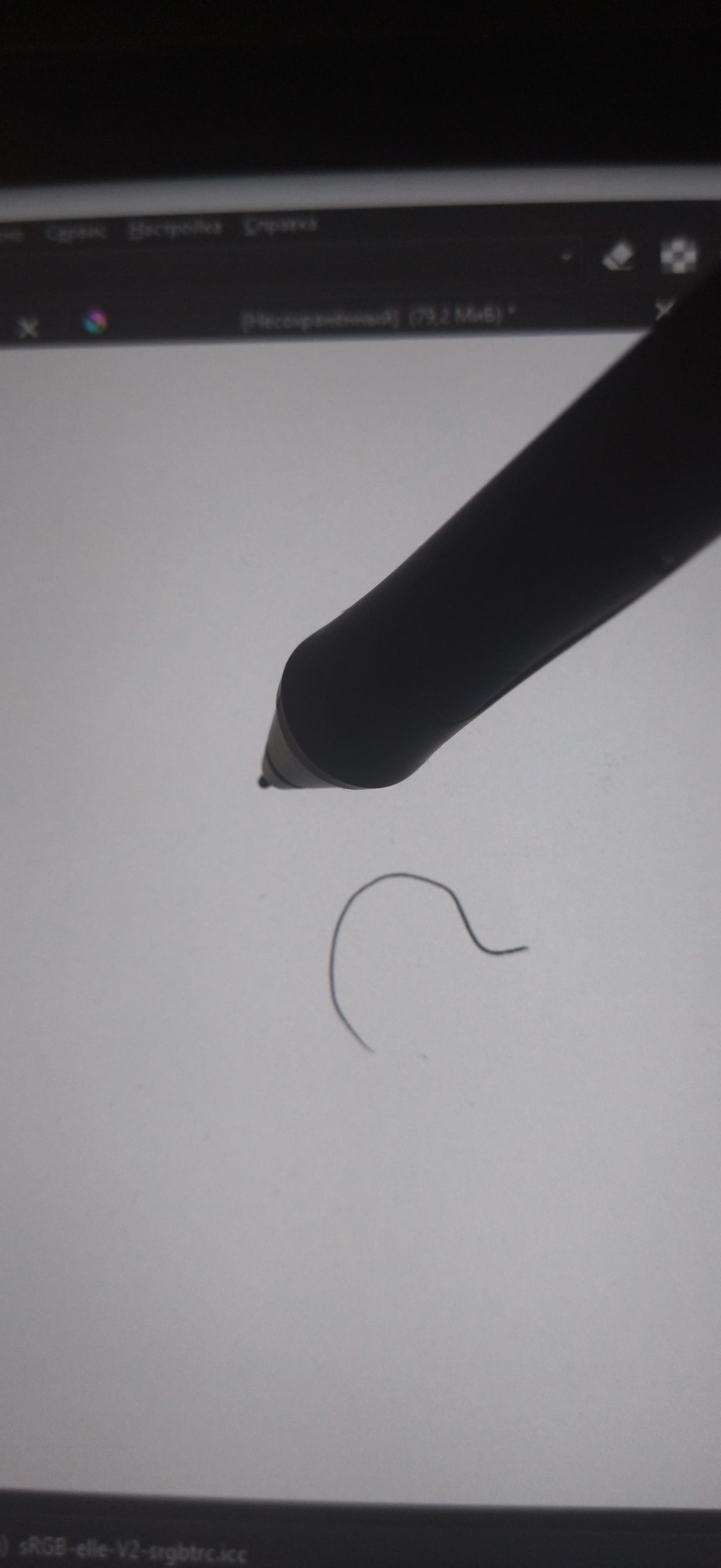
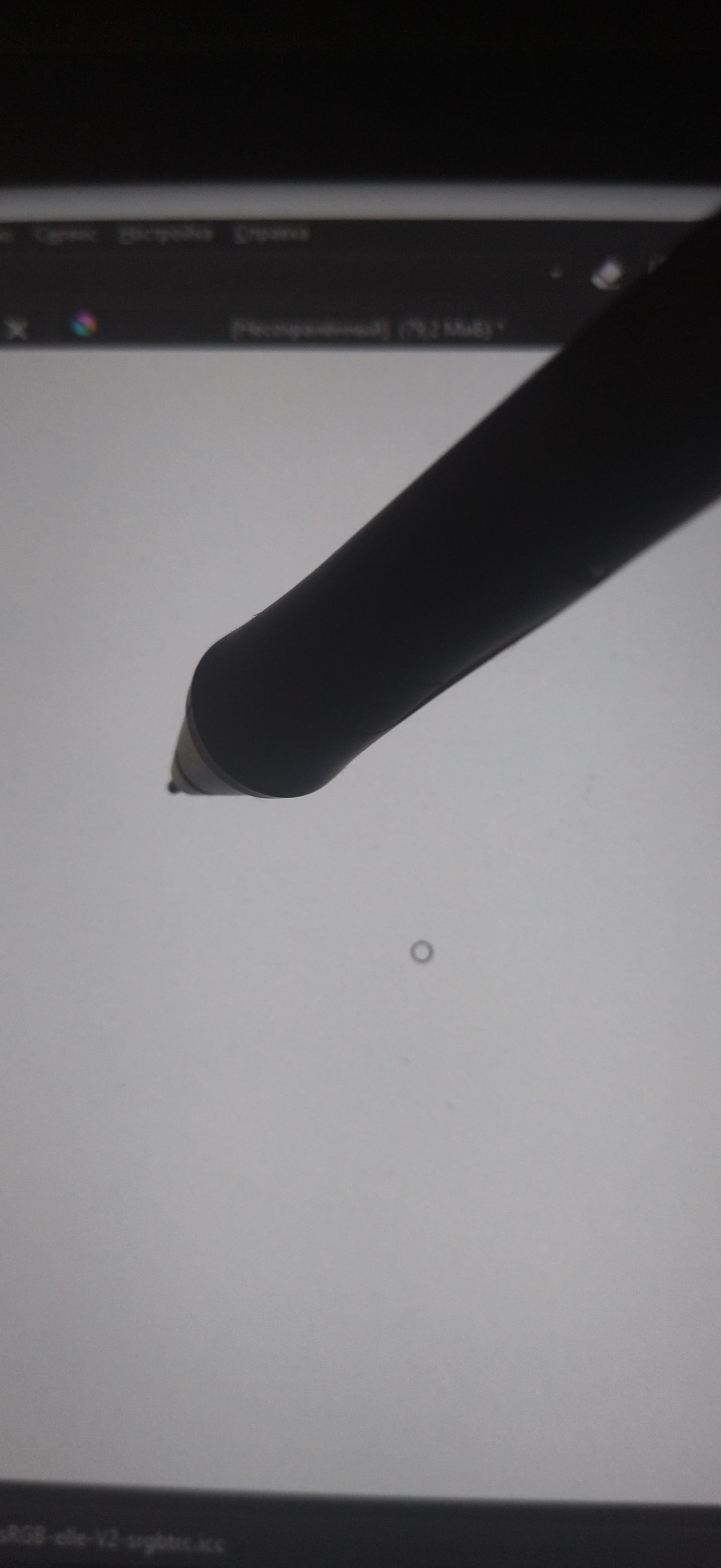
I can see that you driver is set to use Windows-Ink. Is Krita configured to use Windows Ink too?
hello, yes, I have Windows 8 pointer input (windows inc.) selected in the settings of the crit -tablet settings
Try turning it off in your tablet settings and in Krita. Both must always match.
 Hello @shapi and welcome to the forum!
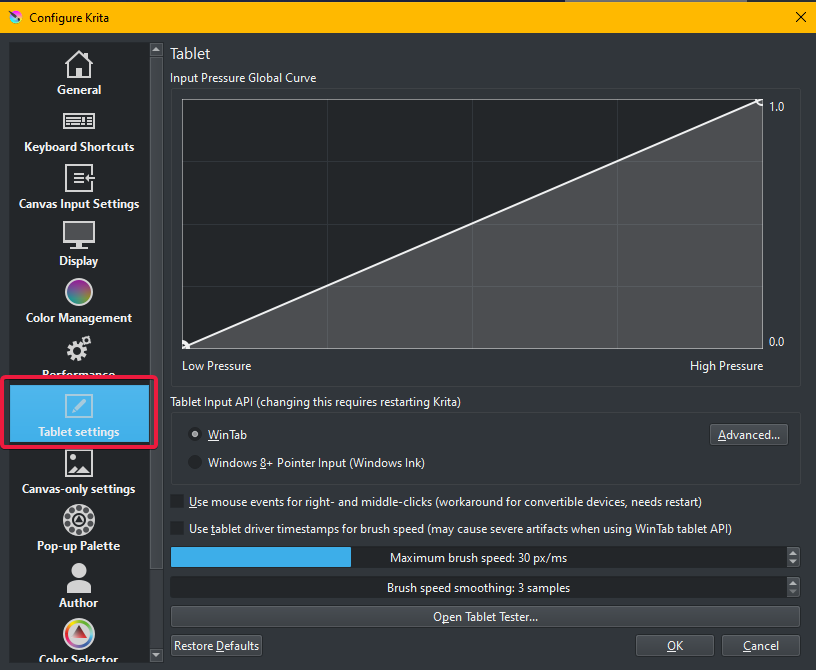
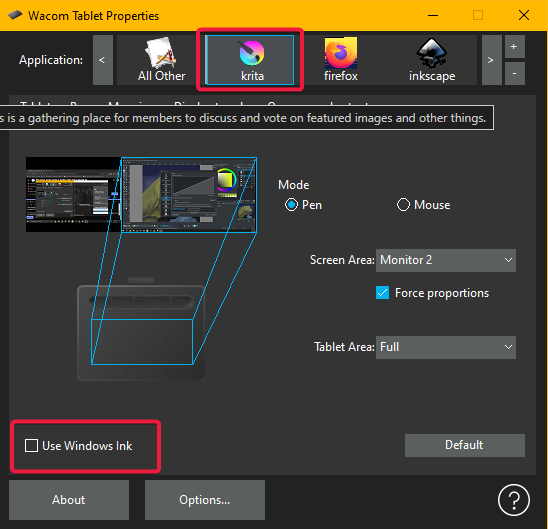
In your first photo, remove the checkmark at “WindowsInk”. Then, in Krita, go to the tablet settings via ‘‘Settings’’ >> ‘‘Configure Krita’’ >> ‘‘Tablet Settings’’ and set the radio-button in front of ‘‘WinTab’’, confirm that dialog window with the OK-Button and restart Krita.
With a little luck, it will work now.
If that did not help, and before we get the big tools out of the box, you can try to change your preferred renderer. You do that via ‘‘Settings’’ >> ‘‘Configure Krita’’ >> ‘‘Display’’ in the tab ‘‘Canvas Acceleration’’, there you probably have Auto (Direct3D 11 via ANGLE) as the pre-set option, but whatever is selected there choose the other option, so if it was Direct3D 11 via ANGLE choose OPEN GL and vice versa. By the way, you can check also software renderer but have to be aware that it will be very slow with some actions while painting, so it is best to use this only to rule it out as a source of error/solution.
Should it not have been the solution, you can restore the original settings, or you can use OPEN GL if you use an AMD RADEON graphics and Direct3D 11 via ANGLE when using NVIDIA.
In case that did not help, you should completely reinstall your tablets’ driver. That means uninstall the driver obeying the manufacturer’s instructions, if any, and after the uninstallation do a full power down reboot, that means you have to reboot your PC by switching it on manually after waiting a few seconds when the lights gone out, the standard Windows reboot may be insufficient.
After that, I would first go to Windows Update and update my PC completely with the offered security fixes and bug-fixes, if Windows can find updates for your PC, BUT do not install a new driver for your tablet there (better have your tablet unplugged while using Windows Update) install the newest driver, and do not install drivers from there for your other hardware if your other hardware runs fine.
If you do, it is up to you, but since Windows Updates are one of the major reasons to shred your graphics tablets driver, it is a good idea to get those possibly waiting updates out of the way before they can do their sometimes evil work.
Now you can reinstall your tablet’s driver, obeying the instructions from the manufacturer. So check if the cables have to be plugged in or not while you install your driver, and after you have reinstalled/updated your driver, do a full power down reboot again.
Always create profiles for every software you use with your tablet.
And if all that did not work, then please report back and tell us which version of Krita you use and from where you got it. Also briefly describe what you have done so far and where you are stuck.
Michelist
Hello, thank you so much for your help.unfortunately, your options for solving the problem did not help, I am very sorry.but it seems to me that everything is fine with the tablet.the fact is that in other programs, such as paint, it behaves completely nominally.the problem only appears when the stylus is in the drawing field of the crit.even on the Crete toolbar, it works fine.the fact is that the drivers for the tablet were installed just a few days ago.
thank you for your help, unfortunately, this method of solving the problem did not bring results:(
unfortunately, I do not know how to view the version of Crete, but I downloaded it from the official website of Crete. excuse me for mistakes in sentences, I just use a translator
You should disable WindowsInk in your tablet, you should enable WinTab in Krita and confirm the dialog with the OK-Button, then restart Krita. Did you do that?
Michelist
The fact that it works in other software does not mean that it cannot be due to the driver. This is because Krita relies on the signals that the driver sends to the operating system. Other software can often communicate directly with the driver (not always). As I said, Windows Update is the biggest source of error, you don’t have to notice if it was only small background updates from Windows without restarting, the effect, i.e. broken driver, is still there.
Besides, I can hardly imagine that you have tested all my suggestions in such a short time, despite communication difficulties. Not even I can do that.
Michelist
I think I didn’t mention a few important details. Sorry.
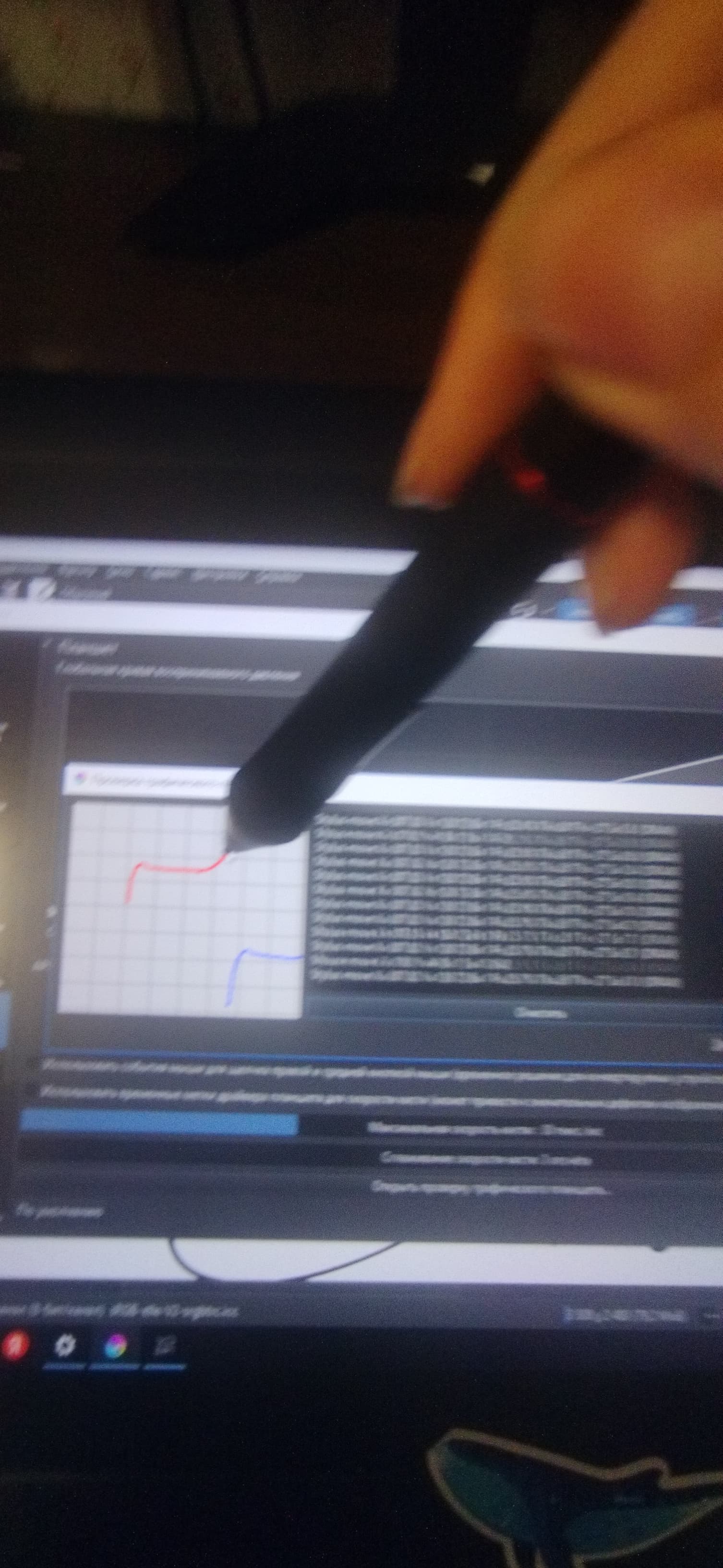
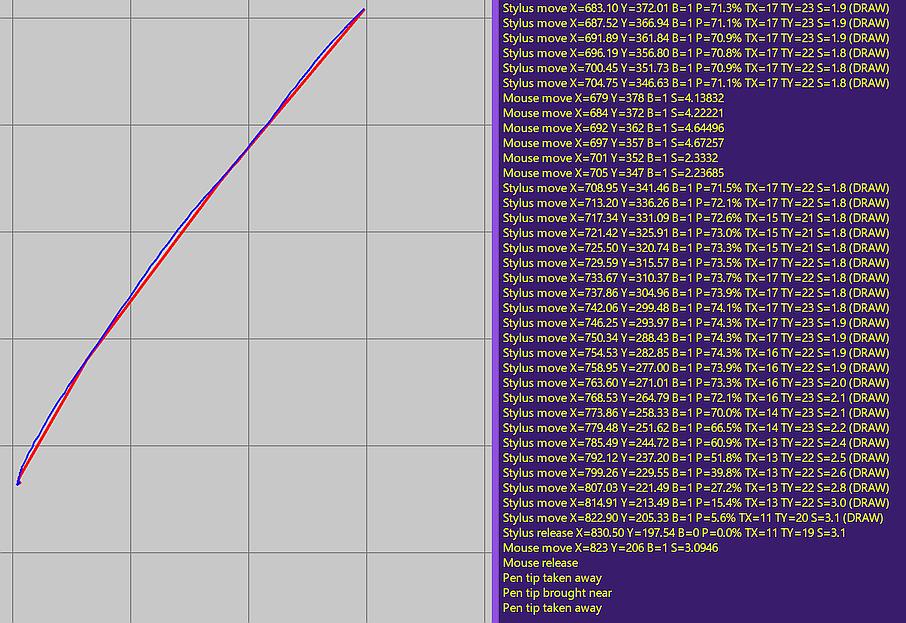
I think the problem has something to do with the mouse, the fact is that when I go to the settings of the tablet settings screen, checking the graphics tablet, the position of the stylus is absolutely accurately determined and it is indicated by a red line, but for some reason the red line is always parallel to the blue line
it seems that crete only reads the position of the blue line when I draw
on the loading window, which displays the x y position relative to the stylus, the x y position of the mouse is always indicated in parallel
the problem disappears more or less only if you select the mouse mode in the stylus settings, then the red and blue lines go together
, however, because of this, the drawing cannot turn out smooth
to be honest, I am completely at a loss I once had a similar problem on another device, but there it was due to the fact that both screens were used as a tablet
and here from somewhere Where did this mouse come from
Sorry for my hasty answers, I just tried some of the tips you suggested and they didn’t work.:(now I will try to reinstall vinos and Crete, I hope this will help
now the computer has rebooted Crete correctly displays the position of the stylus, but now it does not adjust the stiffness in general, I will try to reboot everything
thanks again for your help
I recorded a video with the problem, maybe it will help you.sorry for my English, if something is not clear, then ask
The video can not be downloaded.
And I’m probably not back before tomorrow.
Michelist
I was able to watch approx. 1 min. of your video before it failed. I didn’t learn anything about your settings as most of that time was a shaky video showing you launching Krita from the desktop and waiting for the app to start. I think even if the video worked it would not be helpful as it’s too dark and shaky. We can’t read the settings.
Can you provide a screenshot (not a smartphone pic and not a smartphone video) showing this window in Krita:
And can you also provide a screenshot showing the Windows Ink setting in your tablet interface? I know you’re not using a Wacom but I’m sharing my settings to show the Windows Ink selection inside the Krita profile I made for my tablet. You should have something similar to this where we can see the settings.
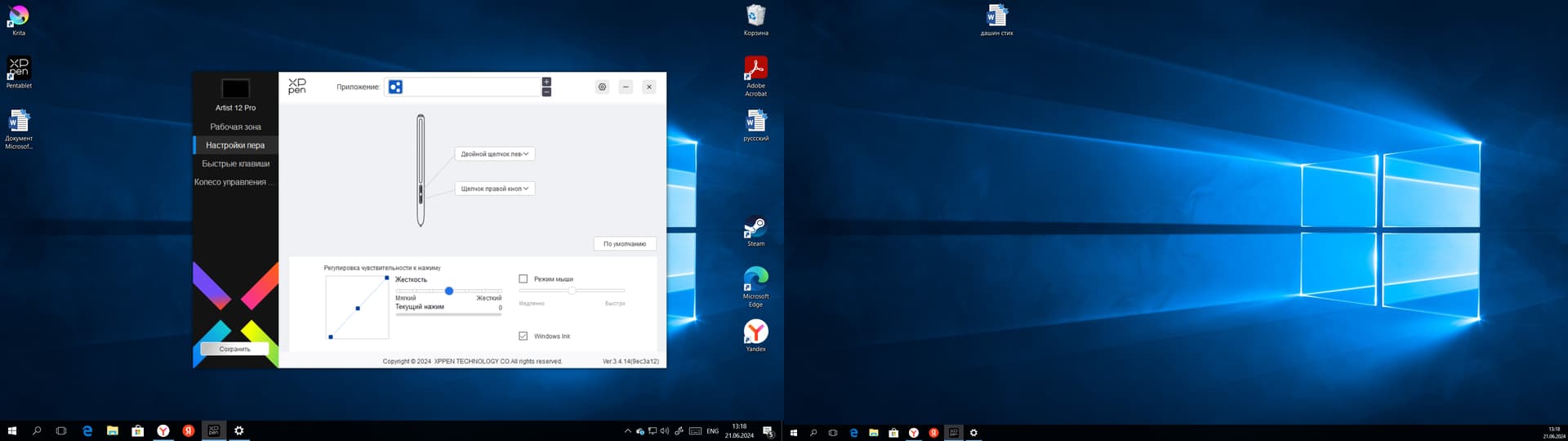
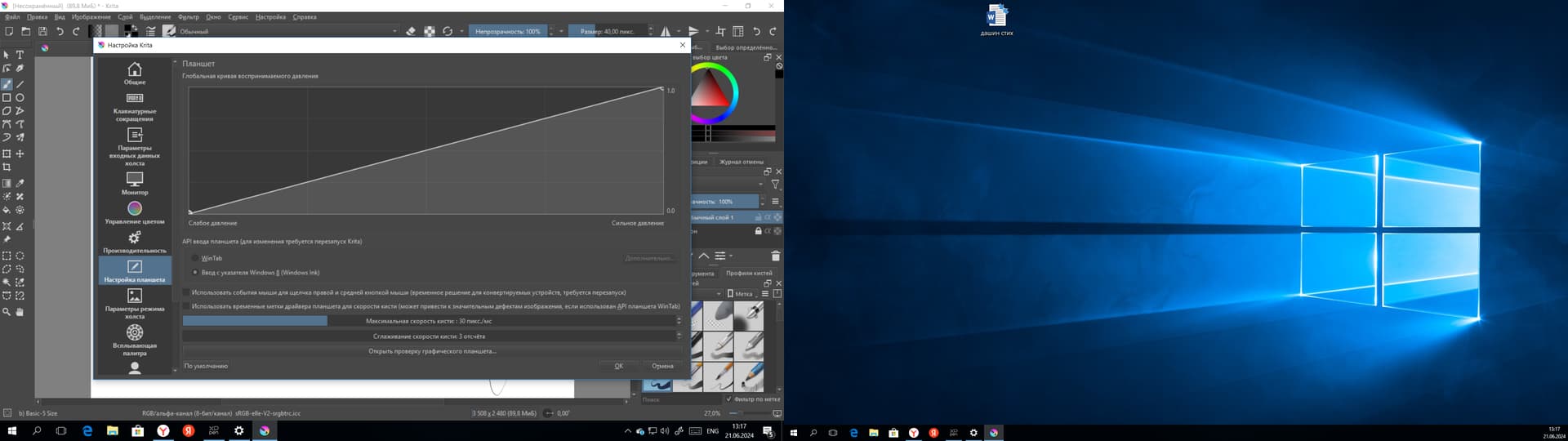
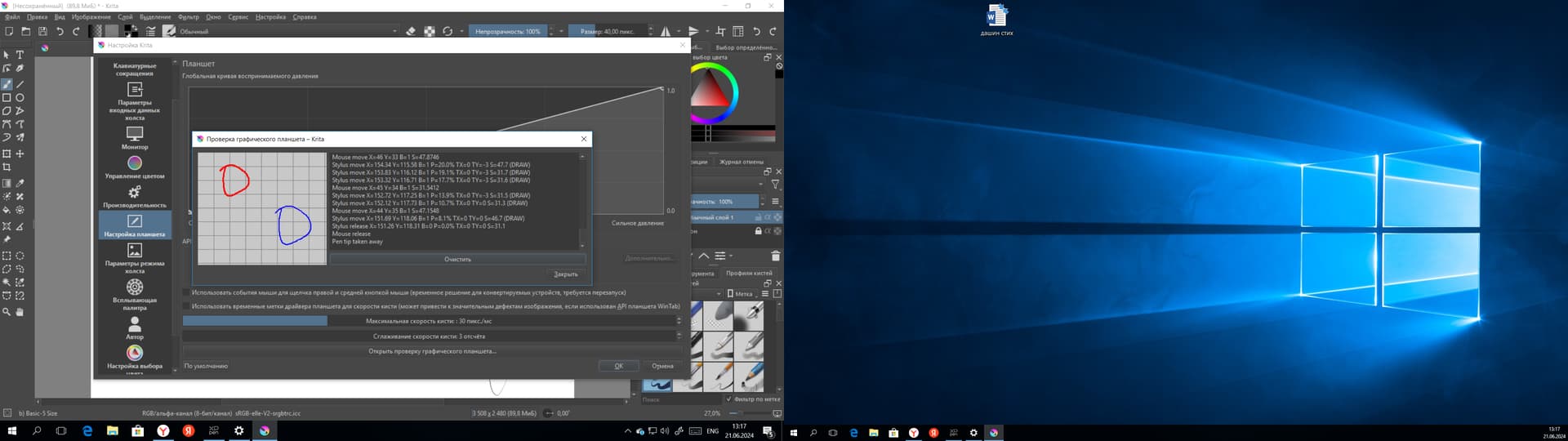
I’ve been going through the settings now and it’s working fine.I chose windows inc in the tablet settings and wintab in Crita and now it works fine.I hope nothing breaks again, I won’t change the settings anymore.Thank you so much for your help, I’m sorry that I took up so much of your time.I’m sorry if I was inattentive somewhere and neglected your advice.Thank you all again
Do you have two monitors? This often happens when the pen is not properly calibrated to one monitor.
I don’t think that was the problem. The stylus worked normal everywhere except in the drawing area in Crita.my first screen tablet is listed as the main screen