Is there a way to toggle the pan tool using a button mapped to a tablet( intuos pro)? I have a button mapped to be middle mouse button, but it does nothing in krita. I want to be able to push the button, pan the canvas, and release the button to go back to the brush tool. I cant seem to find any solves or threads on this issue.
That is the exact way it should work by default.
Can you say if the pan tool doesn’t work when you press the middle button of the mouse? If it’s working, the problem is with your tablet driver - probably the middle mouse button not mapped properly. If you can’t reach the pan tool with both mouse and tablet, it can be a krita problem. Further, you can also check if pressing ‘space’ makes the pan tool appear.
No it works fine pushing middle mouse on my mouse, and space works on my keyboard, but on my tablet it will only switch to the pan tool, not toggle it. I mapped it to my tablet like i do in every other program, made sure the wacom button was the same as the hotkey in krita, but it will only switch and never toggle.
So what krita does at the moment is switching the tool and not going back to previous tool?
There are two types of shortcuts in krita - action shortcuts and canvas inputs. I guess you changed the shortcut in settings>configure krita>keyboard shortcuts. Thats the action that switches permanently to the pan tool. In configure krita there is also a ‘canvas input settings’ section, where you can change canvas inputs - modifier actions that changes temporarily the way your pen works: panning, color picking, changing size of a brush with shift and so on. If you make sure there is no shortcut chosen for pan tool in usual shortcuts, and you have a default RMB pan tool in canvas inputs, and your button on tablet is mapped to a RMB it should work fine. You can also change the modifier of the pan tool in canvas inputs, if you want to be a custom one, mapped to your tablet button.
The space key on the keyboard brings up the pan tool if you press it and keep it pressed. When you release it then you return to the tool you were previously using.
If you want that action with the stylus/tablet then you need to map a tablet/stylus button to the space key.
That is how my wacom stylus front button is mapped and I can press and hold it to get a temporary pan tool. Then I go back to the brush tool (or whatever) when I release it.
Yeah, that is what I have been trying to do. It works in every other program fine, just not krita. It will switch to pan, but not a hold and release toggle.
Have you made any changes to the keyboard shortcuts in Settings -> Configure Krita -> Keyboard Shortcuts?
I ask because there is no default keyboard shortcut for the pan tool so I’m puzzled as to how you seem to have made an action button (on the tablet/stylus) that can do this.
Edit: Or made any changes to Canvas Input Settings or Tablet Settings?
I have changed some shortcuts to match my photoshop painting shortcuts, but is didn’t work on the default ones either. So if I map a button on my intuos to space it will switch but not toggle. If i map a button on my intuos to middle mouse, it will do nothing. I have been painting digitally since 2011, so I am pretty used to customizing shortcuts and mapping wacom tablets, it just doesnt seem to toggle :\ From the videos i have watched and threads i searched, my krita isnt doing what theirs is haha
In the keyboard shortcuts section, at the bottom of the window you can select a keyboard shortcut scheme called photoshop_compatible. I’ve no idea how compatible it is but that may be of interest or use to you.
As I remember with wacom on Windows, the setup/control utility has ‘profiles’ for each application and it’s a good idea to setup a profile specifically for krita. If you do this then you don’t have to do anything particular with the settings for that profile, just have it existing a separate profile. Have you done that yet or can you do it?
Ok, so I removed all of my tablet preferences and got the pan to toggle. Now though , I can’t seem to find a shortcut for Fit To Screen or a way to grayscale proof. fit to screen is ctrl+0 in photoshop, and proof it ctrl + y, but neither work and i cant find those shortcuts in krita. With the proofing, you should be able to view the image in grayscale but paint in color.
yeah i have a seperate wacom profile just for krita
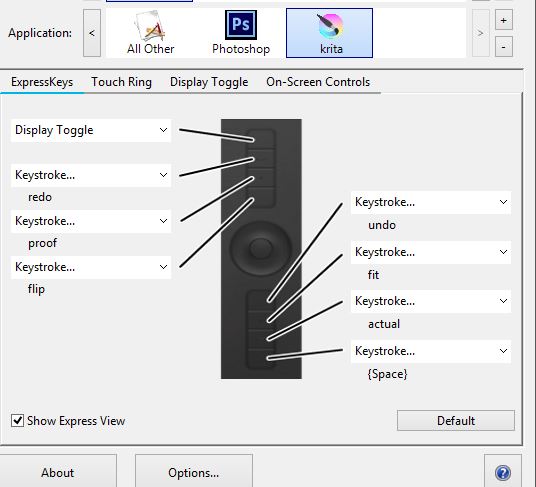
Krita doesn’t do Fit to Page as a shortcut (I don’t know why not). It does Ctrl+0 as Reset Zoom which sets zoom to 100% (or the ‘1’ key from Canvas Input Settings), which is not what you want or need 
Ctrl+Y is the shortcut for live softproofing and is in the default and the photoshop_compatible shortcut schemes. I have that listed as a shortcut if I search for ‘proof’ or ‘Ctrl+Y’ and it works.
You set the softproofing profile in Image → Properties → Softproofing tab
It may be set to RGB in which case you won’t see a difference.
I’ve no idea why the tablet ‘space’ button didn’t work or why it’s working now.
yeah a fit to page would be nice. it says in canvas input settings that ctrl+0 is fit to page and that ctrl+1 is 100%, but both shortcuts set it to 100%. I think i have got everything else working though, so i can just try and get used to zooming in and out with the popup menu thing. Thanks for the help guys. Also, in reply to the photoshop friendly shortcut profile , it really isn’t. I think that may have been what was causing the pan thing. That said, i have a pretty specific way of working, and never touch my mouse or keyboard while painting.
ok so for the fit to page to work, it can’t be in the photoshop compatible version. Looks like all of my shortcuts were fixed when i switched from the ps compatible shortcuts/ canvas inputs to the default ones. I think the ps compatibility options just breaks the shortcuts on tablets.
1 Like
Oh right, it’s ‘2’ in the Canvas Input settings, I missed that one.
I suggest that you raise a bug report here: https://bugs.kde.org/
for the problems with photoshop-compatible shortcut and canvas input schemes. It may be just a simple oversight that’s easily fixed.