Hello, it’s been a long time since I’ve been here.
I wanted to show you a way to use Krita on Samsung Android phones. With this methiod, it has all the features and an interface that is fully adapted to the phone screen.
Here’s a video showing the process. The audio is in Spanish, but you’ll easily understand just by watching what I do.
Here’s a summary:
Activate Samsung DeX on an external screen.
Open Krita.
Close Samsung DeX and enjoy!
@dkazakov As a suggestion, and from a position of ignorance, sorry if this is stupid. Perhaps knowing what change that makes the interface works this way, you can find a way to make it work on all devices. Not just Samsung with DeX.
It could also be that it works by connecting a USB hub with HDMI and using one of these HDMI Dummys And that’s something you could easily carry in your pocket. But I don’t have one to test it out.
I have managed to do this in several ways. But none of them are really what I’m looking for.
After trying ADB commands, the problem is that there is no way to make it permanent, so when you close the app and reopen it, it returns to the original resolution. I need to always be connected to the PC to launch the adb command, and for that I can directly use DeX.
Another solution I have found is to increase the minimum width on the smartphone. In Developer Options/Drawing/Minimum Width. By default is on 384dpi, increasing this to 600-650 make it work similar to samsung DeX I showed on the video. But of course, it reduces the size of the entire smartphone interface. So any other app will look smaller too.
It’s a temporary solution, increase the minimum width to use Krita and decrease it again when finish drawing.
Again I ask, to any developer who stops by here:
Is it very difficult to compile an Android version of the app with this default setting? Even though it’s not an official release and doesn’t receive updates?
If you watch the video I posted, between 2:28 and 3:05, you’ll see what happens. It runs on fullscreen and when closing Samsung DeX, It keeps a reduced interface and is fully usable.
I don’t know anything about programming, but I’ll take a look. Gracias.
Your phone display is very small, so Krita automatically uses “display scaling”, i.e. scales the screen by x2 or x3 factor. When you connect the TV, Krita detects it and resets GUI scaling to x1. When you disconnect the TV, Krita fails to detect the screen change (I don’t know why, it should) and keeps the interface to x1 scaling. I bet the interface is really small and hard to work with though.
You could probably use this line to start Krita with this scaling enforced (though I didn’t test it myself):
adb shell am start -n org.krita.android.MainActivity -e "QT_SCALE_FACTOR" "1"
But doesn’t adb mean you need to have a PC available to use it whenever you want? Keep in mind that the intention is to use it with a smartphone anywhere.
Right now, the solution of increasing the minimum width value works for me. When I want to draw, I increase the value, and when I’m done, I return to the default value. In the case of this Samsung S25 Ultra, 384 is its base value. And with a value of 600, the interface is comfortably usable.
Yes, it’s possible that many people find such small letters annoying. But believe me, it’s very clear and easy to use with the Spen.
In my case, I don’t usually use most of Krita’s options. With the giant interface it has by default, I’ve been able to configure it with gestures and finger taps to use almost everything I need.
But thanks to being able to access all the menus with this setting, you save yourself problems and having to transfer the file to a tablet or PC to make some adjustments.
As I said in a previous post, I would like to try an HDMI Dummy or EDID. But the ones that are USB C are quite expensive for this function alone (and may not work properly). And buying an HDMI one, which is cheaper, means always carrying the USB hub in your pocket, which is more inconvenient than a simple EDID/HDMI Dummy.
So until the app is updated or I somehow manage to compile a version myself that sets the interface to x1 as @dkazakov suggests, I’ll use the method of increasing the minimum width.
Hello. Thanks, Dkazakov. That’s a solution I’ve already tried. For me, having it disabled is worse than having it enabled. It increases the font size and is more inconvenient.

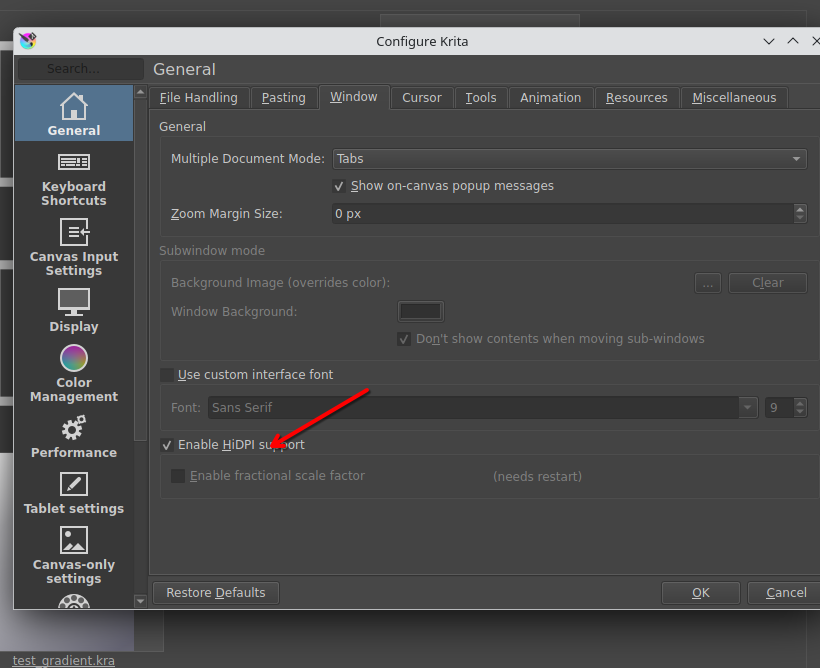
 I’ve done that in the past.