Using krita on this android tablet and the stylus has 3 buttons. Two of them are registering in krita as middle mouse button and one of them is right mouse button. Would it be possible to implement compatibility for this stylus on Android?
Open your Wacom desktop interface and change the buttons to other mouse actions.
Your stylus tip is left mouse button (don’t change that one), your other buttons can be keystrokes or mouse buttons. Don’t try to use Wacom’s settings like scroll or erase. Use the same keystrokes that you find within Krita’s canvas input settings.
2 Likes
I am using a Wacom Intuos Pro/ Pro Pen 3 on Kubuntu 25.10. Presently, I set B1 to the middle mouse button for panning, B2 is the right click for pop up palette and pop up menus and set the third as a shortcut (Alt+Down) for Showing Docker. As I know there is no keyboard, I would think you could find a use for B3 and adjust Krita to work in that favor. As @sooz says try within the canvas input settings, as this is where I set up B1 & B2.
1 Like
This is the new Android tablet from Wacom using the same pro pen 3. Running krita on Android so I’m not sure if there is any way to remap the buttons.
So looking at the Wacom website you don’t get a setup, but your three buttons are set to eraser tool (B1), toggling last brush/ tool (B2) and Hand/ Pan Tool (B3). If you go into the Settings/ Configure Krita/ Canvas Input Settings, as mentioned above, and experiment with the mouse button settings of each, you may find something that works. As an example, if you want the color picker to be B1, change the settings in “Alternate Invocation” to reflect using that mouse button. But remember you will have to clear the setting of the other action for it to work. Being you don’t have a keyboard, you can just clear the "modifiers”. And if you like what Wacom has made as default, you can go into the Krita settings and change them to reflect the default pen settings.
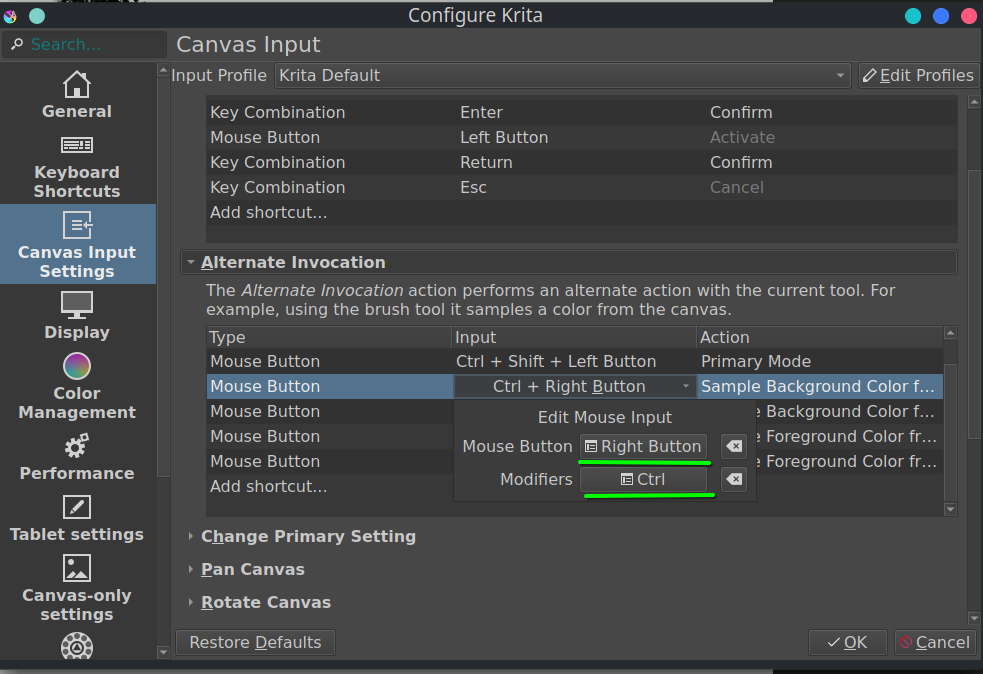
Here is what Wacom says about those three buttons
1 Like
There’s a Movinkpad on the way to me at the moment, looking at this three button issue is already on the list to do. Are there any other issues that the tablet has with regards to using it with Krita?
6 Likes
The experience overall is really good. I just haven’t found any way for one of the buttons to toggle eraser or erase mode. I think krita also doesn’t offer Erase mode under Canvas Input Settings anywhere. And since the stylus buttons act as mouse buttons I can’t bind them under Keyboard Shortcuts either.
from Wacom, switch 1 (b1) should be a small eraser, switch 2 (b2)= “right click” and switch 3 (b3)= middle mouse click. Is B1 a press and hold to use the eraser?
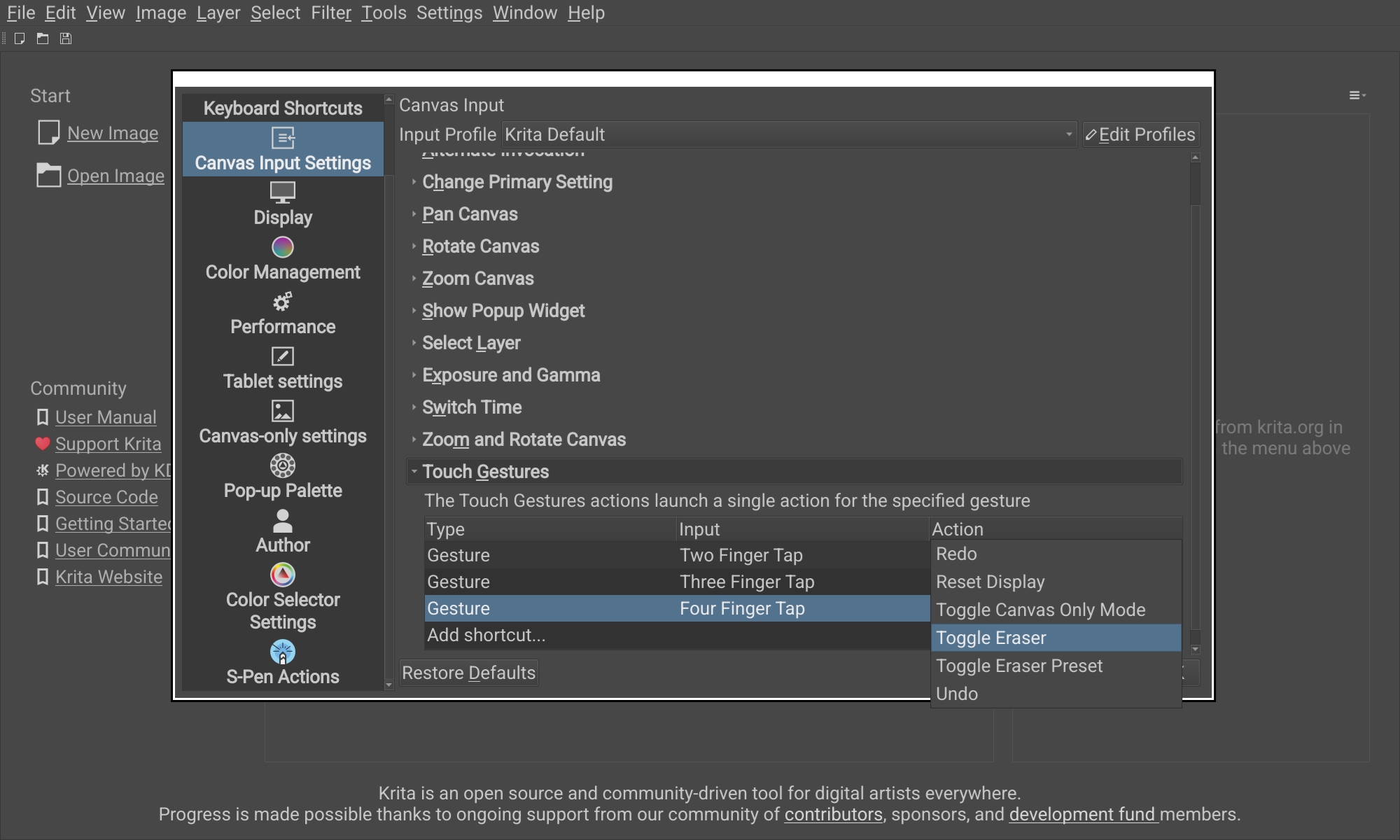
Thanks. The option for toggling eraser or the eraser preset should be in Settings → Configure Krita → Canvas Inputs under Touch Gestures (that category really ought to be renamed to Actions or Shortcuts or something, because it’s not just for touch.)
It is as described at the top: Krita sees one of the buttons as right click and the other two as middle click. There is no way for a user to fix this, Krita needs special code to handle whatever this Wacom stylus is doing and interpret the buttons differently.
2 Likes
so can a touch gesture be mapped to “Shft” or “Ctl”, then make the second “Middle click” a combination of the gesture and the button? Example 3 finger hold (shft) + one of the middle click buttons to rotate the canvas
There exist more than three mouse buttons, there’s no need for stunts like this. But also no, you can’t simultaneously have a touch gesture and a stylus input on Android, bringing the stylus near cancels any ongoing touches.
1 Like
I have a desktop/ pen tablet, work on that desktop/ pen tablet and can hold down my buttons on my Intuos pro as modifier and click on my portable keypad and it works. So the questions are to help inform myself of things that we are discussing. Thanks
I got the device and have a fix for the issue ready. The additional button will get translated to mouse button 6, which after the left, right, middle, forward and back buttons is the first one that’s vacant. It will probably be coming to the nightly releases soon and should end up in the final release of Krita 5.3.
6 Likes
I am also having trouble resizing any dockers. I can undock and move them around but when the cursor changes to the bidirectional arrow, clicking and dragging does nothing. Also when going into the color selector there is a little initial delay when trying to drag inside the color wheel.
The resizing isn’t something I can reproduce. The drag handles are definitely difficult to hit, but otherwise they do fine. I also don’t have any cursor that could be changing, where does that come from for you?
The delay is presumably when you touch the color wheel, not use it with your stylus? Which is probably just because of the ludicrously high touch slop on this device. You can check this yourself by turning on “Pointer Location” in Android’s developer settings. To make those settings appear, you go into Settings → About Pad and tapping the Build Number entry repeatedly until it says you’re a developer. This gives you a blue crosshair that shows you where Android thinks your finger is, which should match up exactly with where the color selector moves. You can see how ridiculously huge the deadzone is by spinning your finger in a small circle.
So if you see Krita tracking the crosshair exactly, then this is just a problem with the device itself. Maybe Wacom or whoever provides them with this touchscreen firmware could fix it. Some devices give you a setting to adjust the touch slop, but doesn’t look like this one lets you do so.
Thank you for solving the stupid issues of manufacturers <3 (Why on earth won’t wacom just include a settings app/thing for the three buttons so the user can configure them? Isn’t that standard for graphics tablets and aren’t they supposed to be the best of the best in that area?)
Wacom may make the best hardware, but their software is on the same level as any other pen tablet manufacturer. So while the device is leagues above any other Android tablet drawing-wise, most of the software effort seems to have gone into trying to sell you subscriptions to art programs that they presumably get kickbacks from.
2 Likes
There’s definitely some weird sensitivity or dead zone issues. Been trying to resize the dockers and I’m able to do it if I hit the drag handles exactly so, and they seem to be pretty much one pixel wide. Also dragging fast seems to work more often. Overall maybe one out of four of my attempts are successful when trying to resize a docker.
The color selector actually feels better in its own docker but when I open it by clicking the fg or bg color up top, the color selector has this delay or lag or drag dead zone…
Ah, yes, that seems to be coming from the long-press handling, I guess that color selector somehow thinks it has a context menu. Should be easy enough to fix.
Edit: a fix is pending here https://invent.kde.org/graphics/krita/-/merge_requests/2683