oh nice!
I was just here to thank @SirPigeonz for such amazing job right here
Keep it up the good job
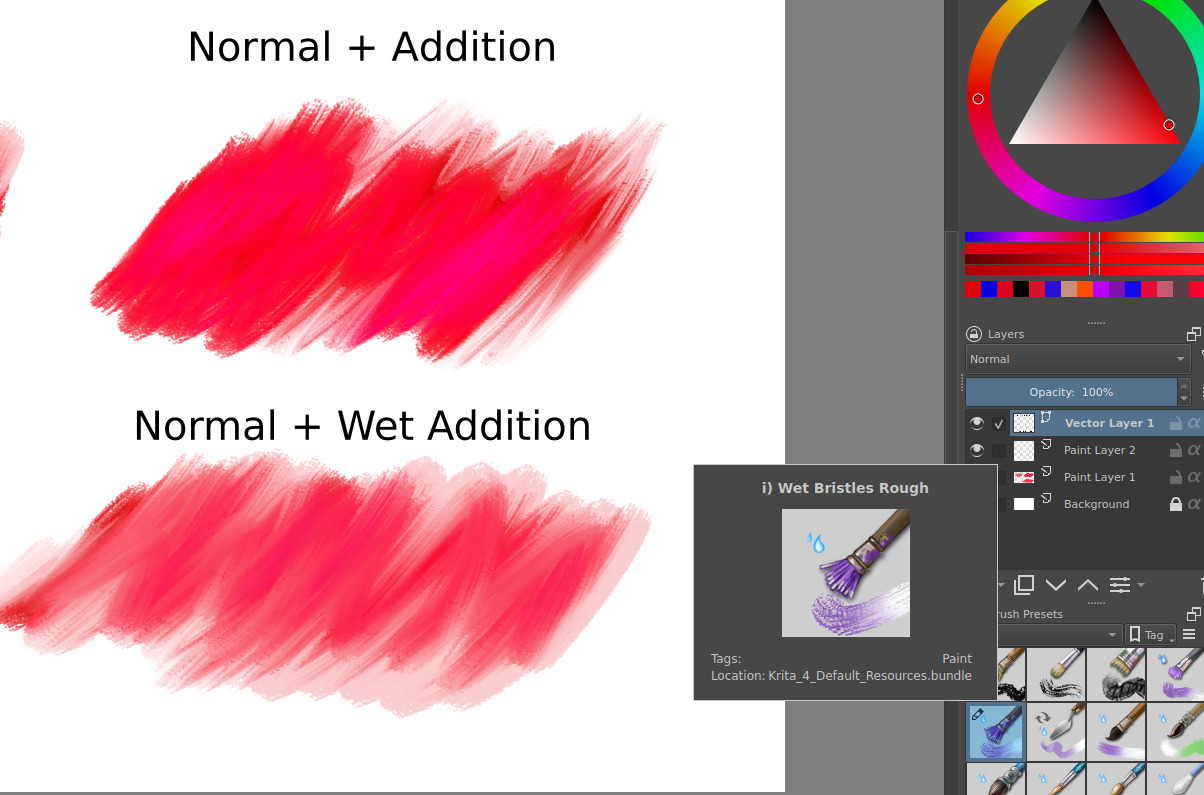
PD: Here is a comparison of the new wet blending modes
2 Likes
as my first impressions, it really feels more organic than traditional blending modes, if you do watercolor, as i do xd, you will notice the literally “wet” meaning of the blending mode, i love it
3 Likes
I like how it preserves nuances in the brush (water color, or any brush that has texture and subtract masked brush).
Curious if it will pair well with the copic brush bundle too as they have some transparency.
This will be handy for sure.
2 Likes
tested this out tonight, and I think t is really great!
at first I was thinking it was water colour, then I realized it was ‘wet’ ( as mentioned hehe ) very much like acrylic or oil.
3 Likes
Playing around with this it blends really nicely but I don’t like the UX of doubling all the blending modes instead of having a toggle on the toolbar or something.
5 Likes
I think it should more practical imo
1 Like
@Nahum_Camacho @tachiko @Hoppa_Joel
Glad you like it 
@SqueakyPancakes
Happy you like the mode
About UX I agree, but it’s not as simple as adding toggle (never is :D)
For now, I will remove most of those blend modes, the only ones that will remain will be:
- Wet Normal
- Wet Parallel
- Wet Multiply
- Wet Darker Color ?
- Wet Lighter Color ?
I will also add 4 new “Wet type” modes and extra 8-16 if counting similar combos like the ones above. You can examine how they look (in Normal version) on the image below. Note that image doesn’t give them justice, they feel differently depending on what type of brush you use and how. The difference is mostly noticeable with softer brushes.
Unfortunately, I didn’t have time this week to clean up the code, hopefully I will commit them tomorrow for review.

If somebody is sad that I will remove some of the wet mode combos, there is a discussion/plan to split dropdown for Color and Alpha blending modes. So you will be able to mix and match combinations as you please, but that is a bigger task that will be tackled with a separate patch, probably after the coming release.
Here is a mockup how it might look:

For better explanation of this mockup check post: Wet Alpha - new blending mode - #32 by SirPigeonz
5 Likes
Maybe there should be a vote on what wet blending modes to keep?
1 Like
Examining your mock bar… Has me wondering (if I’m make sense of it right)
If there are two drop downs, would there be a check box to say which to use?
Or maybe the left side can be a wet on or off button. And the wet can only be turned on if the non wet is a blend mode that can be turned to wet. Otherwise it is greyed out.
1 Like
Wet darker and wet lighter woudl both be great! actually I like all the modes you listed, and, I dont mind extra brushes.
1 Like
@Reptorian
For now, I want to keep the amount of blend modes added to a minimum. I don’t want to overflow already packed menu :< It’s not a perfect solution, but it’s temporary before we split Alpha and Color blending modes into two dropdowns.
Sadly, I don’t have currently enough spare time to finish both this patch and splitting blend modes selection before next release. I barely have time for this patch
The variations listed were chosen because those actually can be used to simulate traditional paints. I know that there are other commonly useful modes like Overlay, Color Dodge, Screen and such, but I want to cut the list short for now
You can write modes that you would like to see kept, maybe I will add more and I can take suggestions into consideration.
@tachiko
This mock-up is terrible, and I didn’t explain it properly, sorry for the confusion.
First drop-down is Alpha (A) blending modes, they only specify how Alpha channel is blended, those would be for example:
- Over (it’s a current way of blending alpha for most of the blending modes)
- Erase
- Wet
- Wet-smooth
- Wet-smooth Lite
- Wet-dry
- Wet-dry Lite
- Alpha Darken
- Other or future Alpha blending
The second drop-down is Color (RGB, HSX), those are modes that describe how color channels are blended:
- Normal
- Add
- Multiply
- Overlay
- Color
- Hue
- and a “hundred” more xD
Then you can make any combo you need. For example, if you want current blending modes behavior you use Over + any available for Over color blend mode, like:
- Over + Normal = Current Normal
- Over + Multiply = Current Multiply
- Over + Overlay = Current Overlay
Wet modes would be:
- Wet + Normal = Wet Normal
- Wet + Multiply = Wet Multiply
- Wet + Hue = Wet Hue
- Wet-smooth Lite + Add = Wet-smooth Lite Add
Erase would be an exception that when active disables color blending modes.
@Hoppa_Joel
Thank you, I have to think about users that already complain about super packed menu, that’s why I decided to minimize amount of new blend modes before it can be implemented nicely.
5 Likes
I’d actually see this being useful not only for painting, but for other application as well. Plus, it can in theoretically cut down on some layers count. There’s things like Destination In/Destination Atop. Even other alpha control could enable some interesting graphic design. On extensibility and flexibility of this, you got my vote on separating channel and alpha modes. You can even do arithmetric operation in rare cases of how one wants the alpha channel blended (though I think that for brushes there should be selected modes that are found to be useful.), so this may even have application for game texture design.
2 Likes
Yes, Src-Atop, Dst-Atop, etc. will also be in this menu.
1 Like
Hi @SirPigeonz, this got me thinking about Photoshop’s blender brushes, is there some possibility of adding one or more sliders similar to size and opacity where one can control the degree of dryness and wetness by adjusting the value of the slider instead of a fixed preset in the drop down menu bar?
4 Likes
I’m incredibly intrigued by these new blend modes and look forward to trying them out in a future release!  But I am slightly concerned about the proposed Color/Alpha split. I think it might end up becoming a point of confusion for both new and experienced users if it’s not made crystal clear at a glance how the two blending modes work in conjunction. I would suggest keeping the name “Blend mode” for the RGB part just for the ease of learning/adapting for users (especially those coming from other software) and then add “Alpha mode” as a sub-option to that, and set that to “Cover (Default)” by default.
1 Like
I think two dropdowns will confuse a lot of people who are not used to multiple drop downs for the blend modes. The long list of blend modes is already a complained point. In my opinion these can be in the list and inside a category and the proposed search function and favourite mechanism would help.
This is just my opinion. It was already hard to find blend modes and to manage favourites not we would have to look for things in two drop-downs. I think we tend to over engineer things a bit and that leads to the myth saying " krita UI is designed by programmers". Sorry for negative feedback but I strongly feel this is not a good idea.
Also what would happen if user selects one blend mode and then selects another in the second dropdown. Like I have erase and then multiply in the other side? I would have to switch to “Over” and then to normal for the current normal mode.
4 Likes
In my understanding, this is the addition of new features, so additional options are required.
Previously, most blending modes only mixed colors, and they were consistent in alpha processing. This MR adds a new alpha algorithm that allows them to be combined freely.
1 Like
Maybe it’s something that can be turned on in the advance setting. Although this is a kind of feature that can be bad for anyone having difficulty deciding when it comes to subtle differences.
I’m a sucker for choices, but I know that if I did have all the different wet modes I would after doing experimentation narrow it down to like 10 or so that would be shown in my drop down menu.
So in that sense I’d only want the two dropdowns to decide which 10 I want. Then turn off the two menu system.
But ya the invitation to get carried away in the minutia is big with that many choices. I would have the second drop down be activated in the advanced settings, in a section called Geekout
1 Like
A bit off-topic so let’s keep it brief (you can start a separate thread if you want, just tag me, so I will not miss it).
Yes it is possible, I was talking about this briefly with DmitryK, and he pointed me where to look, although being honest I’m so overworked lately that I didn’t have time to even check the code he pointed to be sure if it is what I think it is I have my notes I will check when time will allow.
I think Lager based rewrite of Brush Engines Settings will help with stuff like that, for now I plan to expose rotation and mirroring of the brush, so it can be controlled from separate UI or Actions, so I will probably look/learn what and how other stuff can be exposed.
I hope you will enjoy them as I am
Yeah, proper naming and some better GUI to distinguish one of another will be needed. I think I would name them Color Blend Modes and Transparency Mode (Alpha is a bit cryptic coder/math name).
Separate drop-down idea is actually very similar to what you describe , the other drop down is a category., Also moving Transparency Modes to separate menu will cut the list of all modes more than 5x because there already are Transparency Only Modes in this menu that can be moved and extended by this new approach.
Users that will not understand what Transparency Modes do will just keep to Over (orCover (Default)) but I think Transparency Modes are much easier to understand and intuitive than Color Blend Modes especially if we stop naming them coder-math-style.
Yes I remember about this feature request It will be added don’t worry, although I don’t think it will change much here. Using keyboard to type with one hand is far from ideal solution, who like to put his pen on the desk to type something Some users don’t have access to keyboard at all when drawing.
Feedback is feedback, I want to learn why you feel that way, maybe there is something that can be done.
Can you explain why you feel that lowering the amount of blend modes in one menu and introducing an extra dropdown that clearly distinguishes one type of blending from the other is more for engineers?
I’m not criticizing, just curious, maybe I miss something that you see from your point of view.
My point of view is that it is more clear for me where to look when I want my brush to blend transparency.
Just like I know when I want my paint to be more transparent I have to add more painting medium, or use more transparent pigment, and if I want my paint to flow I either have to move quickly to paint wet in wet or use diluter to thin my paint sacrificing a bit of blending capabilities.
That’s why I name them after how they feel when you paint with real paint (which is hard because they are sometimes doing a few things at the same time, separating behavior would need much more complicated and slower math).
Honestly, I would want to name Normal mode Over “Default” and it’s transparency blending Dry (Cover) because that would be the most intuitive for me as a painter that has experience with real painting mediums and how they work and behave.
Actually I hate that we name Transparency as Opacity and Opacity as Flow, because it’s like very not related to how it is used in traditional painting, but that is a not related rant, so I will stop
Don’t worry Multiply will not change it will just grey-out signalizing it’s not used, when you will go back to Transparency Mode that supports (makes sense with) Multiply or other Color Modes it will go back to previous state.
I’m afraid that blend modes touched critical mass that needs some new designs, yes.
Yes and no. We already have quite a few that are doing something with final alpha, they are just mixed with ones that don’t care and use default behavior.
Many users complain that Krita is too much for them. There should be some Krita 101 mode for those users, just like Blender is planing it for ages. (and probably will stay on only planning) but maybe it will be possible for Krita. Problem is when I look at Krita Fund numbers I doubt there will be money for such huge task anytime soon…
On the other hand, we can’t hide it behind setting, we should expose cool features to help promote Krita among advanced users that will inspire less advance users to use Krita.
Yes, but that is the issue with blend modes overall, you just have to feel the difference. Although I suspect users that use hard brushes more will gravitate to Wet and Wet-dry more and users more into airbrushing will find Wet-smooth more for them.
And some witty users will discover that they can use Wet with soft brush to paint water caustics or hand painted Veronoi textures :3
Or you can have 2 in Transparency menu and 5 in Color, you won’t find yourself switching a lot between both Transparency and Color at the same time. Although, I can make option that you can merge two menus into one and have ALL modes in one menu if that is what user will want. Although I suspect this will be a dead setting. I’m still working on Blend Menu redesign, so it can be included
You are the second person that thinks it’s a setting for Geeks
It’s curious for me, because I always thought that blend modes is something abstract for painters because it’s strictly something that only computers can do. Transparency modes are much more close to what a painter can do with oils, acrylics, watercolor, markers and other media.
If I had to move something to Geeek category, it would be Color Modes