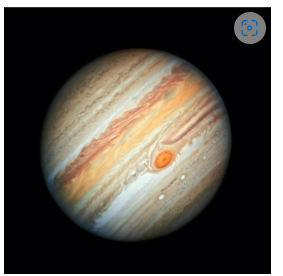
Hi all I am hoping someone can shed some light (no pun intended) on my project. I am trying to render Jupiter which of course is a gas planet and has a blue atmosphere, which shows as a blue glow. I have attached a reference picture. I have tried the gradient tool, soft airbrush, mist brush downloaded from resource, FX Glow, and filters all with various opacity settings.
I am hoping some can tell me what I should use to achieve the effect as shown in the reference picture.
Windows 11
Wacom Intuos Pro
Krita 5.1.5
I welcome any and all suggestions, thank you in advance
1 Like
Hello!
I’m not really good at realistic drawings, but for this particular effect my recipe would be: separate layer, airbrush and  Soft Light blending mode.
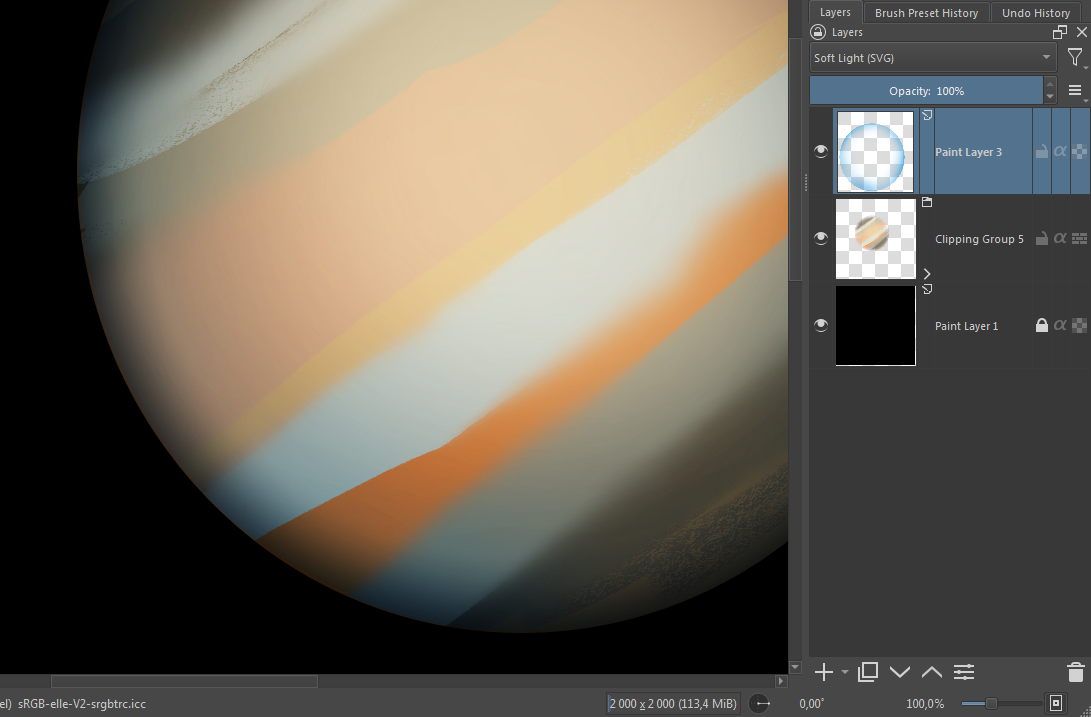
It’s very handy to adjust the color and intensity of glow on the fly with ‘HSV Adjustment’ (shortcut Ctrl+U)
Thank you I will give this a try… Thanks for screen shot that helps me a lot!
1 Like
You select opaque the jupitor layer then with the selection active you can add a gradient with "shapped gradient " selected in the tool option this will add a gradient along the edges. You can remove some of it by revsering the gradient and drawing it in erase mode. Then a blend mode like soft light or multiple will do the trick.
Another way is to use layer styles. Right click on the Jupiter layer and select layer style. Use the inner glow layer style with appropriate colour and blend mode.
1 Like
I did try using gradient tool with erase mode and well you know the eventual scribble tantrum was about to occur LOL. I will try the layers styles thanks!
The shaped gradient gives that kind of gradient on the edges by default, it is better than erasing with the radial gradient.
Thank you to both you and aprikosh, I tried both methods and now I need to decide which one I like best. I am looking forward to posting the finished piece.
2 Likes
Another way is to apply textures. In Gimp I did this using the “Solid Noise” filter. Then I adjusted the contrast using an automatic adjustment, the “Stretch Contrast”. Then I would choose a gradient and apply the “Gradient Map” filter.
The first page of this old tutorial of mine shows part of the process (unfortunately the images are terrible).
It’s possible that there are equivalent filters in Krita (or G’Mic). As for gradients, there are a bunch of them here, you can use them in both Krita and The Gimp. The gradients are in a folder called “Degrades_G”.
create a new layer right click layer properties and/or layer types. There are various types. Inner glow outer glow ect.
1 Like
Thank you for your advise
This topic was automatically closed 30 days after the last reply. New replies are no longer allowed.