in certain animation software’s i’ve seen they give you the option to illustrate outside of the set “canvas” and then in animation you can move it around to give the illusion of the camera panning to one side or the other or up or down, ect. I believe once when I first started using krita I accidentally found said feature while pushing a bunch of buttons but haven’t been able to find it since  does anyone know how to find it/ what it’s called? or am I just hallucinating this feature
I did a little edit to your headline, hoping it will help to attract those who know the answer.
Please try to use descriptive headlines in the future, yours essentially broke down to the unwanted “Help!”, although you at least named the fact that it is about a feature you need help with. Now anyone can see, this is an animation feature you are looking for.
Thank you!
And I do not think you hallucinate, because working with off-canvas content is a standard way to work in animation, but I’m no animator and lack the knowledge.
Michelist
1 Like
What you probably want is off-canvas content for background image panning.
You can make off canvas content by using the Move Tool to move the on-canvas part of the image to one side and then adding the other parts of the background, both horizontally and vertically.
That does make you lose awareness of what the entire background looks like.
A better way is to resize the canvas (Image → Resize Canvas) so that it includes the entire extent of the background image and then paint the entire background image with it all visible.
Then resize the canvas back down to the original required animated image size so that much of teh background image becomes off-canvas content.
Then, for animation, you put an Animated Transform Mask onto the background image and use the Animation Curves docker to make position keyframes that smoothly move it as needed so that its now off-canvas content comes into view during the animation.
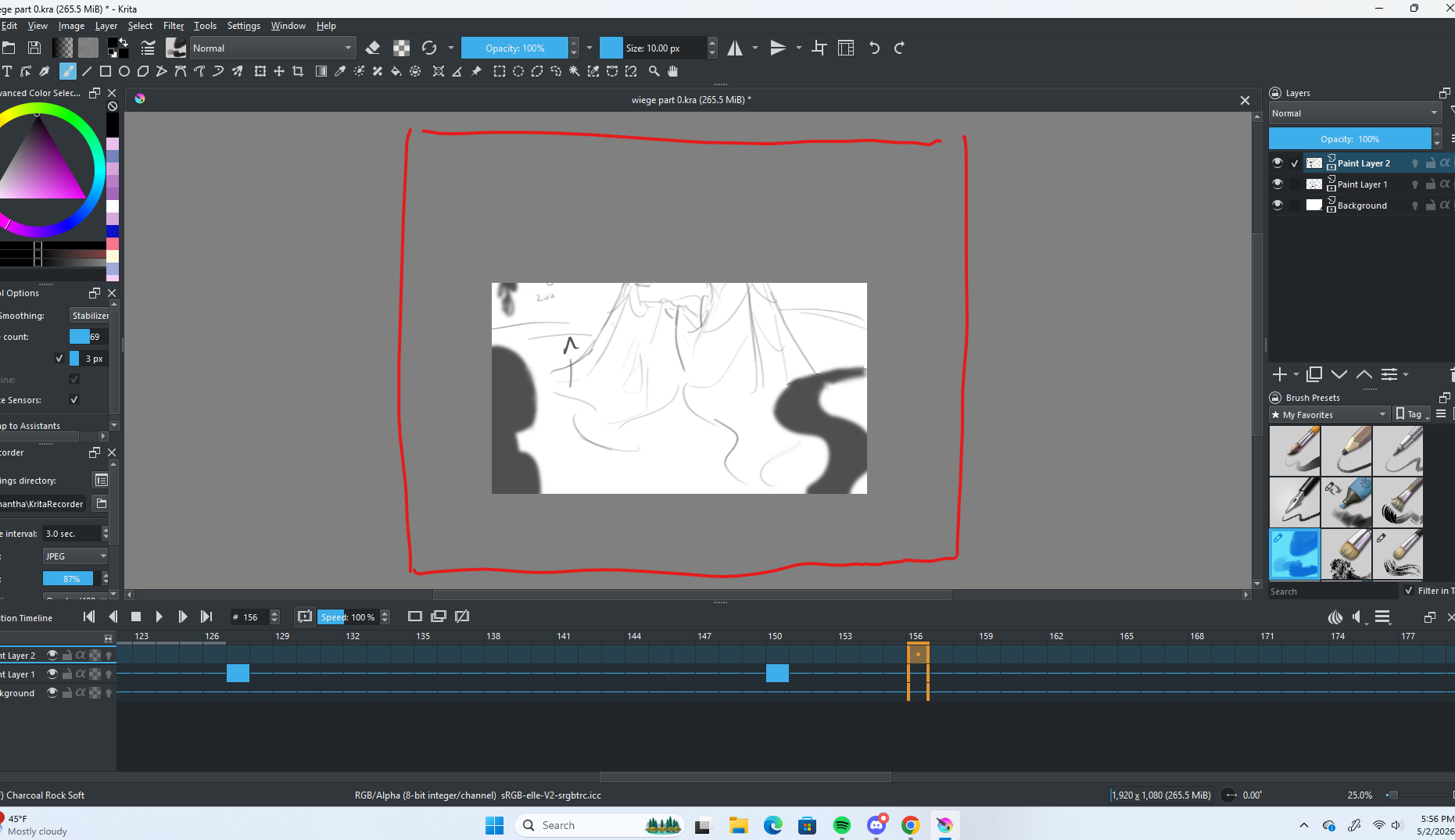
The default Animation workspace for krita has the Animation Curves docker tabbed with the Animation Timeline docker. In your screenshot, it looks like you’ve removed the Animation Curves docker.
2 Likes
Krita does not have a virtual camera like other animation software has.
Like @AhabGreybeard mentioned it is a good idea to just make the canvas bigger so you can always see everything. This is a good idea not just for visibility but also because off-canvas content is kinda considered as garbage data in Krita. It even has options to automatically crop and remove everything outside the canvas. This would be catastrophic in your case, that’s why I recommend to not reduce the canvas size afterwards. Instead leave it as the larger size and designate a main area that will contain what is visible in the rendering later. An example of what I mean even comes with Krita as part of the templates. Here is the Japanese animation template:
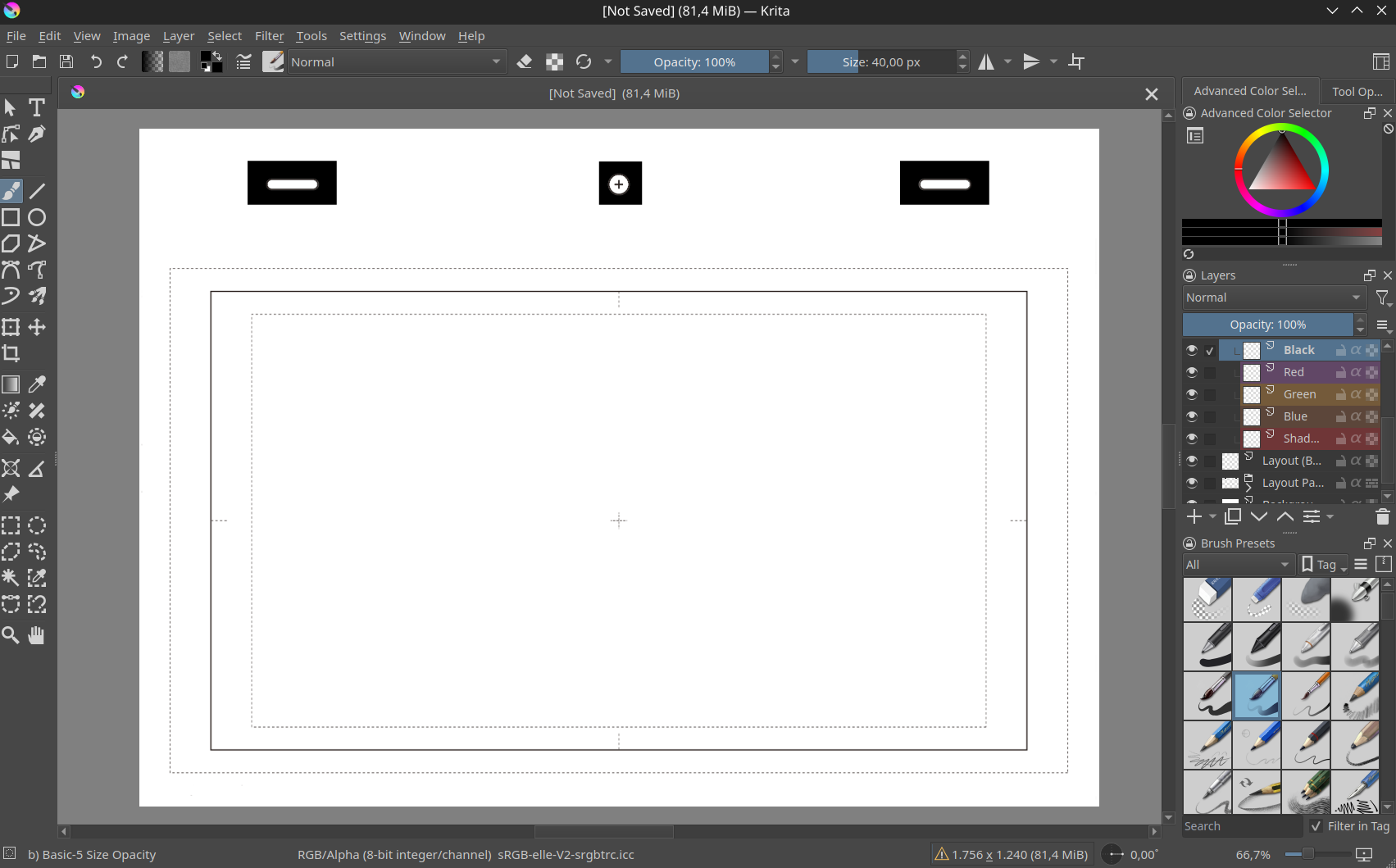
See the different borders? Everything outside solid border is considered “off canvas” and not visible in the later rendering. In classic animation notes and annotations go there but could just as well be content the “camera” moves to later (or as it is actually happening the content is moved instead).
When exporting the animation you can tell FFMPEG (what does the rendering for Krita) through some additional options to only render a certain area (by giving it the coordinates of the frame). In this example this would be anything inside the frame but you can of course set yours up however you want. For this it’s important that the area you want to output is always at the same position in Krita.
This way you will have all your content visible, no off canvas stuff that can be accidentally deleted if you’re not careful and you will also have a virtual canvas that will be rendered instead. This can even have additional benefits, for example if you want to have the animation in different aspect ratios you can mark them with more borders so you can make sure that the important part is never cut off (this is what the dotted lines in the template indicate).
2 Likes
I disagree with the use of the word ‘garbage’ in this context. Krita will maintain off-canvas content unless you explicitly remove it with Image → Trim
or set the main options to remove it on saving. By default, files are not Trimmed before saving.
You can do that and create a ‘marker’ layer that has a thin rectangle drawn on it to indicate the final size of the intended output. This is best drawn when the canvas is at the original size, i.e. before you increase the size of the canvas, so you can get the marker rectangle to be the right size and position.
That can be taken care of by Locking the animated background layer.