Is it possible to move an entire layer along with each keyframe to a different position on the canvas when animating?
So if I have a 1-layer animation (like a loading icon) that stays in place and I want to move the entire animation to a different position on the canvas. Using move tool will only allow me to move 1 keyframe of that layer, but I don’t want to keep manually moving each keyframe to the position I want it to be in. So how to achieve this without doing it per keyframe?
Without being an animator myself, I only can give you hints on the things I learned about animation here in the forum.
Therefore, I guess the thing you need is called “Tweening”, and there are quite a lot of tutorials about it out there on YouTube. Without knowing how good these tutorials are, I just picked a few out which had far more clicks than those I left out, additionally I ditched two tutorials which got a lot of dislikes.
So, if that feature is what you are searching for, but the tutorial is not what you like, then simply ask YouTube for more tutorials about “Tweening”.
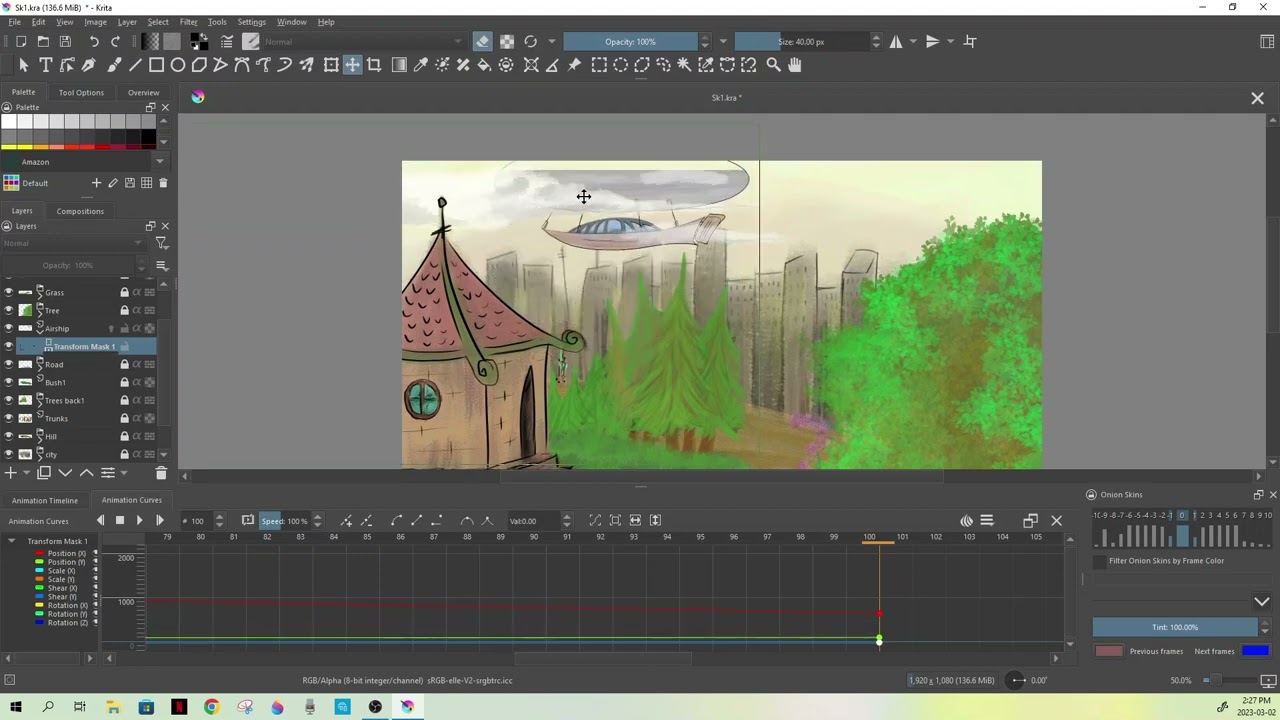
The tutorials linked by @Michelist above are very useful for learning about complicated ‘tweening’ effects for position, rotation and scale. They use animated transform masks but may be more complicated than you need for your current situation, which you haven’t fully explained.
If your animated icon is a totally painted frame animation then you can use a static transform mask to apply the positional move to every frame of the animation.
Using even a simple static transform mask has a computational cost that can slow down rendering and even slow down image compositing on the canvas when you’re working on other aspects of the overall document.
When you’ve got the positional movement that you want on the animated layer, you can do right-click → flatten layer on the animated layer in the layers docker to incorporate the effects of the transform mask into the animated layer and leave you with a modified (moved contents) single animated layer.
If you are already using an animated transform mask for a simple rotation of an ‘animated icon’, you can just add the required position offset in the same animated transform mask.
If your animated transform mask has complicated position changes, e.g a ‘dancing’ icon then it would be complicated and confusing to add offsets to the ‘dancing’ position values of every existing keyframe.
What you can do there is add an additional static transform mask to the animated paint layer, as described above, to give a simple positional change.
You can even add another animated transform mask to give additional animation, such as a slow panning movement or positional looping, to the dancing icon.
In that situation, you can’t then flatten the layer while maintaining the ability to modify animated transform keyframes. So you’re stuck with the additional computation load.
If you’re happy with the end result then you can flatten the layer but will not be able to change the dancing icon animation effects again because you’ll have lost the transform masks by incorporating their effects into the animated paint layer.
Please upload a full screen screenshot showing the layers docker, animation timeline docker and any animation curves to confirm your actual situation at the moment.
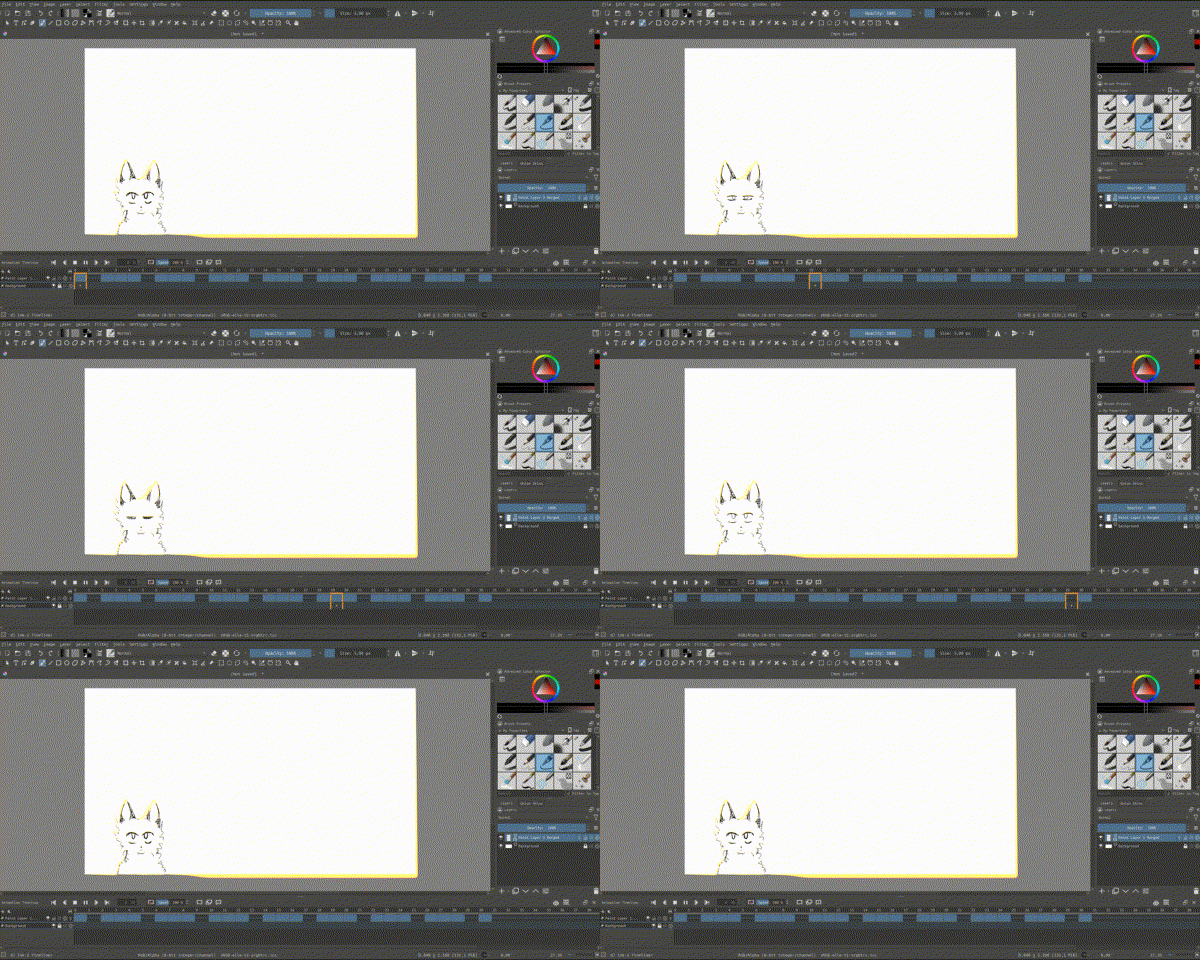
My ‘problem’ is more like a general thing I run into, which means I don’t have a specific situation right now, so to show you what I mean I’ve made an example animation:
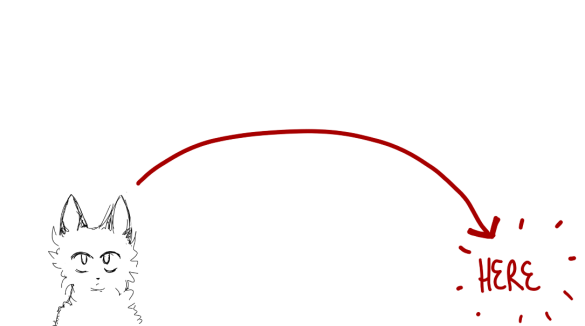
(sorry about the quality) This animation doesn’t ‘move around’ and it’s all made on one layer. So if I now (for example) decide that I didn’t want it to be playing in the lower left corner (where it is now) but in the lower right corner instead:
^ Like that. So I don’t need it to be animated moving there, like it gliding there or whatsoever (I don’t know what that’s called), I just need it to be in that position.
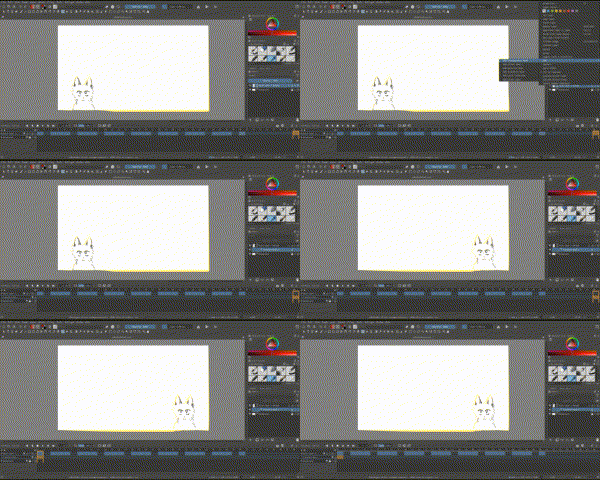
I tried using the transform mask like you recommended and that works:
(Sorry about the quality) So really thank you very much for the help. I am still a beginner at animating so for now I am not doing complicated stuff. But I’ll look into the animation curves/tweening like @Michelist recommended. (I didn’t know Krita had this until now x-x)