hello everyone
I use a xp pen deco pro for my works. physical shortcuts on device doesn’t work properly in krita. like i can’t use the wheel to scroll or the right click button doesn’t work most of the time. I know this must be a driver issue with krita but does anyone suggests any workarounds?
2 Likes
What are your shortcuts
Deco pro is working fine here with Krita, including all button mappings, wheel and touchpad.
If you have the latest XP-Pen driver, it might be worth a try to revert to an older one - I’m using version 1.6.4 on Windows 7.
1 Like
I mean the physical buttons on device.
I’m using version 3.3 on windows 11. there is no luck with windows 10 and older version of the driver. the thing is the buttons work fine on other softwares.
I just recently picked up an XP pro and the only thing that worked out of the box is the right click. I have remapped pretty much every one of the buttons and the wheel using the driver software and it all works brilliantly now.
2 Likes
That is not a good test of the driver’s state. Krita relies on your system drivers much more than other programs. It’s normal that a tablet could function well with other programs despite the drivers being out of date.
By the way, you’re not using Krita 3.3 from 2017, are you?
2 Likes
Krita only executes the commands it receives from the operating system, so if Krita does not execute commands correctly, then Krita receives data from Windows that it cannot use. And Windows got the data from the driver. As @sooz already wrote.
I would have a suggestion, which has no guarantee of success, but nevertheless very often helped, whether you try it is up to you, but if it runs badly it can be afterward only as before. So, it still does not work. You see, you lose nothing, but you could win.
If you have not already done so, please uninstall your driver according to the manufacturer’s instructions. Disconnect the tablet from the PC, i.e. disconnect the USB connection, or if it is a wireless connection, remove the Bluetooth or other wireless dongle, or turn it off at the tablet if you have not already done so.
Next, reboot the computer via full power-off reboot, and not the standard reboot.
After that, I would start Windows Update manually and install any updates that may be present, and after they are complete, reboot the computer again via full power-off reboot. You can skip this step, but I would do it myself.
Then install the driver according to the manufacturer’s instructions, also pay attention to whether the tablet must be connected to the PC during installation or not (manufacturer’s manual! (USB, Bluetooth, wireless)), and finally reboot the computer again with a complete power-off reboot.
Next, and before you start painting with Krita after the driver and tablet setup, please create a profile for Krita!
And later, whenever you want to use a new program with your graphics tablet, create a separate profile for each of your other programs as well, so that each software gets its own profile. Via the profiles, you can assign your own shortcut schemes to each software.
It is also important to have the correct driver interface in Krita and the driver, so either enable ‘‘Windows 8+ Pointer Input (Windows Ink)’’ in the driver and Krita at the same time, or enable ‘‘WinTab’’ in Krita and deselect Windows Ink in the driver.
With a little luck, it works now. I keep my fingers crossed for you!
Michelist
5 Likes
no I mean the version 3.3 of driver software. I’m currently on krita version 5.1.4
1 Like
thanks for the tip. I’ll try it first thing tomorrow and let you know about the result.
1 Like
I apply the things you suggested. everything is better now and functions properly except for the wheel on device. it only zoom and change the brush size and I can’t use it for scroll and rotation.
Well, at least something, I would have wished you that now everything works as it should.
But I am surprised, because your tablet is a common tablet, and if the tablets of other users would work only limited, like yours, we would have here in the forum to this problem many help requests, what is not the case. So, this one makes me wonder.

Michelist
Add/Edit: What I forgot to ask: Did you define the functions both in your tablet’s driver and in Krita’s corresponding settings, under ‘‘Settings’’ >> ‘‘Configure Krita’’ >> ‘‘Canvas Input Settings’’ and under ‘‘Settings’’ >> ‘‘Configure Krita’’ >> ‘‘Keyboard Shortcuts’’? So that they do not work against each other?
thanks for your effort it’s really better now. I guess I can live without rotation and scroll options  .
.
I define one or two shortcut for my keyboard like “L” for lasso tool.
@miladmusav Why settle for a wheel that doesn’t do what you want it to do?
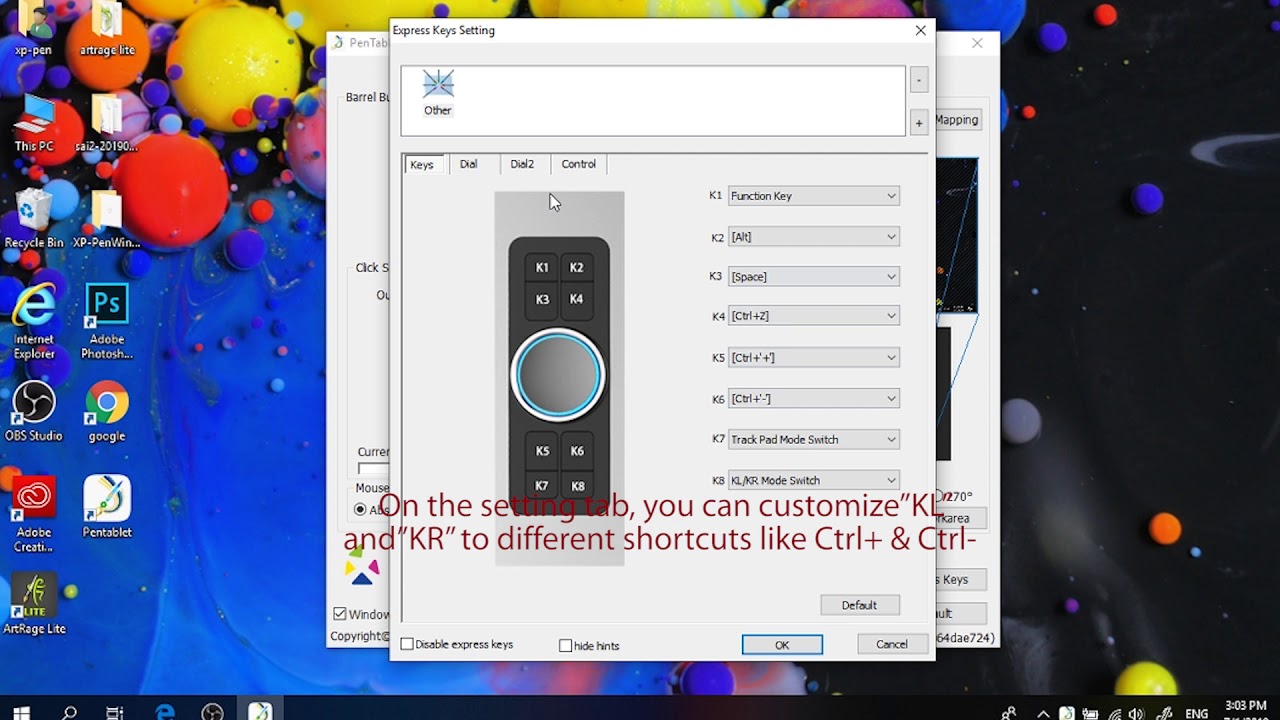
Here’s the video for your tablet that shows how to customize the wheel. The part about the wheel starts at around 4:09.
Your tablet’s GUI and Krita’s Canvas Inputs section put the power in your hands.
4 Likes
I think you should definitely spend a bit more time getting your tablet to work the way you want it to. I got mine to rotate and don’t know that I could live without that now. @sooz shared a video that shows the steps I used to customize mine. Take a look at the keyboard hotkeys for Krita and put those into the configuration for rotating right and left. I believe the defaults are “ctrl-[” and “ctrl-]”. It is too nice of a feature to give up on so easily!
1 Like
For an English-Assigned keyboard (QWERTY), these works great and are widely assigned through tablet-manufacturers this way, the problems begin with keyboard-assignments, where these keys are hidden in the third level
(CTRL + ALT + [ / CTRL + ALT + ]), like with German assignment (QWERTZ), and I imagine that there would be more assignments that won’t work with these keys. I had this issue with my very first tablet, a no-name brand, and I have it with my Huion. You have to assign other shortcuts in the tablet-driver for these assignments in order to be able to use them with your tablet.
Michelist
2 Likes
well your comment made me try another time and I use customize option instead of default rotation for krita and use number 4 and 5 shortcuts in the wheel and now everything works like a charm!
thanks everyone 
3 Likes
thank you Sooz after a couple of days I take another look in this video and it actually was quite helpful. I made shorcuts that I need in order to use the wheel properly.
2 Likes
in my keyboard default keys for rotation are 4 and 6 and I assign them to my wheel and now everything works fine.
2 Likes
This topic was automatically closed 3 days after the last reply. New replies are no longer allowed.