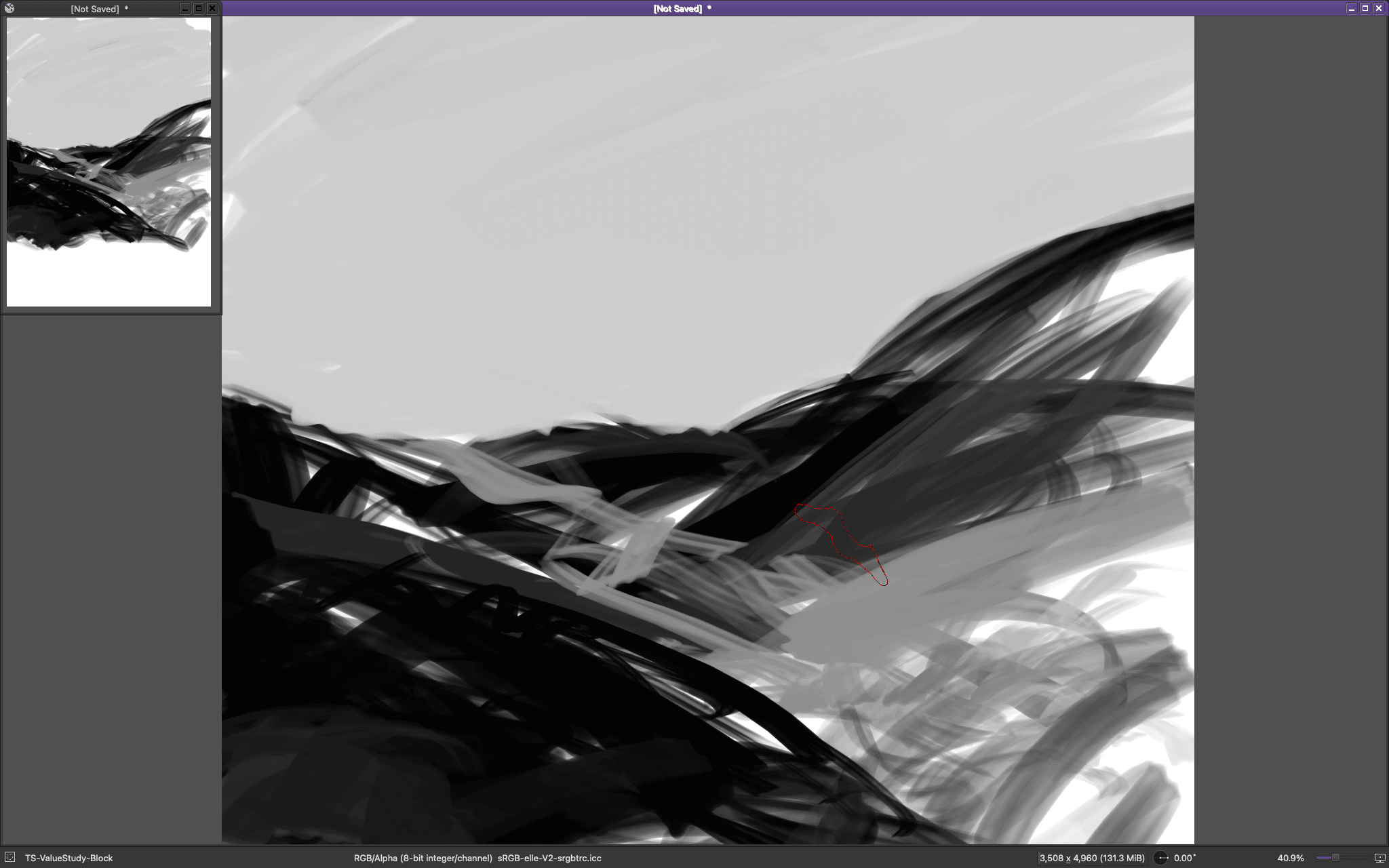
Even those with high screen resolution still do this, but for those with a small monitor there’s not enough space to open another view, so this is something that will come in handy. Krita makes it extremely convenient to flip the Canvas (Mirror View) so that you can see things from a fresh perspective to see if your anatomy or perspective is off.
What about the ability to toggle in and out when it comes to the zoom level? Currently there are two ways:
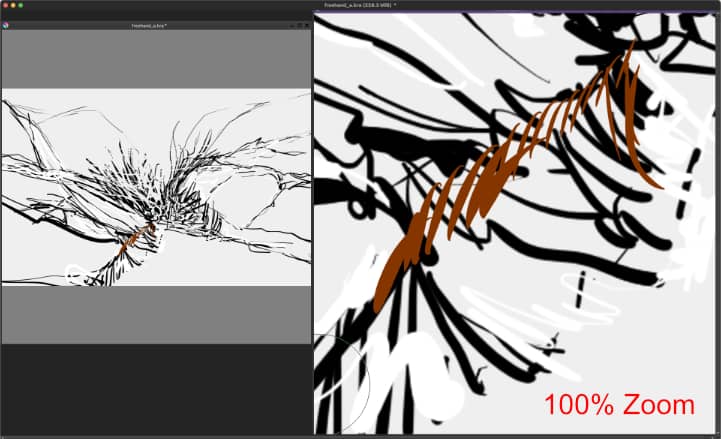
- First, set Multiple Document Mode to “Subwindows.” Then create another view (document) via menu Windows > New View > Your working Canvas. Whatever you do on one window will affect the other.
The problem with this is that there are too many steps to be taken. Also, it’s not ideal if you have small monitor / low screen resolution.

- The second method is using the Overview docker.
This can work, but as of this writing, the Overview docker doesn’t update real-time. In my case I would have to wait a few seconds to see the changes. Whereas the first method above updates real-time. The advantage with the Overview docker is that you can easily drag around the document and move to where you need to be without having to zoom out from the actual working Canvas.The disadvantage is that you can’t paint or do anything on the docker. BUT it could be better and less cluttered…
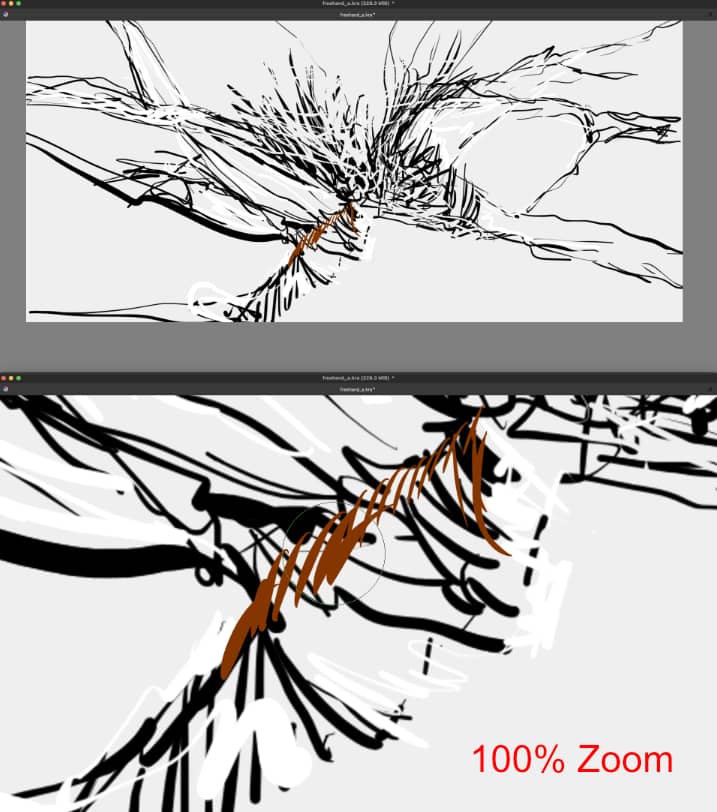
- Toggle presets mode
In the example images, the working zoom level is 100%, but it could be anyway. The point is that we should be able to have a set of zoom levels that we can go back to. Let’s say I’m working at 100% zoom but since the Canvas is huge, I need to see the context of what I’m doing. It’s also that I want to see how the details I have been working on are looking like from a distance. With a quick button, I can zoom out at, let’s say 35%. And maybe I want to work on the details at 35% for a while, and then switch back to 100% (or whatever) that I was at previously. Let’s say I’m working on a character, and this character is in an environment. If I’m working on the details of the armour, I’ll be doing at 100%+, but I might have to zoom out to the level where I can see the whole figure to work on the figure. And when I’m done with the figure, I might have to zoom out to see the character’s surrounding environment and start working on the environment. All this without having any extra floating window.
I prefer the Overview docker and Toggle presets mode method. But the Overview docker needs to be improved upon to be as minimalistic as possible for this purpose.