Hey, I’m new in the krita community and krita itself as I am trying to find alternative software from photoshop.
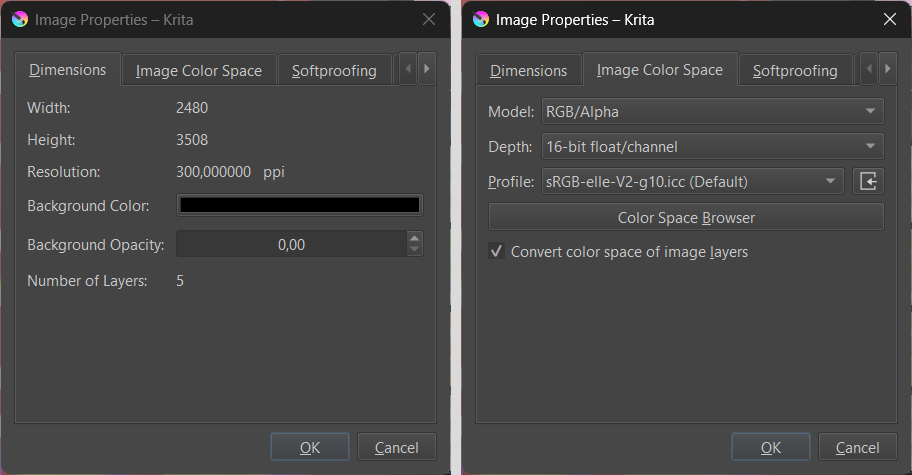
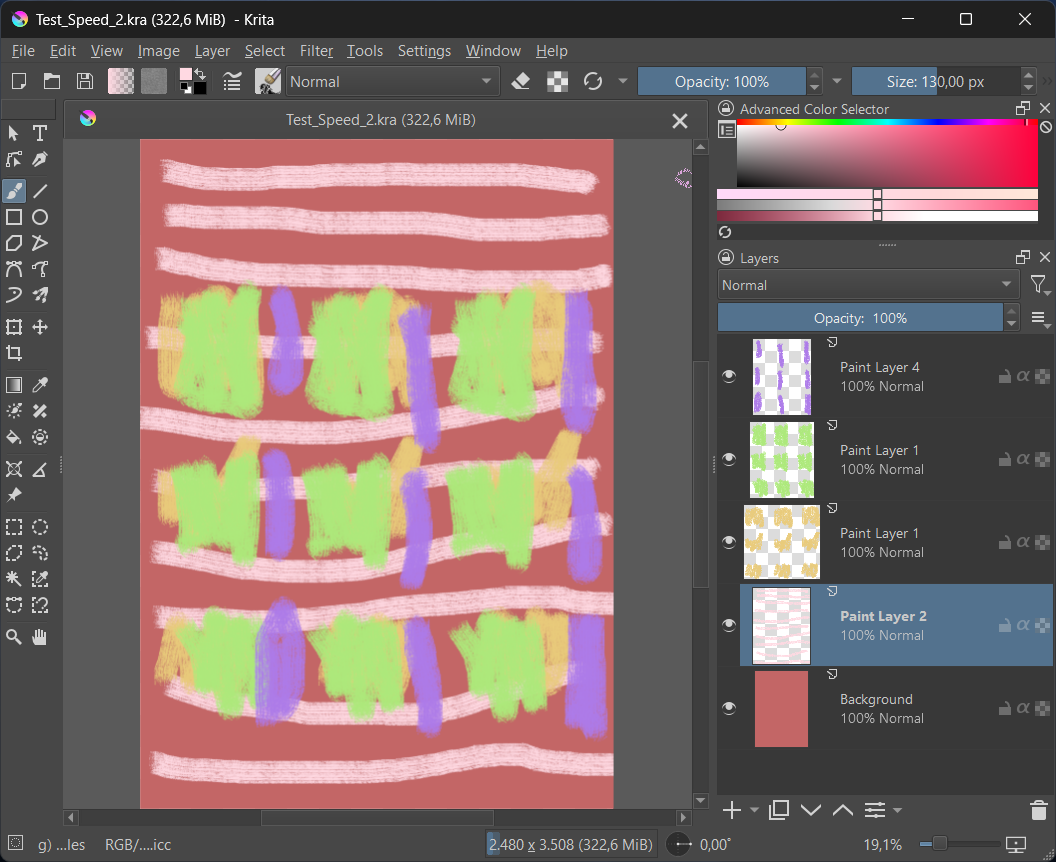
And while trying this software I have found an issue that is going to bug me if I were to pursue continuing using krita, every time I delete a layer (even if it’s empty) it shoots up my 5950x CPU to 100% for a few seconds and lags my system. My canvas is just the regular A4 300 ppi preset with a 16 bit color channel.
Not sure if this is normal behavior as I cant find any information online anywhere but its a little bit of a deal breaker.
I’m not sure what the problem is, for me even 16-bit is working fast.
However, if you don’t have a clear need to use more than 8-bits, don’t. It can only cause trouble if you later want to share your work. Stick to the standard color with sRGB.
Even though 8bit works for you, you might like to investigate further.
An AMD Ryzen 5950x is a powerful CPU and should be fast, even with 16bit.
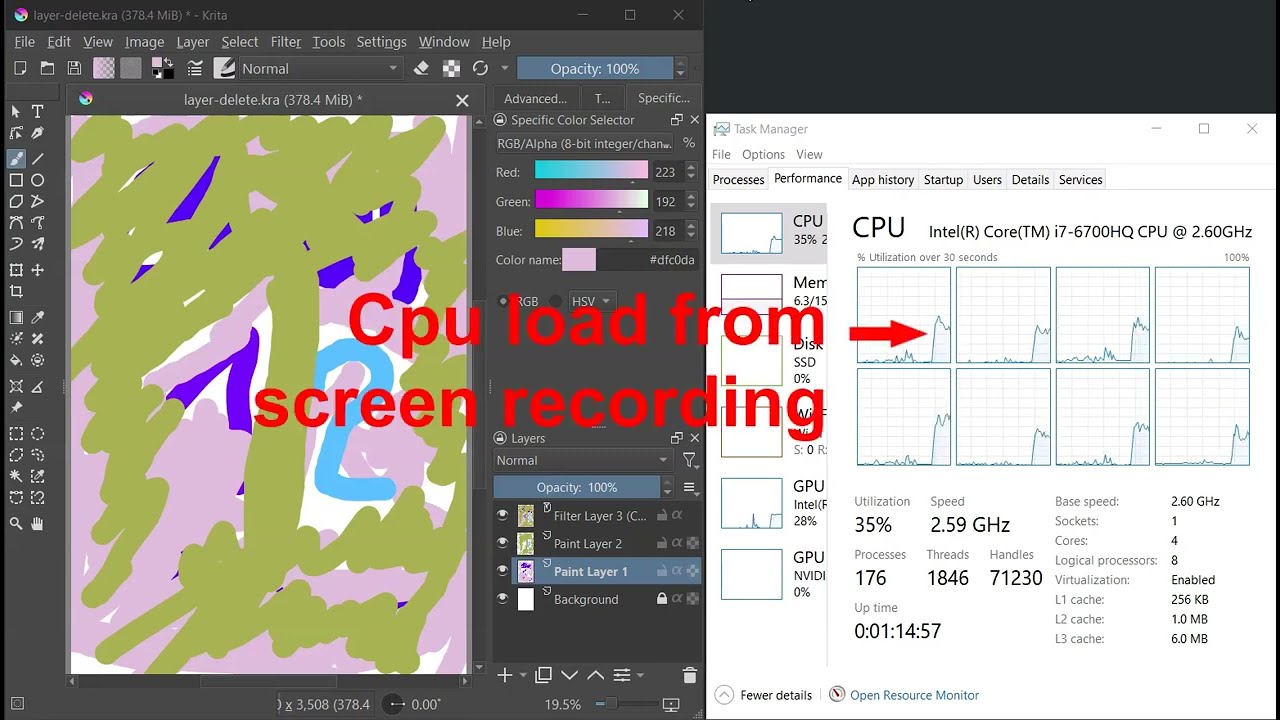
To cross check I made a test with an old notebook. On that one I tested deleting a layer and altering a color adjustment curve. BUT at the same time the screen recording software was running in the background (this alone takes about half of the speed). As you can see in the video, even in this case there is not much waiting time in deleting a layer.
The partly seen mouse movement lags are caused by me, because I used the touchpad and had to reposition my finger.
Notebook plugged in to wall power suply (ca. 10 years old)
It might be my end for many reasons that I can think of. I run a lot of background programs to do with backups and various other softwares that could conflict it but still strange regardless. The CPU did get replaced and refurbished years ago which I did notice for some reason it doesnt like PBO so I assume performance is degraded overall in my case but hasnt had too much issues where this could be a major problem.
I can try on my other windows partition and give you an update on it.
I am just guessing now. Maybe try to use only one GPU for testing - meaning unplugging monitors from the second one, disabling the second GPU in Windows device manager, restarting the PC.
And in case not done already: There is a free tool called latencymon.
It is often used to identify latency issues in realtime audio systems (audio dropouts, stuttering audio, etc.). But if latencymon shows “frequent red bars” in its ui, it generally indicates that something is causing latency spikes (those e.g. can cause mouse movement stutter, framerate drops in games …).
I have tested installing krita on a mostly empty windows partition that I usually use for gaming performance purposes and it still has the same issue unfortunately. That partition also has my 2nd gpu disabled so that isnt the problem. I dont know what the issue is but something somewhere in my hardware doesnt like it for some reason.
Yeah, this system should not be constrained at all. You could make an experiment and close all other software and check what happens if only Krita is running.
The only other thing that stands out to me is the memory. It’s a lot for a consumer CPU, plus you have 4 modules installed. Did you check it thoroughly for stability? The frequency is kind of high. But if it can survive Prime95 memory-focused test and a few other tools like that, then you’re probably fine. I’m mentioning it because I noticed that performance may seem degraded if memory can’t keep up.
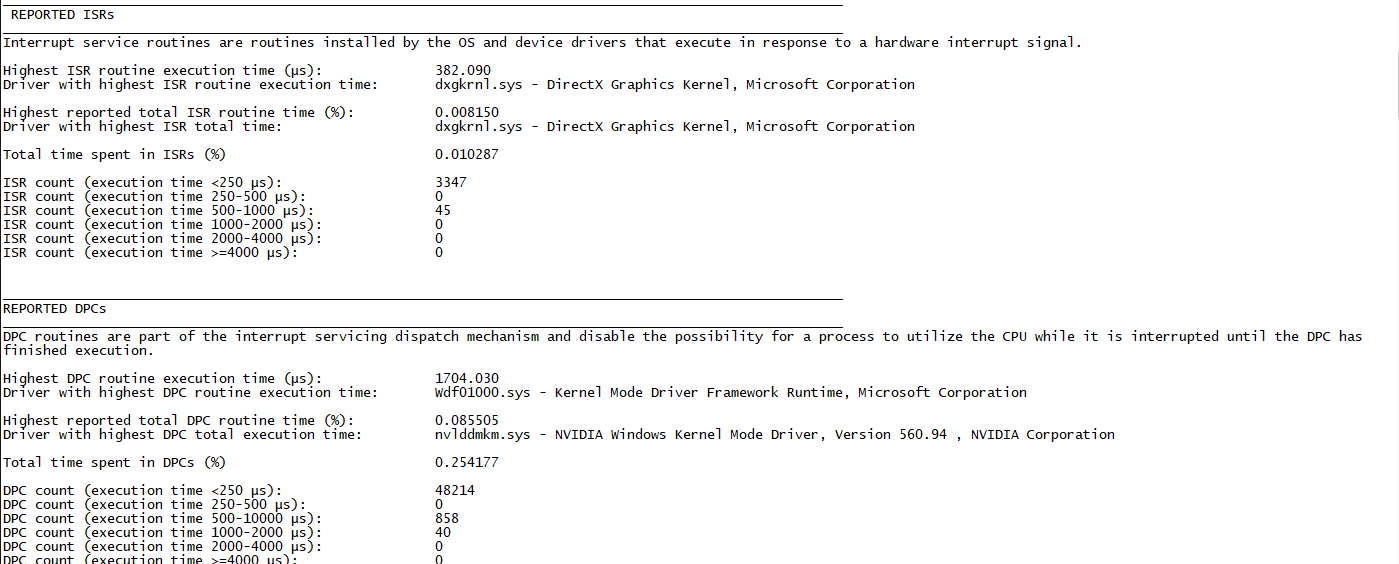
I’ve heard of latencymon but never used it. I’ve ran a test on it and not exactly sure on how to read it but here’s an image of I what I think might be important. I’ve yet to update drivers in a while so I can try that. I dont want to head too deep into experimenting with this as I’m fairly busy with other things at the moment but I can get back to this at some point.
I have ran a stability test when I last installed either the ram or cpu, cant remember which one I replaced last but it was stable enough through OCCT. I can try another test now while I’m at it.
I ran a quick occt test and dont see anything abnormal except for maybe my idle temps are hotter than what I usually would have. I know amd cpus performance is based on temps but that wouldnt really cause that much of an issue of just simply deleting a layer would it? I also updated graphics drives and still no avail.
Either way, I might do some other tests later on when I have the time and see if I can find anything.
I still recommend you run Prime95 for 15 minutes (torture test, the one using a lot of RAM). If I set my memory incorrectly, this test usually returns errors very quickly.
Then delete a layer, do an undo etc.
On my notebook (a faster one with 10th gen intel cpu) it takes maybe a 10th of a second to delete a layer.
And one more suggestion:
We don’t know what the state of your Krita is (plugins, brush bundles, custom settings etc.). Before testing you might like to reset your Krita to its default state (like it was when you installed it).
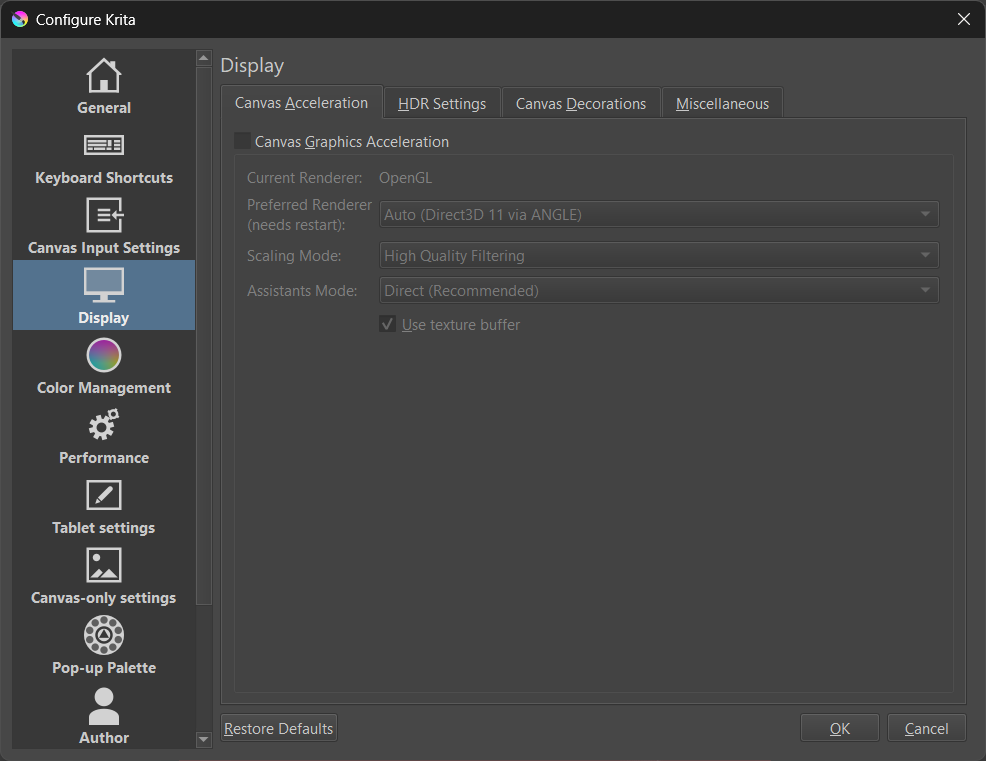
Yeah I kinda have good news regarding your suggestion. Disabling that Canvas Graphics Acceleration has completely removed the issue for the 16bit integer/channel which is great! But it still happens with the 16bit float/channel and the 32bit.
Also I literally only just installed krita and this is the first time using it just testing out how it works and stumbled into this issue straight away.
I have noticed that using undo does take around half a second to process depending on how much I’ve painted during that one stroke. Doing one little brush stroke and undoing is quick, where as if I bush for a while and then undo it can take seconds to process. When I delete a layer full of brush strokes, I can see it slowly deleting the data from the layer. As in I can see square chunks bit by bit removing away that layer.
Seems that the float/channels are causing the issue or my processor is not liking how things are processed with krita, idk.
Hm,
disabling the canvas acceleration is mainly disabling using the GPU for operations like canvas pan, canvas rotate etc.
As far as I understand it, the acceleration needs data from ram moved to gpu vram, which can be slow, but is normally fast enough for common Krita operations.
If you have disabled the acceleration and get better performance in 16bit integer but less so in float (including 32 bit) there seems to be another memory issue on top of the first one.
A guess:
I remember vaguely that the Ryzen 5 architecture has some “workarounds” to handle large quantities of ram.
I know the following sounds strange, but maybe for testing you like to reduce your installed ram. I am not sure if this helps and maybe it is to much to fiddle with the hardware just to check if Krita works better then. But maybe you are somebody who likes to do experiments If that is the case just try to fill only one ram slot instead of all four.
And yes, the more pixels are on the canvas, the more time it takes to do an undo (I see this on my slow old notebook all the time). I think this, again, has to do with shuffling less or more data from ram to cpu and vice versa.
I was using Ryzen 9 5950X until recently and never had issues in Krita. Everything worked super smoothly.
There’s another unusual thing about your setup, you have a lot of monitors and two GPUs. In particular, those GPUs are very different in terms of age and power. If Krita launches and picks the old GPU for acceleration, I think it’s very possible that you will run into performance problems. GTX 750 Ti is an old GPU with small and slow VRAM.
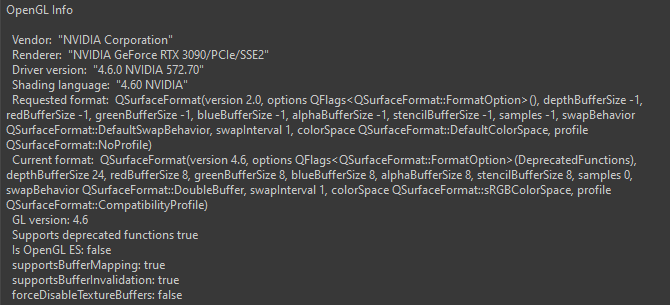
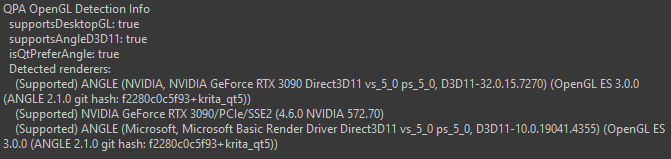
In Krita you can go to Help > Show system information for bug reports and it will show all sorts of info including the Renderer information such as this:
It didnt make a difference if I was using both gpus or only using my 3090. In my optimized windows partition test I was only using my 3090, I have my other gpu disabled in that as it reduces performance overall.

 If that is the case just try to fill only one ram slot instead of all four.