Sometimes users want to reset their Krita to a state like it was when they installed it. No custom brushes, no custom shortcuts, no custom plugins, no custom UI, etc. Often they assume reinstalling would do this. But this is not the case. Reinstalling Krita will take over all the custom settings made before the reinstall.
Here is one way to get back to a clean default Krita on Windows (example on Windows 11 but works similar for Windows 10).
Please note, you need to handle files in a directory that is normally not visible to users. Be aware that making wrong changes in that directory can damage other software than Krita.
Krita stores your custom settings, brushes, shortcuts, plugins etc. in a folder called AppData. This folder is not only used by Krita but most other Windows software as well. If you do something in this folder, take care you only handle the Krita files.
First:
Close Krita
Second:
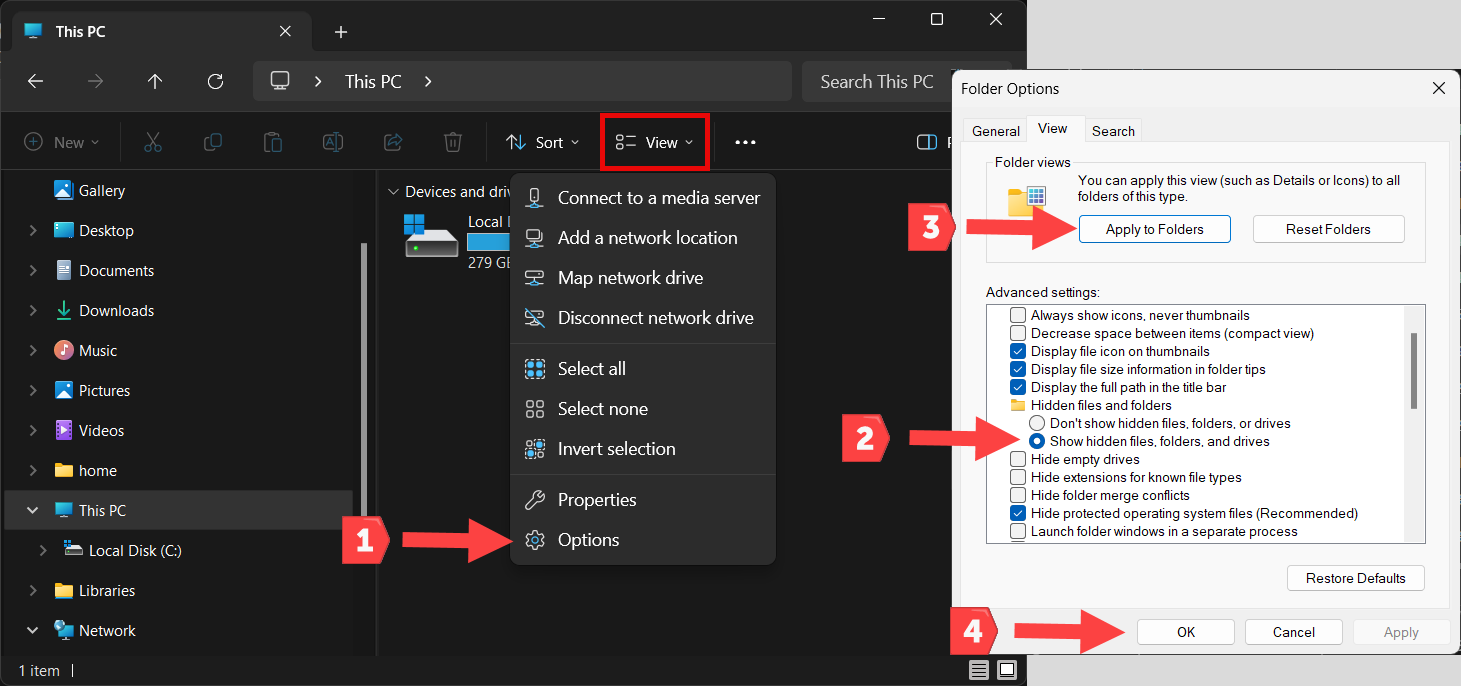
Because AppData is normally hidden, it must be unhidden:
Do this with the view setting in Windows explorer:
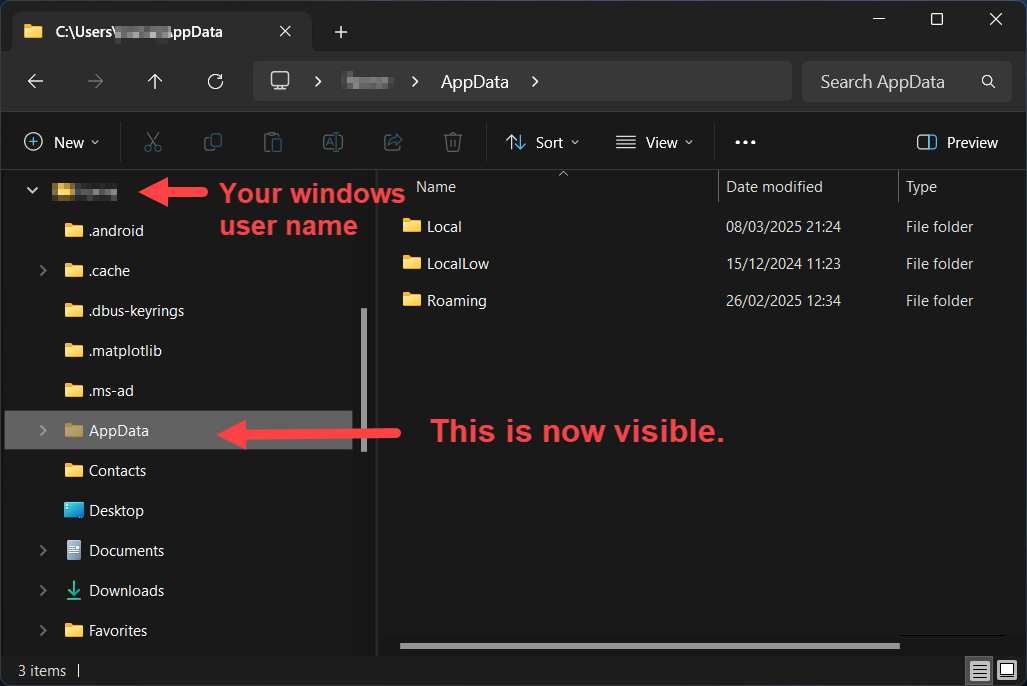
After you have done this, your AppData folder is visible:
Third:
You now need to find the Krita files and folders and move them to a backup location. Don’t copy them to the backup but move them. They must be removed from AppData.
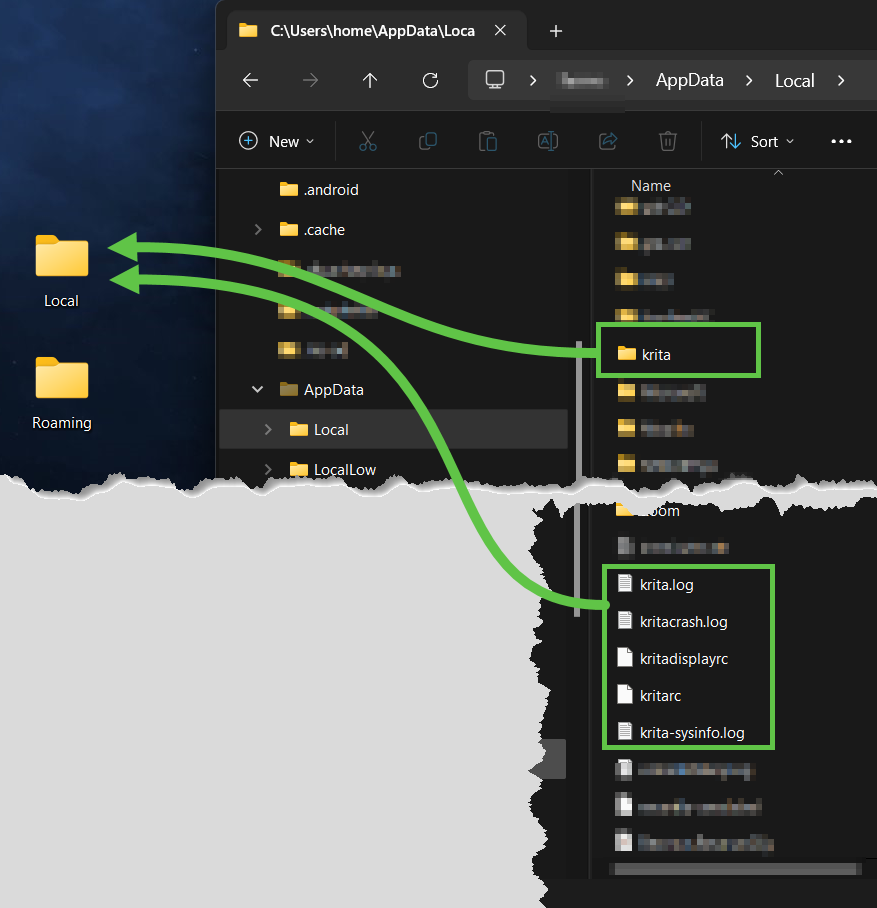
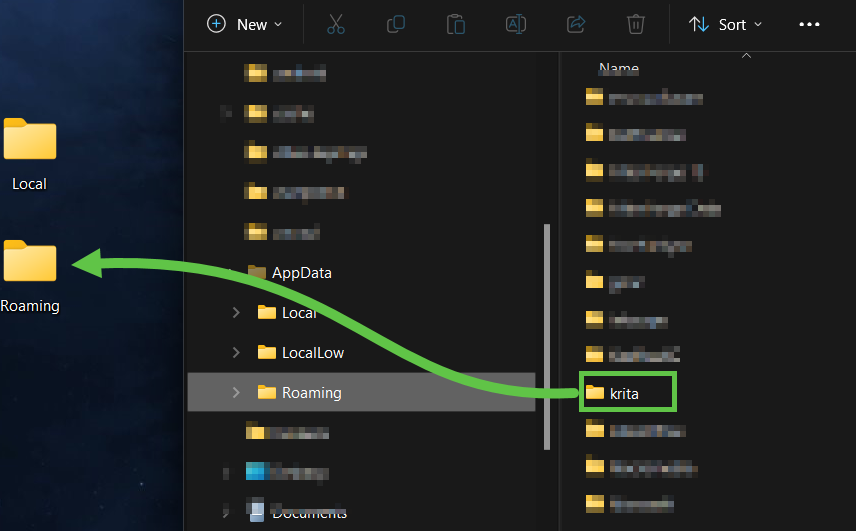
The krita files and folders are in
AppData\Local\
and
AppData\Roaming\
I do it this way:
I make two new folders on the desktop and name them like the folders in AppData. Then I move the krita files and folders from AppData\Local and AppData\Roaming to the new folders on the desktop.
Fourth:
Restart Krita. This wil take a bit longer than normal, because Krita is now creating new clean versions of those files and folders in AppData.
You now have a fresh Krita like it was when you installed it.
If you want to go back to your custom Krita:
Stop Krita → delete the new Krita files and folders in AppData and move or copy the ones from your desktop backup folders back into AppData.

