I have an ultrawide Monitor using 3440x1440 resolution and was wondering if there is anyway to increase the size of the icons in the docker and such as everything is always so small and it seems no program/game/etc ever offers UI resizing for different screens. Just curious if anyone out there knows of a way to do this, using Windows 10, MSI Optix MAG341CQ curved ultrawide 3440x1440.
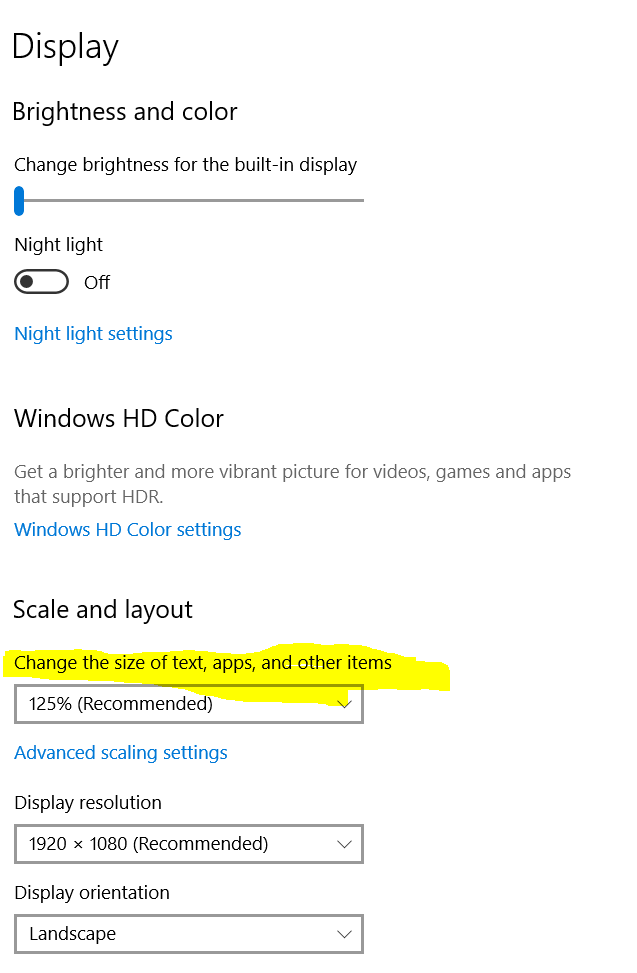
You have to select in Krita under ‘‘Settings’’ >> ‘‘Configure Krita’’ >> ‘‘General’’ in the tab ‘‘Window’’ the setting “Enable Hi-DPI support”.
Michelist
Oops I am so dumb I meant windows 10 DOH!! forgive my brain fart, don’t even wanna touch windows 11 miss my windows 7 LOL Yeah I will give that a try and see I just wish these programs would start adding UI resizing elements it seems you gotta do 10 things to change it and in the process mess everything else up…but ty for the advice i will check it out! Its to bad you couldn’t just chose program to do it with instead of everything in windows. * Looks like I already have done this, but thanxz!
Thank’s, I did do that in krita and changed the font which was great but the tools and such are still so small, Fonts great though, but to see tools etc, and figure out what they are. I’ll keep looking but ty for the advice!
Right-click on the tools themselves and see if they offer the opportunity to enlarge them (a trick that is possible with the UI-Redesign-Plugin I’m using, and sorry haven’t got Krita open at this moment and can’t check if this works without the plugin).
Michelist
OML Thank you soooooooo much you don’t even know!! I can actually see what tools they are now!!! Doesn’t work on the icons under the main menus and such but its a great start!! You are a god send! OK now to figure out some other things overall a fairly good program but with some quirks like with a canvas window in another window using up most of your tablet space when you drag it there LOL!! But again TY SO SO Much!!
It’s just speculation, but it sounds like you’re using a pen display (graphics-tablet with display), right?
Then you also have the possibility to display only the canvas on the pen display, and to place the Dockers floating freely on the laptop / PC display, because these are movable. This way you create more space for the canvas.
Another nice thing, I find the before mentioned Krita UI Redesign Plugin described here.
I like this plugin so much, because even in canvas only mode, which is accessible with the tab key, you have the tools you have just enlarged available and the Tool Options Docker as well, and can show and hide them at will, you no longer have to leave the canvas to access it. So, no longer back and forth!
If you also install the plugin Kanvas Buddy or alternatively the plugin Pie Menu, or both, then you get a very comfortable solution to almost not need the disturbing Dockers, so you can stay mostly in canvas only mode and use all the space your display offers!
These two plugins can be shown via shortcut on the canvas, and they provide you with different tools, these tools you can choose very freely with Pie Menu and with Kanvas Buddy you have a configurable selection that you can extend with little scripting or programming knowledge (I myself love Kanvas Buddy).
This is the GitHub project page of the Krita UI redesign plugin, I’m using the 0.5 alpha version direct download, if an alpha is too insecure you could use version 0.2 download with this instead.
Kanvas Buddy’s version patched by @Halcyoen for Krita 5.x can be downloaded from his GitHub project page, here is the direct download link, in this ZIP file you will find the file “kb-0-5-unofficial.zip” where the plugin is located, it’s handled a bit unfortunate  but works fine.
And this is the project page of Pie Menu, and this is the direct download link of the plugin, and here you don’t have to search for any file in the zip.
The easiest way to install plugins in Krita is to go to “Tools” >> “Scripts” >> “Import Python Plugin from File…”, then in the dialog that opens, specify the path to the plugin (the ZIP files you just downloaded) and confirm it, confirm the next dialog box as well, then restart Krita and then, depending on the plugin, set up the plugin to your liking.
But even if you don’t use a display graphics tablet, these three plugins are definitely worth a look, even with a “normal” graphics tablet or just the mouse together. For some users they should even be worth their weight in gold, I once read somewhere.
Michelist
Yeah I use a Graphic Tablet: Wacom Cintiq 13HD Creative & Interactive pen display, I have mostly used it for Photo Restoration work but as I am an artist as well have been trying to find free software that’s up to date to use it with and work with it these options sound great and will definitely have to try em out As I think I am understanding what your talking about. I mostly used Photoshop CS6 before but this new program Krita seems like a pretty kool program once you kind of figure it all out… hate to ask but how does one “display only the canvas on the pen display”? as this has me stumped, it’s probably something so simple but DOH! LOL cause right now I am dragging the canvas window over and then there a box around it and then another boxed window around that LOL.
If you start Krita on the pen display, then you can release each Docker from its anchorage with a click on its two-window icon, then “touch” it at the top edge like a Windows program window and freely arrange, enlarge, reduce it on the existing space of the entire desktop.
All you have to do is set up Windows so that it doesn’t display the same image on every connected display.
If you have not already done so, click on the desktop with the right mouse button and select “Display settings”. In the following dialogue, at least on Windows 10, you will find the option to manage multiple screens at the bottom, where you must select “Extend this display” so that you can use the space on additional displays.
Then, at the very top of the same dialogue page, it is advisable to arrange the screens in the same way as you have arranged them in reality, so in the case of a monitor to the right of the pen display, you can set it up so that when you leave the pen display, you “arrive” to the right on the monitor standing there, and you can now move your Docker there. So far everything understood? (The names of these dialogues may differ, I have to translate everything.)
Here I got two examples what you can achieve:
2 Displays UI-ReDesign-Plugin Dockers on second screen, KanvasBuddy off
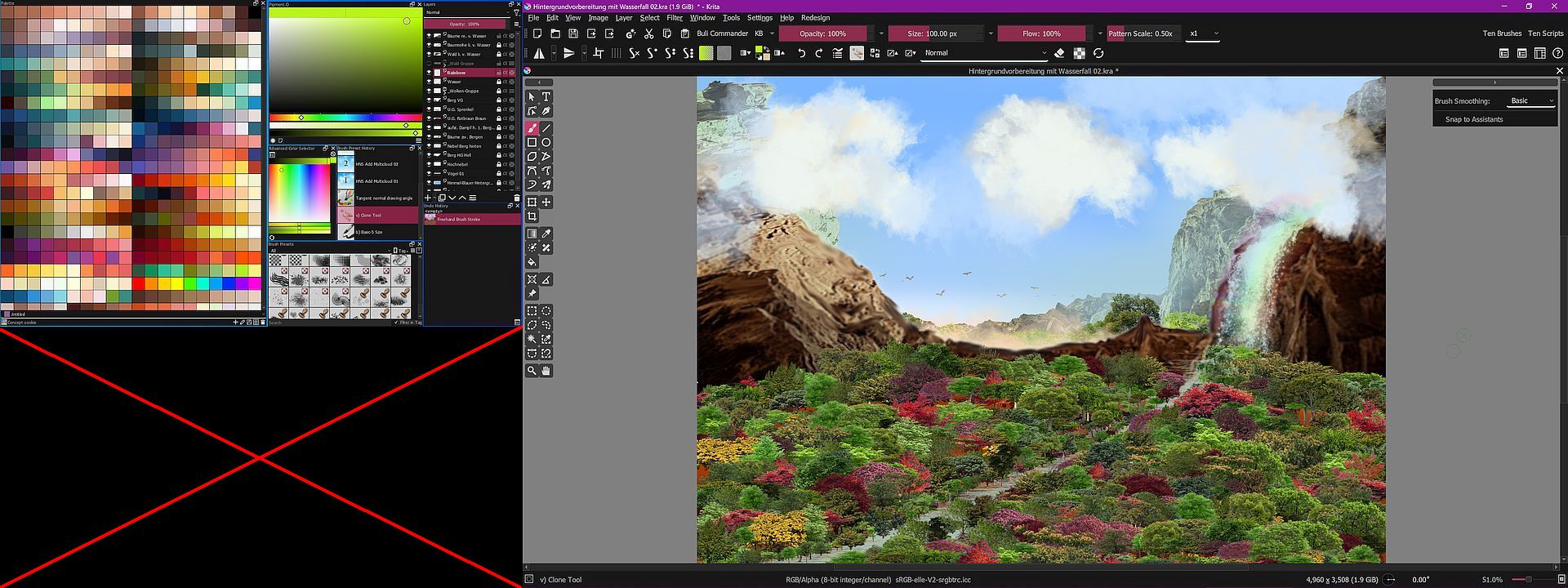
Krita in Canvas only with KanvasBuddy pimped to the max & UI-ReDesign on 1 Display

Since you come from PS, you have to expect that some concepts have been implemented differently at Krita, you occasionally have to reach your goal differently. So if you ever face such a hurdle, the best thing to do is to press F1 and consult the very well written and highly recommended manual, which will open in your browser. You are also welcome to ask questions here in the forum if you can’t find a solution with the manual.
Michelist
OK opening it on pen display and then separating it, should of figured that myself but like i said sometime things a little different lol But TY so much for your aid I will be grabbing those plugins and such today and trying it out really appreciate your help!!!