https://www.patreon.com/posts/75837486
I need help on how to reduce DPI on the Krita tool without making my art look terrible like this tutorial.
https://www.patreon.com/posts/75837486
I need help on how to reduce DPI on the Krita tool without making my art look terrible like this tutorial.
Well, at a certain level of reduction your image will start to look bad, there’s not much you can do about that. I haven’t tried it myself, but I’ve been told that resolutions below 70 DPI are enough to make them unattractive for large format printing. So you first have to reduce to a small size that is still viewable when viewed on a monitor, and that image should not exceed that 70 DPI limit.
I mainly use Lanczos3 as a filter for image size manipulation, but it might be worth trying other filters. If you use Windows, check out the software RIOT (Radical Image Optimization Tool), a tool specialized in image reduction, with preview of the result. I often work with it, even if the goal is different.
By the way, in your case, I would display some information beside your pictures stating the reason for the size and resolution you present them. I think this is understood by most people viewing them. And if one is really interested, the person can ask for a higher quality picture.
Michelist
That’s a great tutorial you shared. You can follow along and do all that in Krita. Just remember to first make a copy of your artwork and do all the operations on the copy.
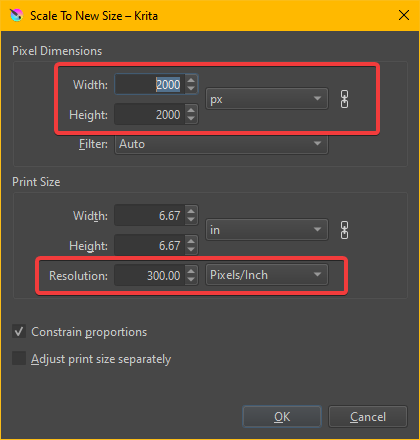
Click on Image > Scale to New Size
That’s where you can change the dimensions and resolution, as the author recommends.
I would like to comment on the following:
• The author did not need to have duplicated the image: the “Save for web” command already saves a copy of the image in another format, without harming the original file, in psd… 
• You need to consider the size of your artwork. Simply putting 60% quality might work for some artwork and not for others…
Yes
if you have a small image, probably need a higher quality level.
On my side I rarely use compression level under 85%, and usually I’m at 90-95%
You can see here the disaster of level compression level + low image size:
And detail on the same image with a better compression level:
Some people don’t care, other like me are very sensitive to this.
Also, I want to say again that DPI value doesn’t mean anything: you can have a high quality image at 72DPI and a very poor quality image at 600DPI; what’s important in digital artwork is pixel size and only pixels size. DPI or PPI are used only to convert a pixel size in physical size like Inches or Centimeters for printing or display management, but it don’t have ANY impact about quality of digital document.
That’s the first time I see Photoshop save for web UI; Plugin JPEG Export provide similar functionalities (less functionalities yes, but essential ones).
Grum999
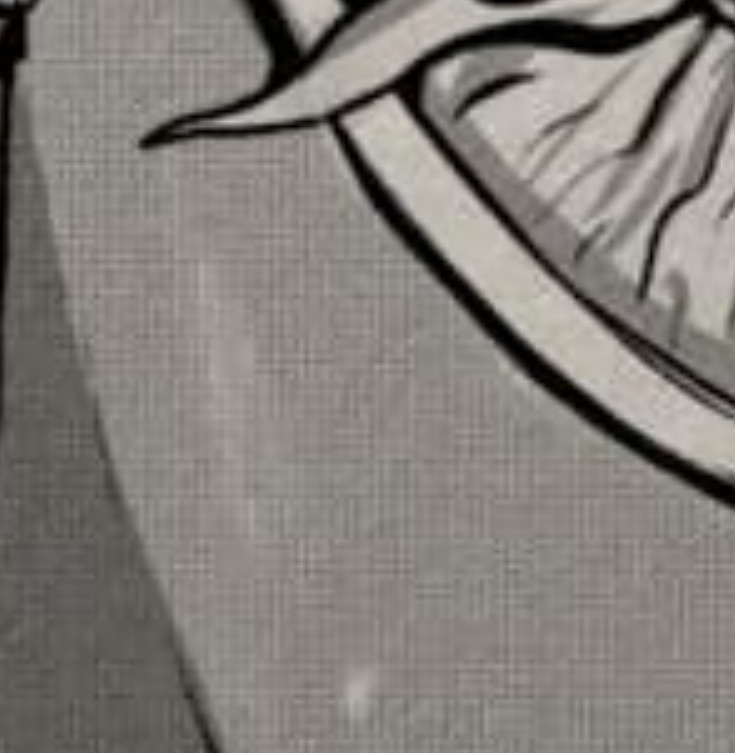
If the image has screentones, as in the examples you mentioned, you need to be more careful. The ideal is to produce the image already considering the final size that it will be published.
Making art the size of a newspaper page to publish on the web will only make it heavy and will inevitably lose quality when it is resized.
Another common mistake is using outlines that are too thin, 1 pixel thick: the outline will be jagged.
In the link you’ve posted, the artist is using Adobe Photoshop. The Save for Web equivalent in Krita is Export Advanced.
Here’s how to do the essentially the same thing with Krita:
File → Export advanced
A popup window will appear so you can choose the file name and type.
Once you’ve decided, the popup window will be replaced with a new one. You can change the quality in the Basic tab under the Options tab and you can change the DPI in the Resize tab.
Once you’ve set the parameters you want, click OK.
This topic was automatically closed 30 days after the last reply. New replies are no longer allowed.