I have an animation but i want it to fit in an specific screen size. is it posible to move the screen itself without trying to fit the screen perfectly into the animation?
It’s not clear what you mean, exactly and in detail, so can you post some screenshots of your canvas and indicate, by sketched annotations, what you want to do?
Using the Crop Tool, you can crop an entire animation down to a smaller canvas size.
Using Image → Scale Image to New Size, you can enlarge the entire animation and then use the Crop Tool to isolate part of it.
Using a Transform Mask on an animated layer, you can move/offset the contents of every frame and can apply the Transform Mask to a group if you have more than one animated layer.
Hi,
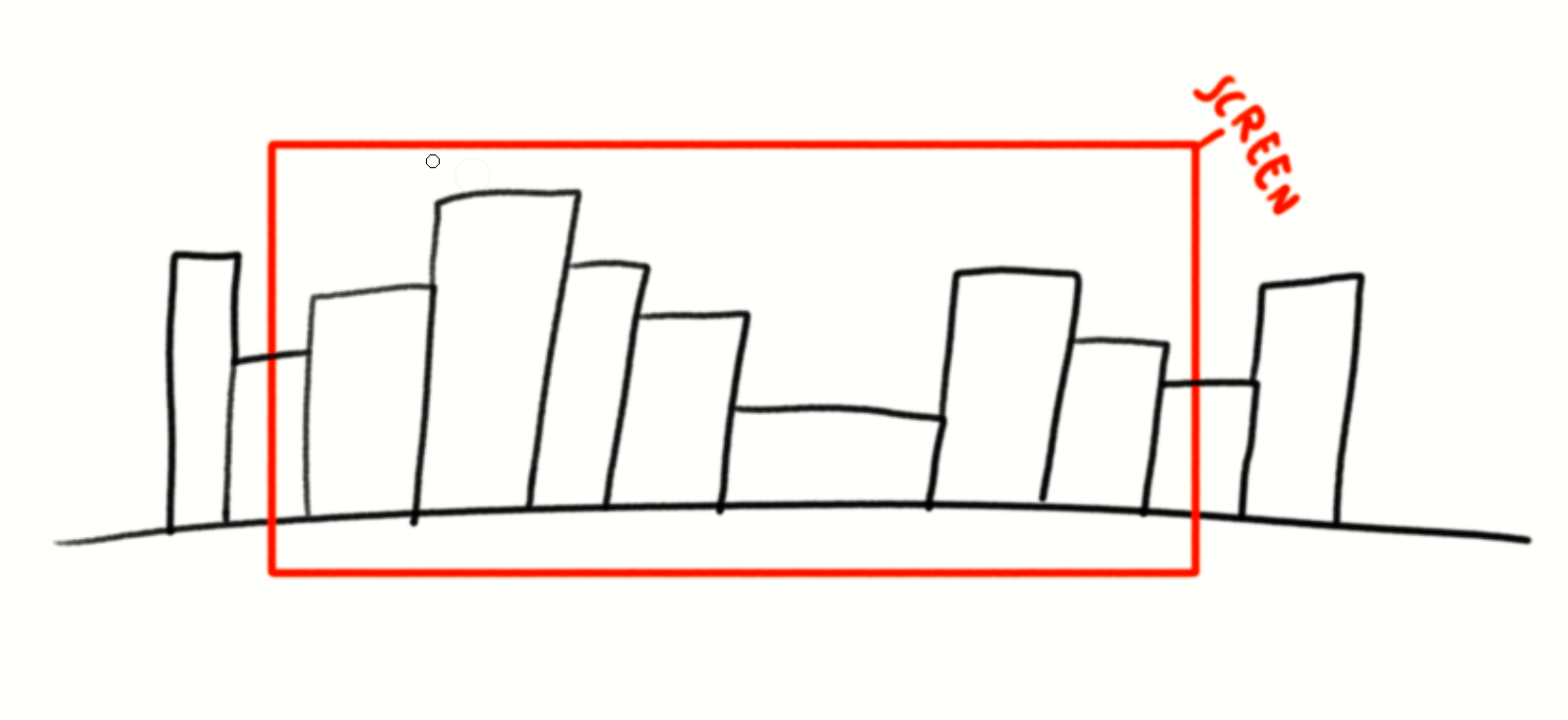
It’s hard to explain, sorry. I made a quick sketch of a city (or something similar) to show what I mean.
I want my animation to start at the red area and then slowly zoom out until it reaches the point where the screenshot was taken.
Is it possible to just move the camera/screen, or do I have to scale my drawing?
Thank you for your time!
The idea of having a camera frame with position and FoV adjustment has been asked for before, such as here: 2D Camera movement
It’s probably on the ‘To Think About List’ of the very small number of developers who can find time and effort to work on animation facilities.
It is possible to simulate camera movement and FoV by using an animated transform mask with X/Y Position and X/Y Scale variation (where X=Y, there is no overall Zoom value control).
It’s a long time since I tried this so thank you for the re-learning experience.
To cut a long story short, here is a result:
You may notice that I combined a Small Pan with the Zoom (X/Y Scale from 1.0 to 0.5).
You could do a more complicated Pan with the ‘camera’ seeming to search for something but that’s for you to experiment with.
A long story:
Start with a canvas of the size that you want the final animation to be. I used 1000 x 750.
Then I made a thin vector rectangle that marked the canvas edges then did
Image -> Resize Canvas and resized by a factor of 2.
You could use a factor of 3 or 4 if you’ll need to accomodate large values of Zoom or if you want extensive Panning.
Then I painted all the elements of the animation that would be or become visible on the resulting 2000 x 1500 canvas:
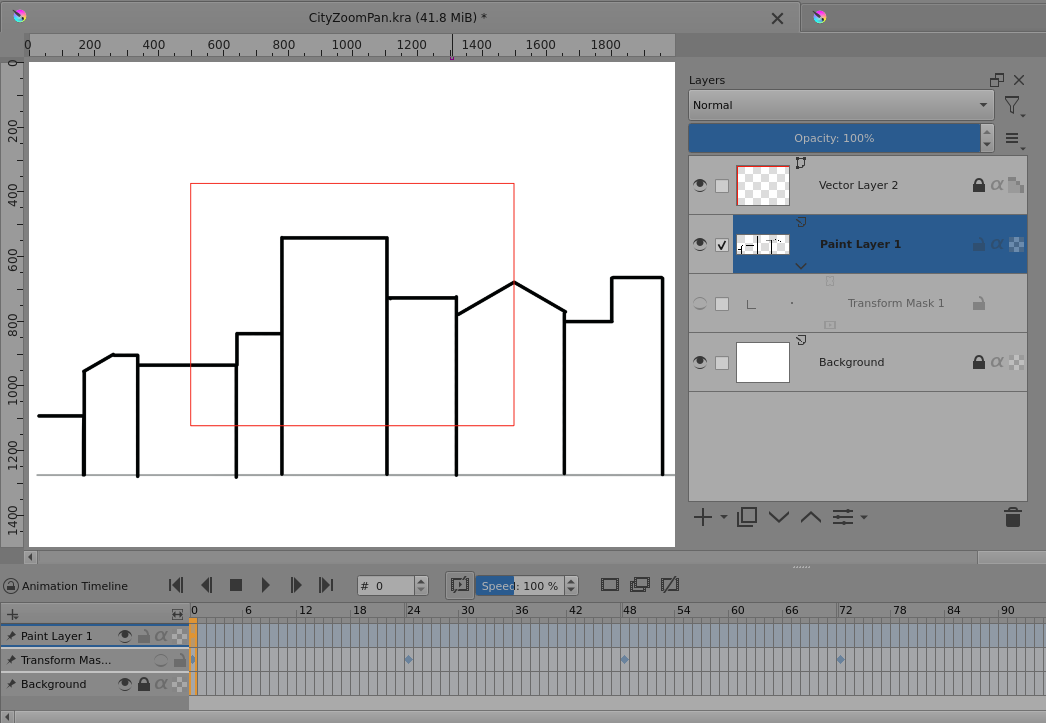
Then added an animated transform mask with an initial X/Y scale of 1.0 and a positional offset:
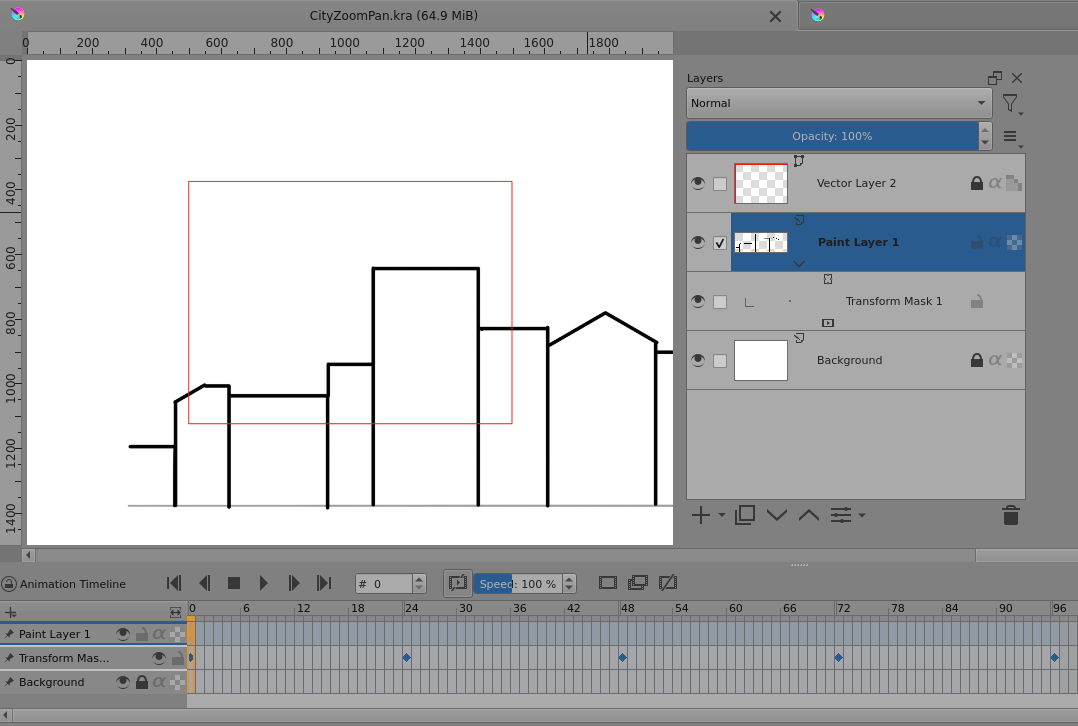
Then added keyframes at frame 96 for central position and X/Y Scale=0.5, adjusted by hand using the Transform Tool:
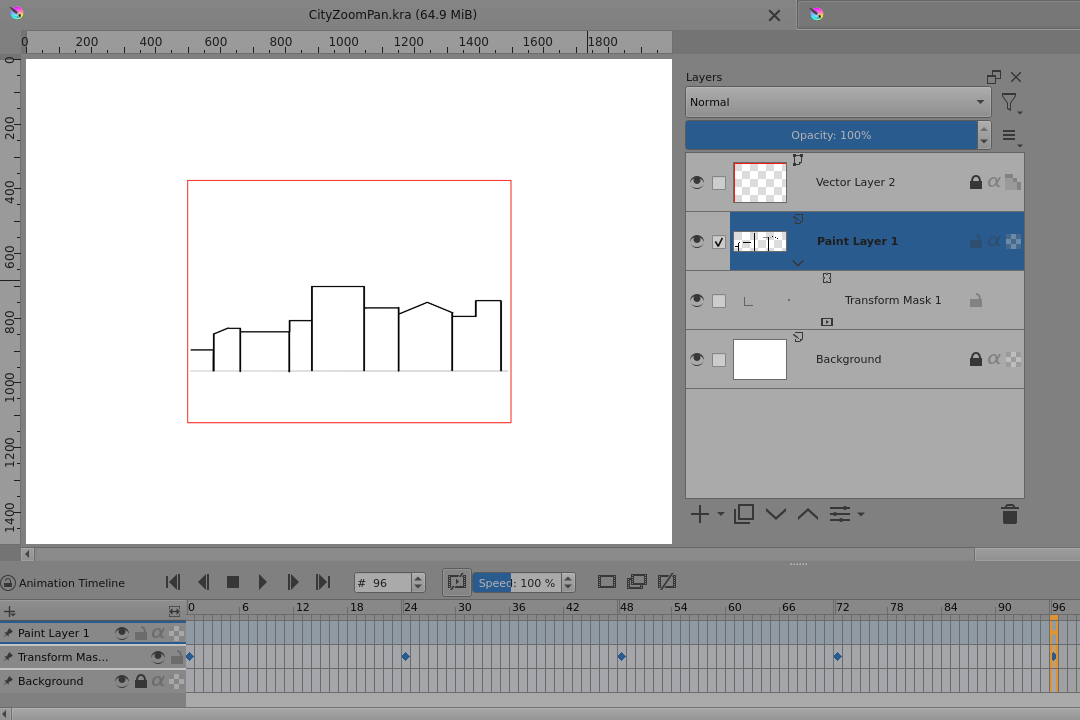
Ignore the keyframes between 0 and 96. That was me trying to be clever and failing to do so.
The end result is an animation of a 2000 x 1500 size.
You must not try to crop the .kra file. That would ruin the transform mask parameters.
Render out the animation, with the red guide on, as a .png file sequence then create a new .kra file 2000 x 1500 and do
File → Import animation frames to get this:
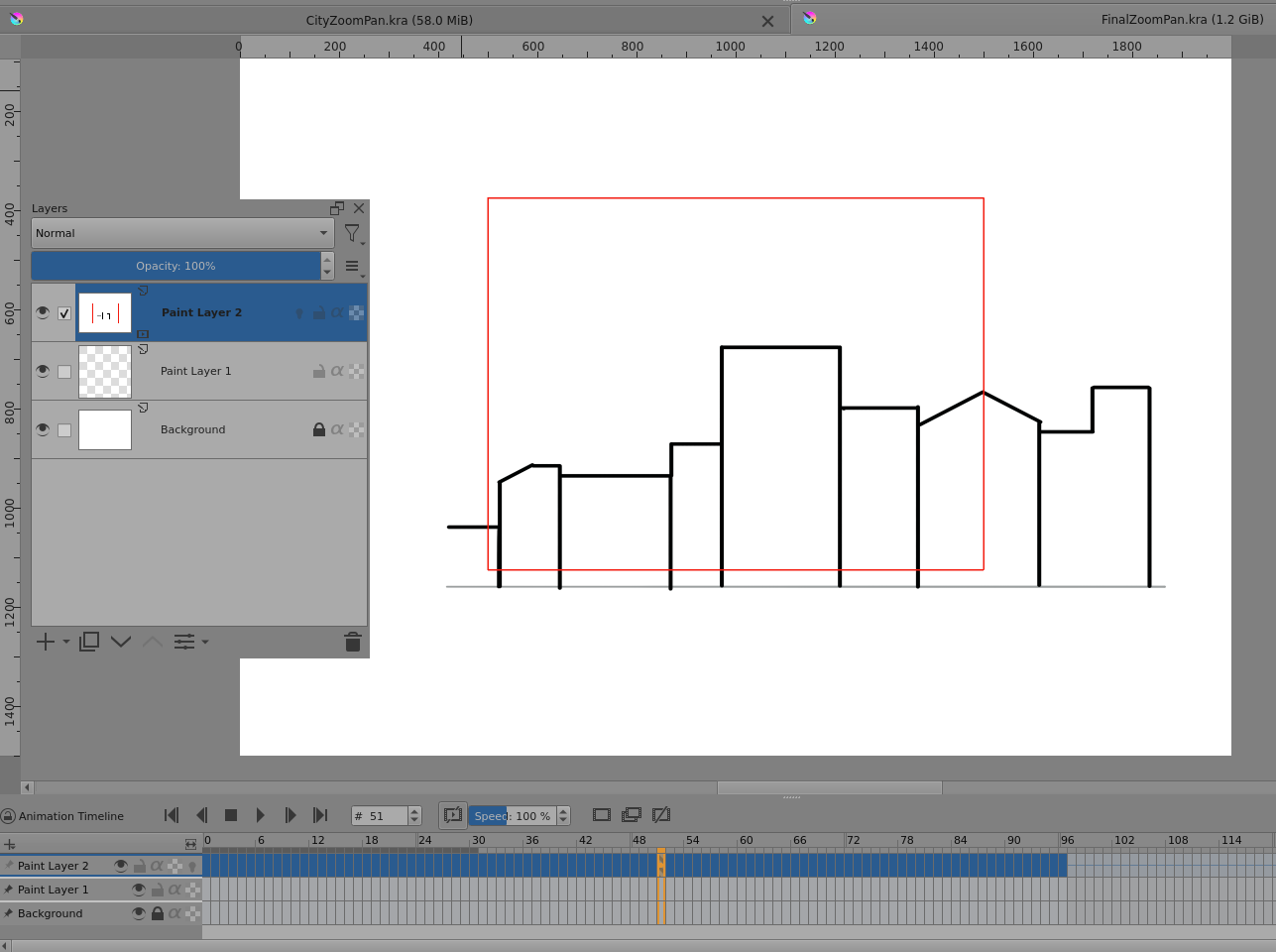
If I’d thought ahead properly, I’d have rendered out with the background layer invisible and used the static background in the new .kra file to reduce RAM use.
Also, I’d have rendered out with the red guide turned off and layer-copied the red guide to the new .kra file so that I could turn it off for the final animation result.
Then I used the Crop Tool to crop the canvas to the red guide lines.
I could have used Image -> Resize Canvas to 50% (no offset adjustment) to get the same effect because I made sure to keep everything central.
Then the final File -> Render Animation was done to an .mp4 file, as shown earlier.
It’s fiddly but it’s possible. Here is a .zipped collection for you to examine:
I hope you can use this method, without too much confusion, to get a result you like.
I am using krita now for 3 months. So i still don’t know much about it and there are some things i don’t understand yet but i’ll try figure it all out. Thank you for the method and il try using it when i know how everything works. also thank you for youre time again and the help.