Hi there, I seem to have messed up somewhere along the way. For context: I downloaded a patterns pack from the resources section, specifically, this one: My patterns . I did see they were discontinued, but didn’t really know what that meant, and figured it would be fine since I didn’t need to have especially high resolution and it was just internet only like the op warned. Oop!
I followed the instructions and extracted the pattern pack, and then dragged the folder to C:\Users\Millie\AppData\Roaming\krita\patterns. I restarted krita, used a pattern from the resources in my digital painting, and kept chugging along.
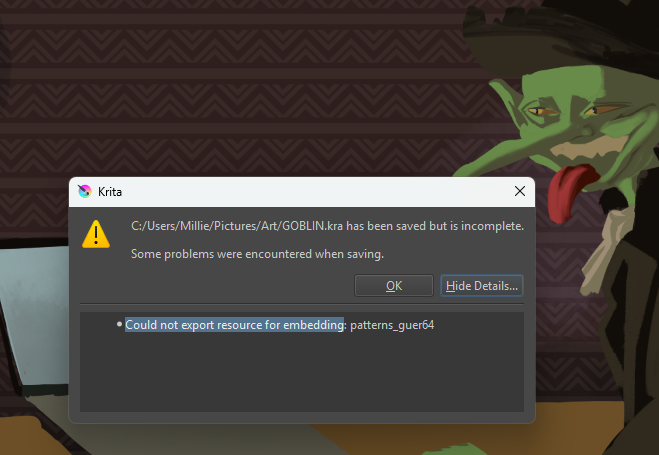
At some point during an autosave, this dialogue box appeared. I’ve tried manually saving as well and get the same error. I am using Windows 11. Is there any way I can save this?
I think that you’ve used a Fill layer to make the pattern.
Please correct me if I’m wrong here.
If you use a Fill layer with a pattern then the pattern file is stored in the saved .kra file as an embedded resource.
It seems that having the pattern files inside their own folder, within the -\krita\patterns folder makes them inaccessible to the file saving process. Notice that the error message refers to the folder name that you downloaded, not the actual pattern file that you used.
This seems like a bug and should be reported at https://bugs.kde.org/enter_bug.cgi?product=krita
The way around the problem is as follows:
Quit krita then go to the -\krita\patterns folder and open the patterns_guerr64 subfolder then select all the patterns in the folder. Then do right-click → Cut
Go up a level to the patterns folder and do right-click → Paste so that all the patterns files are then in the patterns folder but not in their own sub-folder. Then delete the now empty patterns_guerr64 subfolder.
Start krita and try again then that should work.
Hello! I created these patterns several years ago. I marked them as “discontinued” because some were outdated and others were no longer in use. Even so, many people downloaded the patterns, so I chose to keep the folder available on Mediafire instead of deleting it. I added this warning so people would be aware of the limitations of those patterns and that I didn’t intend to update that resource package.
I don’t know why this problem occurred. Could it be because you put the entire extracted folder into the Krita patterns folder? The correct way is to take only the pattern files, not the folder, and move them to the program’s patterns folder. I’ve always done it that way.
And if, for some reason, I want to separate certain patterns so they don’t get mixed up with the others within the Krita patterns folder, I just need to create a subfolder there and drag the files into it.
I intended to include some screenshots in the answer to make my explanation clearer, but I couldn’t…
Thank you! I reported the bug and your solution worked like a charm.
Thank you for your patterns and reply! You were right, the error was caused because I put the entire extracted folder in the patterns folder. I filed a report as per the other commenter’s suggestion and removing the sub-folder and copy/pasting the patterns themselves into \krita\patterns worked well.
Congratulations on finding a bug and thank you for reporting it 
Please post a link to the bug report here. A bug report needs to be Confirmed by another person before the developers will deal with it.
Thank you for making that bug report. I’ve Confirmed it and given more information in a comment.
Essentially, it doesn’t affect you because the file is saved with no embedded pattern resource but you do have the pattern and so the Fill layer will be correctly presented.
The Fill layer makes a reference to the pattern file.
The problem is if you send the .kra file to someone else who doesn’t have the pattern in their own resources so they will not see the Fill layer correctly presented and they will not see any warning message. Also the case if you have another computer to use which does not have that pattern.
Note: Manually putting pattern files/subfolders into the resources folder is the old-fashioned way of doing things and the modern resource management facilities should be used:
i.e. Settings → Manage Resources → Import Resources for individual or bulk resource files.
and Settings → Manage Resource Libraries → Import for .bundle files.